

Set product options Shopify like a pro. Avoid common mistakes, improve variant displays, and increase sales fast.
A product page that makes shoppers stop and think is already leaking sales. According to Unbounce's Conversion Benchmark Report, the median landing-page conversion rate is 6.6%, so even small bits of friction can matter before a customer ever gets to checkout.
That is exactly why setting product options in Shopify in 2026 is not just a setup task; it is a conversion decision. When your store outgrows simple variants, the real challenge is not adding choices, but keeping them clear, usable, and easy to buy.
This guide shows how product options work, where Shopify’s native limits begin, and when a better solution is the smarter path.
Key Takeaways
- Native limits: Shopify's variant system caps out at 3 options per product and 2,048 variants total. Every option must tie to a variant, so non-variant inputs like gift messages or engraving text aren't supported.
- Setup process: Adding product options is a quick, no-code process. It takes 6 steps, from creating the product to assigning price, inventory, and images per variant. Skipping the per-variant image step is the most common mistake.
- Functionality vs. conversion: These are two different problems. An option can save correctly and generate the right variant, yet still hurt sales through generic swatches, mismatched images, identical titles, or one-size-fits-all descriptions.
- Conversion impact: Friction adds up fast on product pages. The median landing-page conversion rate is just 6.6%, so small presentation gaps, like a swatch that doesn't show real color or an image that doesn't update, can push hesitant shoppers away.
- The real fix: Options that work but look bad don't need more options. They need better display. Tools like Swatch King, Variant Image Automator, Variant Title King, and Variant Descriptions King solve this directly, and are trusted by 25,000+ merchants including 1,000+ Shopify Plus stores at a 4.9-star rating.
What Are Product Options on Shopify?
Product options on Shopify are the attributes customers use to customize a product before purchasing it. Common examples include Size, Color, Material, Style, or Finish. Each option contains a set of values, and Shopify combines those values to create product variants.
For example, a T-shirt with the options Size (Small, Medium, Large) and Color (Black, White) generates multiple variants such as Small/Black and Large/White.
Think of product options as the questions you ask shoppers, while variants are the specific answers they choose. Without options, customers would have to browse separate product listings just to find the version they want.
Shopify currently allows up to three product options per product, such as Size, Color, and Material, and supports up to 2,048 variants generated from those option combinations.
For merchants, product options do more than organize products; they help simplify catalog management, improve the shopping experience, and make it easier for customers to find the exact variation they want without leaving the product page.
The good news? Setting up product options in Shopify takes just a few minutes and requires no coding.
How to Set Product Options in Shopify Admin (Step-by-Step)
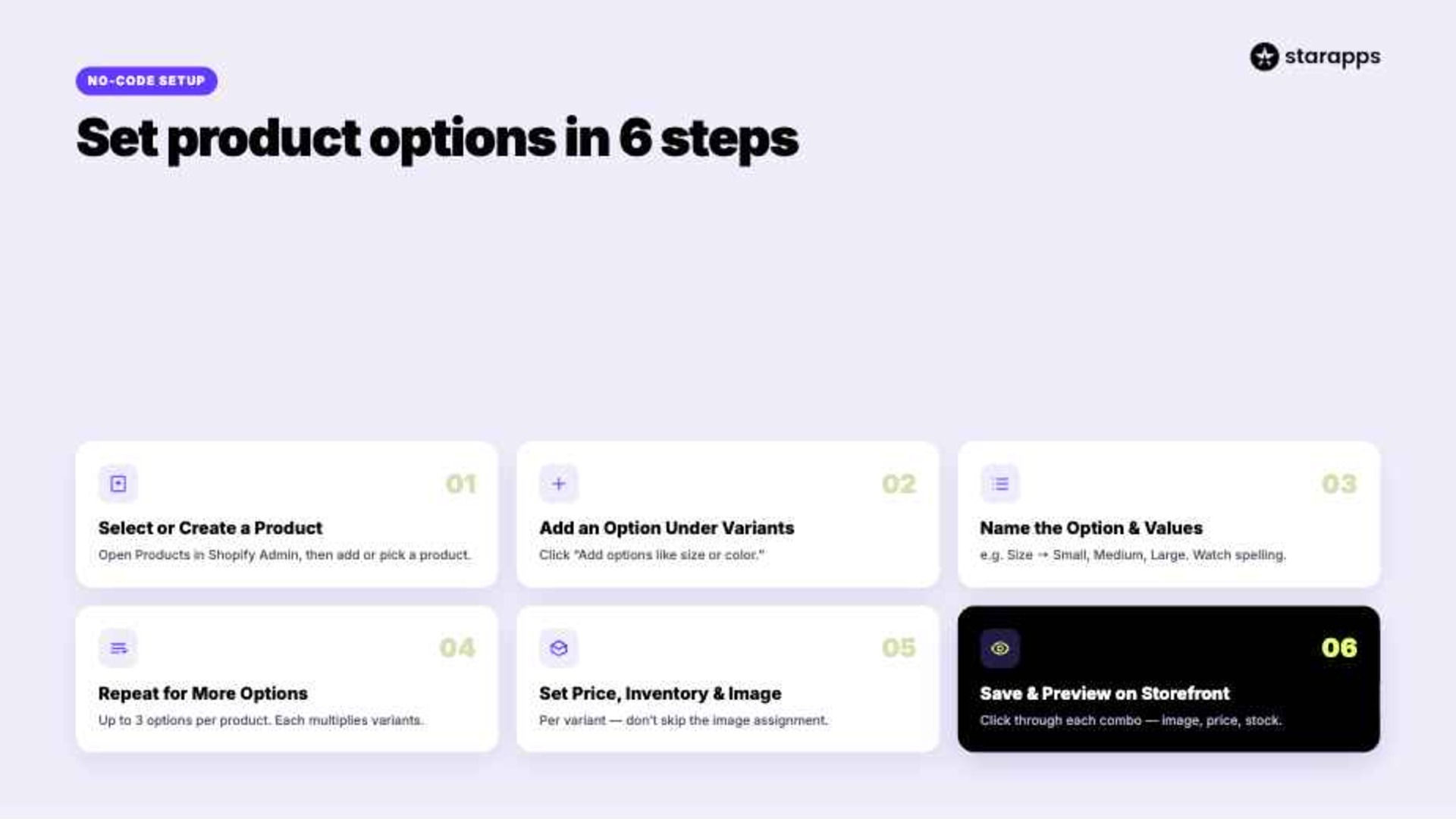
Setting up product options in Shopify takes just six steps, from creating your product to publishing fully configured variants with their own pricing, inventory, and images. Here's how the process works from start to finish.
Step 1: Go to Products → Select or Create a Product
From your Shopify admin, click Products in the left sidebar. Choose an existing product you want to add options to, or click Add product to start fresh. If you're working with a new product, fill in the title, description, and media first. Options are easier to set up once the base product exists.
Step 2: Add an Option Under Variants ("Add Options Like Size or Color")
Scroll down to the Variants section of the product page. Click the line that says "Add options like size or color." This opens the option-builder where Shopify lets you define what choices customers will see before they add to cart.
Step 3: Name the Option and Enter Values
Give the option a clear name: Size, Color, or Material are the most common. Under Option values, enter each choice separately (for example: Small, Medium, Large for Size, or Red, Blue, Green for Color).
Shopify automatically generates a variant for every possible combination of values across your options, so double-check spelling and naming consistency here — it's harder to clean up later once variants exist.
Step 4: Repeat for Additional Options (Up to 3)
If your product needs more than one dimension of choice, click Add another option and repeat the process. If your product needs more than one dimension of choice, click Add another option and repeat the process. Each additional option increases the number of variant combinations Shopify creates automatically. Each new option multiplies your variant count, so a product with 3 sizes and 4 colors will generate 12 variants automatically.
Step 5: Set Price, Inventory, and Image Per Variant
Once your options are saved, Shopify lists every variant combination individually below. Click into each variant to set its specific price, inventory quantity, SKU, and image. This step matters more than it looks. Skipping image assignment per variant means customers may see the wrong photo at exactly the moment they're deciding to buy.
Also Read: Alt Text vs Image Description: When and How to Use Each
Step 6: Save and Preview on Storefront
Click Save once everything is filled in. Then open your storefront and view the live product page. Click through each option combination to confirm the right price, image, and availability show up correctly before you consider the setup finished. Catching a mismatched image or missing price here is far easier than fixing it after a customer complaint.
Also Read: How To Add a Category On Shopify? Step-By-Step Setup Guide
Now, the real challenge begins when your products need more options, more flexibility, or a better way to present those choices to customers.
Shopify's Native Option Limits (and Why They Matter)
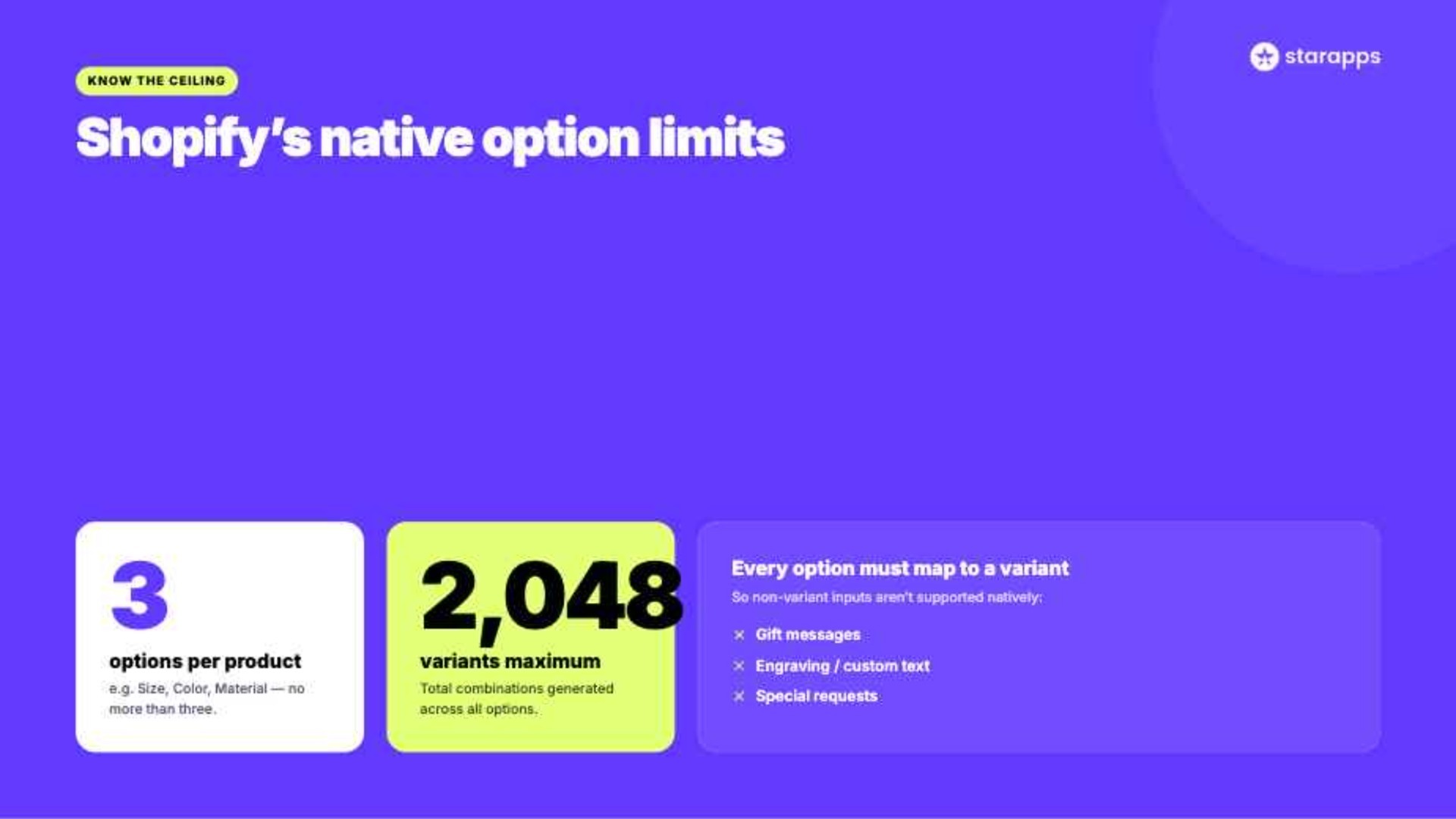
Shopify has significantly expanded its variant capabilities, but native product options still come with a few boundaries that every merchant should understand before scaling their catalog. Knowing these limits early can save you from restructuring products later.
Key Native Shopify Option Limits:
- Product customization is limited by Shopify's native variant structure. Once products become highly configurable, merchants may need alternative approaches to handle additional choices or non-variant inputs.
- Every option must be tied to a variant, making it difficult to collect non-variant information such as gift messages, engraving text, or special requests.
- Options are typically displayed as basic dropdowns, buttons, or swatches depending on the theme, limiting how visually engaging product customization can be.
Why These Limits Matter
The challenge isn't always the number of variants. More often, it's the inability to capture every choice a customer needs to make within Shopify's three-option structure.
For example:
- A furniture store may need Size, Fabric, Leg Finish, Cushion Type, and Assembly Option.
- A gifting business may need Packaging, Gift Message, Ribbon Color, and Delivery Preferences.
- A print-on-demand seller may want Design Placement, Print Type, Custom Text, and Material Choices.
A bigger question soon emerges: even if Shopify can technically support your product options, are those options helping customers make a purchase or making the experience harder than it needs to be?
The Other Half of the Problem: Options That Work, But Look Bad
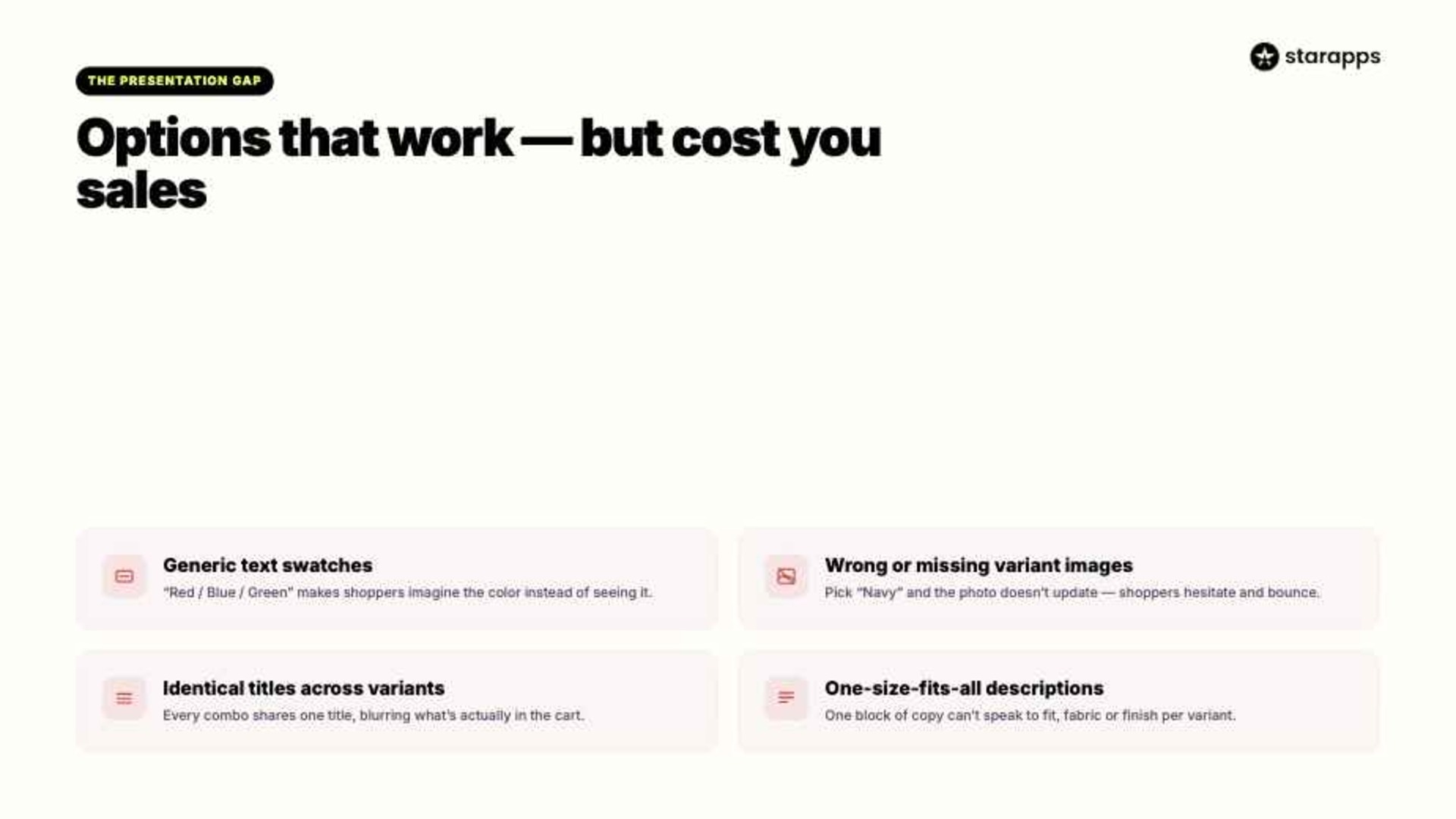
Most of the advice on setting up Shopify product options stops at functionality: can the customer select a size, does the right variant get created, and does the price update? But getting options to work is only half the job. The other half is making sure they actually convert once they're live.
Here's where a lot of otherwise well-built stores quietly lose sales:
- Generic swatches. Plain text dropdowns ("Red," "Blue," "Green") force customers to imagine the color instead of seeing it. On a store with a dozen color options, that's friction at the exact moment someone is deciding to buy.
- Wrong or missing variant images. If a customer selects "Navy" and the product photo doesn't update, they're left wondering whether the site is broken or whether they're even looking at the right item. Either reaction increases bounce.
- Identical titles across every variant. When every size and color combination shares the same generic title, customers lose a clear sense of exactly what they're about to add to cart, especially during cart review or checkout.
- One-size-fits-all descriptions. A single block of copy that applies to every variant equally means it can't speak to anything variant-specific; fit notes for a particular size, care instructions for a particular fabric, or why one finish costs more than another.
Brands that sell successfully online understand that presentation matters as much as functionality. For example, on Allbirds product pages, customers can select colors using visual swatches and immediately see variant-specific product images update on the page.
Instead of asking shoppers to imagine what a color looks like from a text label, the product page makes each option visually clear, reducing friction during the buying decision.
None of this is a Shopify limitation. It's a presentation gap, and it's exactly what StarApps Studio's apps are built to fix.
Also Read: Dynamic Product Descriptions Using AI Personas
How StarApps Studio Helps You Get More Out of Native Shopify Options
If your store already has Size, Color, or Material set up correctly through Shopify's native system, the next step isn't adding more options. It's making the options you already have actually convert. That's the specific gap StarApps Studio's suite of apps is built to close, and it's a different problem from the one most "how to add product options" guides solve.
StarApps Studio is used by 25,000+ active merchants, including 1,000+ Shopify Plus stores, and holds a 4.9-star average rating across its app suite.
Here's how StarApps Studio helps merchants get more out of Shopify's native product options:
- Swatch King replaces plain text dropdowns with visual, customizable swatches. Customers see the actual color, pattern, or style instead of reading a label and guessing. Swatches can be styled to match your brand, and they update dynamically as new variants are added, so there's no manual upkeep as your catalog grows.
- Variant Image Automator solves the mismatched-image problem directly. The moment a customer selects a variant, the correct image displays automatically. There's no need to manually tag every image to every SKU one by one. This keeps the product page accurate and removes the moment of doubt that comes from clicking "Navy" and seeing a photo that doesn't look navy at all.
- Variant Title King updates the product title to reflect the exact variant selected. Instead of a generic title sitting above every size and color combination, customers see precisely what they're about to add to cart, right through to checkout.
- Variant Descriptions King lets each variant carry its own description instead of one block of copy stretched across every option. Fit notes, material details, or care instructions can speak to the specific variant a customer is actually looking at, rather than applying generically to all of them.
Also Read: Best Shopify Apps for Product Variants 2026
Conclusion
For some stores, Shopify's native options are enough. For others, growing catalogs, more complex products, and higher customer expectations reveal gaps that basic variants alone can't solve. The goal isn't always to add more options; it's to present the right options in the clearest possible way.
Whether you're managing a handful of products or thousands of variants, the best solution is the one that keeps product choices intuitive for customers and manageable for your team. For merchants looking to improve the experience without rebuilding their catalog from scratch, StarApps Studio offers a practical place to start exploring what's possible.
If you're ready to turn better product options into better buying experiences, get in touch, and we'll help you find the right setup for your store.
FAQs
1. How many product options can I add to a single Shopify product?
Shopify allows a maximum of 3 product options per product, such as Size, Color, and Material, generating up to 2,048 variants from those combinations.
2. What happens if I need more than 3 options or more than 2,048 variants?
You'll need a third-party custom-options app or theme-level code customization, since Shopify's native variant system can't be extended past these limits on its own.
3. Why does my product page show the wrong image when a customer selects a variant?
This usually happens when images haven't been assigned per variant during setup. An app like Variant Image Automator fixes this by automatically displaying the correct image the moment a variant is selected.
4. Do I need an app if my product options are already working correctly?
Not necessarily for functionality, but if your swatches, images, titles, or descriptions look generic or identical across variants, a display-enhancement app can improve conversion without changing your underlying option setup.
5. Are Swatch King, Variant Image Automator, and similar tools a replacement for Shopify's native variants?
No. These apps work on top of Shopify's existing variant system to improve how options look and function on the storefront. They don't replace native variants or raise the 3-option or 2,048-variant limits.
Heading

End-to-end traceability
To ensure regulatory compliance, you must have a complete overview of your products from production to shipping. Book a demo to see how Katana can give you full visibility of your operations.
.png)

.svg)

.svg)

.svg)
.png)