
How To Create a Custom Shopify Product Page Template To Optimize Layouts?

Learn how to create custom Shopify product templates to boost sales, enhance UX, and streamline store management. Click to get hidden optimization tips!
Your product page isn’t just another screen; it’s where 97 out of 100 visitors decide whether to buy or bounce.
Shopify product pages convert an average of just 1.4–2%, and stores that push beyond 4.7% are among the top performers.
This makes creating custom Shopify product page templates essential for improving layout clarity, reducing friction, and boosting conversions. In this guide, you’ll learn how to build custom product templates step-by-step.
Key Takeaways
- Custom product templates reduce cognitive load, highlight variants, and boost conversions.
- Audit your catalog and organize assets before creating templates for better scalability.
- Display variant-specific images, swatches, and descriptions while ensuring mobile responsiveness.
- Maintain consistent layouts, prioritize key content, and test templates regularly for optimal performance.
- Use StarApps Studio tools to automate variant management, streamline images, and simplify template assignment.
What Are Shopify Product Templates?
Shopify product templates define how a product page is structured and displayed, not the product data itself. Think of them as reusable layout blueprints that control where and how elements appear on a product page.
A product template decides:
- Which sections appear (images, descriptions, reviews, FAQs)
- The order and layout of those sections
- Whether sections are static or dynamically editable
- How much flexibility do you have per product type
It does not control:
- Product titles, prices, or inventory
- Variant data itself
- SEO fields (those are product-level)
Shopify uses two different file formats for templates: JSON templates and liquid templates. The template system evolved significantly with the launch of Online Store 2.0 in 2021. Whether you're working with modern JSON templates or older Liquid files determines everything from how easily you can customize layouts to how fast your pages load, and so understanding the difference is crucial:
Now that you know what Shopify product templates control, let’s understand why you should not settle for one layout.
Why Custom Product Templates Drive Better UX and Higher Conversions?

Customizing product templates isn’t about esthetics. It’s about removing friction from the buying journey by aligning the page layout with how customers evaluate products.
A single default template forces all products into the same structure, even when their buying logic is completely different.
Using one product layout across your store often leads to:
- Important details are getting buried below the fold
- Overloaded pages for simple products
- Missing context for complex or high-consideration items
- Lower engagement and slower decision-making
This directly impacts conversion rates and bounce rates. Here’s what custom product templates actually improve:
1. Product-Specific Layout Clarity
Custom templates let you surface what matters most for that product type:
- Apparel → size guides, fit visuals, swatches above the fold
- Electronics → specifications, comparisons, warranties
- Bundles → included items, value breakdowns
Customers find answers faster, which reduces hesitation.
2. Variant-Heavy Products Become Easier to Shop
For products with many colors, sizes, or styles, layout clarity is critical. Custom product templates support variant-first layouts that surface the right images and options as soon as a selection is made. Showing only relevant, variant-specific images and clearly separating options helps shoppers compare faster and choose with confidence, especially in fashion, beauty, and electronics, where visual accuracy directly affects conversions and returns.
3. Higher Conversions Through Reduced Cognitive Load
When a product page matches how customers evaluate a product, friction drops. Custom templates surface pricing, variants, and key benefits exactly when shoppers need them, reducing unnecessary scrolling. Clear, scannable layouts shorten decision time and lead to faster “Add to Cart” actions.
In short, custom product templates let your layout work as hard as your products do, and that’s where meaningful conversion gains start.
Understanding templates is step one, but before you start building, let's make sure you have everything in place to avoid costly mistakes.
Prerequisites for Creating Custom Product Templates in Shopify
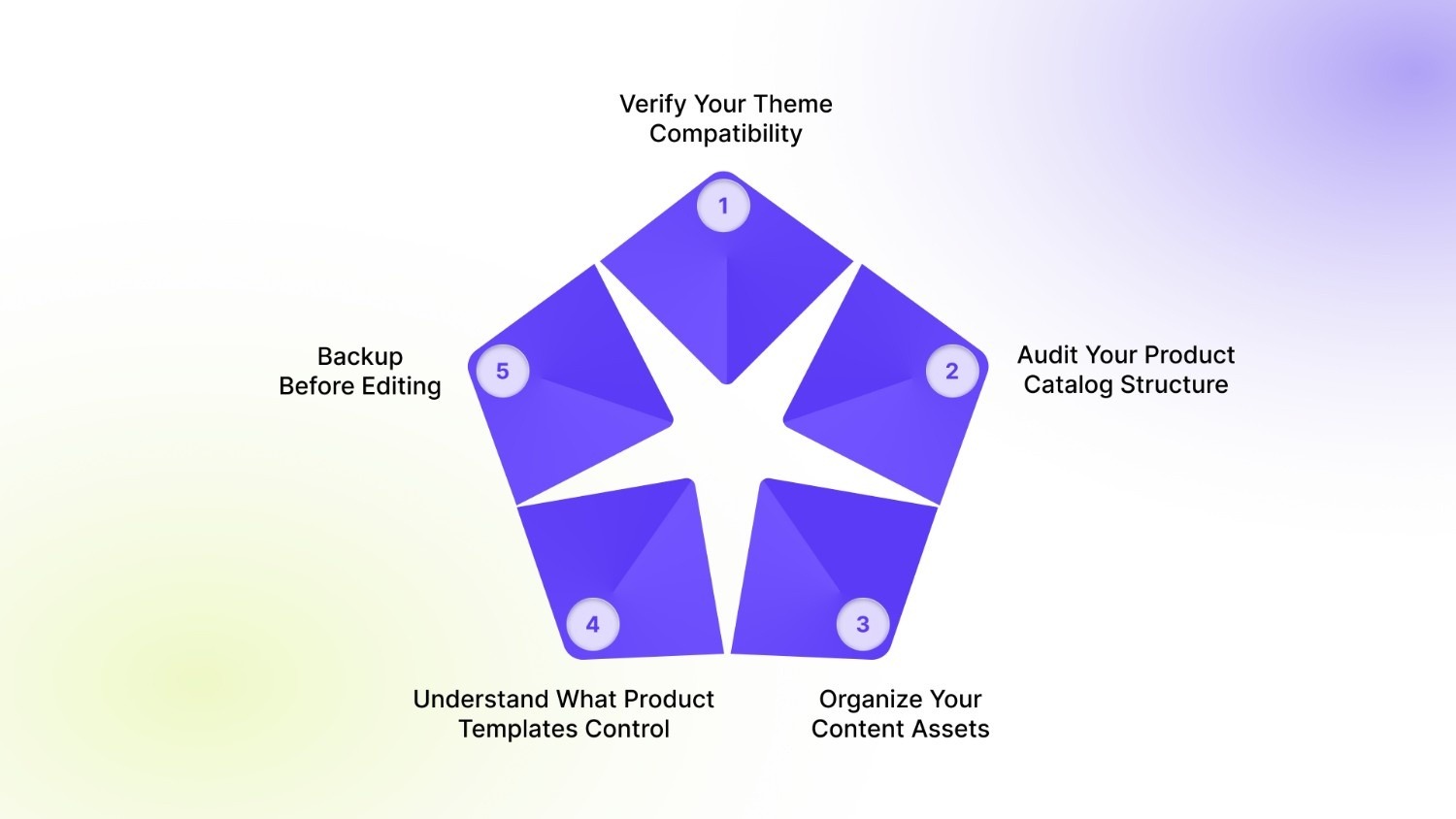
Here's what separates successful template projects from frustrating ones: proper preparation. Define your catalog's objective, whether it's for retail, wholesale, or both. Identify your target audience and consider what layout, design elements, and product organization will resonate most with them.
Let's break down exactly what you need to have ready.
1. Verify Your Theme Compatibility
Not all Shopify themes support custom templates the same way. Here's how to check: go to Online Store → Themes and click Customize on your live theme. From the page selector, choose Products → Default product and check the section list in the sidebar.
If you see an “Add section” button below the sections, your theme supports flexible, section-based product templates, meaning you can create custom layouts safely and without affecting other pages.
2. Audit Your Product Catalog Structure
Before creating custom templates, audit your catalog to avoid unnecessary layouts and scaling issues. The goal is to group products by how they need to be presented, not by minor differences.
Ask yourself:
- How many core product types do you sell (apparel, electronics, beauty)?
- How many variants does each product typically have?
- Do products need 5–7+ images or advanced galleries?
- Do certain categories require unique sections like size charts or specs?
- How large is your product catalog for bulk assignment?
Pro tip: Group products with similar layout needs. Most stores only need 2–3 templates per category, not one per product.
3. Organize Your Content Assets
Shopify supports up to 1,000 JSON templates per theme, so organization matters before you start building. Prepare these essentials:
- Product images: 5–7 per product, consistent ratios (1:1 or 3:4), 2048px minimum, compressed JPG/PNG
- Variant assets: images grouped by option, swatches, variant-specific notes
- Supporting content: size charts, care or spec sheets, ingredient lists, trust badges, brand assets
4. Understand What Product Templates Control
Product templates manage layout and structure, not product data.
They control section order, page layout, and visual hierarchy, but not pricing, inventory, variants, or SEO fields. Knowing this distinction prevents misconfigurations and layout conflicts as your store scales.
5. Backup Before Editing
Always duplicate your theme before creating or modifying templates. Template changes are structural and can affect multiple products if applied incorrectly.
Once your theme and catalog are ready, you can start building custom product templates directly inside Shopify, no code required.
Method 1: Create Custom Product Templates Using Shopify Online Store 2.0
Before, dynamic sections were limited to the homepage. Now, they can be added to any page, including product, collection, and custom pages. This is the power of Shopify 2.0, and it's about to transform how you create product pages.
This method works for any Shopify 2.0 compatible theme (like Dawn, Refresh, Craft, or any theme from the Shopify Theme Store purchased after June 2021).
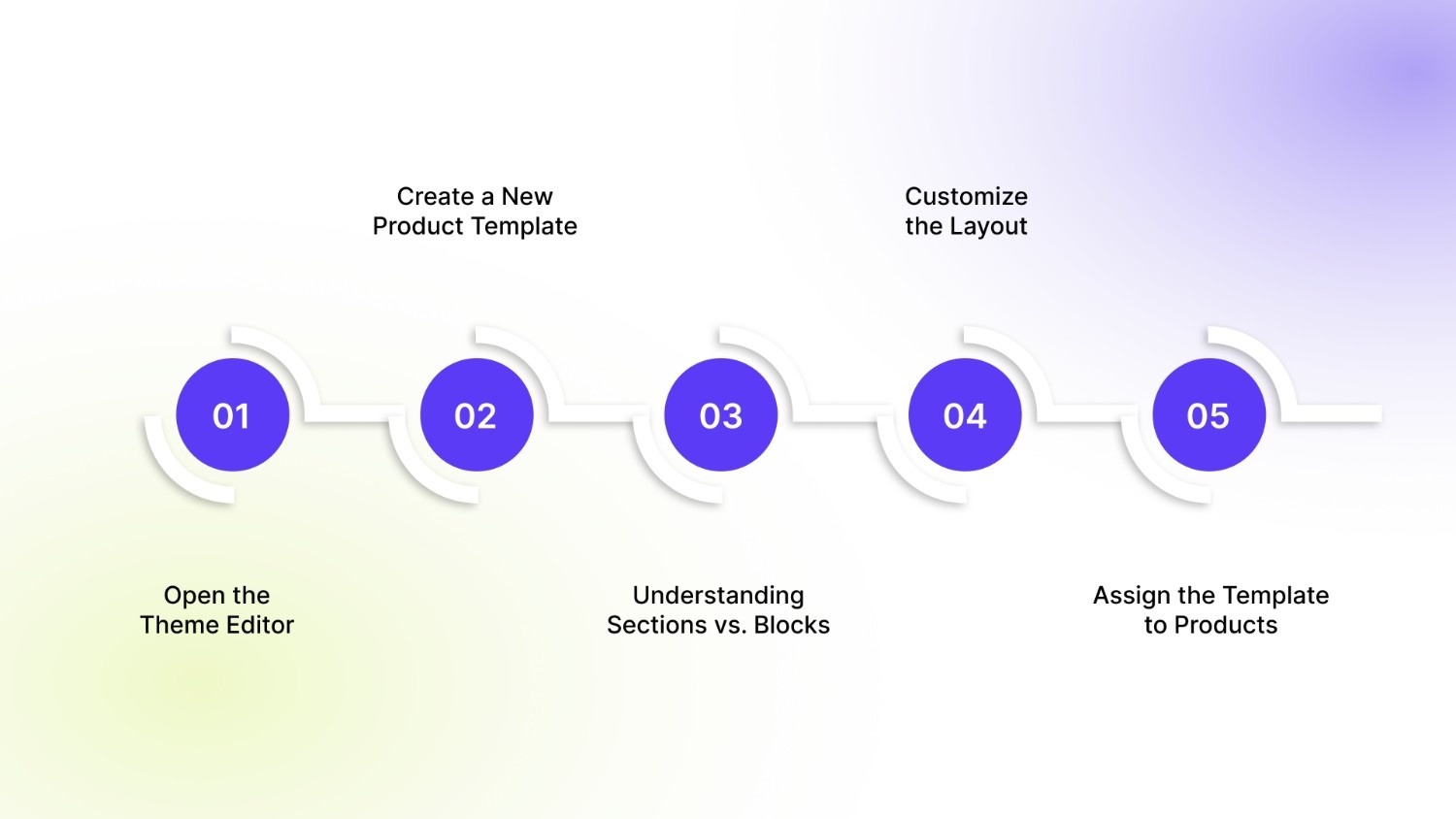
Step 1: Open the Theme Editor
Your theme editor is mission control for all customization. Go to Online Store → Themes and click Customize on your published theme. From the page selector at the top, choose Products → Default product.
Pro tip: Always work on a duplicate theme first (click Actions > Duplicate before customizing) to avoid breaking your live site during testing.
Step 2: Create a New Product Template
Once inside the theme editor, you need to switch from the homepage to product templates. Look at the top center of the theme editor, click the page dropdown menu (it likely says "Home page").
Scroll down and select Products. You'll see two options:
- Default product (the template currently used)
- + Create template (for new templates)
Click Create template, give it a clear name.
For example, use descriptive, purpose-based template names instead of generic ones. This makes template management easier as your catalog grows.
Names like product-mens-apparel, product-electronics-mobile, or product-wholesale-b2b clearly show category, use case, or customer type, unlike vague names such as new-template or test.
Step 3: Understanding Sections vs. Blocks
Before customizing, you need to understand Shopify's building block system:
Sections = Large Building Blocks. Shopify section is a modular building block to construct your online store's page layout. These sections contain various content blocks, each serving a specific purpose: text, images, product listings, headers, and more.
Blocks = Furniture Inside Rooms. Shopify blocks are the smaller components that you can use within Shopify sections to create and customize your online store's layout and content. Think of blocks as furniture inside a room, titles, prices, variant pickers, add-to-cart buttons, and descriptions.
Step 4: Customize the Layout
Add, remove, or reorder sections to match the product’s buying logic:
- Move key images and variants above the fold
- Add tabs or accordions for specifications or care details
- Insert trust signals, reviews, or FAQs where they matter most
Each section can be customized independently.
Step 5: Assign the Template to Products
Go to Products → Select a product → Theme template, then assign your new template. Use bulk editing if multiple products share the same layout needs.
Not on Shopify 2.0 yet? Don't worry, you can still create custom templates, but the process requires a slightly different approach that involves working with code files.
Method 2: Building Custom Product Templates in Legacy (Non-2.0) Shopify Themes

If your theme uses .liquid files instead of .json files, you're working with a legacy (vintage) theme. While older themes, like Debut, only use Liquid files for templates, the Online Store 2.0 themes are leaning more heavily on JSON files.
Here's how to create custom templates in this environment.
Step 1: Access Your Theme Code
Navigate to your theme’s code to start creating a custom template. Go to Online Store → Themes → Actions → Edit code. This opens the Shopify code editor, where all your theme files are stored.
Familiarize yourself with key folders:
- Templates → contains product and page templates (.liquid)
- Sections → reusable blocks like product details, image galleries, or reviews
- Snippets → small components like buttons, badges, or price tags
Having a clear understanding of these folders is essential before creating a new template.
Step 2: Duplicate the Default Product Template
Always start with a copy of your default template to avoid breaking your live product pages. Under Templates, locate product.liquid. Click Duplicate and give it a descriptive name, for example:
- product-electronics.liquid for electronics
- product-apparel.liquid for clothing
- product-bundles.liquid for kits or sets
This duplicate will serve as your custom layout without affecting other products.
Step 3: Edit the Layout and Sections
Now customize the template for the target product category. Open your new template file (product-electronics.liquid). Identify sections or snippets that need to change (e.g., image galleries, variant selectors, technical specs)
Modify layout order, add new snippets, or remove unnecessary elements:
- Images: reorder or highlight variant-specific images
- Product info: move pricing, SKU, or warranty details above the fold
- Additional content: insert FAQs, reviews, or trust badges where relevant
Focus on creating a clear, visually organized page that matches how customers evaluate that product type.
Step 4: Save and Assign the Template to Products
Once your template is ready, link it to the appropriate products. Go to Products → Select a product → Theme template. From the dropdown, select your new template (e.g., product-electronics). Save changes. Repeat for all products that should use this layout, using bulk editing for larger catalogs
This ensures only the targeted products use the custom layout, leaving other products on the default template.
Step 5: Test and Optimize
Before going live, test the new template thoroughly. Check desktop and mobile responsiveness. Verify variant images, swatches, and descriptions display correctly. Ensure any added sections (FAQs, reviews, trust badges) are rendering as intended. Confirm that add-to-cart buttons and checkout flow are fully functional.
Critical Warning: Never edit core theme files directly. Instead, always add custom code through new, separate sections that you create in the sections directory. . When themes update, direct edits get overwritten.
Once you’ve created custom templates, following best practices ensures they perform well, stay manageable, and drive conversions across your product catalog.
Best Practices for Custom Product Templates
Creating a custom product template is just the first step; how you organize and maintain it can make or break your store’s usability and conversion potential.
1. Keep Templates Purpose-Driven
Each template should serve a specific type of product or category. Avoid creating templates for minor differences; instead, group similar products together.
Example: All men’s t-shirts can share one template; all high-tech electronics can use another.
2. Prioritize Key Content Above the Fold
Show customers the most important information immediately:
- Main product image or gallery
- Pricing and variant options
- Key benefits or specifications
- “Add to Cart” button
This reduces cognitive load and accelerates purchase decisions.
3. Use Section and Block Consistency
Sections and blocks should follow a logical order across templates:
- Product information first
- Visual assets next (images, videos, swatches)
- Additional content, like reviews, FAQs, or related products, at the bottom
4. Maintain Mobile Responsiveness
More than 79% of Shopify traffic comes from mobile devices. Ensure every custom template must load quickly, display text clearly, provide tappable buttons, and show images proportionally. Optimizing for mobile ensures a seamless shopping experience and directly improves conversion rates.
5. Test, Iterate, and Monitor
After deploying custom templates, track key metrics like conversion rates, bounce rates, and average order value. Collect user feedback and make incremental improvements to optimize layout and usability. Regular testing ensures templates stay effective as your catalog grows and customer behavior evolves.
Even with the best practices, managing product templates can be complex; this is where StarApps Studio’s tools give Shopify merchants a competitive edge.
Streamline Custom Templates with StarApps Studio
StarApps Studio provides specialized Shopify solutions designed to make your custom product templates more efficient, visually appealing, and conversion-focused. By integrating these tools into your store, you can enhance layout control, variant management, and image presentation, making template creation faster and more precise.
Here’s how StarApps supports custom product templates
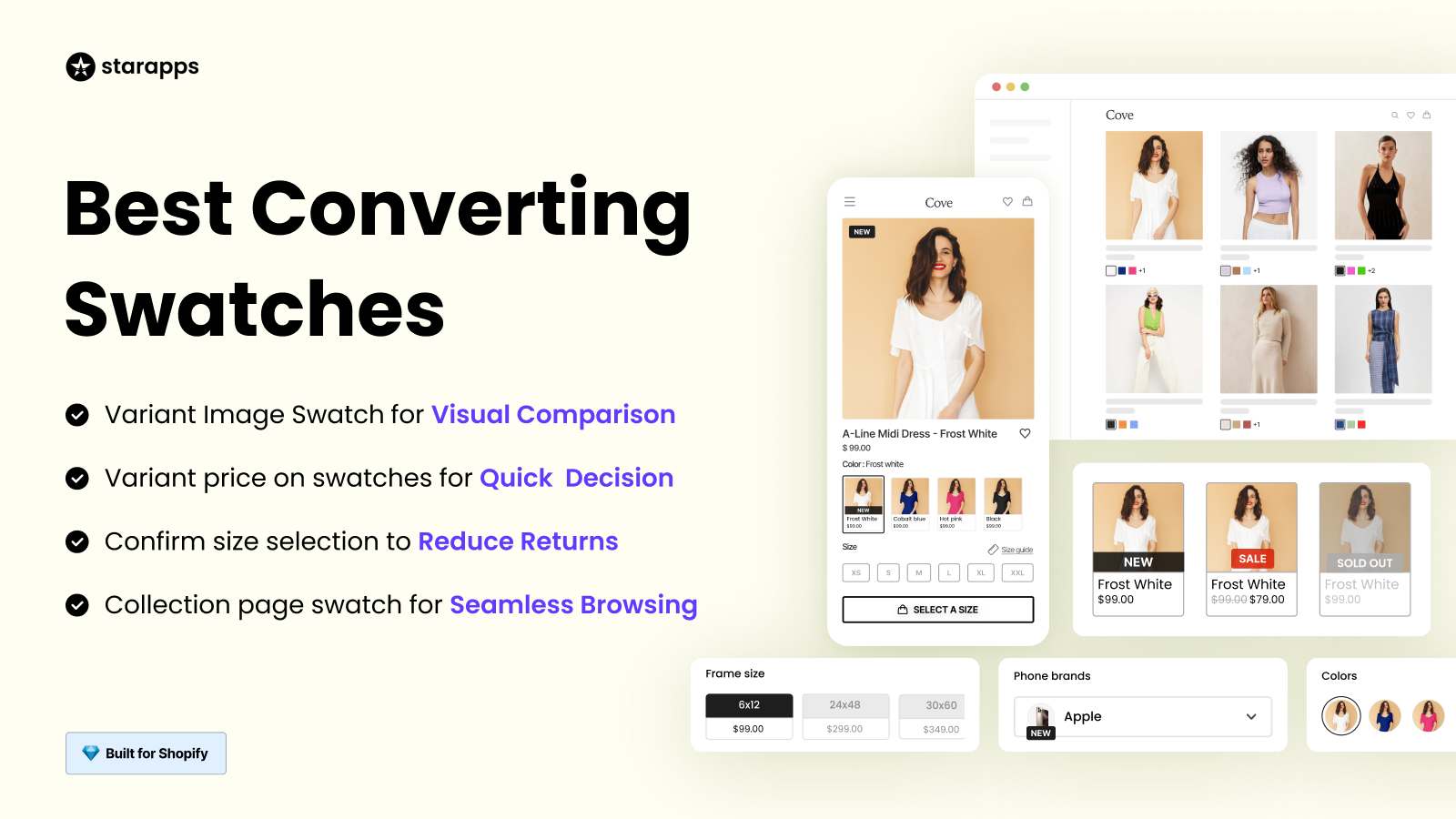
- Smart Variant Management: Variant Options Swatch King adds color, size, and style swatches to product and collection pages, enabling variant-first templates that simplify selection and boost conversions.
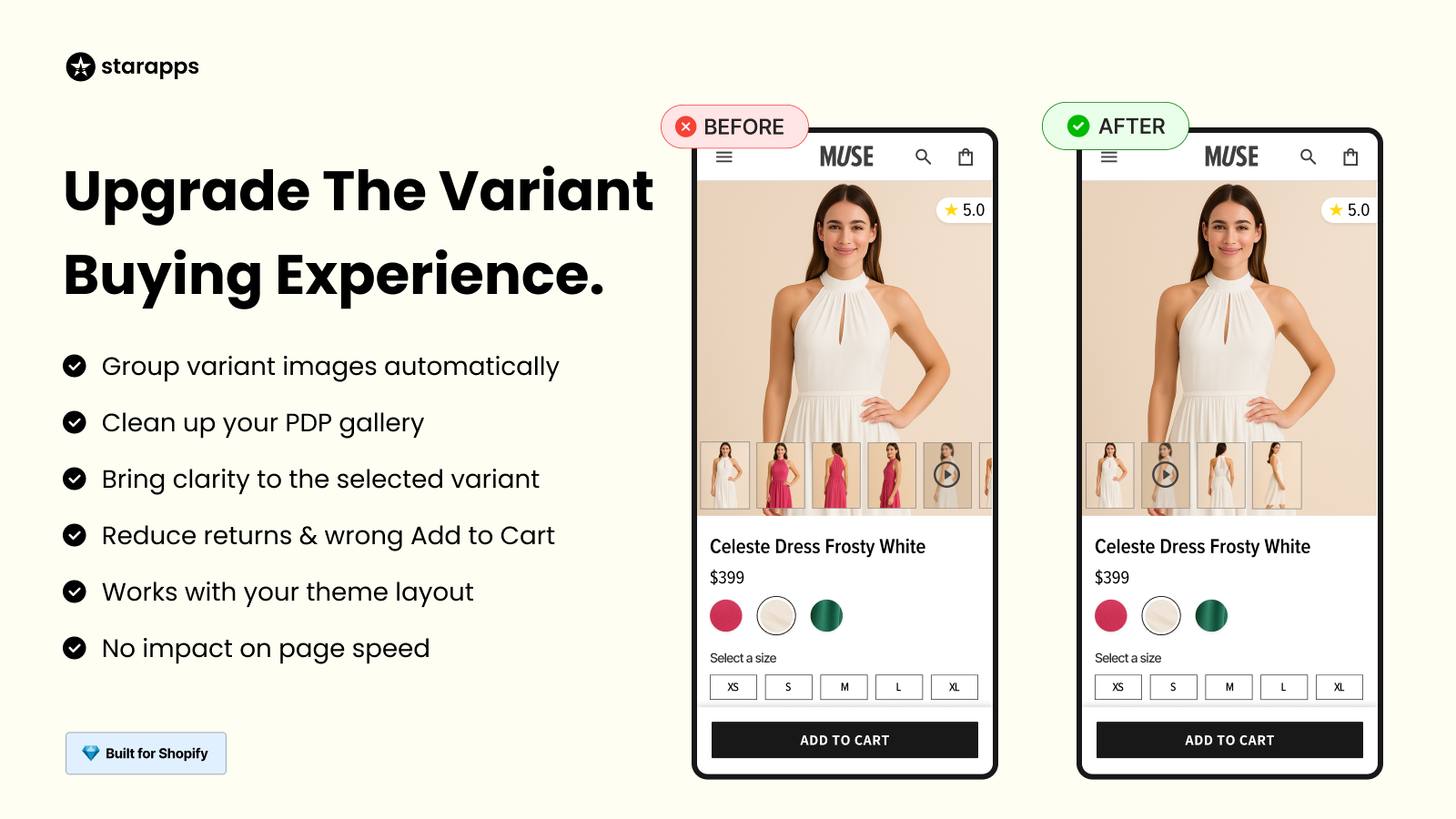
- Seamless Image Automation: Variant Image Automator automatically assigns images to the correct variants, keeping galleries clean and reducing manual work for variant-heavy products.
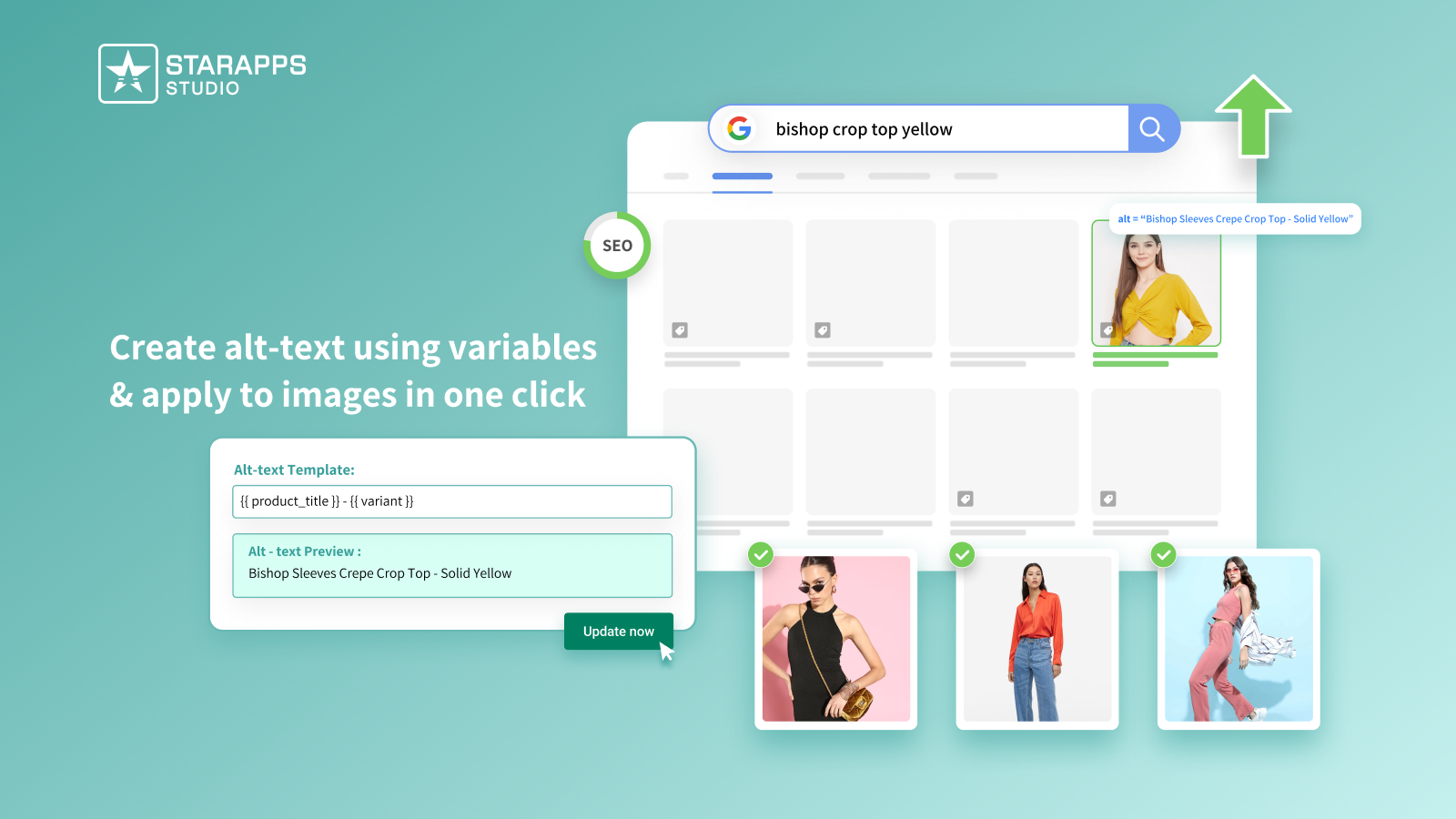
- SEO & Accessibility: Variant Alt Text King optimizes ALT text and ensures ADA/WCAG compliance, keeping templates SEO-ready and inclusive.
- Flexible Layout Control: Works with 2.0 and legacy Shopify themes, allowing pre-organized assets, automated variant displays, and scalable template assignment.
Supercharge your Shopify product pages today, streamline template creation, boost conversions, and simplify variant management with StarApps Studio.
Summing Up
Custom Shopify product templates are essential for improving usability, reducing cognitive load, and boosting conversions, especially for variant-heavy catalogs. By planning templates carefully, organizing assets, and following best practices, you can create scalable, high-performing product pages that delight customers.
Take it a step further, explore StarApps’ variant solutions to automate variant management, streamline image galleries, and optimize templates for SEO and accessibility.
FAQs
1. Can I use custom product templates with any Shopify theme?
Most Shopify themes, especially those compatible with Online Store 2.0, support custom product templates. Always check your theme’s documentation or demo to confirm section support before starting.
2. Do I need coding knowledge to create a custom product template in Shopify?
No, Shopify’s theme editor lets you build basic custom templates visually. However, advanced layout customizations may require basic HTML, CSS, or Liquid familiarity.
3. Can I revert to the default product template after creating a custom one?
Yes. In your Shopify admin, you can reassign any product back to the default product template from the Theme template dropdown.
4. How many custom product templates can I create in Shopify?
Shopify allows up to 1,000 JSON templates per theme across all template types, giving plenty of room for flexible layouts.
5. What do Shopify product templates actually control?
Templates determine layout structure, like section order and visual arrangement, but they do not control product data such as price, inventory, or SEO fields.
Heading

End-to-end traceability
To ensure regulatory compliance, you must have a complete overview of your products from production to shipping. Book a demo to see how Katana can give you full visibility of your operations.



.png)

.svg)

.svg)

.svg)
.png)