

Learn how to display Shopify Symmetry theme variant images correctly, show only relevant product photos, and create a cleaner and more intuitive shopping experience.
If you run a Shopify store with products available in multiple colors, styles, or finishes, your product gallery can quickly become overwhelming. Baymard found that only 38% of mobile ecommerce sites have a decent or good product page UX, highlighting major gaps in product page clarity. A customer selecting a black jacket expects to see only black variant images, not every color available. Yet many merchants using the Symmetry theme find all product images appear regardless of variant selection, creating clutter and slowing purchase decisions.
Creating a cleaner variant image experience is possible with the right setup. Shopify offers native image assignment options, while theme customizations and specialized apps provide greater control over how images are displayed. By showing only the images relevant to the selected variant, you can make product pages easier to browse and help customers evaluate products with confidence.
In this article, we'll learn how variant images work in the Symmetry theme, why image display issues occur, and the best ways to show the right images for each variant.
Key Takeaways:
- Shopify Symmetry is a flexible premium theme, but its default product gallery can still show all variant images together, which can make pages feel crowded.
- Variant images in Shopify work by linking a featured image to each option, but the gallery usually does not hide unrelated images on its own.
- There are several ways to improve this, including Shopify’s native image assignment, custom theme code, metafields, and dedicated apps for more control.
- Cleaner variant images make product pages easier to browse, help shoppers focus on the right option, and support a smoother shopping experience across larger catalogs.
What is Shopify Symmetry Theme
Symmetry is a Shopify theme built for stores with large catalogs and visually driven product pages. It is commonly used across fashion, beauty, home décor, and lifestyle stores that require flexible merchandising and structured layouts.
Developed by Clean Canvas, Symmetry offers advanced collection filtering, promotional sections, quick shop functionality, and flexible product page layouts. Many growing Shopify stores choose the theme because it balances design flexibility with performance.
Also Read: Add Custom Fonts to Shopify Theme
How Variant Images Work in Shopify Symmetry Theme
Variant image handling in Symmetry largely depends on Shopify's native product image structure. Understanding this relationship helps explain why many stores encounter image display challenges.
By default, Shopify allows merchants to assign one image to each variant. When a customer selects a variant, Shopify typically scrolls the gallery to that assigned image. However, the rest of the product gallery remains visible.
For example, imagine a fashion retailer selling a hoodie in:
- Black
- Blue
- Gray
- Green
Each color has five dedicated product photos.
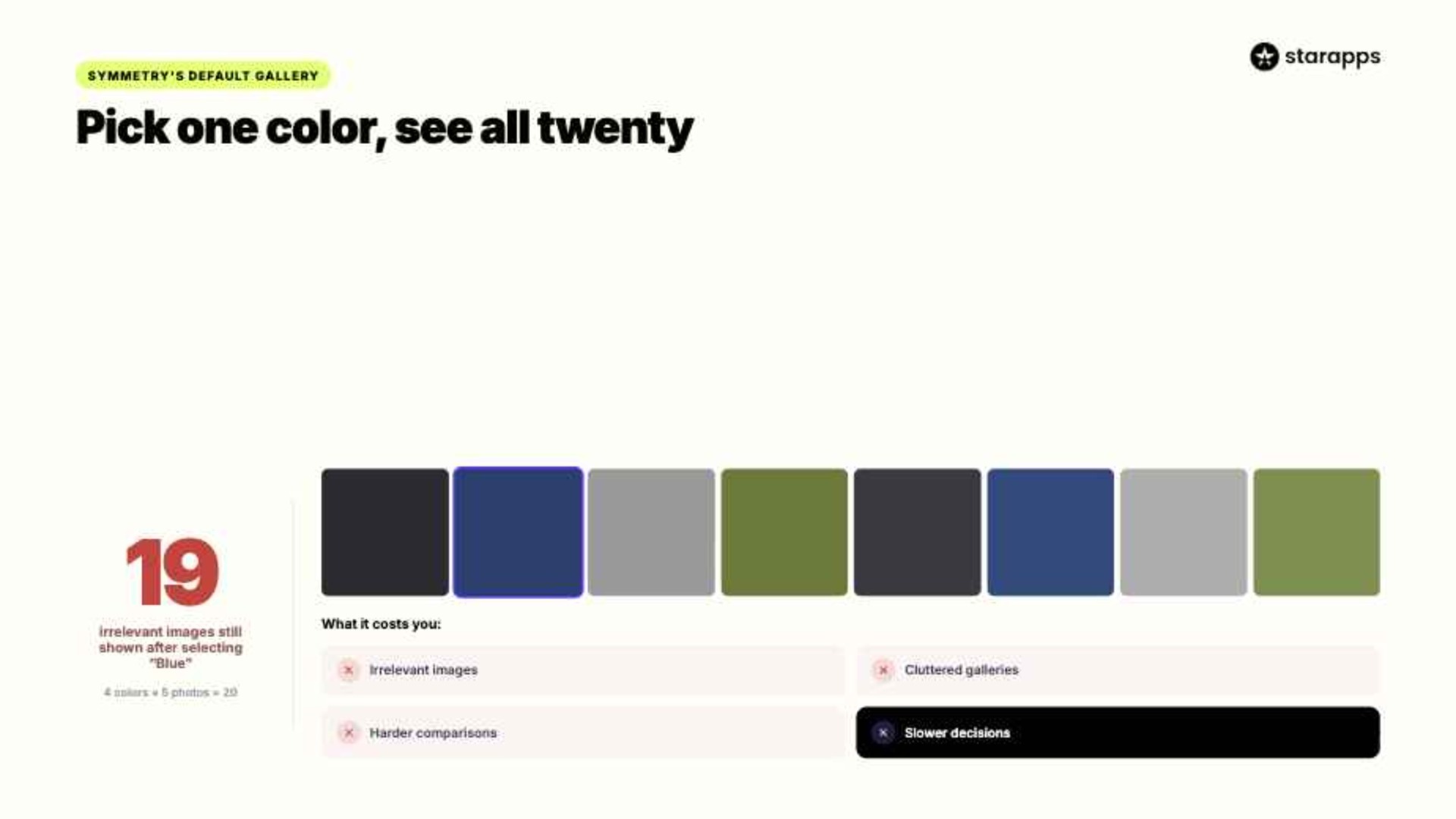
The merchant uploads twenty images and assigns one featured image to each color variant. When shoppers select "Blue," Shopify scrolls to the blue image, but the remaining nineteen images still appear in the gallery.
This behavior creates several challenges:
- Customers see irrelevant images.
- Product galleries become cluttered.
- Variant comparisons become harder.
- Time-to-decision increases.
For stores with dozens of color variations, the problem becomes even more noticeable.
Methods to Display Variant-Specific Images in Shopify Symmetry Theme
There is no single solution that works for every store. The best approach depends on your catalog size, technical resources, and long-term growth plans.
Some merchants can achieve acceptable results using Shopify's native capabilities. Others require advanced customization or automation tools.
Let's explore the most effective methods.
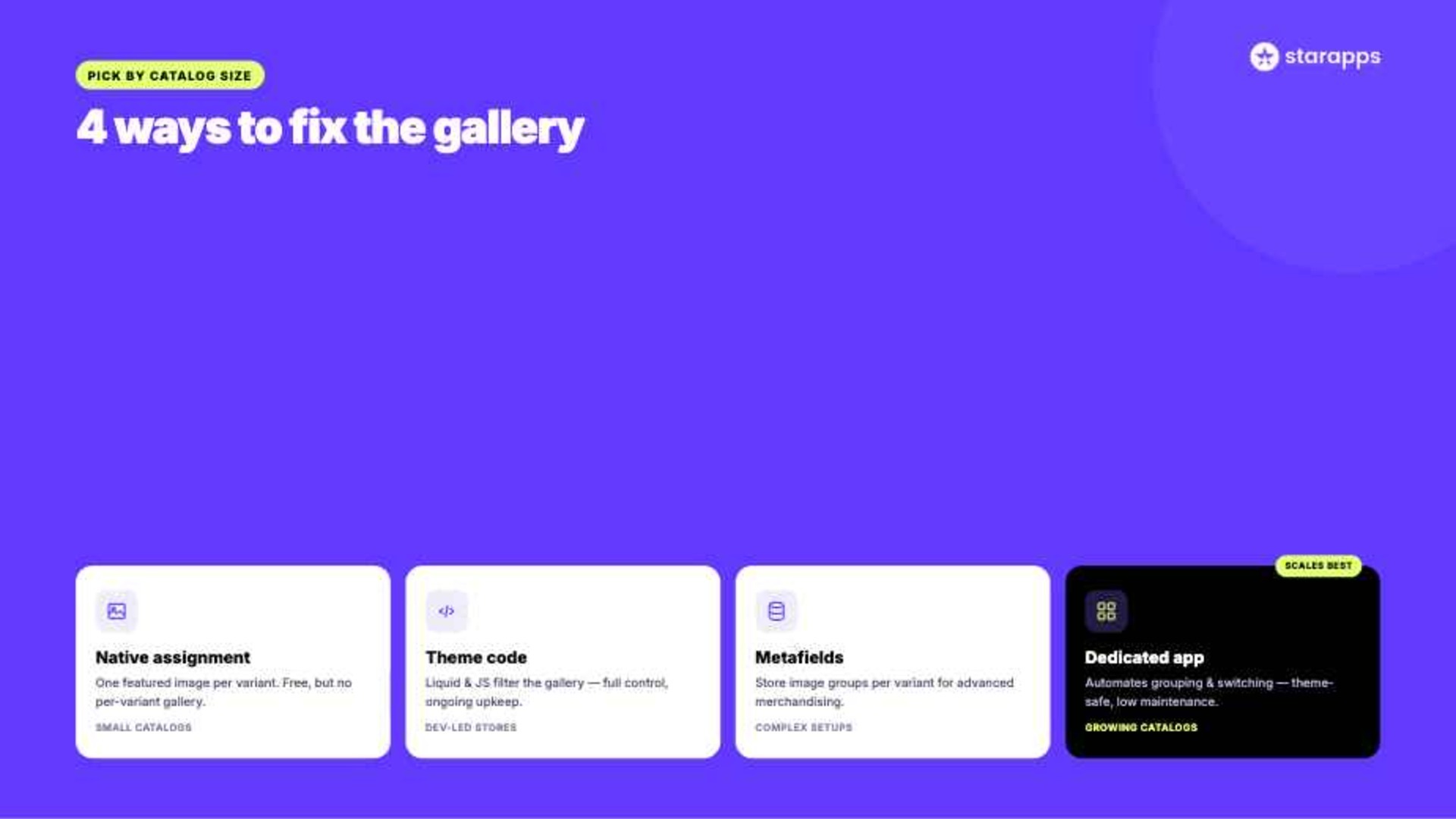
Method 1: Use Shopify's Native Variant Image Assignment
This is the simplest option and requires no additional apps or coding. It works best for stores with relatively small product catalogs and limited image requirements.
Step 1: Open the Product in Shopify Admin
Navigate to:
Shopify Admin → Products → Select Product
Choose the product that contains multiple variants.
Step 2: Assign a Featured Image to Each Variant
Within the variant settings:
- Select a variant
- Choose the relevant image
- Save changes
Each variant should have its own featured image.
Step 3: Test Variant Selection
Visit the product page and select different variants.
The primary image should update based on the selected variant.
Benefits
- No additional cost
- Easy setup
- Native Shopify functionality
- Minimal maintenance
Limitations
- Only updates the main image
- Does not create variant-specific galleries
- Gallery thumbnails may still show unrelated images
For stores with a handful of products, this approach may be sufficient. However, growing merchants often need more advanced functionality.
Method 2: Customize the Symmetry Theme Code
Custom code modifications allow developers to create more precise variant image filtering within the Symmetry theme.
This approach gives merchants greater control over image behavior but requires technical expertise.
How It Works
Developers can modify product gallery logic to:
- Detect selected variants
- Identify matching images
- Hide unrelated images
- Display only relevant gallery content
The implementation typically involves:
- Liquid templates
- JavaScript event listeners
- Product image metadata
- Theme-specific gallery structures
Benefits
- High customization flexibility
- Tailored user experience
- Greater control over gallery behavior
Limitations
- Requires developer resources
- Ongoing maintenance
- Theme updates may affect functionality
- Increased testing requirements
For agencies and Shopify developers managing custom storefronts, this can be a viable solution.
Method 3: Use Metafields for Custom Variant Galleries
Shopify metafields provide a structured way to store additional product information. Advanced merchants can use metafields to associate image groups with specific variants.
This method is particularly useful for stores with detailed merchandising requirements.
Step 1: Create Variant Metafields
Set up metafields for:
- Variant image collections
- Custom gallery references
- Additional visual content
Step 2: Populate Variant Data
Assign relevant images to each variant.
Step 3: Modify Theme Templates
Update Symmetry templates to read metafield values and display appropriate images.
Benefits
- Flexible implementation
- Better organization
- Supports advanced merchandising
Limitations
- Requires technical knowledge
- More complex setup
- Additional maintenance effort
Method 4: Use a Dedicated Shopify App
For many merchants, apps offer the most scalable and efficient solution. Instead of relying on custom code, apps automate variant image management and simplify maintenance.
This approach is particularly valuable for stores with:
- Large catalogs
- Frequent product updates
- Multiple variants per product
- Limited development resources
A dedicated app can automatically organize images and display the correct gallery when customers switch variants.
Benefits
- Faster implementation
- Reduced manual work
- Better scalability
- Theme compatibility
- Easier maintenance
Trade-Offs
While apps simplify image management, they typically involve subscription costs.
However, many merchants find the operational savings and improved customer experience justify the investment.
Also Read: 7 Best Free Shopify Themes for 2026 That Convert Better
How StarApps Studio Can Help You Optimize Variant Image Experience
Managing Shopify Symmetry theme variant images becomes increasingly challenging as catalogs grow. StarApps Studio offers purpose-built Shopify apps that help merchants create cleaner galleries, improve variant presentation, and streamline image management without extensive custom development.
SA Variant Image Automator
For merchants looking to improve Shopify Symmetry theme variant images, SA Variant Image Automator is the most relevant solution. The app automatically displays the correct image gallery when a customer selects a variant, helping create a cleaner and more intuitive shopping experience.
- Automatic Variant Image Assignment: Assign multiple images to a variant without manually tagging every image. The app automatically organizes galleries based on customer selections.
- Cleaner Product Galleries: Show only the images relevant to the selected color, style, or material, reducing visual clutter and helping customers focus on the product they want.
- Theme-Compatible and Scalable: Works with Symmetry and most Shopify themes while preserving existing gallery features such as zoom, videos, and image sliders.
Color Swatch King
Once variant images are organized, customers also need an easy way to browse product options. Color Swatch King improves variant discoverability by replacing standard dropdown menus with visual selectors.
- Visual Variant Selection: Display color swatches, image swatches, and buttons that help shoppers compare options quickly without opening multiple product pages.
- Collection Page Swatches: Let customers view and select color or size options directly from collection pages, reducing clicks and speeding up product discovery.
- Hide Unavailable Variants: Remove sold-out options from view to prevent frustration and create a smoother browsing experience.
SA Variants: Combined Listings
Stores with large catalogs often need more than improved galleries. SA Variants: Combined Listings helps merchants organize variants in a way that improves both customer navigation and SEO.
- Variant-Specific Product Listings: Display variants as individual listings with dedicated titles, URLs, and images while keeping related products connected.
- Better Search and Filtering: Help customers find the exact color, size, or style they want through more accurate search and filter results.
- Improved Product Discoverability: Give each variant its own opportunity to appear in search results and collection pages.
Variant Alt Text King: SEO
Images play an important role in both accessibility and organic search visibility. Variant Alt Text King automates image optimization at scale.
- Automated ALT Text Updates: Generate variant-specific ALT text using product attributes such as color, brand, and product type.
- Supports Accessibility Goals: Make product images easier to understand for screen readers while supporting accessibility best practices.
- Save Time Across Large Catalogs: Reduce manual SEO work, especially for stores managing hundreds or thousands of variant images.
Variant Title King: Color, SKU
Clear product titles help customers confirm they are viewing the correct variant.
- Dynamic Variant Titles: Update product titles automatically when shoppers select a different color, size, or variant.
- Display Important Product Details: Include information such as SKU, color, vendor, or product type directly within the title.
- Improve Shopping Clarity: Reduce confusion by clearly showing the exact variant being viewed.
Variant Descriptions King
Some variants require unique product information that cannot be explained through images alone.
- Variant-Specific Content: Display unique descriptions, specifications, sizing details, or care instructions for individual variants.
- Organized Tabs and Accordions: Present information in a clean format that keeps product pages easy to browse on desktop and mobile.
- Support Better Purchase Decisions: Give customers the information they need without overwhelming the product page layout.
More than 25,000 merchants use StarApps solutions to improve storefront experiences, while over 1,000 Shopify Plus stores rely on their apps for scalable merchandising workflows.
Conclusion
Managing Shopify Symmetry theme variant images effectively can have a meaningful impact on how customers interact with your products. While Shopify's native setup allows merchants to assign images to variants, it does not automatically create dedicated image galleries for each option.
Fortunately, there are several ways to improve the experience. Native Shopify image assignments can help with basic setups, while custom code and metafields offer more advanced control. For growing stores that need a scalable solution, dedicated tools can simplify image management and reduce ongoing maintenance.
If your store relies heavily on variant-based merchandising, StarApps Studio's solutions can help you streamline image management, improve storefront usability, and build a product experience that supports long-term growth.
FAQs
1. How should I arrange product media in Shopify admin for Symmetry theme variant image grouping to work?
To enable variant image grouping in the Symmetry theme, arrange product media by assigning each image to its respective variant in Shopify admin. Place the primary variant image first, ensure consistent variant naming, and keep grouped media ordered logically for smooth switching.
2. What custom code (CSS/Liquid) is needed to display custom variant image layouts in Symmetry?
Symmetry typically uses Shopify Liquid with variant media filters. Add data-variant-id mapping in the product media loop, use Liquid to conditionally render images per variant, and apply CSS grid/flex styling for layout. Optional JavaScript enhances switching behavior and smooth transitions.
3. Can Symmetry display per-variant image descriptions alongside variant images?
Yes, but it requires customization. You can use Shopify metafields or image alt text to store variant-specific descriptions, then update the Symmetry theme Liquid files to render captions alongside variant images dynamically based on the selected variant.
4. How do I test that variant images are displaying correctly after setting up Symmetry theme media grouping?
Test variant images by previewing the product page in Shopify theme editor and live store. Select each variant, confirm correct images appear, check mobile responsiveness, and verify image order, grouping, and switching behavior across browsers for consistency.
5. How do I troubleshoot variant selectors (dropdowns/swatches) not displaying properly in Symmetry?
Start by checking theme settings for enabled variant selectors, then inspect Liquid code for missing product options. Clear cache, disable conflicting apps, and ensure proper JavaScript loading. Also verify CSS is not hiding swatches or dropdown elements.
Heading

End-to-end traceability
To ensure regulatory compliance, you must have a complete overview of your products from production to shipping. Book a demo to see how Katana can give you full visibility of your operations.
.png)

.svg)

.svg)

.svg)
.png)