
How to Add Custom Text Field on Shopify Product Pages & Increase Conversions

Easily add custom text fields on Shopify product pages to personalize orders and increase conversions with step-by-step guidance. Try it now!
Customers today expect tailored experiences, 80% are more likely to buy from brands that deliver personalization, and e‑commerce personalization has been shown to increase revenue.
So, adding a custom text field to your Shopify product pages isn’t just a nice extra; it can directly boost engagement, average order value, and conversions.
In this blog, we’ll walk you through why custom text inputs matter for your store, step‑by‑step implementation methods, and best practices to maximize results. Keep reading to make your product pages more personalized and profitable.
Key Takeaways
- Custom text fields enhance personalization, allowing customers to add names, messages, or instructions, which boosts conversions.
- Fields can be added using Shopify Metafields, theme code edits, or apps, depending on technical skill and store needs.
- Following best practices, clear labels, strategic placement, input validation, and mobile testing, ensures a smooth shopping experience.
- StarApps Studio apps simplify customization by integrating with themes, variants, and visual tools for seamless implementation.
- Combining custom fields with variant management and descriptive titles improves both sales and SEO visibility.
The Importance of Shopify Product Page Customization
Every interaction on your Shopify product page is an opportunity to turn visitors into buyers. In a market where 77% of online shoppers have chosen, recommended, or paid more for a brand that provides a personalized experience, even small customizations matter.
Customizing product pages, through personalized text fields, variant previews, and enriched descriptions, does more than look good; it improves engagement, builds trust, reduces cart abandonment, and directly increases conversions. Every well-placed option and personalized detail strengthens the buying decision.
Here are the key reasons why customization matters:
- Enhanced Personalization: Custom text fields let shoppers add messages, engraving, or special instructions, tailoring products to their needs. Studies show 80% of consumers buy more when offered personalized experiences.
- Improved UX and Clarity: Clear labels, variant previews, and organized layouts reduce confusion and cart abandonment.
- Higher Conversion Potential: Custom pages can boost average order value (AOV) by encouraging add-ons or personalization. Quick-selection options like swatches and text fields reduce friction in checkout.
- SEO Benefits: Detailed variant info, titles, and descriptions improve search engine indexing and organic visibility.
Now that you understand the "why," let's decode the "what,” because implementing custom text fields starts with understanding how Shopify actually handles this data.
Understanding Custom Text Fields: What They Are and How They Work
Custom text fields are a specific technical feature in Shopify called line item properties. Understanding this distinction helps you implement them correctly and avoid common pitfalls.
What exactly are line item properties?
Line item properties allow you to add custom information to a line item in Shopify's cart system. Think of them as extra data packets attached to each product when a customer adds it to their cart.
Here's what happens when a customer enters "Happy Birthday, Sarah" in a text field:
- Product page: Customer types their text
- Cart: Text appears alongside the product
- Checkout: Information carries through to the order summary
- Order confirmation: Customer sees their custom text in email
- Admin panel: You receive the order with the custom text clearly displayed
These fields are essential for stores that offer personalized products, like engraved jewelry, custom mugs, or items requiring special instructions, such as delivery notes or customization requests. They also capture user-specific options, including team names, colors, or initials, ensuring each order is unique and accurate.
Shopify supports five field types through line item properties. Choose based on what information you need:
With a clear understanding of what custom text fields are and why they matter, it’s time to learn how to add them to your Shopify product pages, so your customers can personalize orders seamlessly.
How to Add a Custom Text Field on Shopify Product Page?
Adding a custom text field on Shopify can be done in three main ways: using Shopify Metafields, editing theme code, or using apps for a no-code approach. Each method has its own benefits depending on your store’s size, technical skills, and personalization needs.
Method 1: Using Shopify Metafields (No Code Required)
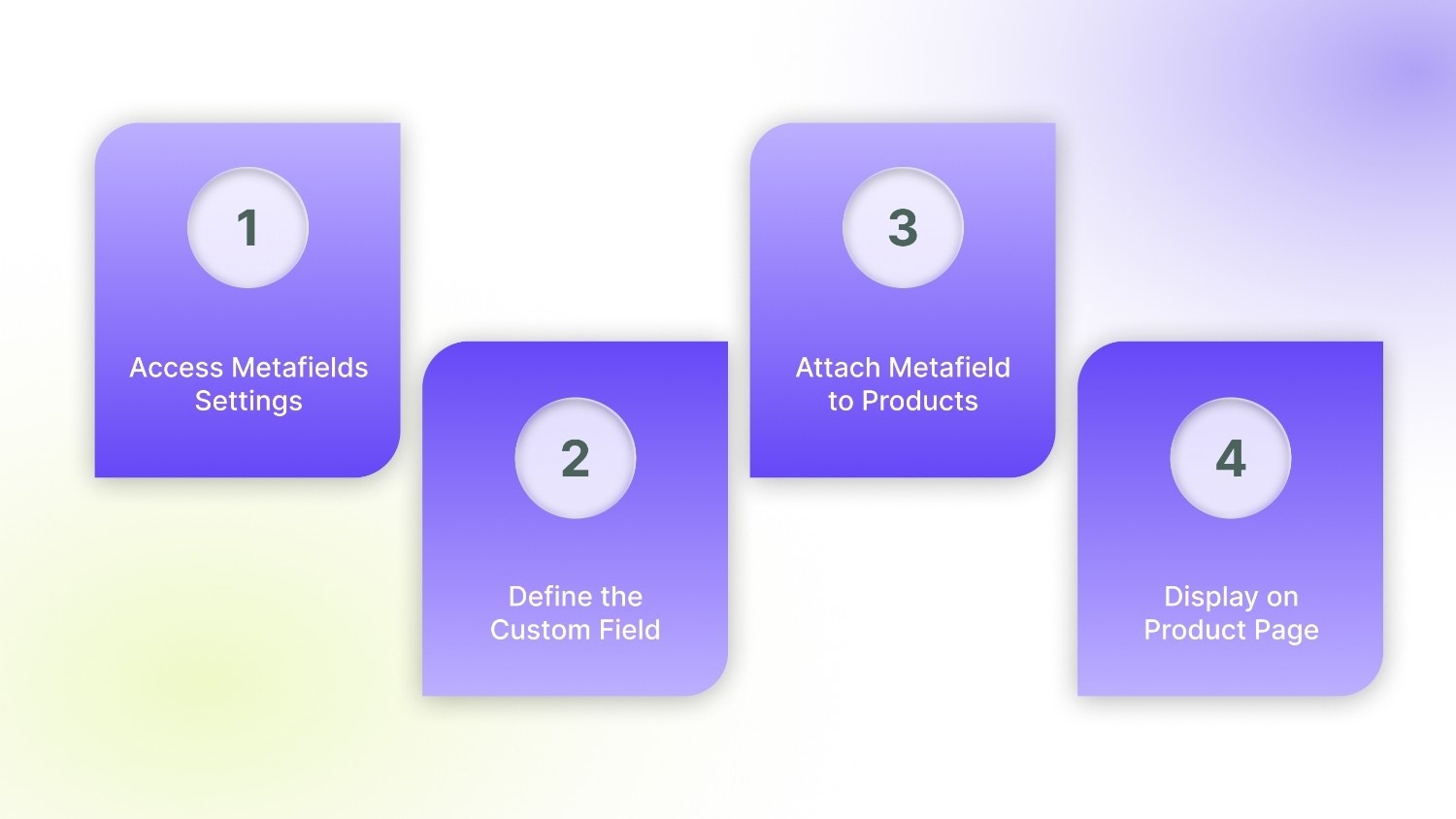
Shopify Metafields let you add custom fields to products without touching any code. This is ideal for stores that want personalization features quickly and safely. It is the fastest way to add a text field if you're running a modern Shopify theme. No theme file editing required.
Step 1: Access Metafields Settings
Go to Settings > Custom Data > Products in your Shopify admin. Click Add definition to create a new custom field.
Step 2: Define the Custom Field
Once you’ve accessed the Metafields settings, the next step is to set up the field clearly and efficiently so it captures customer input accurately. Start by giving your field a descriptive name, like “Personalization Text,” so customers immediately understand what to enter.
Then, set the Namespace & Key to keep it organized internally and avoid conflicts with other fields.
Finally, choose the Content Type based on the expected input:
- Single-line text: Ideal for short inputs such as names or initials.
- Multi-line text: Best for longer messages, special instructions, or detailed personalization requests.
Step 3: Attach Metafield to Products
After defining your metafield, you need to link it to individual products so customers can use it.
- Open a product in your Shopify admin and assign the newly created metafield.
- Optionally, add default text to guide customers on what to enter.
This step ensures the custom field appears correctly on the product page and captures input with each order.
Step 4: Display on Product Page
Once your metafield is attached, the next step is to make it visible to customers on the product page.
- Go to Online Store > Customize to open the theme editor.
- Add a Dynamic Source block and select the metafield you created.
- Position it near the Add to Cart button for maximum visibility and ease of use.
By displaying the field clearly, customers can easily enter personalized text, ensuring the input is captured in the cart and order summary, which improves UX and conversion rates.
This method requires no coding skills and works seamlessly with most Shopify themes. It’s also safe for bulk updates, making it easy to add personalized fields across multiple products quickly.
However, if you want full control over placement and styling, editing your Shopify theme code lets you add custom text fields exactly where you need them.
Method 2: Adding a Custom Text Field by Editing Shopify Theme Code

This approach gives you complete flexibility, allowing you to place the input field anywhere on the product page and customize its appearance, behavior, and integration with variants. It’s ideal for stores with unique layouts or advanced personalization needs.
Step 1: Access Theme Code
Navigate to Online Store > Themes > Actions > Edit Code. Locate the product form file (usually product-template. liquid or similar).
Step 2: Add the Input Field Snippet
Insert the following code where you want the text field to appear:
<label for="custom-text">Enter your text:</label>
<input type="text" id="custom-text" name="properties[Custom Text]">
This creates a field linked to line item properties, so input is captured in the cart and checkout.
Step 3: Test the Field
Preview the product page to ensure the field appears correctly. Add a product to the cart and verify that the custom text is saved with the order.
For merchants who prefer a no-code, fast, and feature-rich solution, using Shopify apps is the easiest way to add custom text fields with advanced options.
Method 3: Using Shopify Apps to Add Custom Text Fields
Shopify apps simplify the process of adding custom text fields while offering extra features like conditional logic, field validation, and variant-specific inputs. This method is ideal for non-developers or stores with frequent personalization needs.
Step 1: Choose a Shopify App
To add custom text fields without touching code, start by selecting a reliable Shopify app that meets your store’s personalization needs. Popular options include:
- Variant Options Apps: Allow you to link custom text fields directly with product variants, ensuring customers can personalize each option correctly.
- Custom Product Fields Apps: Offer flexible input types, character limits, and placeholder guidance, making it easy to capture clear instructions from shoppers.
- Advanced Product Options Apps: Support conditional logic, letting you show or hide fields based on variant selection or other criteria, improving the shopping experience.
For a seamless setup that combines variant management and custom input fields, explore StarApps Studio apps to simplify personalization and improve product display.
Step 2: Install and Configure the Field
Once you’ve chosen an app, install it and configure your custom text field:
- Select the Products: Choose which products will have personalization options.
- Add the Field: Set a clear label (e.g., “Enter your name or initials”) so customers know exactly what to type.
- Customize the Input: Include placeholder text, character limits, and optional instructions to guide users.
- Validation Rules: If needed, restrict input formats (letters only, numbers, or a maximum character count) to avoid errors during checkout.
Step 3: Set Display & Rules
After configuring the field, determine where and when it appears on the product page:
- Placement: Position the field near the Add to Cart button for visibility.
- Conditional Logic: Show or hide fields based on variant selection or product type to avoid confusion.
- Preview & Test: Check the product page to ensure the field appears correctly and that all inputs are captured in the cart and checkout.
By setting clear rules and testing, you ensure a smooth, error-free personalization process for your customers.
Now that you know how to add custom text fields on Shopify, let’s explore best practices to optimize them for usability, accuracy, and conversions.
Best Practices for Optimizing Custom Text Fields on Shopify Product Pagesons
Custom text fields can enhance personalization and increase sales, but only if implemented thoughtfully. Following these best practices ensures a seamless shopping experience while minimizing errors:
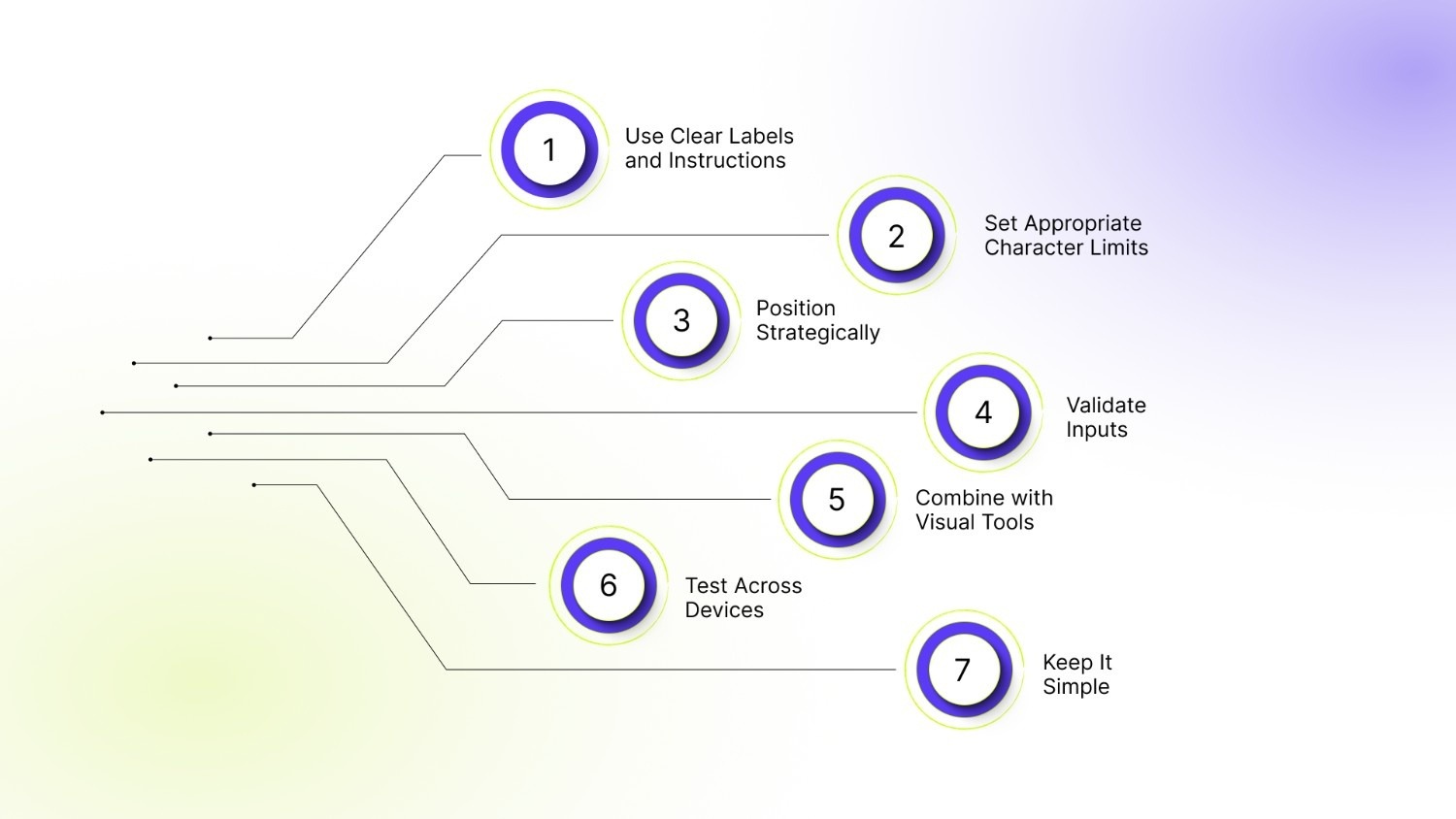
Use Clear Labels and Instructions
Label the field clearly (e.g., “Enter your name or initials”) so customers immediately know what to input. Adding placeholder text or examples helps guide them and reduces confusion during checkout.
Set Appropriate Character Limits
Limit input lengths to prevent layout issues or overly long messages. For example, 20–30 characters for names and 100–150 for special instructions ensure the text fits neatly on invoices and packaging.
Position Strategically
Place custom text fields near the Add to Cart button for maximum visibility. Keep personalization options grouped and visually distinct to avoid overwhelming the customer.
Validate Inputs
Use validation rules to enforce correct formats, such as letters only or a fixed character range. This reduces errors during checkout and ensures fulfillment is accurate.
Combine with Visual Tools
Pair text fields with variant previews or swatches to show exactly what customers are personalizing. Visual cues like color swatches or automatic variant images reduce mistakes and returns.
Test Across Devices
Check that fields are mobile-friendly and display correctly on all screen sizes. Test functionality in the cart and checkout to confirm inputs are captured accurately.
Keep It Simple
Limit optional fields to only what is necessary to avoid decision fatigue. Focus on high-impact personalization that truly enhances the buying experience.
With best practices in place, the next step is to leverage tools that simplify customization and optimize your Shopify product pages, so every personalized input drives conversions effectively.
Use StarApps Studio for Enhanced Customization
StarApps Studio is a leading provider of Shopify apps designed to enhance product merchandising, UX, and store performance. Its suite of tools helps store owners implement advanced customization features, like custom text fields, without compromising theme compatibility or site speed.
Here’s how Starapps Studio helps:
- Seamless Theme Integration: Works with any Shopify theme, ensuring custom fields, variant images, and swatches display correctly without breaking layouts.
- Variant Management: Tools like Variant Image Automator link custom text inputs to specific variants, showing customers exactly what they are personalizing.
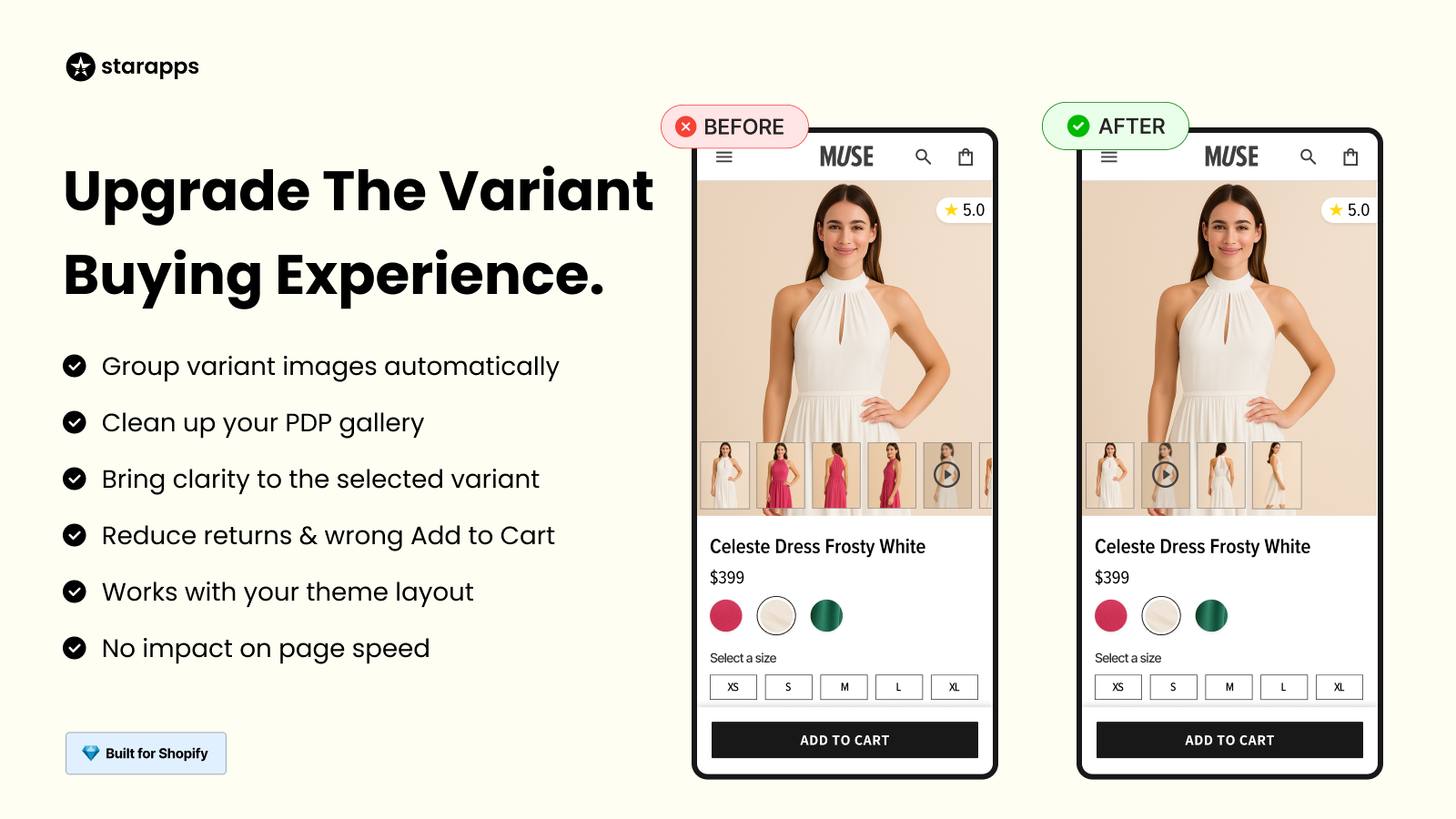
- Visual Product Options: With apps like Color Swatch King, customers can see real-time variant previews while adding personalized text, improving clarity and confidence.
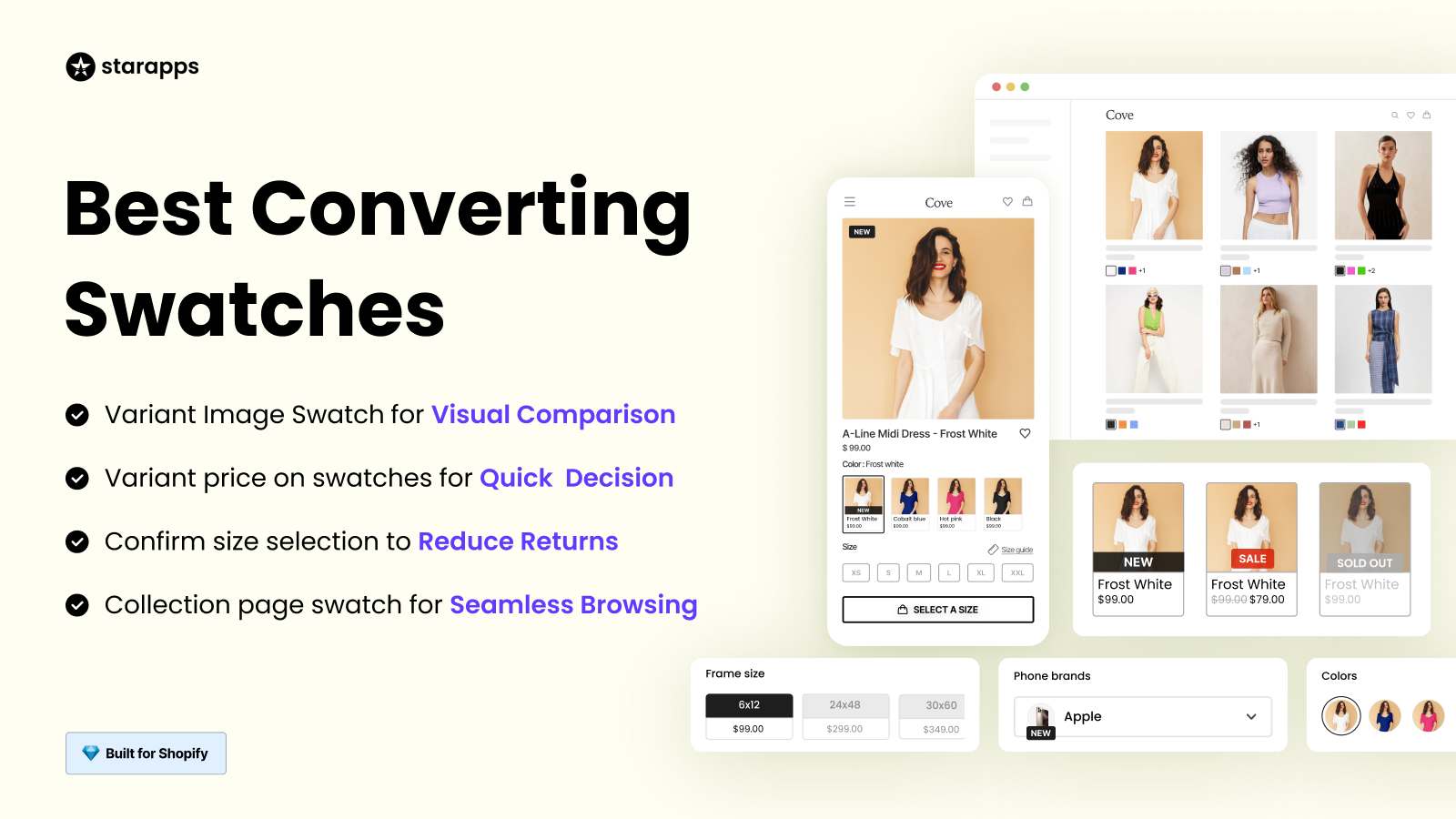
- Flexible Field Options: Add single-line or multi-line custom text fields, set validation rules, and combine with other variant options, all without coding.
- Optimized Performance: Fast-loading apps prevent slowdowns, even on stores with high SKUs or traffic, keeping the shopping experience smooth.
- Advanced SEO Support: Apps like Variant Title King and Variant Descriptions King ensure personalized product information is indexed correctly, boosting organic visibility.
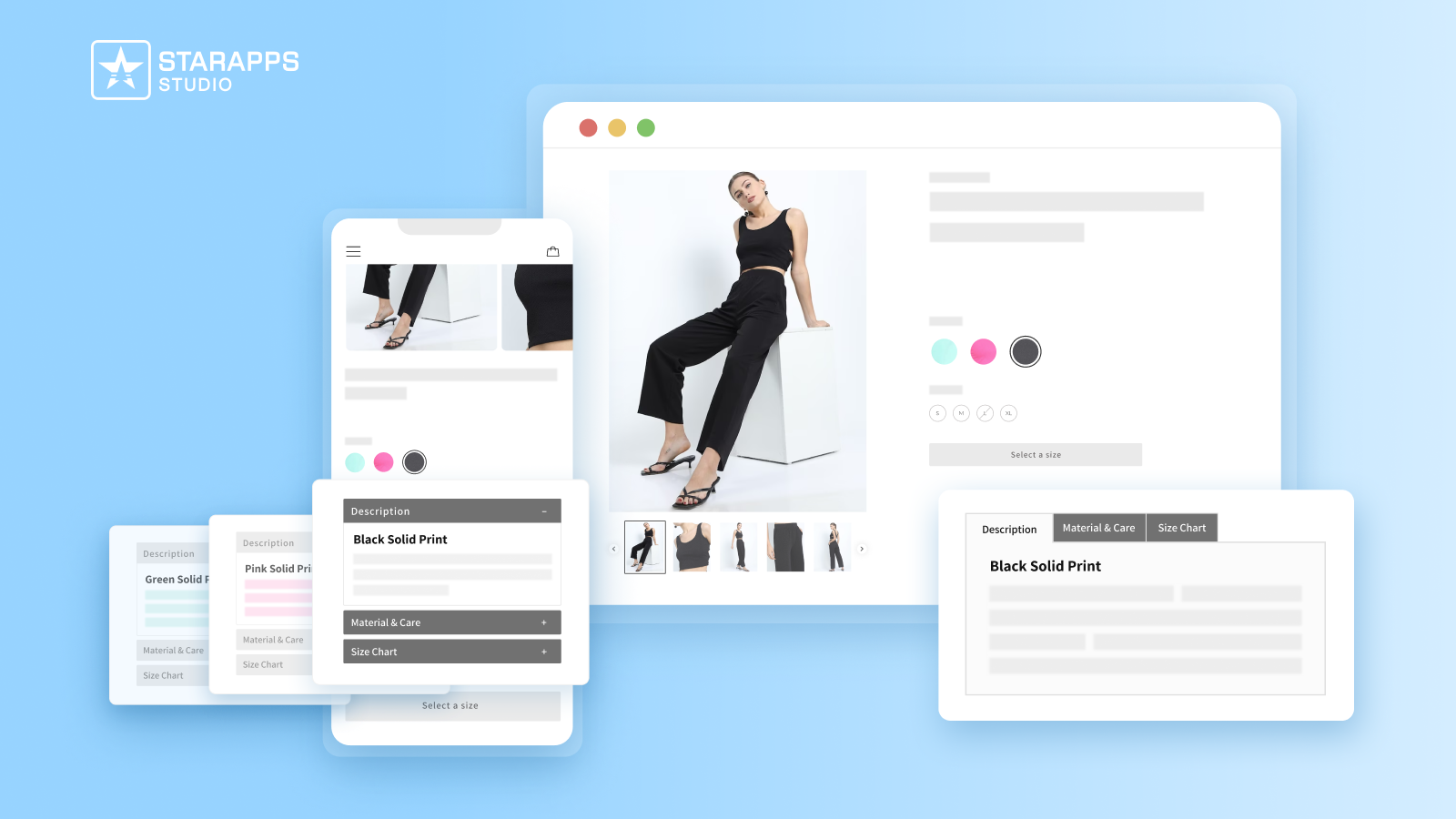
Take your Shopify store to the next level, use StarApps Studio apps to implement custom text fields, enhance variant visualization, and deliver a seamless, personalized shopping experience that drives conversions.
Final Thoughts
Custom text fields are a powerful way to personalize Shopify product pages, boost user engagement, and increase conversions. Whether you implement them via Shopify Metafields, theme code, or apps, following best practices, clear labels, strategic placement, input validation, and visual previews ensures a smooth and error-free shopping experience.
For Shopify merchants looking to maximize personalization and streamline variant management, StarApps Studio provides seamless, theme-compatible solutions that enhance product presentation, improve UX, and drive higher sales.
Increase conversions with StarApps Studio, add custom text fields, optimize variants, and deliver a seamless personalized shopping experience. Talk to us today!
FAQs
1. Can I add a custom text field to my Shopify product page without coding?
Yes, you can use Shopify Metafields or a custom product options app to add a text field without touching code, letting customers input things like engraving or personalization directly. Metafields appear on the product page via the theme editor.
2. What’s the best way to ensure custom text inputs show up in the cart and checkout?
To capture and display customer text in the cart and checkout, the field must be added as a line item property in the form code or via an app that correctly links the input to the order. Otherwise the text might not carry through.
3. Does Shopify allow conditional custom fields based on product options?
Yes, many product options apps support conditional logic so a text field shows only when a certain variant (e.g., “Add engraving”) is chosen, improving UX. This is harder to do with manual code alone.
4. Do custom text fields work with every Shopify theme?
Metafields and app‑added fields generally work with most Shopify themes, but older or highly custom themes may need adjustments; testing and theme‑compatibility checks are recommended.
5. Can I make a custom text field required before checkout?
Yes, with apps that support validation or using Shopify Plus custom field blocks, you can make a text input mandatory before checkout. Standard themes alone don’t offer this natively.
Heading

End-to-end traceability
To ensure regulatory compliance, you must have a complete overview of your products from production to shipping. Book a demo to see how Katana can give you full visibility of your operations.



.png)

.svg)

.svg)

.svg)
.png)