
Variants in Shopify Not Selecting Correct Products? Fix It in 2026


Variants in Shopify not selecting correct products? Learn the common causes, how to troubleshoot variant mapping issues, and ways to create a smooth experience.
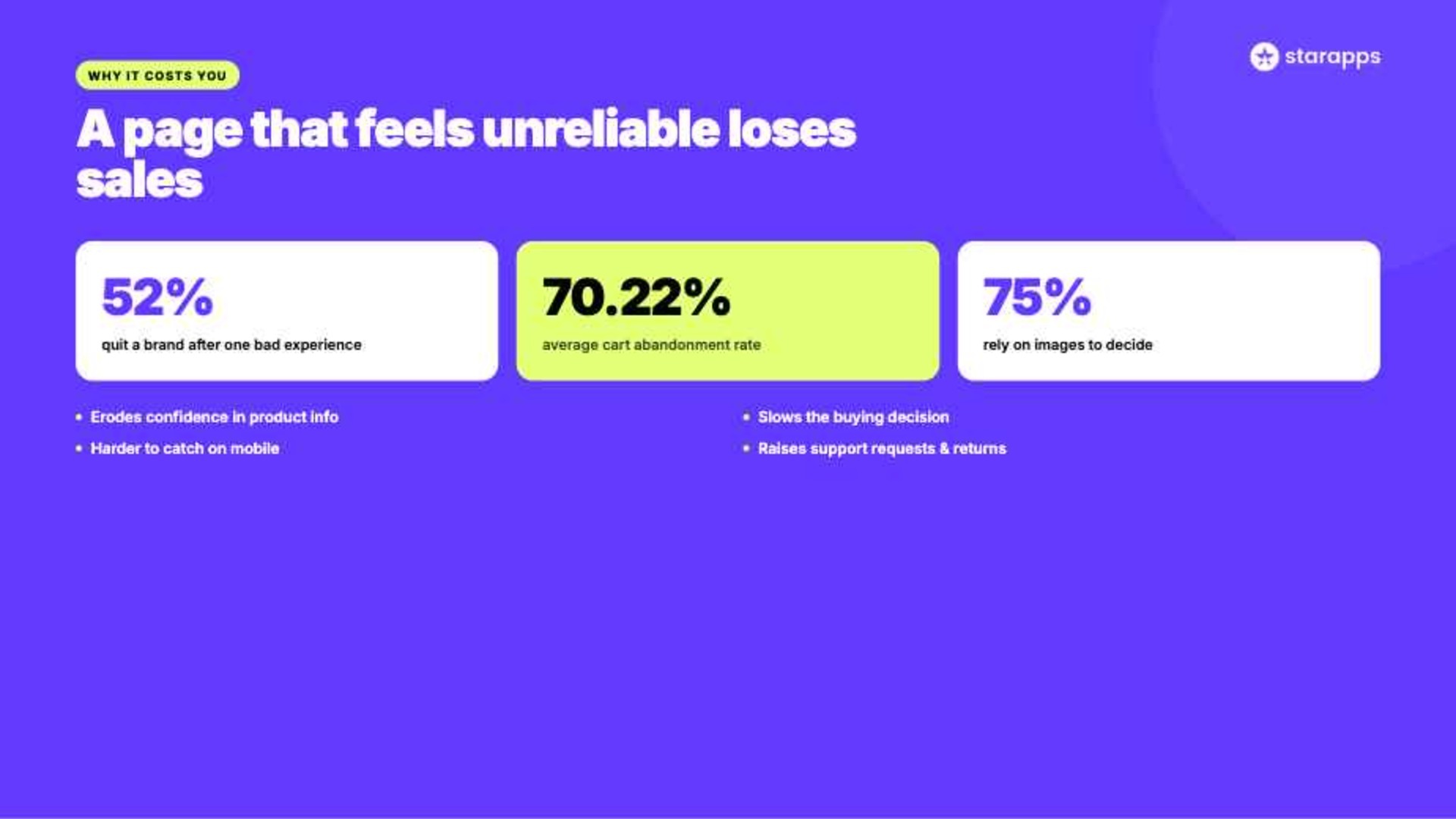
A shopper clicks a blue product variant but sees images, details, or options for a different one. It is a small issue that can quickly undermine trust. In PwC's 2025 Customer Experience Survey, 52% of consumers said they stopped buying from a brand after a bad experience.
If Shopify variants are not selecting the correct products, you are not alone. In this article, you will learn what causes these issues, how to fix them, and how to create a smoother shopping experience.
A quick snapshot:
- Variant selection issues often stem from incorrect variant IDs, media mappings, theme logic, or app conflicts. Shoppers experience these problems as confusion rather than technical errors.
- Customer trust suffers when images, prices, or product details do not match the selected variant. Even small inconsistencies can disrupt the buying journey.
- Follow six steps: audit variant IDs, validate selectors, test variant URLs, verify media mappings, inspect theme events, and isolate app conflicts. These checks help pinpoint where the variant relationship is breaking.
- Technical fixes matter because incorrect variant selection affects product discovery, purchase confidence, and conversion rates. The impact extends far beyond storefront administration.
- StarApps improves clarity with tools like Variant Image Automator, Swatch King, Variant Title King, and Variant Descriptions King. Together, they help keep variant selections aligned with the information shoppers see.
Why Shopify Variants Sometimes Select the Wrong Product
75% of online shoppers depend on product images when making buying decisions. When a selected variant displays the wrong image, incorrect information, or an unexpected product option, the experience immediately feels broken.
The Nielsen Norman Group famously observed that:
The first requirement for an exemplary user experience is to meet the exact needs of the customer, without fuss or bother.
Several factors can cause these issues:
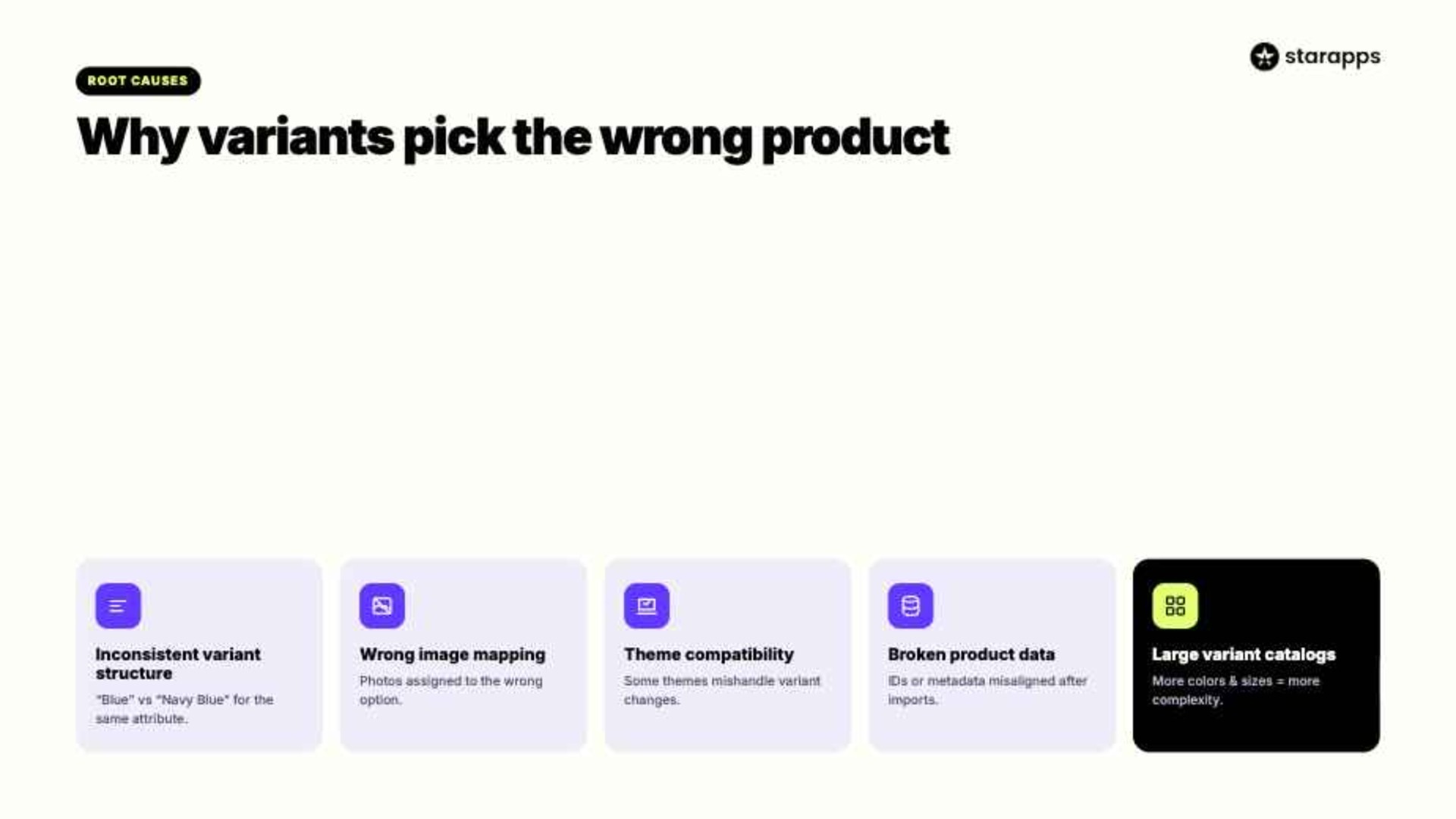
- Inconsistent Variant Structure: Product options are not configured consistently across variants. For example, one variant may use "Blue" while another uses "Navy Blue" for the same attribute.
- Incorrect Variant-to-Image Mapping: Images are assigned to the wrong variants or shared across multiple options. This can cause the storefront to display visuals that do not match the shopper's selection.
- Theme Compatibility Issues: Not all Shopify themes handle variant changes the same way. Some themes may struggle with complex variant configurations or custom functionality.
- Broken Product Data: Variant IDs, option values, or product metadata may become misaligned during imports, migrations, or bulk updates.
- Large Variant Catalogs: As products gain more colors, sizes, materials, and styles, managing variant relationships becomes significantly more complex.
The challenge is that these problems are not always obvious. Fortunately, there are several warning signs that can help you identify whether your variant setup is causing issues before customers start reporting them.
Suggested Read: Hide Variant Images on Shopify Product Pages: Complete Guide for Cleaner Product Galleries
Signs Your Shopify Variant Setup Is Causing Problems
Variant issues rarely announce themselves. More often, they appear as small moments of confusion that interrupt the buying journey. Considering that the average ecommerce cart abandonment rate is 70.22%, even minor points of friction deserve attention.
Watch for these warning signs:
- Incorrect Images After Selection
A shopper selects one variant but sees images associated with another. This is one of the most common indicators of variant mapping problems. - Product Titles Do Not Update
The selected variant changes, but the product title remains generic or inaccurate. Customers may struggle to confirm what they are buying. - Variant Details Feel Inconsistent
Product descriptions, specifications, or other information do not match the selected option. This can create uncertainty before checkout. - Unexpected Variant URLs
Shared links open the wrong variant or default to a different option. This often points to configuration or theme issues. - Returns Related to Wrong Expectations
Customers receive a product that differs from what they believed they selected. In many cases, the issue begins on the product page.
One of the clearest signs of a variant configuration problem is when product images do not match the selected option.
Variant Image Automator by StarApps automatically displays the images associated with the chosen variant, helping shoppers verify their selection instantly. For example, if a customer selects a black leather backpack, the gallery can immediately switch to images of that specific backpack instead of showing photos from every color variant. Contact us to learn more.
6 Steps to Fix Shopify Variants Not Selecting Correct Products

When Shopify variants select the wrong product, the issue usually sits somewhere between product data, theme logic, media mappings, and third-party scripts. You need to identify where the variant relationship breaks and restore a one-to-one connection between customer selections and the product information displayed on the storefront.
Do the following:
1. Audit Variant IDs
Every Shopify variant has a unique variant.id. If a theme, app, or custom script references the wrong ID, Shopify may display incorrect images, prices, inventory, or product details.
Start by validating the underlying variant records.
Check:
- Product → Variants in Shopify Admin
- Variant IDs in exported product data
- Duplicate variants created during imports
Example: Open:
yourstore.com/products/product-handle.js
Verify that the returned variant ID matches the selected option combination.
2. Validate Variant Selectors
Variant selectors act as the bridge between customer interactions and Shopify's product data. If the selector passes the wrong value, every downstream element can display incorrect information.
Review the variant-selection components in your theme.
Check:
- variant-picker.liquid
- product-form.liquid
- Theme JavaScript handling variant changes
Example: When a customer selects "Blue / Large," the selector should update to the variant associated with that exact combination rather than defaulting to the first available variant.
3. Test Variant URLs
Shopify generates variant-specific URLs using the variant parameter. Broken URL handling can cause customers to land on the wrong variant even when the product data itself is correct.
Test direct variant links manually.
Check:
- Product URLs from marketing campaigns
- Collection-to-product navigation
- Shared product links
Example:
/products/performance-hoodie?variant=4582919371
The page should load the variant associated with ID 4582919371, including the correct images, pricing, and inventory.
4. Verify Variant Media Mapping
Many merchants assume variant issues are product issues when they are actually media-assignment problems. If the wrong images are attached to a variant, shoppers may think the wrong product has been selected.
Review media assignments at the variant level.
Check:
- Variant-specific images
- Featured media settings
- Duplicate media records
Example: A "Black Leather Backpack" variant should display images of the black version first, not the default product gallery containing every color option.
5. Inspect Theme Event Handling
Modern Shopify themes rely on JavaScript events to update storefront content after variant selections. If these events fail, customers may see stale product information even when the variant itself changes correctly.
Test how the theme responds after every selection.
Check:
- Image updates
- Price updates
- Inventory updates
Example: Selecting a different color should trigger updates across the gallery, price block, SKU field, and inventory message without requiring a page refresh.
6. Isolate App Conflicts
Apps that modify swatches, galleries, bundles, personalization features, or product forms can interfere with Shopify's native variant behavior. Conflicts often appear after installing a new app or updating an existing integration.
Run controlled tests to identify interference.
Check:
- Recently installed apps
- Theme app extensions
- Custom storefront scripts
Example: If variant selection problems appeared after adding a gallery app, test the product page in a duplicate theme with the integration disabled. If the issue disappears, the app is likely contributing to the conflict.
Fixing the technical issue is only half the battle. The bigger concern is what happens when customers encounter these problems while trying to make a purchase.
Suggested Read: Strategies for Effective Variant Management in Manufacturing
How Incorrect Variant Selection Affects the Shopping Experience
Variant-selection issues are often treated as technical problems, but customers experience them very differently. They do not see broken mappings, variant IDs, or theme conflicts. They simply see a product page that feels unreliable. That perception can influence every stage of the buying process.
These are the biggest problems:
- Reduces Confidence in Product Information: Customers expect images, prices, descriptions, and inventory data to stay synchronized. When those elements conflict, trust begins to erode.
- Slows Decision-Making: Instead of evaluating the product, shoppers spend time troubleshooting the page. Every additional moment of uncertainty increases friction.
- Makes Mobile Shopping More Difficult: Variant issues are harder to detect and resolve on smaller screens. Mobile shoppers are less likely to investigate and more likely to leave.
- Increases Support Requests: Customers may contact support to confirm colors, sizes, materials, or product availability. Clear variant experiences should answer these questions automatically.
- Weakens Product Discovery: Shoppers may never fully explore available variants if they cannot trust the selection process. This is especially problematic for products with multiple colors, styles, or configurations.
Solving these issues requires more than fixing individual errors. The goal is creating a storefront where variant selection, product information, and media work together seamlessly to guide shoppers toward the right purchase.
Suggested Read: How Do You Build Flexible Catalogs With Shopify Custom Code Variants?
Fix Variant Selection Issues With StarApps
StarApps builds Shopify apps that help merchants create clearer, more intuitive product experiences. When variants are not selecting the correct products, the underlying issue is often not the variant itself but how product options, images, and information are presented to shoppers. We help bridge those gaps by ensuring customers always see the information associated with their selection.
StarApps products can help by:
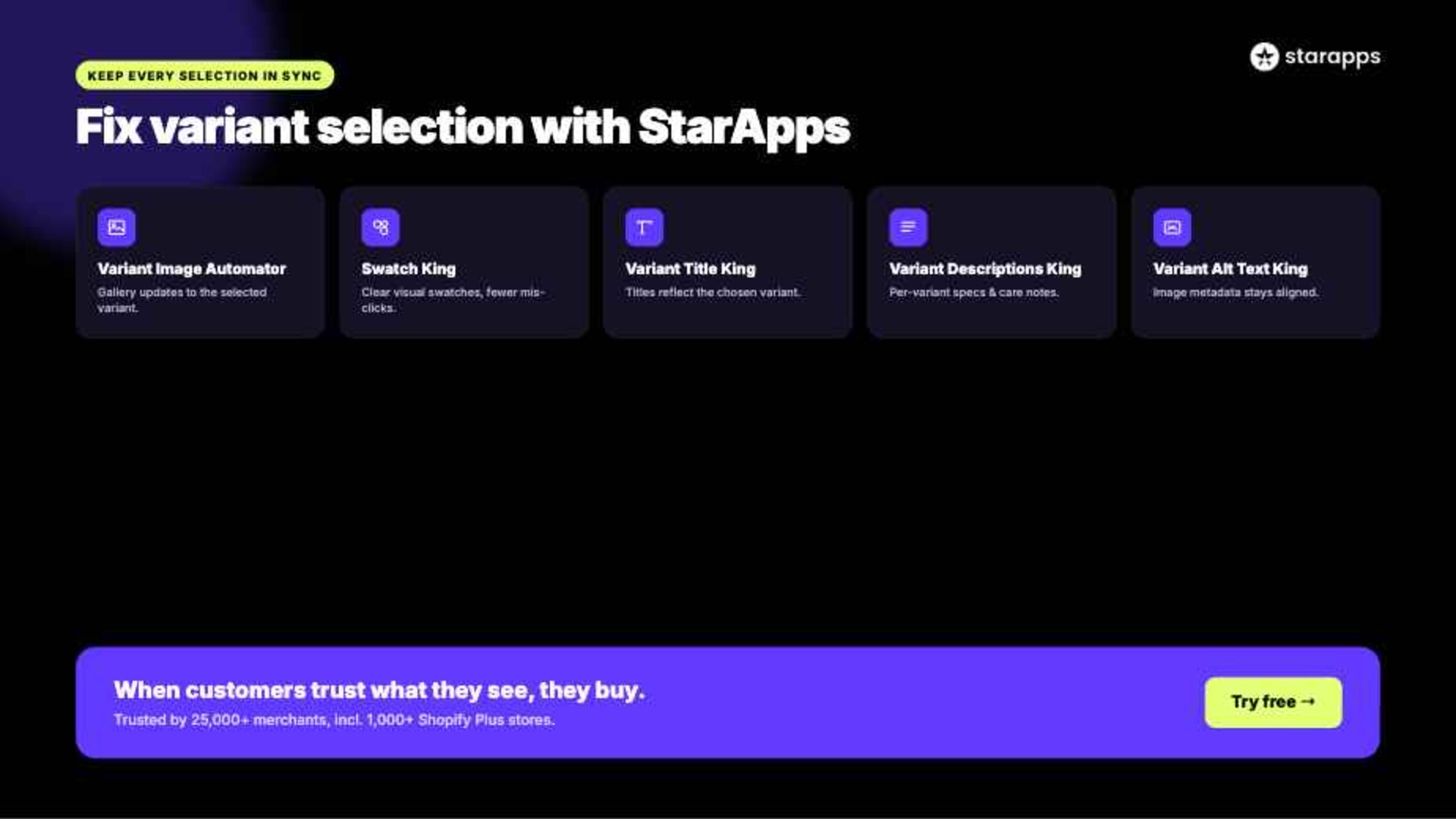
- Displaying the Correct Variant Images
Variant Image Automator automatically updates the product gallery based on the selected variant. This helps shoppers confirm they are viewing the right product without refreshing the page. - Making Variant Selection More Intuitive
Swatch King replaces standard dropdowns with visual swatches, image swatches, buttons, and other selector formats. Clearer selectors reduce the likelihood of accidental selections. - Keeping Product Titles Relevant
Variant Title King updates product titles based on the selected variant. Customers can immediately verify details such as color, style, or configuration. - Showing Variant-Specific Information
Variant Descriptions King displays content tied to the selected variant. This is useful when different options require unique specifications, materials, sizing details, or care instructions. - Improving Product Data Accuracy
Variant Alt Text King keeps image metadata aligned with the correct variant. This creates a more organized and accurate product catalog.
These apps help create a stronger connection between variant selections and the information customers see on the page. More than 25,000 active merchants use StarApps to improve their Shopify stores, including over 1,000 Shopify Plus stores.
For stores looking to improve conversions further, the broader StarApps product suite also includes Urgency King - Low Stock Alert, which helps encourage timely purchasing decisions through inventory-based messaging.
Wrapping Up
When Shopify variants are not selecting the correct products, the impact goes beyond a technical inconvenience. Incorrect images, mismatched product information, and confusing variant behavior can undermine trust, slow purchasing decisions, and create a frustrating shopping experience.
The solution is not simply fixing individual errors. It is creating a product page where variant selectors, images, titles, and descriptions stay perfectly aligned. StarApps helps merchants achieve that with tools designed to make variant selection clearer, more accurate, and easier to navigate.
When customers can trust what they see, they are more likely to complete the purchase. Explore the StarApps product suite and give shoppers greater confidence in every selection. Try for free.
Frequently Asked Questions
1. Why can I not select variants in a Shopify product?
This can happen when variants are out of stock, incorrectly configured, hidden by theme settings, or affected by app conflicts. Start by checking variant availability, product settings, and any customizations applied to the product page.
2. How do Shopify price variants from size work?
Shopify allows each variant to have its own price. For example, a Small shirt can be priced at $25, a Medium at $30, and a Large at $35, even though they belong to the same product listing.
3. What are Shopify private variants?
Shopify private variants are variants that exist in the product catalog but are not intended to be selected by customers directly. Merchants often use them for bundles, subscriptions, app integrations, or custom backend workflows.
4. What is the best way of setting up variants in Shopify?
The best approach is to use consistent option names, standardized variant values, and variant-specific media whenever possible. Regular testing also helps ensure selections, images, prices, and product information remain synchronized.
5. What does variant price mean on Shopify?
A variant price is the price assigned to a specific version of a product. If different sizes, colors, materials, or configurations have different costs, Shopify can display and charge the appropriate price based on the customer's selection.
Heading

End-to-end traceability
To ensure regulatory compliance, you must have a complete overview of your products from production to shipping. Book a demo to see how Katana can give you full visibility of your operations.
.png)

.svg)

.svg)

.svg)
.png)