
Hide Variant Images on Shopify Product Pages: Complete Guide for Cleaner Product Galleries

Get a complete guide to hiding variant images on Shopify product pages to reduce clutter, improve UX, and increase conversion rates effectively.
When a shopper selects a product variant, they expect the images to reflect that exact choice, nothing more, nothing less. Yet inconsistent variant image display remains a common friction point.
Research shows that 93% of consumers consider visual appearance as an important element in their purchasing decision. The first thing a customer notices on your eCommerce site is the product image.
Yet, many Shopify stores unintentionally create clutter by showing every variant image simultaneously, overwhelming customers instead of guiding them.
When shoppers see irrelevant variant images, such as multiple colors or styles that do not match their selection, it creates confusion, slows decision-making, and reduces confidence. This becomes especially problematic for stores with large catalogs or multiple product variations.
Hiding variant-specific images and displaying only the relevant visuals improves clarity, enhances user experience, and helps customers focus on the exact product they want. In this guide, you will learn how to hide variant images on Shopify product pages and create a cleaner, conversion-focused shopping experience.
Key Takeaways
- Displaying only relevant variant images reduces clutter and helps shoppers focus on the selected product.
- Clean, focused galleries improve user experience, speed up decisions, and increase conversions.
- Variant images can be managed through Shopify settings, theme code, or apps like StarApps Variant Image Automator.
- Proper image assignment, mobile testing, and multiple images per variant prevent common errors.
- Using the SA Variant Image Automator ensures automated, real-time filtering, seamless theme compatibility, and a scalable solution for large catalogs.
What Are Variant Images on Shopify And Why Do They Pile Up?
Variant images are the product visuals tied to different options of a single product, like colors, sizes, or styles. On Shopify, each variant can have its own set of images to showcase the specific features customers are selecting.
When you sell a product in multiple options, say a hoodie in Black, Navy, and Olive, each of those options is called a variant. A variant image is simply the photo (or photos) you assign specifically to that variant.
So when a customer clicks "Olive," they should ideally only see the olive-colored hoodie. That's the goal. While this is useful for detailed presentations, it can quickly clutter your product page if not managed properly.
Here's a quick breakdown of the three types of images that exist on any Shopify product page:
This table alone explains why galleries get crowded. Even when you do assign images to variants, Shopify only jumps to the first image of that variant; it doesn't hide everything else.
Why Shopify Shows All Variant Images in the Gallery by Default?
By default, Shopify displays all images uploaded to a product in the gallery, regardless of the variant selected. This occurs because:
- Partial variant linking: Selecting a variant only updates the main image; the gallery continues showing all other images.
- Theme media rendering: Most Shopify themes load all attached product media unless modified through Liquid code.
- Manual assignment limitations: Assigning images to variants does not hide unselected images automatically.
Due to this, shoppers see irrelevant visuals, experience slower decision-making, and may lose confidence, especially on mobile or with large catalogs. Controlling which variant images appear is essential for a clean, user-friendly, and conversion-optimized product page.
Also Read: How to Display Product Variant Images on Shopify Cart
Now that we know why Shopify shows all variant images by default, let’s see why hiding irrelevant images can dramatically improve the shopping experience and boost conversions.
Why Hiding Variant Images Improves User Experience and Conversions
When shoppers select a product variant, seeing unrelated images can create confusion, slow down decision-making, and reduce confidence. By showing only the relevant visuals, stores make the browsing experience smoother, more intuitive, and easier to navigate.
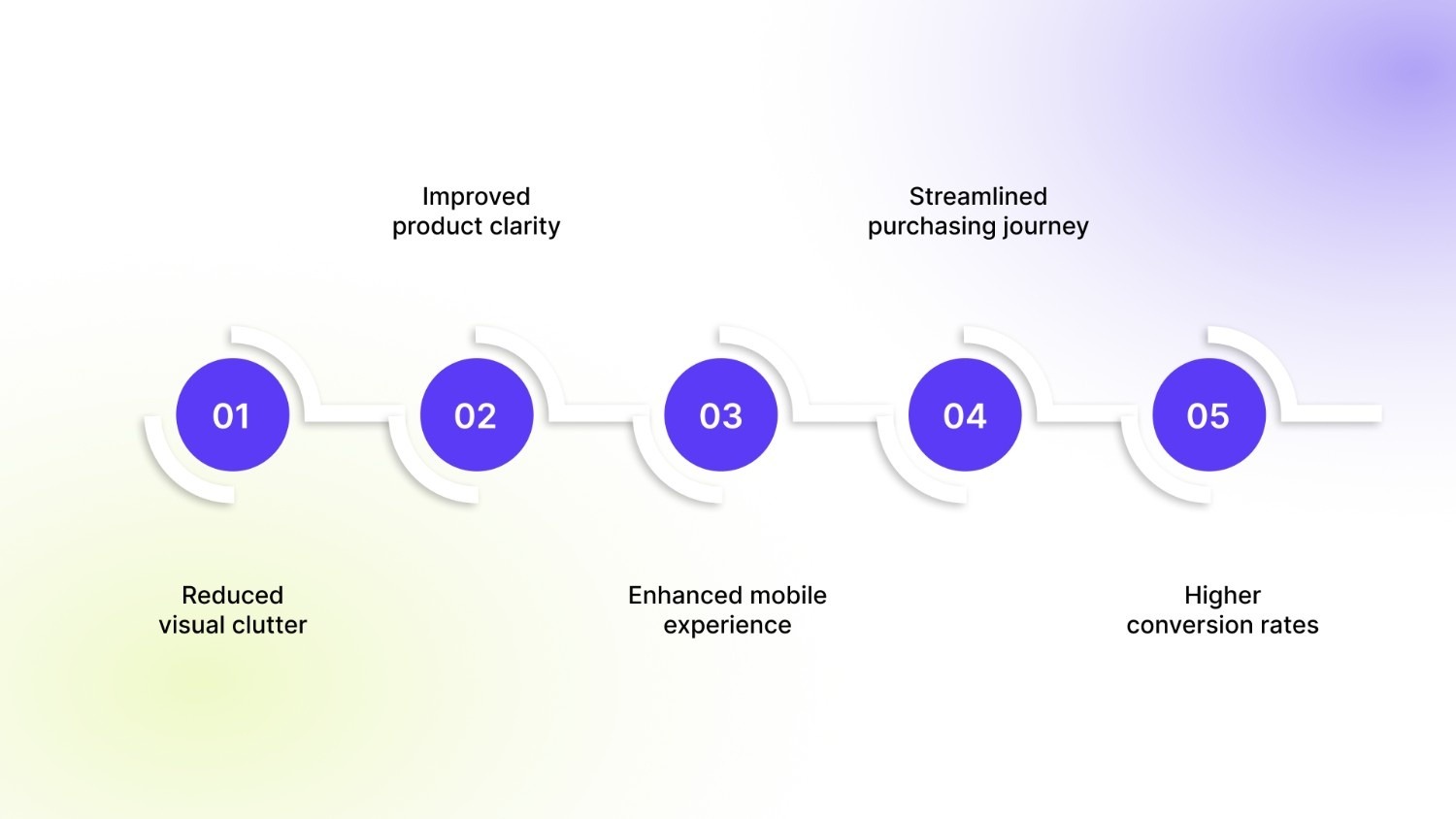
Some major benefits of hiding non-relevant variant images:
- Reduced visual clutter: Only the selected variant’s images are visible, making the product page cleaner and easier to scan.
- Improved product clarity: Customers can clearly see the exact color, size, or style they are choosing.
- Enhanced mobile experience: Less scrolling and faster loading create a seamless experience on phones and tablets.
- Streamlined purchasing journey: Shoppers spend less time comparing irrelevant options and make decisions faster.
- Higher conversion rates: Focused galleries boost add-to-cart actions, reduce bounce rates, and increase completed checkouts.
Now that we understand why controlling variant images improves user experience and conversions, let’s explore the most effective ways to hide non-relevant images on Shopify product pages.
3 Methods to Hide Variant Images on Shopify Product Pages
Hiding variant images on Shopify can be done using native settings, theme customizations, or specialized apps. Each method has its advantages, depending on your technical skill, store size, and number of variants.
Method 1: Check Your Theme's Built-In Settings First
Before writing a single line of code or installing anything, check whether your theme already handles this natively. Several Shopify-official themes, particularly Dawn, Impulse, and Prestige, have built-in media filtering that shows only the images assigned to the selected variant.
Here’s how to check:
- Go to your Shopify Admin
- Navigate to Online Store → Themes → Customize
- Open any Product page in the editor
- Click on the Product media / Gallery section in the left panel
- Look for a setting labeled something like:
- "Hide unselected variants' media."
- "Filter media by variant."
- "Show only variant image.s"
If that toggle exists, turn it on, save, and test it on a live product with multiple variants.
After enabling variant image filtering, check: the gallery updates correctly when a variant is selected, unassigned images are hidden, and it works on mobile.
Limitations: This only works if your theme supports it, images are properly assigned to variants, and each variant has multiple images. If it doesn’t behave as expected, consider using a different method.
If the native Shopify settings aren’t enough, you can take full control by customizing your theme’s code.
Method 2: Theme Code Customization
This method involves editing your Shopify theme’s Liquid templates, such as product.liquid or product-media.liquid, to control which images appear when a customer selects a variant.
By adding conditional logic that checks the variant ID, you can dynamically hide images that don’t belong to the selected variant, ensuring only relevant visuals are shown in the gallery.
To access the code editor:
- Go to Online Store → Themes → Actions → Edit Code
- Locate the Image Gallery Loop
Inside the file, search for where product images are rendered. You're looking for something that contains product.images or product.media. It typically looks like this:
- Add Variant Filtering Logic
Wrap the image output in a conditional that checks whether the image is assigned to a variant, and if so, only renders it when that variant is selected. Here's the logic structure:
- Add JavaScript to Toggle Images on Variant Change
The Liquid code handles the initial page load. You need JavaScript to dynamically show/hide images when a customer selects a different variant:
- Test Thoroughly Before Going Live
Check that selecting each variant updates the gallery correctly, unassigned images are hidden, mobile works properly, zoom functions remain intact, and the page handles variants with no images without breaking.
For merchants who want a fast, reliable, and code-free solution, using a Shopify app is the easiest way to control variant images.
Method 3: Hide Variant Images Using a Shopify App
For the vast majority of Shopify merchants, especially those managing large catalogs, multiple product types, or stores that update frequently, an app is the most practical, scalable, and low-maintenance solution.
These apps actively filter galleries, ensure smooth switching between variants, and maintain full compatibility across all Shopify themes and mobile devices.
Here's why apps beat manual methods for most stores:
- No coding required: Install the app and configure settings in minutes, with zero technical expertise needed.
- Automatic filtering: Galleries instantly show only relevant images whenever a customer selects a different variant.
- Mobile-optimized experience: Provides fast, responsive galleries on smartphones and tablets, improving mobile conversion.
- Scalable for large stores: Perfect for stores with hundreds of variants, multi-option products, or complex catalogs.
By using this app, Shopify merchants deliver a clean, professional, and user-friendly product page that guides shoppers efficiently, reduces confusion, and boosts conversion rates.
The specific app built for this is the SA Variant Image Automator by StarApps Studio.
Built to eliminate variant image clutter, this app automatically shows only the relevant images for each variant, no coding, no theme issues. Install SA Variant Image Automator today and simplify your product galleries!
Also Read: How To Add Variant Images on Shopify
However, even with the right tools or methods, it’s easy to make mistakes that can reduce the effectiveness of variant image management.
Top Mistakes Shopify Merchants Make When Hiding Variant Images
Hiding variant images can improve UX and conversions, but errors can create more problems than they solve. Here are the most common pitfalls and how to avoid them:
- Not assigning images to each variant properly: If a variant has no images linked, the gallery may appear empty or break the layout.
- Relying on single-image variants: Filtering only works when a variant has multiple images; otherwise, the effect is minimal.
- Ignoring mobile testing: Some themes display galleries differently on mobile, so always check responsiveness.
- Skipping backups before code edits: Customizing Liquid templates without backups can break pages during updates.
- Overlooking theme limitations: Not all third-party themes support automatic filtering, apps may be required.
Once variant images are managed correctly, stores can unlock more than just cleaner product pages, they can actively boost performance and conversions.
How Variant-Specific Image Galleries Improve Shopify Store Performance
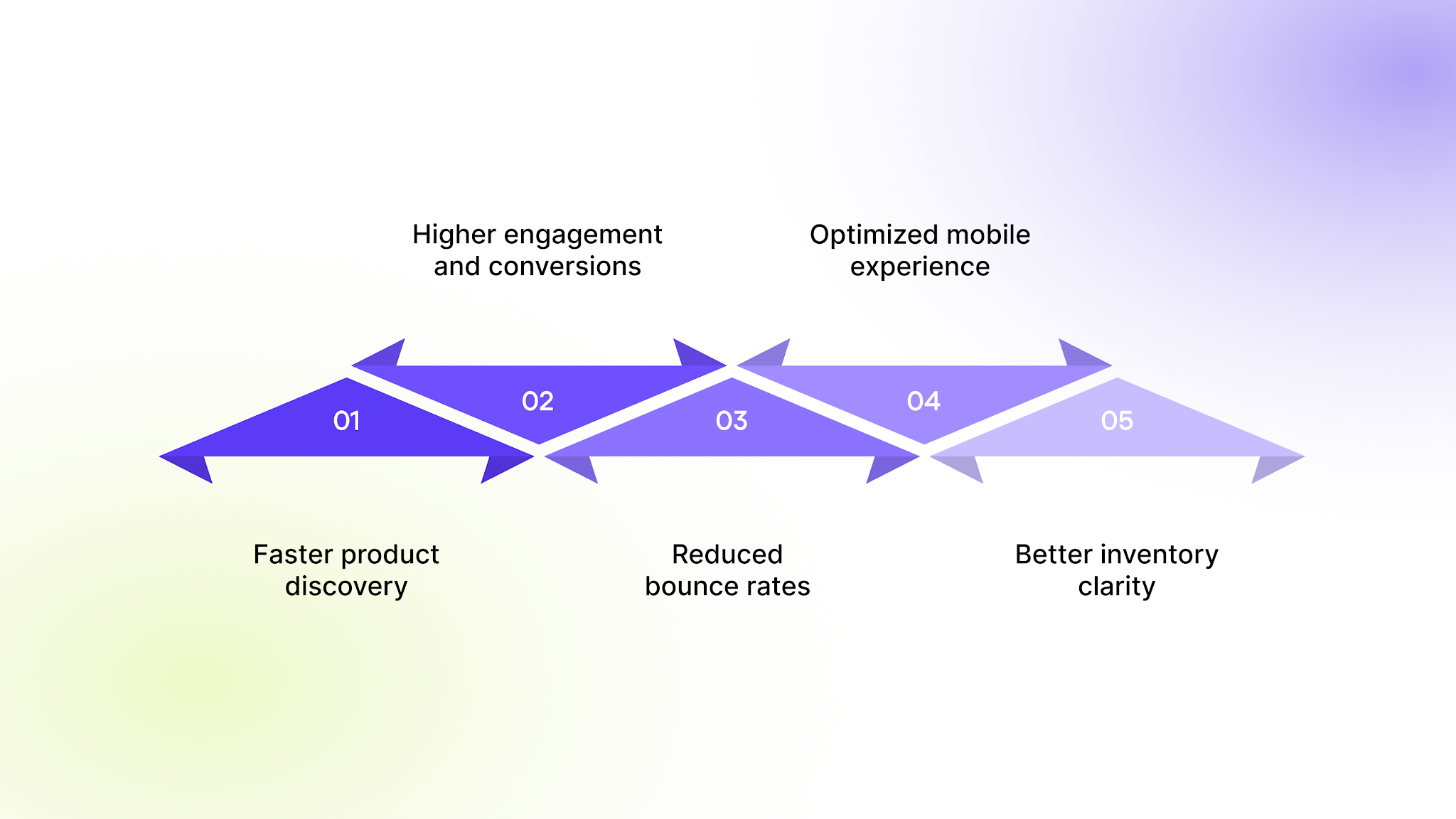
Creating galleries that display only variant-specific images improves the shopping experience, speed, and conversions in several ways:
- Faster product discovery: Shoppers immediately see the images matching their selected variant, reducing confusion and browsing time.
- Higher engagement and conversions: Focused galleries increase confidence, encouraging faster add-to-cart and checkout actions.
- Reduced bounce rates: Cleaner, clutter-free pages prevent visitors from leaving due to visual overload.
- Optimized mobile experience: With fewer images to load, galleries perform faster on mobile devices, improving retention.
- Better inventory clarity: Customers can see exactly what is available, reducing questions, returns, and support tickets.
After understanding the impact of variant-specific galleries, the fastest and most reliable way to achieve this is with a dedicated Shopify solution built for the task.
Show Only the Right Variant Images on Shopify with StarApps Studio
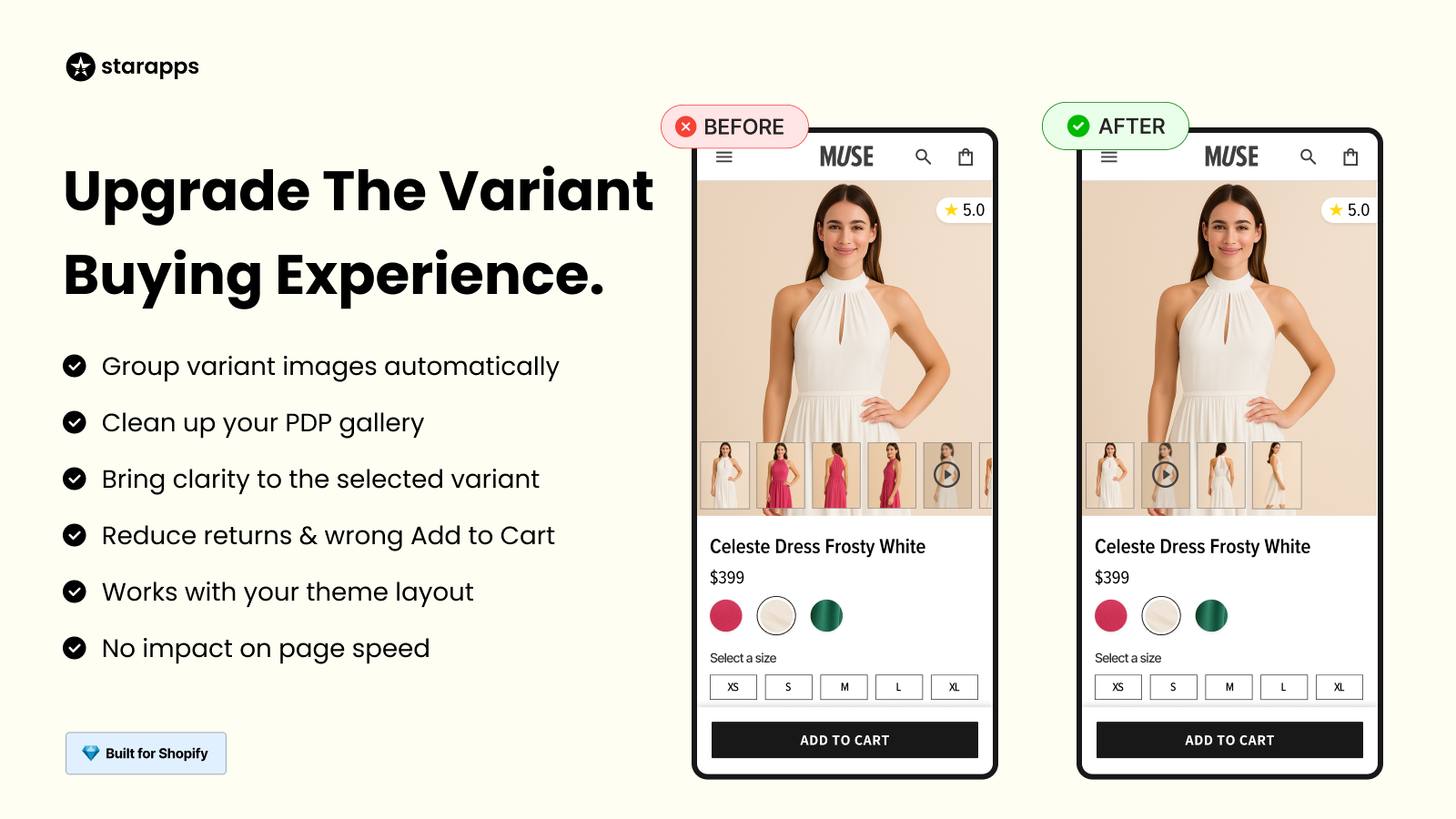
StarApps Studio is a leading Shopify app developer that creates tools to improve product merchandising, user experience, and store performance. One of their solutions, SA Variant Image Automator, addresses a common Shopify problem: variant image clutter. Instead of displaying all images in a product gallery, the app automatically shows only the images linked to the selected variant, creating a clean, intuitive, and conversion-focused shopping experience.
Here’s how it works:
- Automatic image assignment: Images are linked to variants instantly without manual tagging.
- Dynamic gallery updates: Switching between variants updates the gallery in real time.
- Full theme compatibility: Works with any Shopify theme, including custom and third-party themes, without coding edits.
- Mobile-optimized: Galleries load quickly and display perfectly on mobile devices.
- Seamless UX: Reduces shopper confusion, speeds up decision-making, and enhances conversions.
- Scalable for large catalogs: Perfect for stores with hundreds of variants or multi-option products.
By hiding irrelevant variant images and showing only what the customer selects, SA Variant Image Automator creates a focused, professional, and conversion-driven product page.
Get the SA Variant Image Automator from StarApps Studio today and instantly simplify your product galleries for higher conversions.
Concluding Thoughts
Effectively managing variant images on Shopify is essential for creating a clean, professional, and conversion-focused storefront. By hiding irrelevant images, you improve the shopping experience, reduce confusion, and guide customers toward faster purchasing decisions. Whether using native settings, theme customization, or apps, the right approach ensures your product pages are visually organized and mobile-friendly.
Simplify your product galleries and boost conversions with the SA Variant Image Automator from StarApps Studio today. Start a free trial today!
FAQs
1. Can Shopify automatically hide other variant images when a variant is selected?
Shopify doesn’t hide unselected variant images by default; it will show all uploaded images unless the theme includes a built‑in filter or you use a specialized app to control gallery behavior.
2. Why don’t my variant images update when I select a different option?
If a variant’s images aren’t linked properly in Shopify admin or your page builder isn’t configured to match variant names with images, the gallery may not update as expected.
3. What happens if no images are assigned to a selected variant?
If a variant lacks assigned images, Shopify may continue showing the default product gallery or all images, which can confuse shoppers and dilute the intended variant experience.
4. Is coding required to hide unselected variant images on Shopify?
Without a theme’s built‑in support, hiding unselected images generally requires either code edits (Liquid/JS) or a third‑party app, since Shopify’s default settings do not include full filtering logic.
5. Will hiding variant images affect mobile behavior?
Yes, variant image filtering must be tested on mobile, because different galleries or lazy‑loading scripts can behave differently on phones and tablets, and a poor setup can break mobile galleries.
Heading

End-to-end traceability
To ensure regulatory compliance, you must have a complete overview of your products from production to shipping. Book a demo to see how Katana can give you full visibility of your operations.



.png)

.svg)

.svg)

.svg)
.png)