

Learn how to set up Shopify featured variant images correctly, avoid common image-mapping mistakes, and create a smoother product experience with these 7 steps.
A customer selects a product variant and expects to see exactly what they are buying. When the featured image does not update correctly, that confidence can disappear in seconds. It is no surprise that 75% of online shoppers use product photography to help make purchasing decisions.
If your Shopify featured variant images are not working as expected, you are not alone. In this article, you will learn how featured variant images work, common mistakes to avoid, and seven practical steps to get them right.
Here’s the short version:
- Featured variant images are the primary images associated with specific product variants. They help shoppers confirm that they selected the correct option.
- Visual accuracy matters because 75% of online shoppers use product images to guide purchasing decisions. Incorrect images can quickly undermine trust.
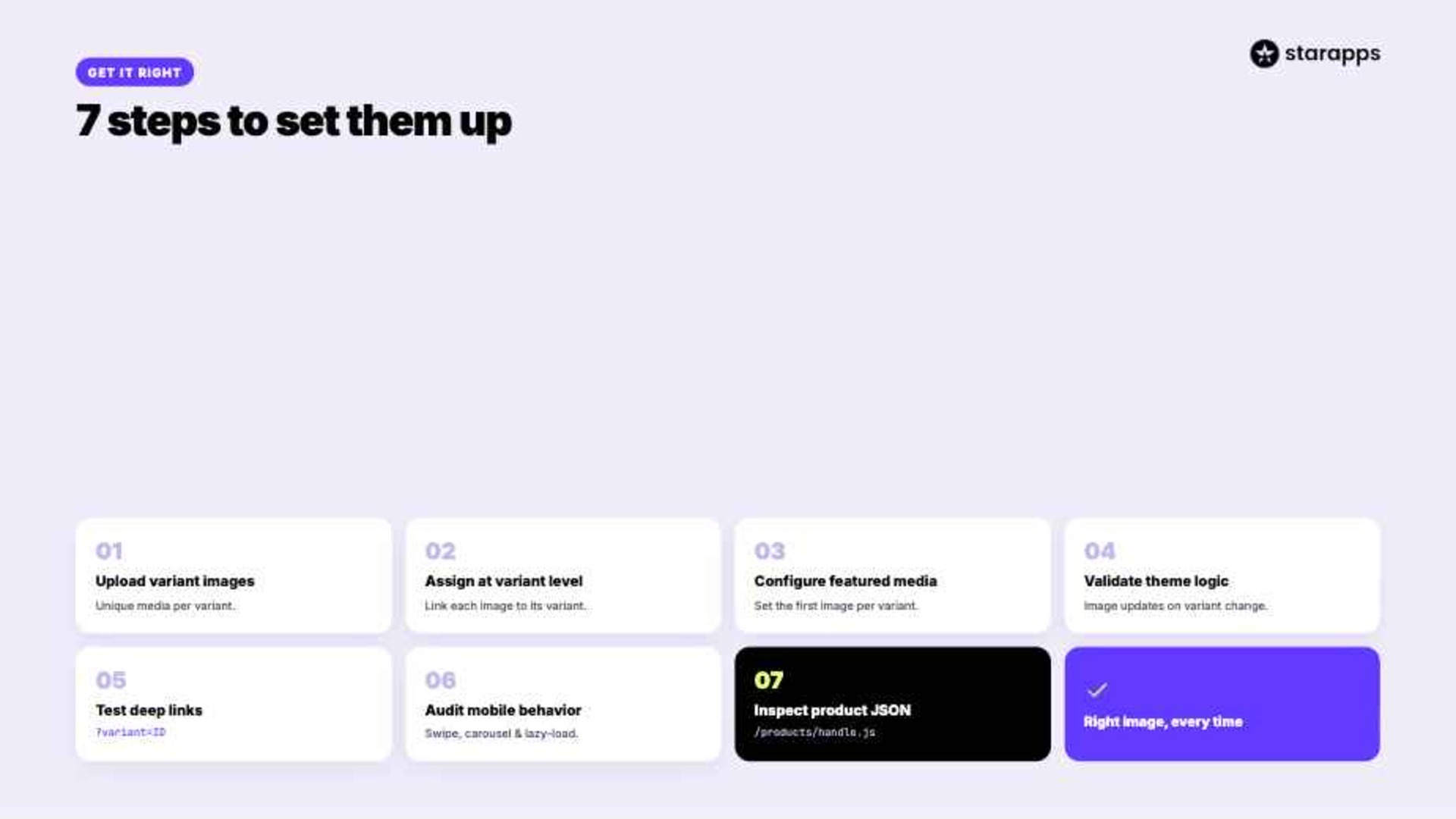
- Follow seven steps: upload variant-specific images, assign media correctly, configure featured media, validate theme logic, test URLs, audit mobile behavior, and inspect product JSON. These checks help keep images aligned with variant selections.
- Image update issues are often caused by missing media assignments, theme limitations, JavaScript errors, app conflicts, or caching problems. Most can be resolved through systematic troubleshooting.
- StarApps simplifies management with tools like Variant Image Automator, Swatch King, Variant Title King, and Variant Descriptions King. Together, they create clearer and more reliable variant experiences.
What Are Featured Variant Images on Shopify?
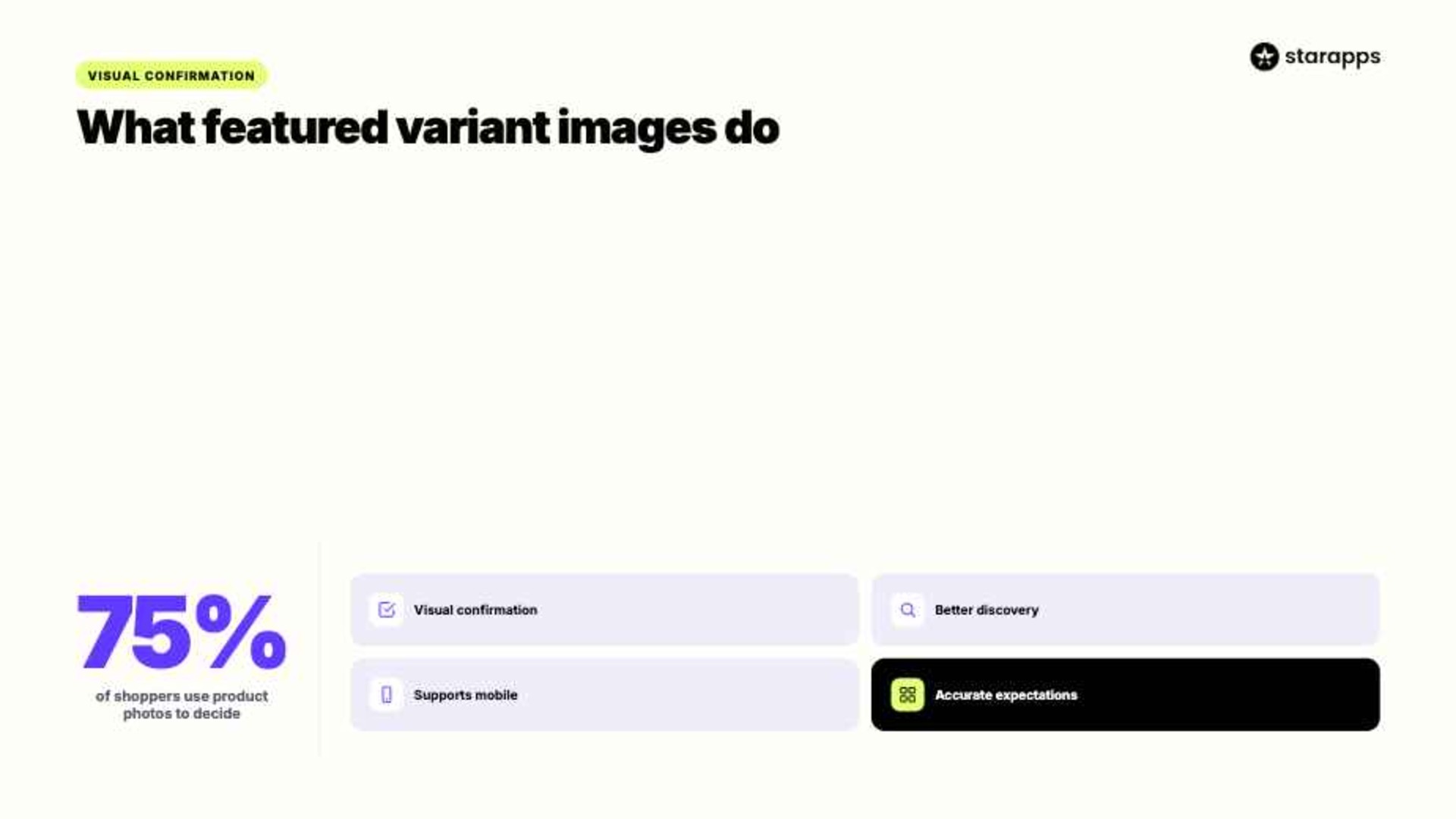
A featured variant image is the primary image associated with a specific product variant. When a shopper selects a color, style, material, or other option, Shopify can display the image assigned to that variant, helping the customer verify their selection.
As Vogue Business notes:
"In a sea of seemingly endless e-commerce options, the way products are shot and displayed is an essential purchase driver for brands and marketplaces."
Variant images are important because they:
- Provide Visual Confirmation: Shoppers can immediately verify that they selected the correct option before adding it to their cart.
- Improve Product Discovery: Different colors, materials, patterns, and styles become easier to explore and compare.
- Support Mobile Shopping: Accurate variant images help shoppers make decisions faster on smaller screens.
- Create More Accurate Expectations: Variant-specific visuals help shoppers understand exactly what will arrive after purchase.
- Improve Catalog Presentation: Large product catalogs feel more organized when every variant has the correct visual representation.
Understanding why featured variant images matter is only the first step. The next challenge is configuring them correctly so Shopify consistently displays the right image for every variant selection.
Suggested Read: Best Shopify Apps for Product Variants 2026
7 Steps to Set Up Featured Variant Images Correctly on Shopify
Getting featured variant images right is more important than many merchants realize. 87% of consumers say they would be unlikely to consider a retailer again if they received incorrect product information.
Steps to get Shopify variant featured image right:
1. Upload Variant-Specific Images
Featured variant images only work when Shopify has unique media assets to associate with each variant. If multiple variants share the same image set, Shopify has no way to provide visual confirmation after selection.
Start by preparing dedicated media for each visual variant.
Check:
- Color-specific product photos
- Material-specific product photos
- Style-specific product photos
Example: Instead of uploading one image for a hoodie available in Black, Blue, and Green, upload separate image sets for each color.
2. Assign Images at the Variant Level
Uploading images is not enough. Shopify must know which image belongs to which variant.
Navigate to:
- Shopify Admin → Products
- Select the product
- Open the variant
- Assign the correct media
Example: The "Navy Blue / Medium" variant should reference its own image record rather than inheriting the product's default featured image.
3. Configure Featured Media Associations
Each variant can reference a specific featured media object. This association determines which image appears first when the variant loads.
Verify the relationship between variants and media.
Check:
- Variant featured media assignments
- Product media library organization
- Duplicate image references
Example: In Shopify product JSON, a variant should point to its assigned media ID:
{
"id": 4582919371,
"featured_media": {
"id": 3829102847
}
}
The media ID should correspond to the selected variant.
4. Validate Theme Variant Logic
Many themes use JavaScript to update images dynamically. If the theme does not respond correctly to variant changes, the featured image may never update.
Review how the theme handles variant events.
Check:
- product-form.js
- variant-picker.liquid
- Theme event listeners
Example:
document.addEventListener('variant:change', function(event) {
const variant = event.detail.variant;
});
The selected variant should trigger an image update every time the customer changes an option.
5. Test Variant Deep Links
Shopify allows merchants to link directly to specific variants. Featured images should remain accurate even when customers enter through a variant URL.
Validate direct-link behavior.
Check:
- Marketing campaign links
- Collection page links
- Shared product URLs
Example:
/products/performance-hoodie?variant=4582919371
The page should load the associated variant and its featured image immediately.
6. Audit Mobile Image Behavior
A setup that works perfectly on desktop can still fail on mobile devices. Touch interactions, image carousels, and lazy-loading scripts often introduce inconsistencies.
Test the complete selection workflow.
Check:
- Image updates after selection
- Mobile gallery behavior
- Swipe interactions
Example: Selecting "Forest Green" on mobile should update the primary image before the customer starts swiping through the gallery.
7. Inspect Product JSON Output
When troubleshooting becomes difficult, inspect the product data directly. Shopify's product JSON reveals exactly how variants and media are connected.
Review the product payload.
Check:
- Variant IDs
- Media IDs
- Featured image references
Example:
yourstore.com/products/product-handle.js
If the variant references the wrong media object here, the storefront will likely display the wrong featured image as well.
Even a technically correct setup can fail if themes, apps, or storefront logic interfere with image updates. Understanding why featured variant images stop updating is often the next step in solving the problem.
Suggested Read: Hide Variant Images on Shopify Product Pages: Complete Guide for Cleaner Product Galleries
Why Shopify Featured Variant Images Sometimes Do Not Update
In many cases, the problem is not the image itself but how Shopify, the theme, and third-party apps handle variant changes on the storefront. Understanding the root cause makes troubleshooting much easier.
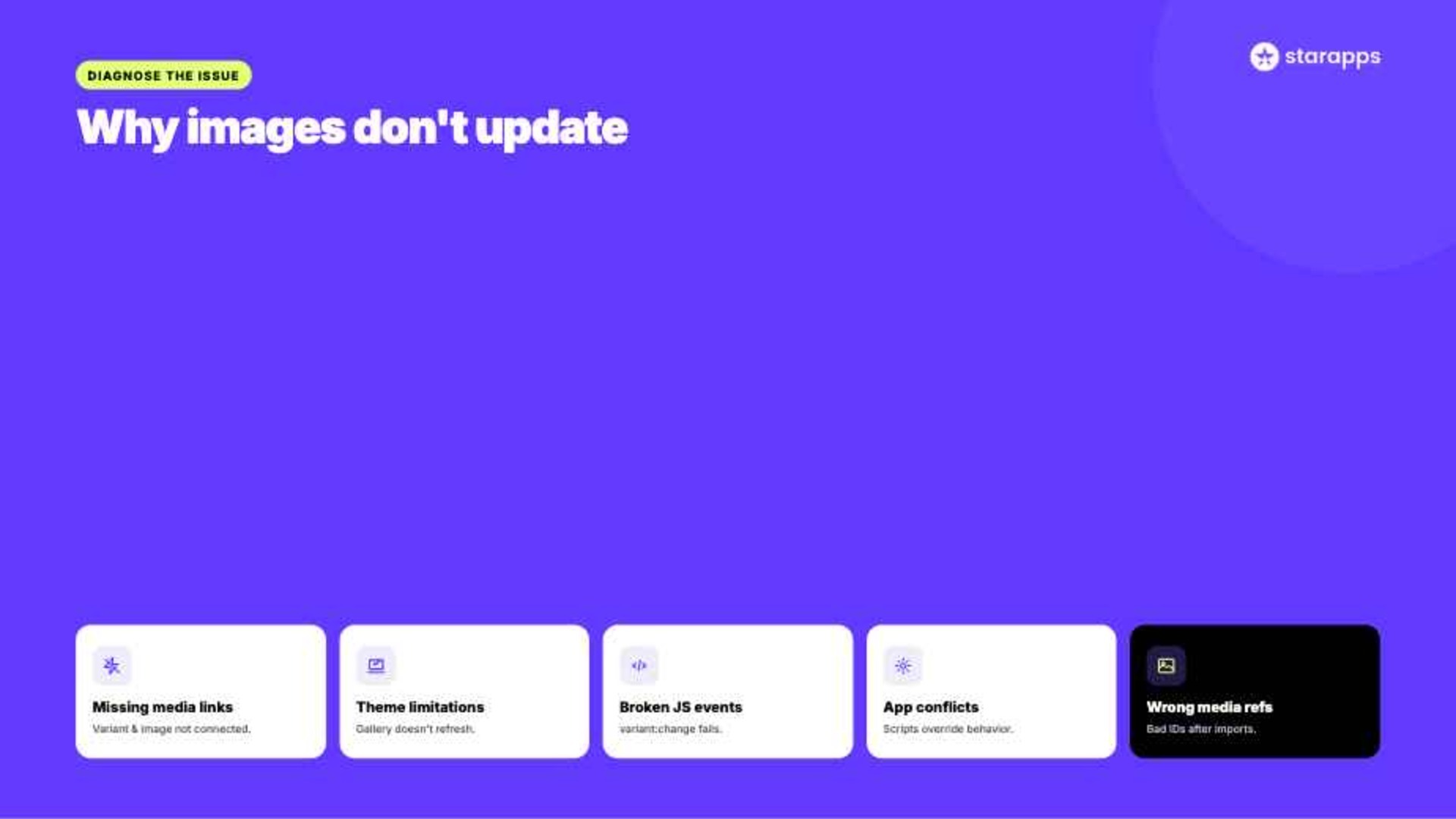
Common reasons featured variant images do not update include:
- Missing Variant-to-Media Assignments
The variant exists and the image exists, but they are not connected. Shopify cannot display a variant-specific image without an explicit media association. - Theme Limitations
Some themes update prices and inventory after a variant selection but fail to refresh the product gallery. The result is a stale featured image. - Broken JavaScript Events
Modern Shopify themes rely on variant-change events to trigger image updates. If these events fail, the gallery may continue showing the previous variant. - App Conflicts
Swatch apps, gallery apps, bundle apps, and custom storefront tools can override native Shopify image behavior. Conflicting scripts are a common source of unexpected image issues. - Incorrect Media References
A variant may be assigned the wrong media ID during imports, migrations, or bulk product updates. This can cause another variant's image to appear instead.
The good news is that most of these issues are predictable and relatively easy to fix once identified. The next step is understanding the most common mistakes merchants make and the practical solutions for each one.
Suggested Read: How Do You Build Flexible Catalogs With Shopify Custom Code Variants?
Common Featured Variant Image Mistakes and Fixes
Featured variant image issues are often caused by small configuration mistakes rather than major technical failures.
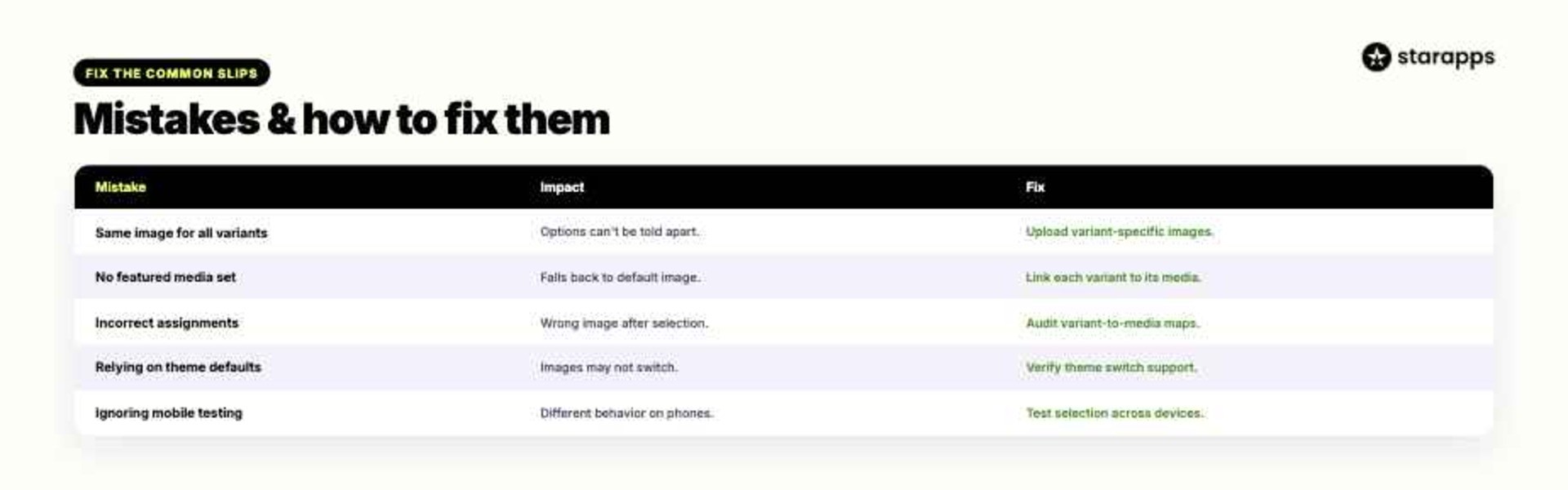
These are:
A few preventative habits can eliminate many of these problems before they affect customers:
- Audit variant images regularly
- Test variant switching after updates
- Use consistent image naming conventions
- Review product pages on mobile devices
- Verify deep links before launching campaigns
Of course, manually managing featured variant images becomes more difficult as product catalogs grow. The right Shopify app can automate much of this work while creating a more reliable shopping experience.
Suggested Read: Ecommerce Store: Display Variant Images with Dropdown Options
Manage Shopify Featured Variant Images More Efficiently With StarApps
StarApps builds Shopify apps that help merchants create clearer product experiences and manage complex variant catalogs more effectively. When featured variant images are not updating correctly, shoppers can struggle to connect their selections with the products they see.
Here's how the StarApps product suite can help:
- Show the Correct Images Automatically
Variant Image Automator displays the images associated with the selected variant, helping customers see the exact product they have chosen. - Make Variant Selection More Visual
Swatch King replaces standard dropdowns with image swatches, color swatches, buttons, and other selector formats that make product options easier to understand. - Keep Product Titles Aligned
Variant Title King updates product titles based on the selected variant, giving shoppers another layer of confirmation. - Display Variant-Specific Information
Variant Descriptions King dynamically shows details associated with the selected option, such as materials, specifications, or sizing information. - Improve Product Data Organization
Variant Alt Text King helps keep image metadata aligned with individual variants, supporting a more structured product catalog. - Support Conversion Optimization
Urgency King - Low Stock Alert displays inventory-based messaging that encourages shoppers to act when stock levels are limited.
More than 25,000 active merchants use StarApps to improve their Shopify stores, including over 1,000 Shopify Plus stores. Whether you are managing a handful of variants or a large catalog with hundreds of product options, the StarApps product suite helps create more accurate, intuitive, and conversion-friendly shopping experiences.
Give Every Variant the Right First Impression
Featured variant images do more than make product pages look better. When the wrong image appears, shoppers can question whether they selected the correct product, leading to confusion, hesitation, and abandoned purchases. Even small image mismatches can undermine trust in the shopping experience.
Getting featured variant images right requires accurate media assignments, reliable theme behavior, and a clear connection between variant selections and product visuals. StarApps helps merchants streamline that process with tools designed to improve variant presentation and reduce product-page friction.
The clearer the product experience, the easier it becomes to convert shoppers into customers. Try for free.
Frequently Asked Questions
1. How do I change the featured image for a variant in Shopify?
Go to Products → Select a Product → Variants, open the desired variant, and assign the correct image or media file. Shopify will use that image when the variant is selected on supported themes.
2. Can each Shopify variant have its own featured image?
Yes. Shopify allows merchants to assign unique images to individual variants. This is commonly used for products with multiple colors, patterns, materials, or styles.
3. Why is Shopify showing the wrong featured variant image?
This usually happens because of incorrect variant-to-media assignments, theme limitations, app conflicts, or outdated cached data. Reviewing variant media settings is often the best place to start.
4. Do featured variant images affect conversions?
They can. Featured variant images provide visual confirmation of a customer's selection, helping reduce confusion and increase confidence during the buying process.
5. What is the difference between a featured variant image and a product image?
A product image belongs to the overall product gallery, while a featured variant image is tied to a specific variant. When configured correctly, the featured variant image changes based on the option selected by the shopper.
Heading

End-to-end traceability
To ensure regulatory compliance, you must have a complete overview of your products from production to shipping. Book a demo to see how Katana can give you full visibility of your operations.
.png)

.svg)

.svg)

.svg)
.png)