


Combine Shopify products into variants with simple steps. Learn methods, limits, and best practices to improve store UX and product organization.
Many Shopify stores end up with separate listings for the same product—one for each color, size, or style. This makes your catalog harder to manage and creates a confusing experience for customers who just want to compare options quickly.
If you’re trying to fix this, the right approach is to combine Shopify products into variants within a single listing. This keeps your store organized and makes it easier for shoppers to view and select options without jumping between pages.
In this guide, you’ll learn how to combine Shopify products into variants step by step, along with the best method based on your store size and setup.
Key Takeaways
- Combine Shopify products into variants when the core item is the same, and only options like color, size, or material change
- Shopify allows up to 100 variants and 3 options per product, which can limit how you structure larger catalogs
- You can combine products using manual setup, CSV import, Shopify Plus combined listings, or apps, depending on your store size
- A clean variant setup improves how customers browse, compare, and select products on your store
- Better presentation, such as variant images, swatches, and detailed descriptions, helps reduce confusion and supports purchase decisions
What Does Combining Products into Variants Mean?
Combining products into variants means grouping similar items under a single product listing, instead of creating separate listings for each option. In Shopify, variants are different versions of the same product, based on options like color, size, or material.
For example, many stores create separate products like:
- T-shirt: Red
- T-shirt: Blue
- T-shirt: Black
This approach increases the number of listings and makes it harder for customers to compare options. Instead, you can combine these into one product:
- Product: Basic T-shirt
- Variants:
- Color: Red, Blue, Black
- Size: S, M, L
This way, customers can select their preferred option directly on the product page without switching between listings.
A simple fashion store example: A clothing brand selling a hoodie in 5 colors and 4 sizes should not create 20 separate products. All options should exist under one product as variants, making it easier to browse, compare, and purchase.
In Shopify, this is the intended structure:
- One product = one item
- Variants = all available options of that item
Keeping this structure improves catalog organization and makes the shopping experience smoother. Once you understand what variants are, it becomes easier to decide when combining products makes sense for your store.
Also Check: AI for Inventory Management: Automation and Efficiency.
When Should You Combine Products into Variants?
You should combine products into variants when the core product is the same, and only specific attributes change. This keeps your catalog clean and helps customers compare options easily on a single page.
Combine products when they differ by:
- Color (e.g., red, blue, black)
- Size (e.g., S, M, L, XL)
- Material or finish (e.g., cotton vs polyester, matte vs glossy)
- Minor design variations that don’t change the product itself
For example, a sneaker available in multiple colors and sizes should exist as one product with variants, not separate listings for each option.
Do NOT combine products when they are fundamentally different:
- Different product types (e.g., t-shirt vs hoodie)
- Products with different use cases or features
- Items with significant design or functional differences
For instance, a formal shirt and a casual shirt should remain separate products, even if they look similar.
A simple way to decide: If a customer expects to choose between options on the same product page, it should be a variant. If they expect a completely different product, it should be a separate listing. Getting this right early helps avoid catalog issues and improves how customers browse your store.
Recommended: How to Send Back in Stock Notifications in Shopify Easily.
Shopify Limits That Affect Product Variants
Before you combine Shopify products into variants, it’s important to understand a few platform limits. These affect how you structure your products and which method you choose.
Key limitations:
- Maximum variants per product: Shopify allows up to 100 variants per product
(For example: 5 colors × 5 sizes × 4 styles = 100 variants) - Maximum options per product: You can add up to 3 options
- Example:
- Option 1: Color
- Option 2: Size
- Option 3: Material
- Example:
- Combined Listings availability: Shopify’s native combined listings feature is only available on Shopify Plus. Stores on other plans need to rely on manual methods or apps.
What this means for your store
- Large catalogs can quickly hit the 100 variant limit
- Complex products with more than 3 options need a different setup
- Native solutions are limited unless you are on Shopify Plus
Setting the right structure from the start helps you avoid rework later and choose the most suitable method for combining products into variants.
4 Easy Ways to Combine Shopify Products into Variants

There isn’t a single method that works for every store. The right approach depends on your catalog size, time available, and how often you update products.
Method 1: Manual Method (Best for Small Stores)
This method works well if you have a limited number of products and variants.
Steps:
- Create one main product that will hold all variants
- Add variant options (color, size, etc.) manually
- Copy product details (images, prices, SKUs) from existing listings
Pros:
- Simple to understand
- No tools or imports required
- Full control over each variant
Cons:
- Time-consuming as your catalog grows
- Easy to miss details when copying data
- Not practical for large stores
Method 2: CSV Import Method (Best for Medium Catalogs)
This method is faster if you’re handling multiple products at once.
Steps:
- Export your existing products as a CSV file
- Edit the handle field so related products share the same handle
- Update variant fields (options, SKUs, images)
- Re-import the CSV into Shopify
What to keep in mind:
- Faster than manual work
- Works well for bulk edits
Limitations:
- Error-prone if the CSV is not formatted correctly
- Requires careful handling of variant fields
- Troubleshooting can take time if something breaks
Method 3: Shopify Combined Listings (Shopify Plus Only)
Shopify provides a native way to group products using combined listings, but this is only available on Shopify Plus.
How it works:
- You create separate products for each variant
- Shopify links them together as a single combined listing
- Customers can switch between variants on the product page
Important limitation:
- This feature is restricted to Shopify Plus, so it’s not available for most stores
Method 4: Using Shopify Apps (Best for Scale)
Manual methods take time, and CSV editing can become difficult as your catalog grows. Native options are also limited unless you’re on Shopify Plus. This is where apps become useful.
They help you:
- Combine and manage variants more efficiently
- Improve how variants are displayed
- Keep your catalog structured as you scale

One option is SA Variants: Combined Listings. It allows you to:
- Show multiple variants directly on collection pages
- Create separate listings for each variant while keeping them connected
- Improve product discovery, since customers can see more options without opening each product
It also supports better SEO by giving each variant its own URL and content, which helps search engines index them more effectively. This approach works well for stores with larger catalogs that need both flexibility and a better browsing experience.
Also Read: Strategies for Effective Variant Management in Manufacturing.
How to Improve Variant Experience After Combining Products
Combining Shopify products into variants is only the first step. How those variants are presented on your store has a direct impact on how easily customers can make a purchase.
A well-structured product page helps customers compare options quickly and reduces confusion.
Show Variant Images Properly
When customers select a variant, they expect to see images for that specific option. If all images appear together, it becomes difficult to understand what they are choosing.
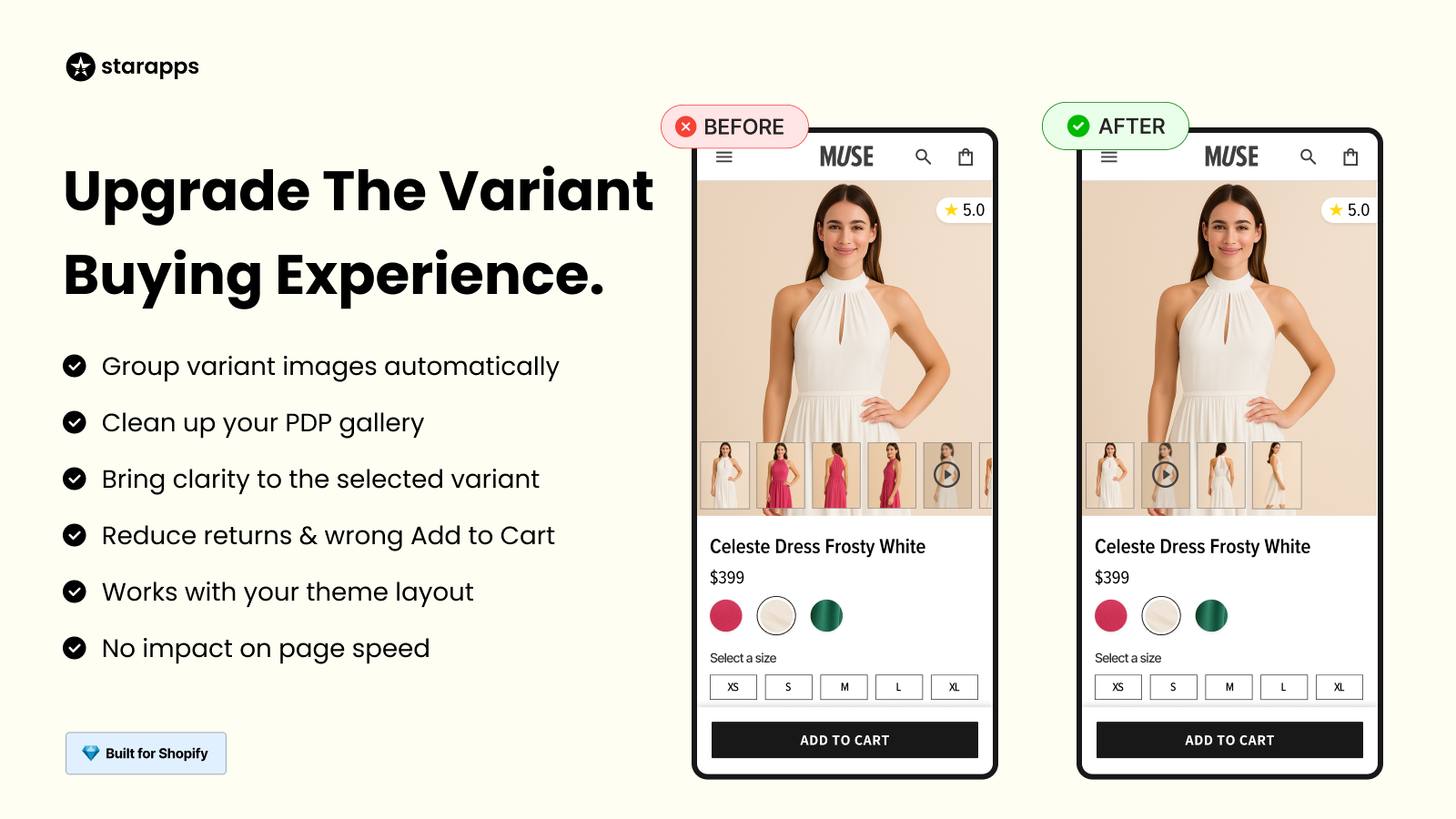
This is where Variant Image Automator helps.
- Displays only the images related to the selected variant
- Keeps the product gallery clean and relevant
- Supports multiple images per variant, including zoom and videos
This makes it easier for customers to view the exact product they are about to purchase, especially in categories like fashion or accessories.
Use Color Swatches Instead of Dropdowns
Dropdowns are functional, but they don’t help customers visualize options. For products where appearance matters, visual selection works better.
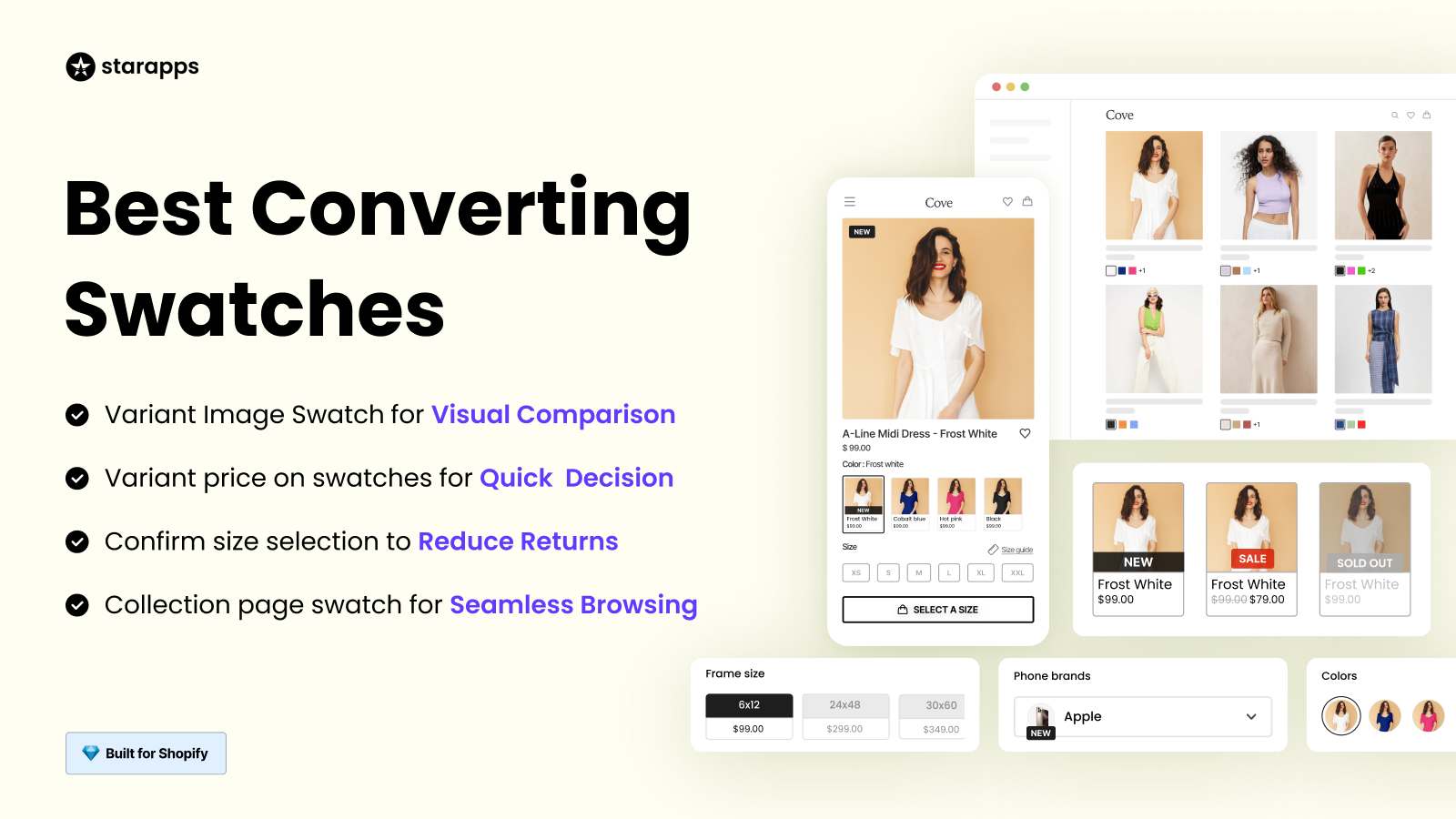
Color Swatch King replaces dropdowns with:
- Color swatches for quick selection
- Image swatches for better visual clarity
- Variant options directly on collection pages
Customers can compare options faster and select what they want without extra clicks.
Add Variant-Specific Information
Some variants need more than just a name and image. Details like size charts, material differences, or care instructions can influence buying decisions.
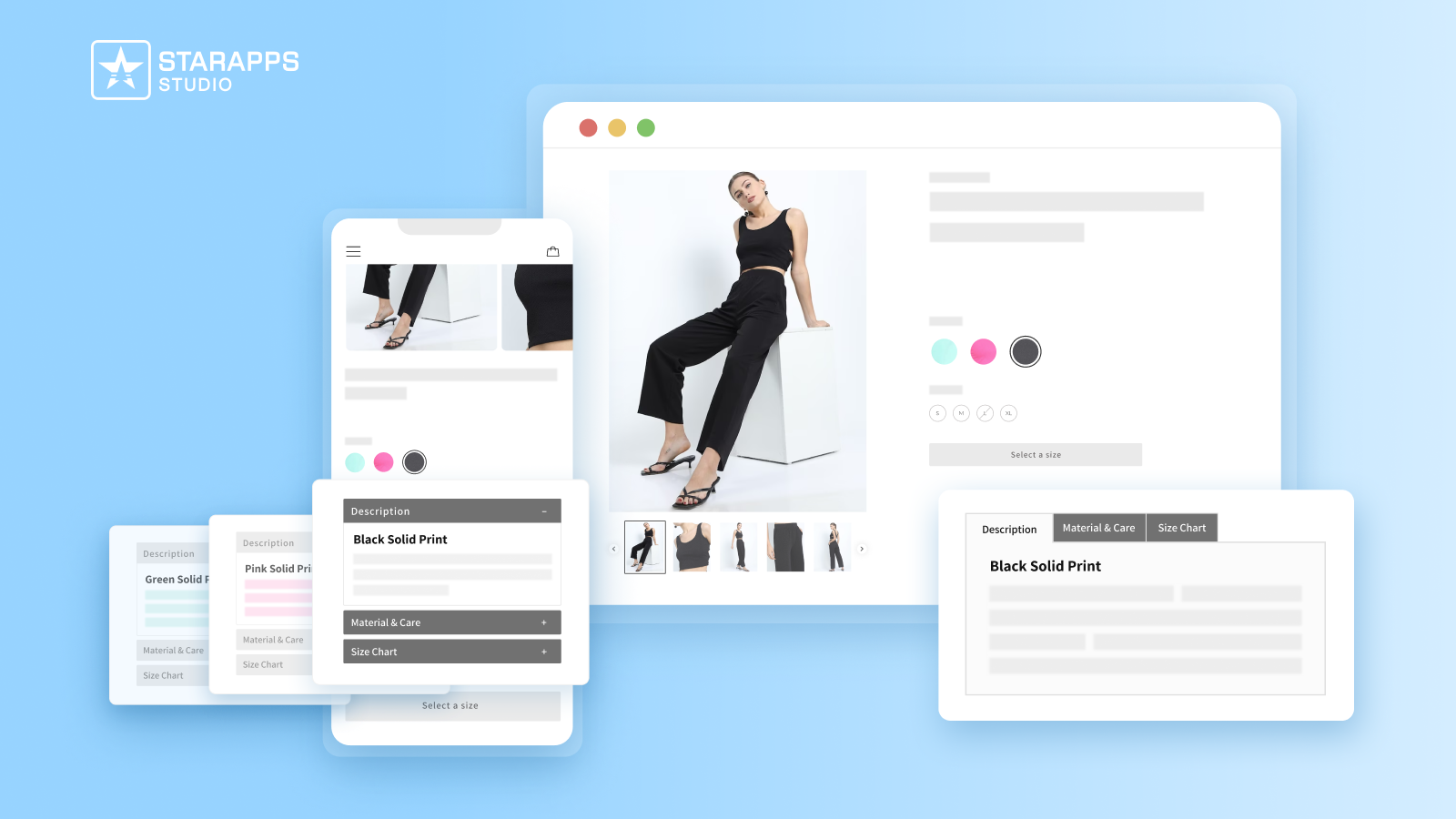
Variant Descriptions King allows you to:
- Add unique descriptions for each variant
- Organize content using tabs or accordions
- Keep product pages clean while still providing detailed information
This helps customers understand exactly what they are buying, which can reduce returns and support queries. Improving how variants are displayed ensures that combining products into variants actually leads to a better shopping experience, not just a cleaner catalog.
Mistakes to Avoid When Merging Shopify Products into Variants
Combining Shopify products into variants can improve your store structure, but small mistakes can lead to confusion for customers and issues with search visibility. Here are some common problems to watch out for:
- Combining unrelated products: Products that differ in purpose, design, or use should not be grouped as variants. This creates confusion on the product page and makes it harder for customers to understand what they are buying.
- Not updating URLs (SEO issue): When you merge products, old product URLs may become inactive. If these are not redirected properly, you can lose search rankings and traffic. Setting up redirects ensures customers and search engines reach the correct page.
- Poor variant naming: Variant names like “Option 1” or unclear labels make selection difficult. Clear naming, such as “Color: Black” or “Size: Medium,” helps customers quickly understand their choices.
- Not assigning images properly: Showing all images for every variant creates confusion, especially for visual products. Each variant should have its own relevant images so customers can clearly see what they are selecting.
Avoiding these issues helps maintain a clean catalog and ensures a better shopping experience.
Which Method Should You Choose?
The right method depends on your store size and how complex your catalog is.
- Small store → Manual method: Works well if you have a limited number of products and variants.
- Medium catalog → CSV import: Suitable for bulk updates, but requires careful handling to avoid errors.
- Large catalog → Shopify apps: Best for managing many products and variants efficiently while maintaining a good user experience.
- Shopify Plus → Combined Listings: Useful if you are on Shopify Plus and want a native way to link separate products.
Choosing the right approach early saves time and keeps your product structure easy to manage as your store grows.
Final Thoughts
Combining Shopify products into variants helps keep your catalog organized and makes it easier for customers to compare and choose options on a single page. The right method depends on your store size, but how you present those variants matters just as much as how you structure them.
If you manage a growing catalog or want better control over how variants appear across your store, StarApps can help simplify this process.
You can explore their apps to improve variant management and presentation, or connect with their team to see how it fits your store setup.
FAQs
1. Can I combine products into variants without losing existing orders?
Yes, existing orders remain unchanged because they are tied to the original product records. However, you should keep a backup and ensure proper mapping of SKUs and variants when restructuring products.
2. Will combining products into variants affect my product reviews?
Yes, if reviews are linked to individual product listings, they may not automatically transfer when you merge products. You may need a review app that supports migration or manual reassignment.
3. How do I handle inventory when combining products into variants?
Each variant should have its own SKU and inventory tracking. When merging products, make sure inventory quantities are correctly assigned to the corresponding variants to avoid stock issues.
4. Can I combine products into variants after my store is live?
Yes, but it should be done carefully. You may need to update URLs, set up redirects, and test the product page to ensure there are no issues with navigation or tracking.
5. What should I do if my product exceeds Shopify’s variant limit?
If your product goes beyond the variant limit, you can split it into multiple products and link them using apps or grouping methods. This helps maintain usability without overloading a single product page.
Heading

End-to-end traceability
To ensure regulatory compliance, you must have a complete overview of your products from production to shipping. Book a demo to see how Katana can give you full visibility of your operations.
.png)

.svg)

.svg)

.svg)
.png)