

Learn when to use alt text for decorative images in Shopify, how empty alt attributes improve accessibility, and what they mean for SEO.
If you run a Shopify store, image accessibility affects more than compliance. It changes how screen readers interpret your storefront and how customers interact with your content. Many merchants spend hours writing image descriptions but still misuse alt text for decorative images, which creates unnecessary noise for visitors using assistive technology.
The confusion usually starts when every image gets treated the same way. Product photos need descriptions. Decorative dividers, background graphics, and visual flourishes often do not. This guide explains how alt text for decorative images works, when empty alt text is the correct choice, and how Shopify merchants can improve accessibility without creating SEO problems.
TL;DR
- Decorative images should typically use empty alt text (alt="") so screen readers skip them.
- Informative images and decorative images serve different purposes and require different accessibility treatment.
- Empty alt text does not harm SEO when the image provides no meaningful information.
- Shopify stores often contain decorative icons, separators, banners, and design elements that should not receive descriptive alt text.
- Tools like Variant Alt Text King help manage image accessibility at scale while keeping product images properly described.
What Is Alt Text?
Alt text, short for alternative text, is a written description added to an image's HTML code. It tells search engines and screen readers what an image contains or represents.
When an image fails to load, the alt text appears in its place. When a visually impaired shopper uses a screen reader, the alt text is read aloud so they can understand what's on the page. Search engines also use alt text to understand image content. This helps image indexing and improves accessibility.
Here's what it looks like in HTML:
html
<img src="red-sneaker.jpg" alt="Red canvas sneaker with white sole, side view">
The alt attribute is what you're setting when you fill in that "Image alt text" field in Shopify. It's a small field with a big job.
Why Image Alt Text Matters
Alt text is a legal and ethical baseline for accessible websites, not just a nice-to-have. According to the 2026 WebAIM Million report, 16.2% of all home page images had missing alternative text. That's roughly 10.8 images per page with no description at all, leaving screen reader users without context on what they're looking at. Alt text serves several important functions.
User Experience
Alt text also supports visitors with everyday browsing issues. If an image fails to load because of a connection problem, browser issue, or image error, the alternative text appears in its place. This helps users understand what content is missing without disrupting the flow of the page. For Shopify merchants, that means product pages remain easier to understand even when images do not display correctly.
Accessibility
Alt text helps people who use screen readers understand the content on your page. The Web Accessibility Initiative (WAI) considers alternative text a core part of accessible web content because it provides image context for users who cannot see visual elements. When images contain useful information, proper descriptions help visitors receive the same message and complete tasks more easily.
SEO
Search engines do not interpret images the way people do. They rely on surrounding content, structured data, and alt text to understand image context. Clear image descriptions help search engines index product photos correctly and improve visibility in image search results. For Shopify stores with large catalogs, well-written alt text also helps search engines connect product images to relevant search queries.
What Are Decorative Images?
A decorative image is any image that exists purely for visual styling. It adds no information to the page that isn't already conveyed through the surrounding text or layout.
Common examples of decorative images include:
- Background patterns or textures
- Horizontal dividers and border graphics
- Spacer images are used to create visual padding
- Abstract shapes that support a design theme
- Redundant images where the adjacent text already describes the visual fully
The test is simple: if you removed the image from the page and no useful information was lost, it's likely decorative.
A soft pastel background behind a "New Arrivals" banner is decorative. The banner itself, especially if it contains text or a product, is not.
The Critical Distinction: Decorative vs. Informative Images
This is where many Shopify stores get it wrong. Not every image that "looks nice" is decorative.
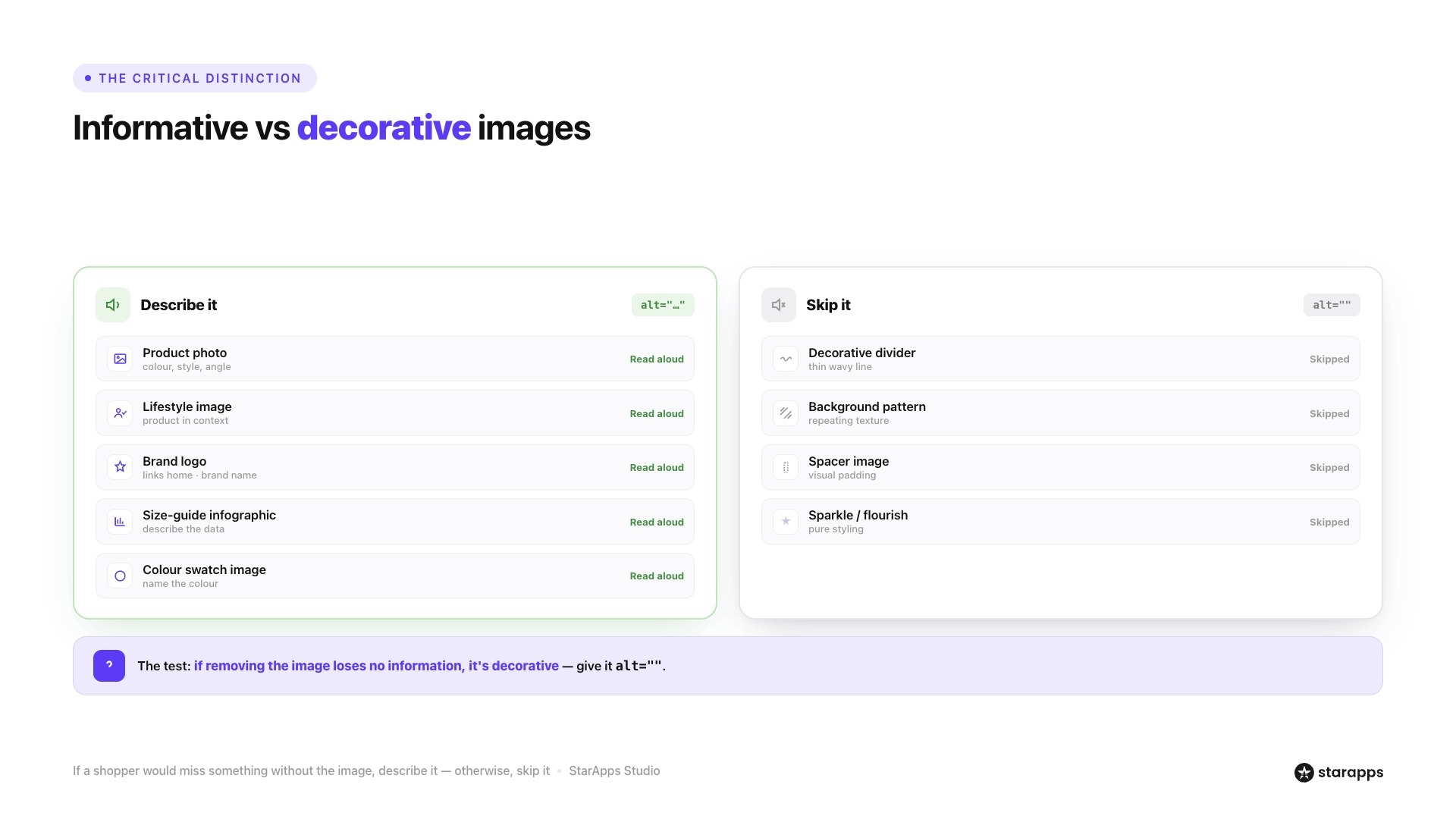
Here's a quick reference to help you decide:
The key rule: if a shopper would miss information by not seeing the image, it needs descriptive alt text. If removing the image changes nothing about how the page is understood, it's decorative.
Why Empty Alt Text (alt="") Is Essential for Decorative Images
Many Shopify merchants assume every image needs a written description. That sounds helpful at first, but it often creates accessibility problems instead of solving them. Understanding alt text for decorative images starts with knowing that not every image serves the same purpose.
Decorative images exist to improve the visual appearance of a page. They do not explain a product, support navigation, or provide information customers need. When decorative graphics receive unnecessary descriptions, screen readers announce them alongside meaningful content. This creates extra noise and slows down the browsing experience. According to the Web Accessibility Initiative (WAI), decorative images should use an empty alt attribute so assistive technologies can safely ignore them.
For example, imagine a Shopify fashion store with:
- Decorative sparkle icons
- Section dividers
- Background textures
- Decorative collection banners
If each graphic contains descriptive alt text for decorative images, a screen reader may repeatedly announce elements that add no value to the customer journey. Instead of hearing product details, users hear unnecessary design descriptions between important content.
The correct solution is:
<img src="decorative-divider.png" alt="">
The empty alt attribute tells assistive technologies:
"This image does not contain important information."
As a result, the screen reader skips it completely. This is why accessibility experts recommend empty alt text for decorative images when the graphic exists only for styling purposes.
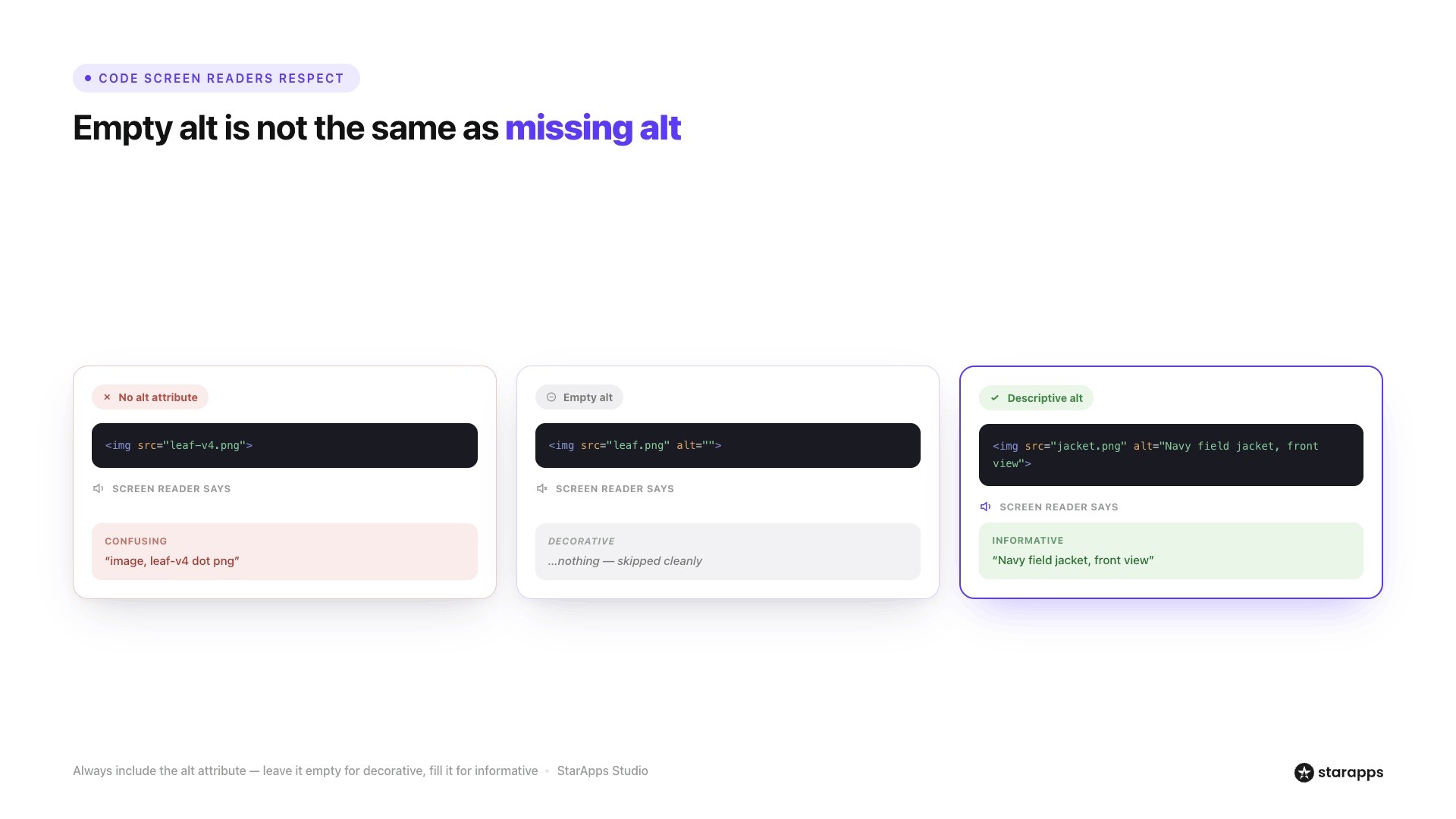
Another important detail is that empty alt text is different from missing alt text.
- Incorrect: <img src="decorative-divider.png">
- Correct: <img src="decorative-divider.png" alt="">
When the alt attribute is missing, some screen readers may announce the image file name, image URL, or generic image information. That creates confusion because users cannot tell whether the image contains meaningful content. Proper alt text for decorative images avoids this issue by clearly telling assistive technology to ignore non-essential visuals.
This issue often triggers accessibility warnings such as:
"alt text is not empty, and the image may be decorative."
Accessibility scanners flag these cases because decorative graphics should not interrupt the reading experience with unnecessary descriptions. A practical Shopify example helps illustrate the impact.
A home décor store used decorative leaf illustrations across collection pages. Each image contained auto-generated alt text pulled from file names:
alt="green-leaf-decoration-final-v4"
The collection page contained 18 decorative graphics. Screen reader users heard all 18 announcements while browsing products.
After replacing those descriptions with proper alt text for decorative images using empty alt attributes, the page became much easier to navigate.
There is another benefit many merchants overlook.
Empty alt text for decorative images also helps maintain cleaner accessibility audits. When decorative graphics contain unnecessary descriptions, accessibility reviews often identify them as redundant content because they add extra screen reader announcements without providing useful information.
For Shopify stores with large catalogs, this becomes even more important. A store with 5,000 products may already manage thousands of informative product images. Removing unnecessary descriptions from decorative graphics helps teams focus their accessibility efforts where they matter most.
As a general rule:
- Product photos should have descriptive alt text.
- Variant images should have descriptive alt text.
- Size charts should have descriptive alt text.
- Linked logos should have descriptive alt text.
- Decorative borders, patterns, dividers, and styling graphics should use alt="".
That distinction keeps your storefront cleaner for screen readers and aligns with WCAG accessibility guidance. When merchants understand how alt text for decorative images works, they create a better browsing experience without adding unnecessary accessibility barriers.
SEO Implications: Does Empty Alt Text Hurt Your Rankings?
This is one of the most common questions Shopify merchants ask, and the answer is straightforward: no, empty alt text on decorative images does not hurt your SEO.
Google's own guidance acknowledges that not every image needs descriptive alt text. When Google crawls a page and finds alt="", it correctly interprets the image as decorative and moves on. There's no ranking penalty for this.
What hurts your SEO is one of two things:
- Missing the alt attribute entirely on product or informative images, Google cannot index what it cannot read.
- Keyword-stuffing alt text, adding irrelevant keywords to every image attribute, including decorative ones, is considered a spam signal.
For a Shopify store with 500 product images, the SEO opportunity is in the product photos, not the background patterns. Spend your time writing accurate, descriptive alt text for every product image and variant; that's where the indexing and discoverability gains come from.
If you're managing variant images at scale, Variant Alt Text King: SEO from StarApps automates this process. It generates optimized alt text for every product variant image using variables like product title, color swatch name, variant type, and brand name.
How to Identify Decorative Images in Your Shopify Store
Many merchants struggle to identify decorative elements. Before you can fix anything, you need to know what you're working with. Here's a practical approach:
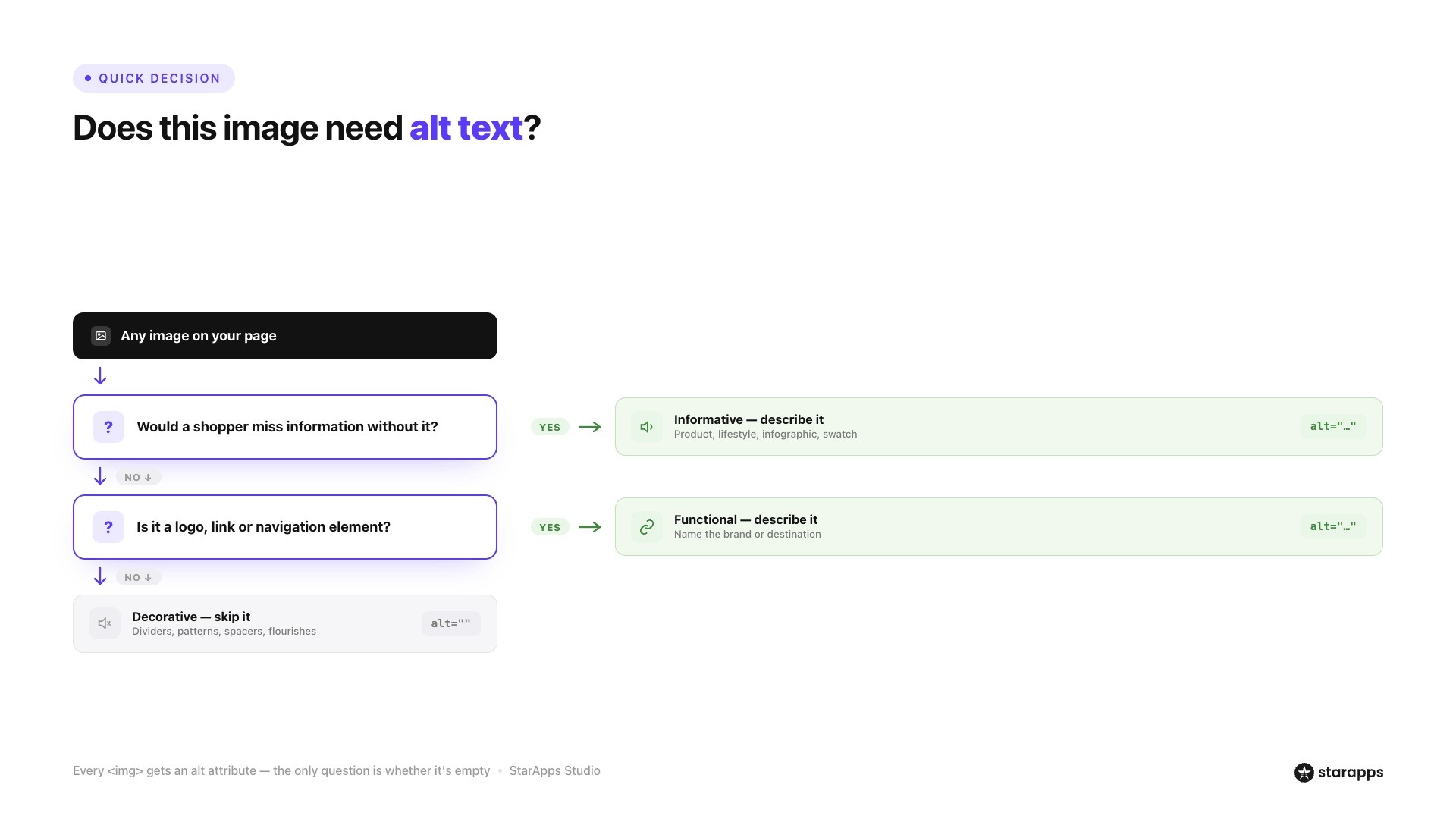
Step 1: Ask What Happens If The Image Disappears
Would customers lose information? If not, the image may be decorative.
Step 2: Check Whether The Image Supports Navigation
Buttons, linked logos, and functional icons are not decorative. They need descriptions.
Step 3: Review Product Pages
Focus on:
- Product photos
- Variant images
- Icons
- Section graphics
- Decorative banners
Step 4: Test With A Screen Reader
Listen to the page. If the screen reader repeatedly announces unnecessary graphics, decorative images likely need adjustment.
Example
A fashion retailer displayed:
- 12 product images
- 4 decorative divider graphics
- 8 decorative sparkle icons
The accessibility audit revealed 12 unnecessary screen reader announcements per page. After converting decorative elements to empty alt text, the browsing experience became much cleaner.
Step-by-Step: Adding Empty Alt Text in Shopify
Shopify gives you two main ways to manage alt text, depending on where the image lives.
For product images:
- Go to Products in your Shopify admin.
- Open the product and scroll to the Media section.
- Click on the image you want to edit.
- In the panel that opens, find the Alt text field.
- For decorative images, leave this field completely blank. Shopify will render it as alt="" in the HTML.
- For product images, write a specific description, include the product name, color, and any relevant detail (e.g., "Cream linen trousers, front view, flat lay").
- Click Save.
For theme images (banners, section backgrounds):
- Go to Online Store > Themes and click Customize.
- Navigate to the section containing the image.
- Click the image block. Look for an Image alt text or Accessibility field in the settings panel on the left.
- Leave it empty for decorative backgrounds, or add a description if the image conveys content.
- Save your changes.
For images in theme code:
If you're editing Liquid files directly, set alt="" explicitly on any <img> tag for decorative images. Never omit the alt attribute entirely.
Common Mistakes to Avoid When Writing Alt Text for Decorative Images
Even when merchants understand the basics of alt text for decorative images, small mistakes can still create accessibility issues. Many Shopify stores accidentally add unnecessary descriptions, miss important image context, or handle decorative graphics incorrectly.
Leaving Out the Alt Attribute Entirely
This is one of the most common mistakes.
Every image should include an alt attribute, even when the image is decorative.
For decorative graphics, use: alt=""
Do not remove the attribute completely. Missing alt attributes can cause screen readers to announce image file names or generate confusing output. Proper alt text for decorative images helps assistive technologies understand which visuals should be ignored.
Writing Alt Text Like "Decorative Image" or "Spacer"
Many merchants try to label decorative graphics with descriptions such as:
- "decorative image"
- "spacer"
- "design element"
- "background graphic"
These descriptions do not provide useful information. Instead, they interrupt the browsing experience with unnecessary announcements. For decorative graphics, empty alt text for decorative images is the recommended approach.
Treating Logos as Decorative
A common accessibility mistake happens when merchants assume logos are decorative. Most logos communicate brand identity and often link back to the homepage. Because they serve a purpose, they usually require meaningful alt text.
Adding Keywords to Decorative Image Alt Text
Some merchants add SEO keywords to decorative graphics, hoping to improve rankings.
For example:
alt="best Shopify fashion store fashion accessories clothing collection."
This does not improve accessibility and rarely helps SEO. It creates unnecessary screen reader output and can make accessibility audits harder to manage.
Assuming All Background Images Need Alt Text
CSS background images do not use alt attributes.
For example:
background-image: url('banner-pattern.png');
Because background images are handled through CSS rather than HTML image tags, screen readers generally ignore them automatically. Merchants often waste time searching for alt text settings that do not exist.
Only HTML <img> elements require alt attributes.
Applying the Same Alt Text to Multiple Images
Product images should describe the specific image being displayed. A common Shopify mistake involves assigning the same description to every variant image.
For example:
alt="running shoes."
used across:
- Black running shoes
- Blue running shoes
- Red running shoes
Each image should reflect its actual content. Repeated descriptions reduce clarity and create weaker accessibility support.
A footwear retailer with 300 products and six color variants per item could end up displaying 1,800 images. Using unique descriptions helps customers understand exactly which product version appears on the page.
Need Better Alt Text Across Your Entire Product Catalog?
Managing image accessibility becomes difficult when your store contains thousands of products and variants.
A footwear brand with 1,200 products and 8 color variants per item may manage nearly 10,000 image assets. If alt text updates take five minutes per product, the workload quickly becomes substantial.
That is where Variant Alt Text King: SEO becomes useful.
The app helps merchants:
- Generate variant-specific image descriptions
- Keep image information consistent
- Update alt text automatically
- Improve accessibility workflows
- Reduce manual editing time
For stores with large catalogs, automation helps maintain consistency while still allowing merchants to identify which images should remain decorative.
A practical approach works best:
- Use descriptive alt text for informative images.
- Use empty alt text for decorative graphics.
- Review accessibility reports regularly.
- Maintain image clarity across product variants.
If managing alt text at scale feels unmanageable, Variant Alt Text King: SEO takes the manual work off your plate. Your product images get optimized alt text automatically, your store meets accessibility standards, and your images stay discoverable in search. Install Alt Text King for Free
FAQs
1. What is the correct decorative image alt text format?
The recommended format is: alt=""
This tells screen readers the image is decorative and should be skipped. W3C accessibility guidance specifically recommends using empty alt text instead of removing the attribute entirely.
2. Why does my accessibility checker say "alt text is not empty and image may be decorative"?
This warning appears when an image contains descriptive text but seems purely decorative. Accessibility tools look for visual elements that do not communicate information. If the image only serves design purposes, empty alt text may be the correct solution.
3. How does alt text for decorative images in Word work?
Microsoft Word allows users to mark images as decorative through the Alt Text settings panel. This tells assistive technologies to ignore those images. Decorative formatting graphics, borders, and visual accents often fall into this category.
4. Can decorative image alt text affect Shopify accessibility scores?
Yes. Incorrectly describing decorative graphics can create accessibility issues and clutter screen reader output. Cleaning up decorative image handling often improves audit results and creates a smoother browsing experience.
5. Is accessibility alt text for decorative images different from product image alt text?
Yes. Decorative images generally use empty alt text because they provide no meaningful information. Product images require descriptive alt text because customers depend on those images to understand products, features, colors, materials, and variant differences.
Heading

End-to-end traceability
To ensure regulatory compliance, you must have a complete overview of your products from production to shipping. Book a demo to see how Katana can give you full visibility of your operations.



.png)

.svg)

.svg)

.svg)
.png)