

Learn how to transfer a GoDaddy Domain to Shopify with this step-by-step guide. Avoid migration mistakes and keep your store running smoothly.
Your domain does much more than display your store name in a browser. It affects customer trust, search visibility, email functionality, and how shoppers reach your products. If you are planning to transfer a GoDaddy Domain to Shopify, handling the move correctly helps avoid downtime, lost traffic, and broken customer journeys.
Shopify notes that domain changes can take up to 48 hours to fully propagate across the internet, depending on DNS updates and registrar approvals. This guide explains how to transfer a GoDaddy Domain to Shopify, what happens during the process, common mistakes to avoid, and how to improve store performance after the migration.
TL;DR
- Connect your GoDaddy domain to Shopify before starting the transfer process to reduce downtime risks.
- Back up DNS records, including email settings, before moving the domain.
- Unlock the domain and obtain the authorization code from GoDaddy before initiating the transfer.
- Review redirects, SEO settings, and product URLs after the transfer completes.
- Use Shopify merchandising tools to improve product discovery, variant visibility, and customer experience after migration.
Understanding Why Domain Transfer Matters
Many store owners focus heavily on product migration while overlooking the domain itself. That often creates avoidable problems.
Your domain controls how customers access your storefront. It also affects:
- Search engine indexing
- Email delivery
- SSL certificates
- Brand trust
- Marketing campaigns
- Existing backlinks
A transfer that goes wrong can interrupt customer access during peak sales periods.
Consider a mid-sized apparel retailer running a seasonal promotion. The store completed a GoDaddy to Shopify migration successfully, but forgot to recreate email-related DNS records. Customer service inquiries stopped arriving during the campaign, creating delays in order support and returns processing.
The domain may seem like a technical detail. In reality, it directly affects customer experience.
Why Domain Ownership Centralization Helps
Many merchants initially register their domain through GoDaddy while using separate tools for ecommerce operations.
As stores grow, managing:
- Domains
- Hosting
- Ecommerce settings
- Product catalogs
When you transfer a domain from GoDaddy to Shopify, domain management moves into the same ecosystem as your store operations.
This reduces administrative overhead and makes ongoing store management easier. Shopify provides domain settings directly inside the admin dashboard, which helps teams manage storefront operations from a single location.
SEO Considerations During Domain Transfers
Search engines pay close attention to domain changes. If the transfer process is handled poorly, your store may experience crawl errors, broken links, redirect issues, or temporary ranking fluctuations. This becomes more important for stores with established organic traffic, indexed product pages, and backlinks from external websites. Before you transfer your GoDaddy domain to Shopify, review your URL structure, indexed pages, and existing redirects to reduce disruption during the migration.
A domain transfer does not automatically harm SEO, but missing redirects and URL inconsistencies often create problems. For example, if product or collection URLs change after a GoDaddy to Shopify migration, search engines may struggle to understand where the content moved. Before launching the updated store, audit product pages, collection paths, blog URLs, and internal links.
Why Businesses Are Moving from GoDaddy to Shopify
Shopify has grown into the dominant e-commerce platform globally. As of 2025, Shopify powers millions of merchants across more than 175 countries and generates over 14% of total U.S. ecommerce sales. The platform has also facilitated more than $1.6 trillion in cumulative sales globally. When merchants commit to Shopify as their primary commerce platform, it makes practical sense to bring their domain management along with it.
Here are the specific reasons merchants make this move:
- Simpler admin: One platform handles your store, domain, and SSL. No switching between GoDaddy and Shopify for routine updates.
- Automatic SSL: Shopify provides a free SSL certificate for every transferred domain. On GoDaddy, SSL often requires a separate paid plan.
- Integrated DNS: Changes to DNS records can be made directly inside Shopify without navigating a separate registrar interface.
- Unified billing: Your domain renewal is managed alongside your Shopify subscription, reducing the chance of an expired domain.
- Shopify support: If something goes wrong with your domain configuration, Shopify support has full visibility into your setup and can help directly.
One trade-off worth noting: once you transfer your domain to Shopify, you give up some of the advanced DNS management options that GoDaddy offers. For most merchants, this does not matter. But if you run complex email hosting setups or custom subdomain configurations, check your requirements before committing to the transfer.
What Data Gets Moved When Moving from GoDaddy to Shopify?
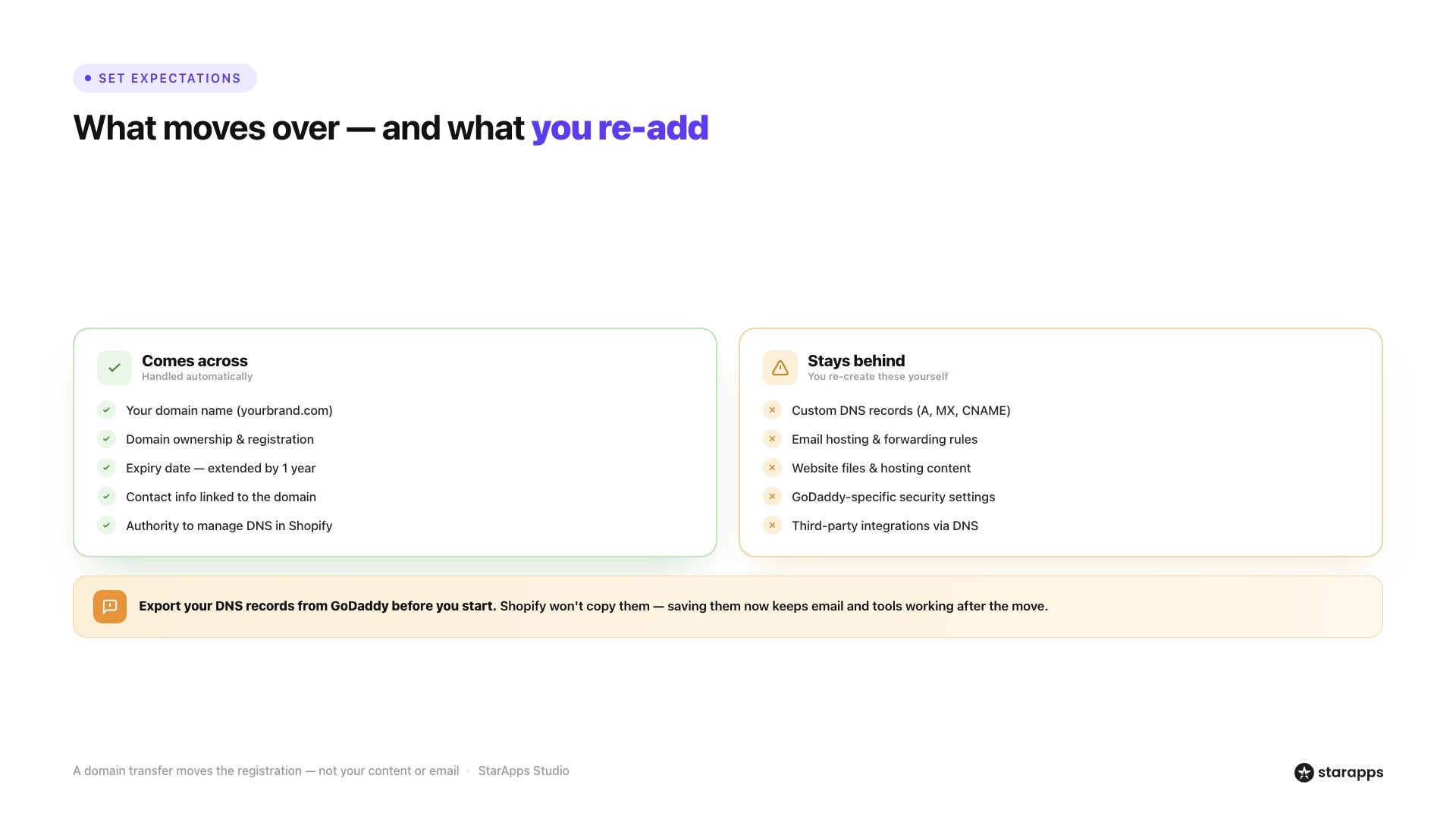
This is one of the most common points of confusion. A domain transfer does not move your website content, email setup, or any files.
Here is a clear breakdown of what comes across and what does not:
Before you start the transfer, export your current DNS records from GoDaddy. You will need to re-enter them manually in Shopify after the transfer completes. Shopify does not copy DNS records automatically during the GoDaddy to Shopify migration process.
Also Read: How to Create Multiple Shopify Stores Under One Account
Now that the scope is clear, the next step is understanding the actual transfer process.
Steps to Transfer Your Domain from GoDaddy to Shopify
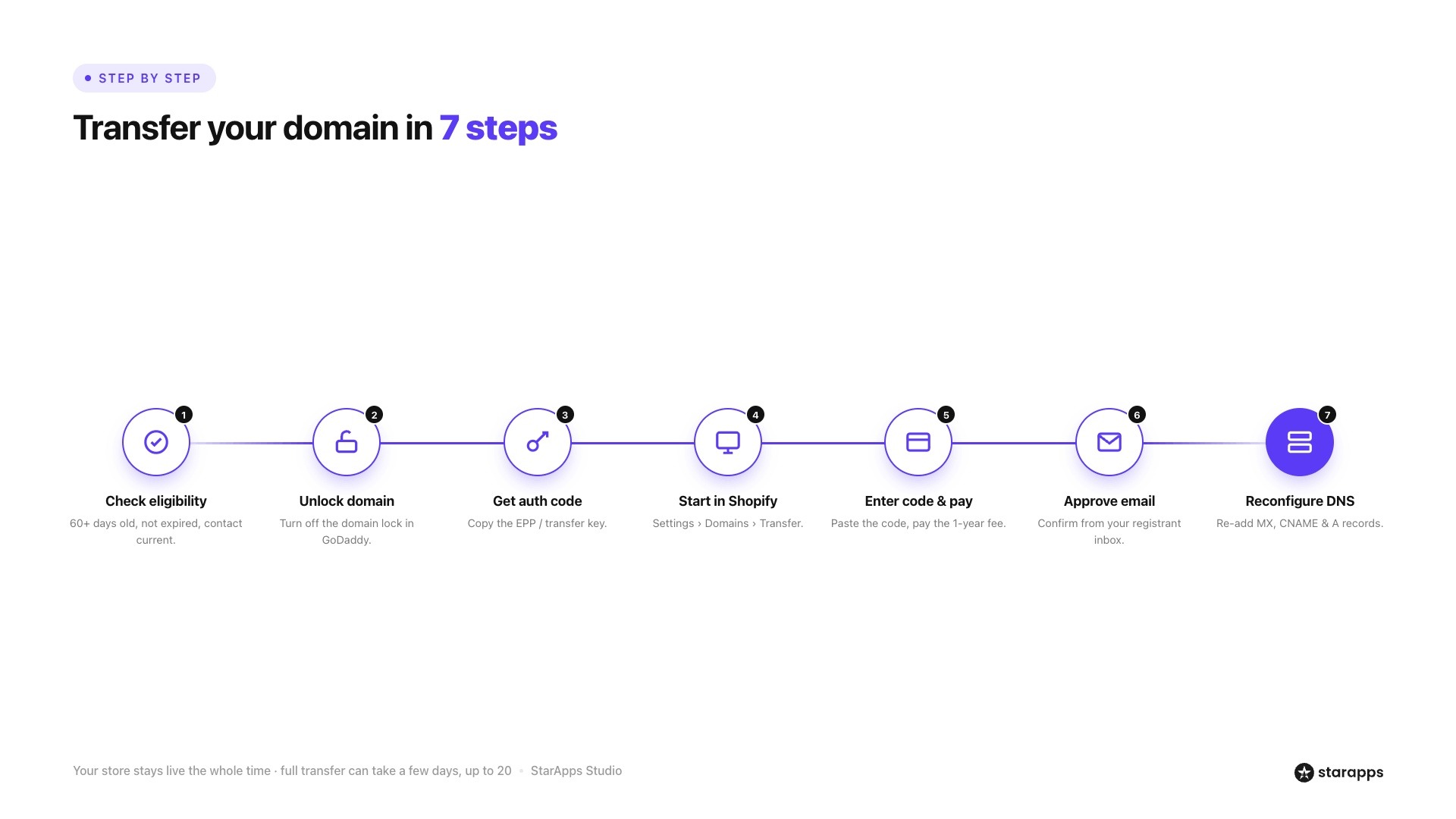
If you are wondering how to transfer a domain from GoDaddy to Shopify, follow the process below carefully. Skipping steps often causes unnecessary delays.
Before You Start: Check Transfer Eligibility
Your domain must meet all of the following conditions before Shopify will accept it:
- The domain must be at least 60 days old since registration or the last transfer.
- The domain must not be locked (more on this below).
- The domain must not have expired or be in a redemption period.
- Your WHOIS contact email must be active and accessible. You will receive a verification email here.
- The domain extension must be supported by Shopify. Common extensions like .com, .net, .org, .co, and .io are all supported.
If any of these conditions are not met, Shopify will reject the transfer request. Check your domain status in your GoDaddy account before proceeding.
The table below shows the complete process at a glance. Each step is explained in detail afterward.
Step 1: Unlock Your GoDaddy Domain
By default, GoDaddy locks all domains to prevent unauthorized transfers. You need to turn this off before Shopify can take over the Domain.
- Log in to your GoDaddy account and go to your Domain Portfolio.
- Select the Domain you want to transfer.
- Click Manage Domain, then go to Additional Settings.
- Find the Domain Lock section and click Disable or Turn Lock Off.
- Confirm the change. If you have two-factor authentication enabled, GoDaddy will ask you to verify via SMS or your authenticator app.
Once the lock is off, the Domain is ready to transfer. Do not re-lock it during the process, or the transfer will fail.
Step 2: Get Your Authorization Code from GoDaddy
The authorization code, also called an EPP code or transfer key, is a unique string that proves you have the right to transfer the domain away. Shopify will ask for this code during the transfer process.
- In your GoDaddy Domain Portfolio, select the domain.
- Click Transfer to Another Registrar under the Transfer section.
- Review the transfer checklist. GoDaddy will show a reminder to verify your contact information.
- Click Continue with Transfer. If Domain Protection is enabled, complete the two-factor authentication step.
- Click here to see the Authorization Code.
- Copy the code to your clipboard. GoDaddy will also email it to the registrant's email address on file.
Keep this code safe. It expires after a set period and is tied to your domain. Do not share it publicly.
Step 3: Initiate the Transfer Inside Shopify
Now switch to your Shopify admin to complete the domain transfer from GoDaddy to Shopify.
- In your Shopify admin, go to Settings > Domains.
- Click Transfer domain.
- Type in the domain name you want to transfer (without www).
- Click Next. Shopify will verify the domain and confirm it is eligible.
- Enter the authorization code you copied from GoDaddy.
- Review the one-year registration fee and complete payment. This extends your domain registration by one year from today.
Once you submit, Shopify sends a transfer request to GoDaddy. GoDaddy will email your registrant address to confirm or reject the transfer.
Step 4: Approve the Transfer and Wait
Check your registrant email for a confirmation message from GoDaddy. Open it and approve the transfer. If you do not approve within the window given, the transfer may be rejected or delayed.
The full transfer typically takes a few business days. In some cases, it can take up to 20 days. During this window, your store remains live, and your domain continues to point to your Shopify store without interruption.
Step 5: Reconfigure Your DNS Records
After the transfer completes, log back in to your Shopify admin and go to Settings > Domains. Select your newly transferred domain and check the DNS settings. Re-enter any custom records you saved from GoDaddy, including MX records for email and any CNAME or A records you use for subdomains or third-party tools.
Shopify automatically configures the A record pointing to its servers and the www CNAME. You only need to add anything beyond those defaults.
Addressing Common GoDaddy to Shopify Mistakes to Avoid
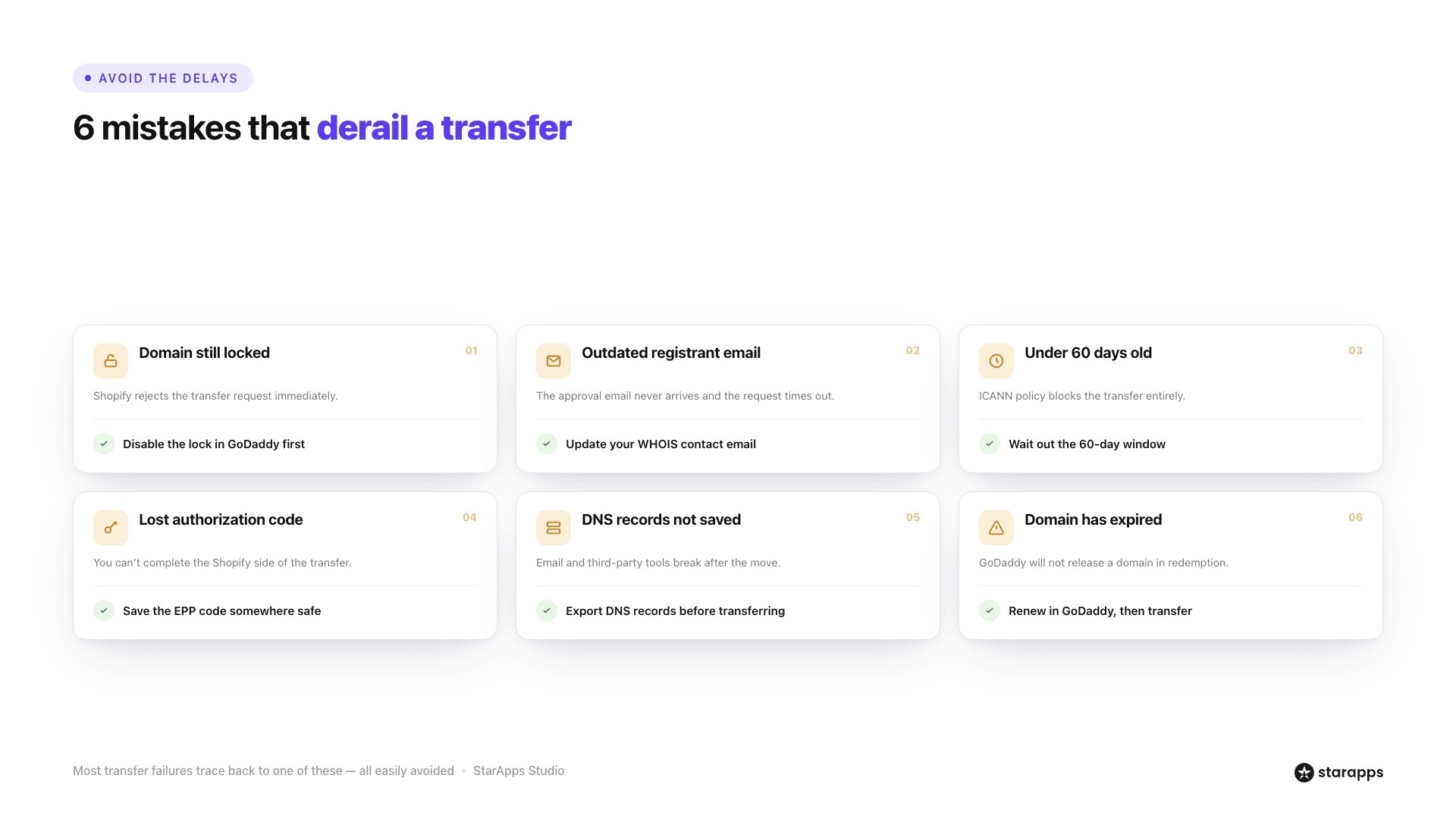
Most transfer failures come down to a handful of preventable errors. Here is what to watch out for:
A real-world example: A DTC apparel brand attempted to transfer a domain registered just 45 days prior. The transfer was blocked at the GoDaddy stage. The team had to wait another 15 days before restarting the process. Saving that two-week delay is as simple as checking your registration date before you begin.
Is the Transfer Worth It? Evaluating the Cost and Long-Term Value
The transfer is not free. Shopify charges a one-year domain registration fee upfront. As of 2025, most .com domains on Shopify are priced at $14 USD per year. That cost is essentially a one-year renewal, so you are not paying extra; you are paying early.
Here is a simple comparison to help you decide:
If your store is entirely on Shopify and you do not rely on GoDaddy for email or advanced DNS needs, the transfer is worth it. You reduce admin overhead and get one unified point of control for your online presence.
If you are heavily reliant on GoDaddy's email hosting or need granular DNS control, connecting your domain to Shopify rather than transferring it may be the better short-term option.
SEO Growth Requires More Than Domain Ownership
Many merchants assume SEO improves automatically after moving to Shopify.
The platform helps, but SEO performance still depends on:
- Product page quality
- Internal linking
- Product metadata
- ALT text management
- Variant visibility
A store with 1,000 products can spend significant time manually updating image metadata.
Even saving five minutes per product removes more than 80 hours of repetitive merchandising work. That is why many ecommerce managers begin reviewing SEO-focused Shopify apps after completing a transfer a GoDaddy Domain to Shopify project.
How StarApps Helps Improve Your Shopify Store
Once your domain is pointing to Shopify, the real work begins: making your store convert. A working domain is the foundation. What you build on top of it determines whether visitors stay, browse, and buy.
StarApps Studio builds Shopify apps that help merchants improve how their products are displayed and how customers navigate variant options. Over 25,000 active merchants and 1,000+ Shopify Plus stores use StarApps tools to reduce friction in the buyer journey.
Here is where StarApps tools make a difference after your GoDaddy to Shopify migration:
- Variant Options Color Swatch King: Display color, size, and style variants as visual swatches directly on your collection pages. Customers compare options without bouncing between product pages. Stores with complex variant setups, think fashion brands with 50+ color options, benefit immediately from the reduction in click depth.
- Variant Image Automator: When a customer selects a variant, they should see the right images instantly. This app automatically assigns images to each variant so your gallery stays clean and relevant.
- Variant Alt Text King: After migration, your product images may lack proper ALT text, which hurts both accessibility and SEO. This app automatically generates and updates ALT text for every product variant image.
- SA Variants: Combined Listings: Give each product variant its own URL, title, and description. This improves how search engines index your catalog and makes it easier for customers to land directly on the exact variant they searched for.
For stores managing large product catalogs, these updates improve the post-migration shopping experience and help keep your Shopify store organized, visually consistent, and easier for customers to browse. Book a demo today and see how we can support your migration process.
Final Thoughts
A successful transfer of a GoDaddy domain to a Shopify project involves more than changing registrars. You need to protect DNS records, preserve email functionality, verify redirects, and confirm that customers can access your storefront without interruptions.
As your store grows, the details of how your products are presented start to matter as much as the platform itself. StarApps Studio helps Shopify merchants improve variant display, product organization, and storefront experience through apps built specifically for growing DTC stores.
If you want your Shopify store to perform better from day one after the domain transfer, connect with our team and choose the tools that fit your store's next stage.
FAQs
1. How long does it take to transfer a GoDaddy Domain to Shopify?
The transfer typically completes in a few business days. In some cases, it can take up to 20 days, depending on how quickly you approve the confirmation email from GoDaddy and how fast GoDaddy processes the release. Your store stays live and continues to function normally during the entire transfer window.
2. Can I transfer a GoDaddy Domain to Shopify for free?
No. Shopify requires a one-year domain registration fee as part of the transfer process. For most .com domains, this is around $14 USD per year. This cost covers your domain registration for the next 12 months on Shopify and is essentially a prepaid renewal, not an additional charge on top of what you would pay anyway.
3. What happens to my GoDaddy email if I transfer my domain to Shopify?
Shopify does not provide email hosting. If you currently use GoDaddy for professional email (e.g., hello@yourbrand.com), you need to set up a third-party email hosting service before or immediately after the transfer. Google Workspace, Microsoft 365, and Zoho Mail all support custom domain email and work independently from your domain registrar.
4. Is it better to transfer a GoDaddy Domain to Shopify or just connect it?
Both options work, but they serve different needs. Connecting your domain (without transferring) means GoDaddy remains your registrar and you point your DNS records to Shopify. This is faster and involves no registration fee, but you still manage the domain through GoDaddy.
5. Can I reverse a domain transfer from Shopify back to GoDaddy?
Yes, you can transfer a Shopify domain to GoDaddy if needed. The process mirrors what you did in reverse: you would unlock your domain in Shopify, get an authorization code from Shopify's domain settings, and initiate a transfer into GoDaddy.
Heading

End-to-end traceability
To ensure regulatory compliance, you must have a complete overview of your products from production to shipping. Book a demo to see how Katana can give you full visibility of your operations.



.png)

.svg)

.svg)

.svg)
.png)