
5 Steps to Add Shopify Product Size Options Without Confusing Shoppers
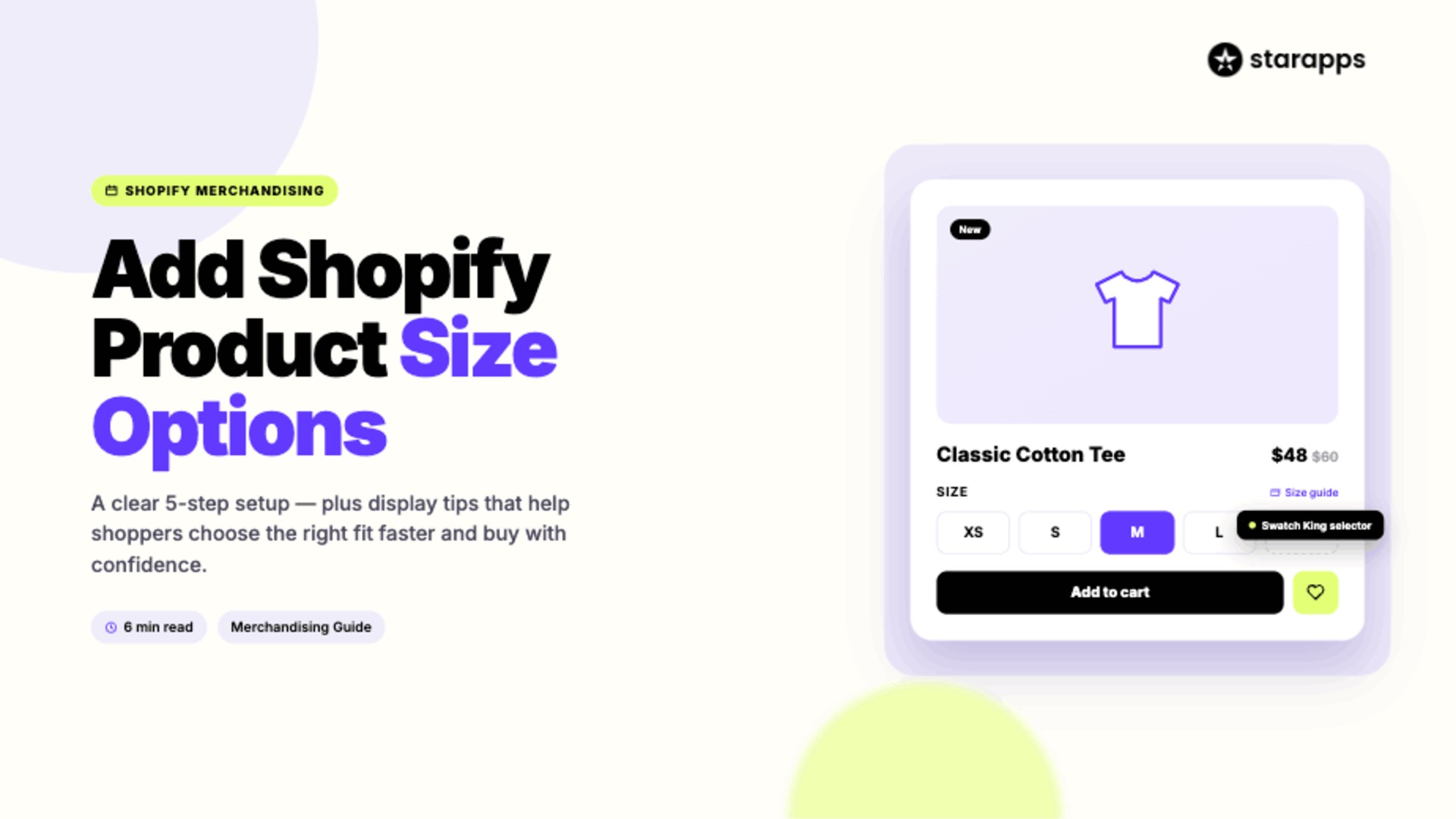

Learn how to add Shopify product size options without confusing shoppers. Discover best practices, sizing UX tips, and tools to improve conversions in 2026.
You can invest heavily in product development, merchandising, and customer acquisition. But if shoppers struggle to find the right size, those investments may never translate into sales.
When it feels confusing, shoppers hesitate, abandon their carts, or purchase the wrong option. The impact extends beyond conversions. Fit issues account for 38% of apparel returns globally as per a Vogue Business survey. The good news is that most sizing challenges are preventable.
In this article, you will learn how to create Shopify product size options that improve usability, support faster purchase decisions, and deliver a better customer experience.
Here's the quick version:
- Shopify product size options play a bigger role in conversions than many merchants realize. Clear size selection helps shoppers make faster and more confident purchase decisions.
- Adding variants in Shopify is relatively straightforward when you follow a consistent setup process. The real challenge is keeping size options organized as your catalog grows.
- A scalable size structure makes product management easier and improves the shopping experience. Consistent naming conventions help shoppers navigate products with less confusion.
- The way you display a Shopify size variant can influence how easily customers find the right fit. Visual selectors, mobile-friendly layouts, and accessible size guides reduce friction during product selection.
- StarApps helps merchants create more intuitive variant experiences across growing Shopify stores. Features like visual variant selectors make size options easier to browse, compare, and select.
Why Shopify Product Size Options Matter More Than Most Merchants Realize
Most shoppers do not think about your size options until they cannot find the one they need. Then it becomes a problem. A confusing size experience can create friction at the exact moment a customer is ready to buy.
Well-designed size options help you:
- Make products easier to browse and compare
- Reduce hesitation during the buying process
- Improve product discovery across large catalogs
- Create a cleaner, more intuitive product page
- Support mobile shoppers with faster selection
- Set clearer expectations before purchase
The challenge grows as your catalog expands. A handful of products may be easy to manage. Hundreds of products with multiple sizes, colors, and styles are not. The good news is that Shopify makes it relatively simple to add and manage size variants. Let us start with the basics.
Suggested Read: Change Swatch Image Size for Better Visibility
Steps to Add Product Size Options in Shopify
Shopify allows you to create up to 2,048 variants for a single product. That gives you plenty of flexibility, but even simple size options need a solid foundation.
Here is how to add product sizes the right way.

1. Create or Open a Product
Start by opening an existing product or creating a new one in your Shopify admin. This is where you will define the size options shoppers can choose from.
To get started:
- Go to Products in Shopify Admin
- Select an existing product or click Add Product
- Enter the product details
- Save the product if it is new
2. Add Size as a Variant Option
Variants let you offer different versions of the same product. In this case, size becomes the option shoppers use to find the right fit.
To add size variants:
- Navigate to the Variants section
- Click Add Options
- Enter Size as the option name
- Add values such as XS, S, M, L, and XL
- Save your changes
3. Add All Required Size Values
Think carefully about your size structure before adding values. Consistent naming makes your catalog easier to manage and easier for shoppers to understand.
When creating size values:
- Use a standard naming convention
- Avoid duplicate or overlapping sizes
- Include all available size options
- Keep labels short and clear
4. Configure Inventory for Each Size
Every size variant has its own inventory level. Accurate inventory tracking prevents shoppers from selecting sizes that are unavailable.
Review the following for each size:
- Inventory quantity
- SKU information
- Availability settings
- Fulfillment details
5. Review the Product Page Experience
Before publishing, test the product from a shopper's perspective. A few minutes of review can help you catch usability issues before customers do.
Check the following:
- Size options display correctly
- Mobile selection is easy to use
- Out-of-stock sizes are handled properly
- The buying experience feels intuitive
As your product catalog expands, traditional variant dropdowns often become a bottleneck. StarApps' Swatch King transforms size options into more intuitive selectors. Features like required size selection and smarter variant displays reduce friction while creating a cleaner product experience. Try for free.
Choose the Right Size Structure Before Your Catalog Gets Complicated

Adding size options is straightforward. Organizing them effectively takes more planning. The structure you choose today can influence everything from inventory management to product discovery as your catalog grows.
A scalable size structure should:
- Use consistent size naming across all products
- Separate size options from colors, materials, and other variants
- Match the sizing standards of your product category
- Support filtering and navigation across collections
- Stay easy to manage as new products are added
Just as importantly, think about how shoppers interpret your size options. A clear structure reduces confusion behind the scenes, but customers still need an intuitive way to interact with those options on the product page. That brings us to the next challenge: how your size options are actually displayed.
Suggested Read: Shopify Variants vs Options: Key Differences for Store Owners
Better Ways to Display Shopify Product Size Options

If shoppers cannot quickly find or understand their choices, they may leave without buying. That is a risk worth addressing when the global average cart abandonment rate currently sits at 70.19%.
A few display best practices can make size selection easier:
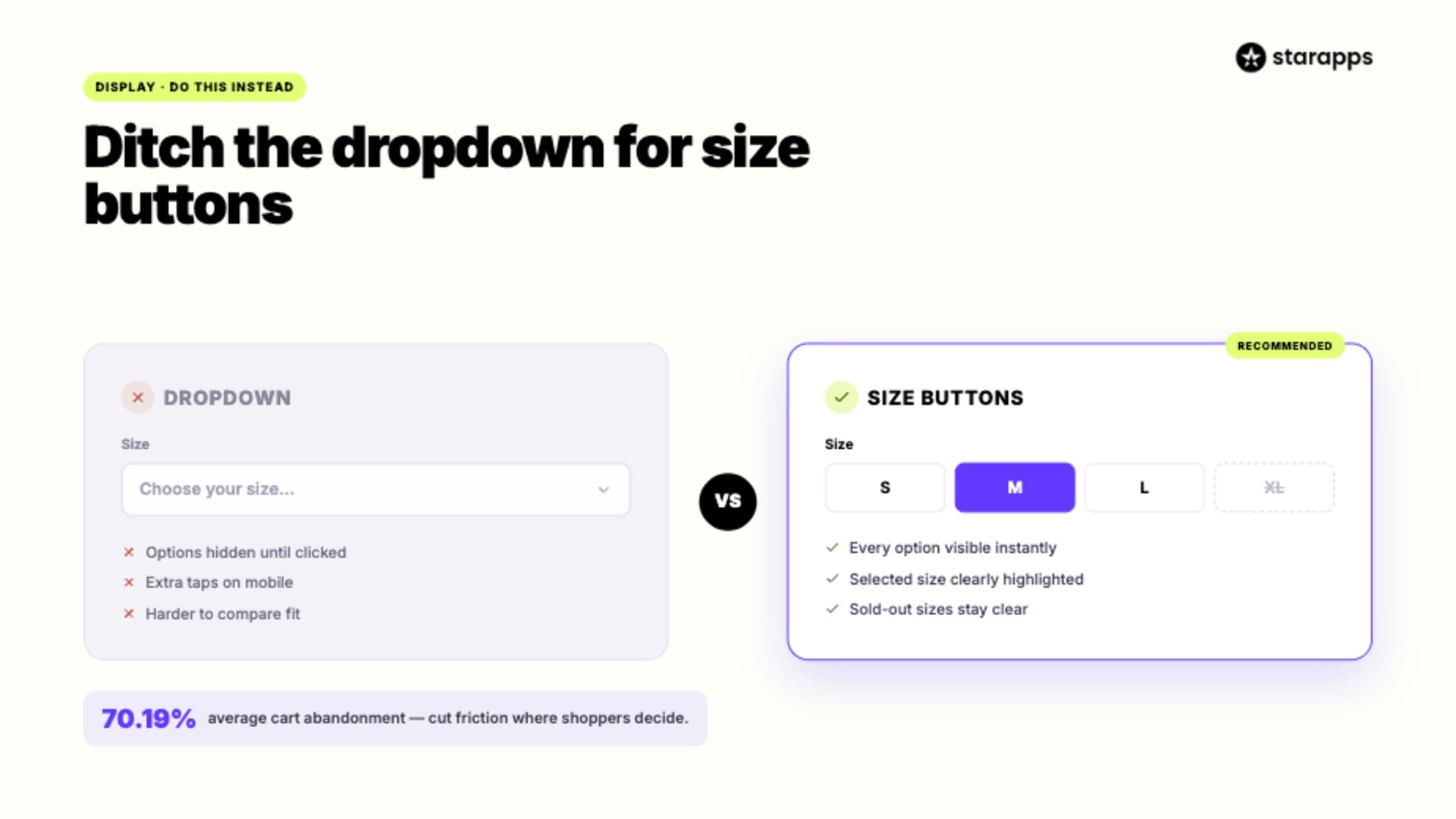
- Use Size Buttons Instead of Dropdowns
Dropdown menus hide available options until shoppers click them. Size buttons make every choice visible, helping customers compare options faster. - Highlight the Selected Size
Customers should never wonder which size they chose. A clear visual indicator reduces mistakes and improves confidence. - Display Unavailable Sizes Clearly
Hiding unavailable sizes can be frustrating. Showing them as unavailable provides clarity and sets expectations. - Keep Size Guides Within Reach
Do not make shoppers search for sizing information. Place size charts and fit guidance close to the size selector. - Show Variant-Specific Information
Different sizes may have different availability, dimensions, or shipping timelines. Dynamic product information helps shoppers make more informed choices.
The goal is simple: make size selection feel effortless. As your product catalog expands, however, maintaining that experience becomes harder. This is where specialized tools can help you create a cleaner, more intuitive approach to product variants.
Suggested Read: How To Create a Custom Shopify Product Page Template To Optimize Layouts?
Make Shopify Product Size Options Easier to Tackle With StarApps Studio
StarApps helps Shopify merchants create better product experiences through smarter variant presentation and product discovery. If your store manages multiple sizes, colors, styles, and growing SKU counts, the platform can help reduce friction throughout the buying journey.
StarApps can help you:
- Improve Visibility: Shoppers should not have to open dropdowns just to see their options. Swatch King displays variants more clearly, making size selection faster and more intuitive.
- Reduce Errors: Customers often add products to their carts without realizing they selected the wrong variant. Required variant selection helps ensure shoppers actively choose the size they want before purchasing.
- Simplify Navigation: Large catalogs can quickly become difficult to browse. StarApps helps organize variant experiences so customers can move through products with less confusion.
- Strengthen Discovery: The easier it is to find the right variant, the easier it is to complete a purchase. Better variant presentation helps shoppers compare options and make decisions with confidence.
- Scale Consistently: What works for a handful of products may not work for thousands of SKUs. StarApps helps create a consistent variant experience across your store as your catalog grows.
More than 25,000 active merchants use StarApps, including over 1,000 Shopify Plus stores. That level of adoption reflects the platform's ability to support both growing brands and complex enterprise catalogs. If size selection is creating friction, StarApps can help turn it into a competitive advantage.
Summing Up
Size options may seem like a minor detail, but they can have a major impact on the customer experience. When shoppers struggle to find, understand, or select the right size, hesitation follows. That friction can lead to abandoned carts, incorrect purchases, and lost revenue that is entirely avoidable.
As your Shopify catalog grows, managing size options becomes more challenging. StarApps helps merchants create cleaner variant experiences, improve product discovery, and make product selection more intuitive. The result is a smoother path from browsing to buying.
If your size options are creating unnecessary friction, now is the time to rethink the experience. Start building a faster, more intuitive shopping process today. Start today.
Frequently Asked Questions
1. How do variants work on Shopify?
Shopify variants are different versions of the same product. A single product can have variations based on size, color, material, style, or other options, while inventory is tracked separately for each variant.
2. Does Shopify generate unique variants automatically?
Yes. Shopify creates a unique variant for every combination of product options you add. For example, a product with three sizes and three colors generates nine unique variants.
3. How can you update variants in Shopify without editing each product manually?
You can update variants individually from the product page or use Shopify's bulk editor for larger changes. Many merchants use bulk editing when managing inventory, pricing, or SKU updates across multiple variants.
4. What are Shopify variant properties used for?
Shopify variant properties store information that distinguishes one variant from another. They can include attributes such as size, color, SKU, inventory levels, pricing, and availability.
5. Can you create size and color variants for the same Shopify product?
Yes. Shopify allows multiple product options, making it possible to offer both size and color variants within a single product listing. Each size-and-color combination is treated as its own variant for inventory and fulfillment purposes.
Heading

End-to-end traceability
To ensure regulatory compliance, you must have a complete overview of your products from production to shipping. Book a demo to see how Katana can give you full visibility of your operations.
.png)

.svg)

.svg)

.svg)
.png)