

Learn how to request Shopify collaborator access step by step, manage permissions, approve requests, and securely work with partners on your store.
Granting store access is a common part of working with developers, agencies, or app partners on Shopify. Store owners often need external experts to configure apps, make theme changes, or improve product presentation while keeping full control over store data and permissions.
Shopify collaborator access allows partners to request entry to a store through a secure process instead of sharing staff logins. Clear permission control helps merchants ensure that only relevant sections of the store are accessible during the project. This guide explains how to request Shopify collaborator access step by step, including how permissions work, how approvals happen, and what both partners and store owners should check before granting access.
Quick Overview
- Shopify collaborator access is the recommended way for developers, agencies, and app partners to work on a store without sharing staff logins.
- Requests must be sent through a Shopify Partner account and approved by the store owner with clearly defined permissions.
- Selecting only required permissions helps speed up approval and keeps store access secure.
- Store owners should review requests carefully, approve access based on project scope, and update permissions if needed.
- Collaborator access is commonly used for app setup, theme changes, variant configuration, and storefront improvements that require temporary store access.
What Is Shopify Collaborator Access?
Shopify collaborator access allows external partners to request access to a Shopify store through their Shopify Partner account. Instead of sharing login credentials, store owners can review the request and grant limited permissions based on the work required. This keeps store ownership and account control with the merchant while allowing external teams to complete specific tasks.
Collaborator access is commonly used by:
- Shopify developers working on theme customization or feature changes
- Agencies managing design, UX, or store optimization projects
- App partners helping with installation, configuration, or troubleshooting
- Freelancers handling SEO, product setup, or technical updates
Collaborator Access vs Staff Access
Although both allow access to a Shopify store, they serve different purposes:
- Staff accounts are created for internal team members who regularly manage store operations.
- Collaborator accounts are intended for external partners and do not count toward staff account limits.
Store owners can approve only the permissions required for the project when granting collaborator access.
Why It’s Safer Than Sharing Credentials
Sharing login details gives full or uncontrolled access to a store, which increases security risks. Collaborator access allows merchants to:
- Grant restricted permissions instead of full account access
- Review requests before approval
- Remove access once the work is completed
After understanding how collaborator access works, it helps to look at the common situations where store owners and partners typically use it.
When Do You Need Shopify Collaborator Access?
Shopify collaborator access is typically required when store owners work with external partners who need temporary access to specific parts of the store. Instead of adding external users as staff members, collaborator access allows merchants to grant controlled permissions for defined tasks while keeping account ownership and security intact.
Common situations where collaborator access is required include:
- Installing or Configuring Shopify Apps: Developers or app partners may need access to install, configure, or test apps to ensure they work correctly with the store’s theme, products, and existing setup.
- Theme Customization and Design Changes: Designers and developers often require access to modify layouts, update sections, or improve storefront presentation without accessing sensitive account settings.
- UX or Conversion Optimization: Agencies working on improving product pages, navigation, or buying experience may need access to review storefront behavior and implement changes.
- Variant Management Setup: Stores with multiple product variants may require external help to configure swatches, variant images, or product listings so customers can easily select options.
- SEO or Image Optimization Work: SEO specialists may need access to update image details, product information, or metadata to improve search visibility and accessibility.
With the use cases clear, the process of requesting collaborator access becomes simple when done through the Shopify Partner dashboard.
Steps to Request Shopify Collaborator Access
Sending a Shopify collaborator request involves a few simple steps within the Shopify Partner dashboard. Following the correct process ensures the request reaches the store owner with the right permissions and context.
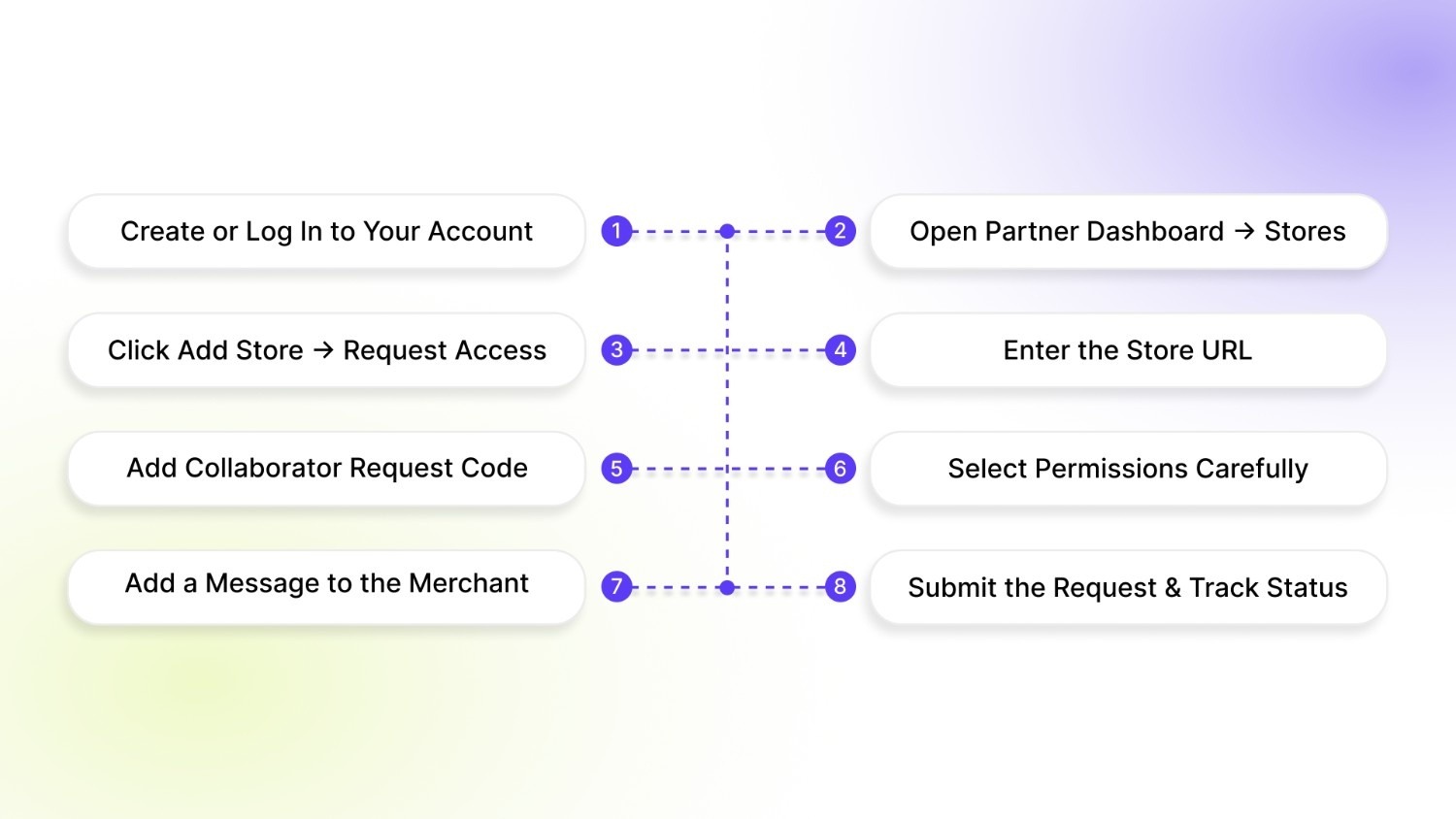
1. Create or Log In to Your Shopify Partner Account
A Shopify Partner account is required to request collaborator access. If you already work with Shopify stores as a developer, agency, or app partner, you can log in directly. New users must create a Partner account before proceeding.
- Visit the Shopify Partner login page and sign in.
- Create a new Partner account if you do not already have one.
- Make sure your account details are accurate, so store owners can identify your request.
2. Open Partner Dashboard → Stores
Once logged in, access the section where all store connections and requests are managed. This is where collaborator requests are initiated and tracked.
- Go to your Partner Dashboard.
- Click on Stores from the main menu.
- Review existing stores or pending requests if applicable.
3. Click Add Store → Request Access
Shopify allows partners to either create development stores or request access to an existing store. For collaborator access, the correct option must be selected.
- Click Add Store.
- Choose Request Access to Store.
- Proceed to the request form.
4. Enter the Store URL
The request must be sent to the correct Shopify store. Entering the exact store URL ensures the request is delivered to the right merchant.
- Enter the full .myshopify.com store URL.
- Double-check spelling before continuing.
- Confirm the store details if prompted.
5. Add Collaborator Request Code
Some merchants enable a collaborator request code as an added security layer. The request cannot be submitted without this code if it is required.
- Ask the store owner for the collaborator request code.
- Enter the code exactly as provided.
- Leave the field blank only if the store does not require one.
6. Select Permissions Carefully
Permissions determine what areas of the store you can access after approval. Selecting only the required permissions helps build trust and reduce approval delays.
- Choose access based on the scope of work.
- Avoid requesting full permissions unless necessary.
- Common permissions include themes, apps, or products, depending on the task.
7. Add a Message to the Merchant
Including a short message helps the store owner understand why access is being requested and what work will be performed.
- Mention your role and the purpose of the request.
- List the areas you need access to.
- Keep the message clear and professional.
8. Submit the Request and Track Status
After submitting the request, the store owner receives a notification to review and approve access. You can monitor the request status from the Partner dashboard.
- Click Submit Request once all details are verified.
- Check the request status under the Stores section.
- Wait for approval before attempting to access the store.
Now, from the store owner’s perspective, approving collaborator access involves reviewing the request details and granting the appropriate permissions.
Recommended: Shopify vs Shopware: Pick the Right E-Commerce Platform.
How Store Owners Approve a Collaborator Request

After a collaborator request is submitted, the store owner must review and approve it from within the Shopify admin. Reviewing requests carefully helps ensure external partners receive only the access required for their work.
Where Approval Notifications Appear
Shopify notifies store owners when a collaborator request is received. The request can be accessed directly from the admin panel.
- A notification appears in the Shopify admin dashboard.
- Store owners can also view requests under Settings → Users and Permissions.
- The request shows the partner’s name, requested permissions, and message.
How to Review Permissions Before Approving
Before approving access, store owners should check what level of access has been requested and confirm it matches the agreed scope of work.
- Review each permission category individually.
- Confirm access is limited to relevant areas such as apps, themes, or products.
- Clarify any unclear requests before granting access.
Why Requests Should Not Be Approved Blindly
Approving requests without reviewing permissions can expose sensitive store areas or allow unintended changes. A quick review helps maintain store security while allowing work to proceed smoothly.
- Avoid granting full access unless it is necessary.
- Ensure the request comes from a verified partner or agency.
- Remove or adjust permissions once the task is completed.
With approval completed, it becomes important to review the permissions that define a collaborator’s level of access.
Shopify Collaborator Permissions: What to Allow and Why
When sending or approving a collaborator request, permissions determine which parts of the store a partner can access. Selecting the right permissions helps partners complete their work while keeping sensitive areas restricted.
Common permission categories include:
- Themes: Allows access to edit or customize the store’s theme. This is usually required for design updates, layout changes, or storefront improvements.
- Apps: Grants access to install, configure, or manage apps. App partners and developers often need this permission when setting up or adjusting app functionality.
- Products: Provides access to product listings, variants, images, and related information. This is commonly required for catalog updates, merchandising changes, or variant setup work.
- Settings: Gives access to store configuration areas. This permission should be granted carefully since it may include sensitive store information.
Granting only the permissions required for a specific task reduces risk and keeps store management controlled. It also makes it easier to review changes and remove access once the work is completed.
Common Issues When Requesting Collaborator Access
Collaborator requests usually work without issues, but small errors or missed steps can delay approval or prevent access. Check for the following problems:
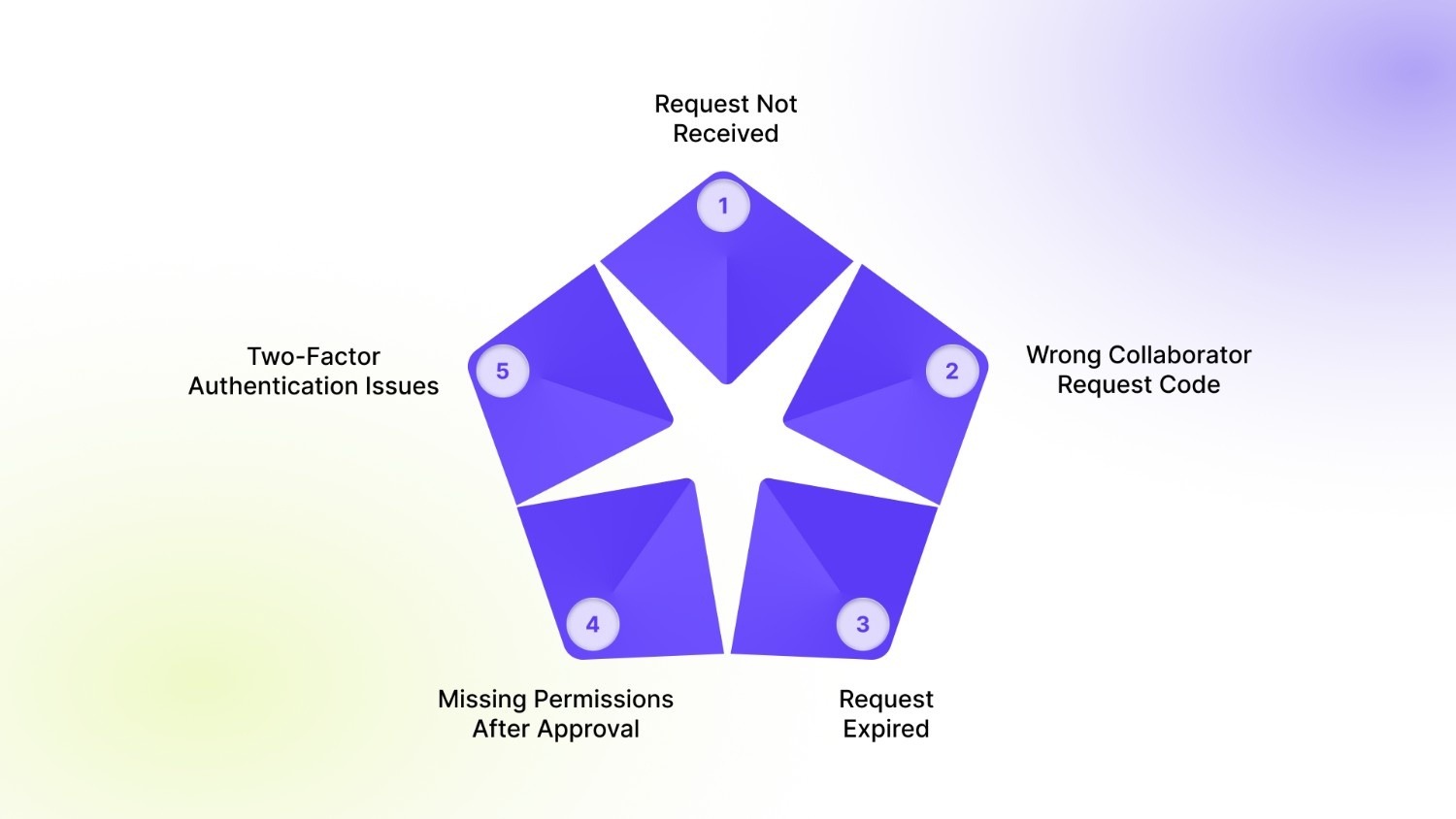
- Request Not Received: The store owner may not see the request if the store URL was entered incorrectly or if the request was sent to the wrong store. Confirm the exact .myshopify.com URL and resend the request if needed.
- Wrong Collaborator Request Code: If the store uses a collaborator request code, entering an incorrect code will block the request. Verify the code with the store owner before submitting again.
- Request Expired: Collaborator requests can expire if not approved within a certain time. Sending a new request usually resolves the issue.
- Missing Permissions After Approval: Access may be limited if certain permissions were not selected during the request. The store owner can update permissions from the Users and Permissions section.
- Two-Factor Authentication Issues: Shopify may require two-step authentication before access is granted. Ensure authentication is completed to avoid login problems.
Beyond fixing request issues, proper access management plays an important role in keeping the store secure.
Also Read: How to Create and Manage Multiple Shopify Stores.
Best Practices for Managing Collaborator Access Securely
Below are a few simple practices that can reduce risk and keep access controlled throughout the project lifecycle:
- Remove Access After Project Completion: Once the work is finished, collaborator access should be removed to prevent unnecessary ongoing access to the store.
- Regenerate Collaborator Request Code Periodically: Updating the collaborator request code adds an extra layer of protection and prevents unauthorized requests in the future.
- Grant Only Necessary Permissions: Permissions should match the scope of work. Limiting access to specific areas reduces the chances of unintended changes.
- Review Activity and Access Regularly: Periodically checking who has access to the store helps ensure that only active collaborators retain permissions.
Consistent access reviews and permission control help maintain store security as teams and projects change over time.
Conclusion
Shopify collaborator access works best when both store owners and partners are clear about the purpose of access, required permissions, and project scope from the start. Taking a few minutes to review requests, limit permissions, and remove access after completion helps maintain store security while allowing external teams to complete their work efficiently. When requesting access as a partner, sharing clear context and selecting only relevant permissions improves approval speed and builds trust with merchants.
If your collaborator's access involves improving product presentation, variant setup, or storefront experience, StarApps studio can help merchants manage variants, images, and product information more effectively within Shopify. You can explore StarApps solutions to simplify variant management and create a better shopping experience for growing Shopify stores.
FAQs
1. Does Shopify collaborator access count toward staff account limits?
No. Collaborator accounts are separate from staff accounts and do not count toward your store’s staff limit. They are designed specifically for external partners who need temporary access.
2. Can a collaborator see or access billing and payment information?
Collaborators cannot access billing or payment details unless those permissions are explicitly granted. Store owners can control access levels during approval.
3. Can multiple collaborators access the same Shopify store?
Yes. Store owners can approve multiple collaborator requests at the same time, as long as each partner has the required permissions for their role.
4. How can a store owner change or disable the collaborator request code?
The collaborator request code can be updated or turned off from the Users and Permissions section in Shopify admin. Changing the code prevents old or unauthorized requests from being submitted.
5. Can collaborators install or remove Shopify apps?
Only if app permissions are granted during approval. Store owners can restrict app-related access if installation or configuration is not part of the collaborator’s scope of work.
Heading

End-to-end traceability
To ensure regulatory compliance, you must have a complete overview of your products from production to shipping. Book a demo to see how Katana can give you full visibility of your operations.



.png)

.svg)

.svg)

.svg)
.png)