
How to Add a Collapsible Accordion for Shopify Product Descriptions
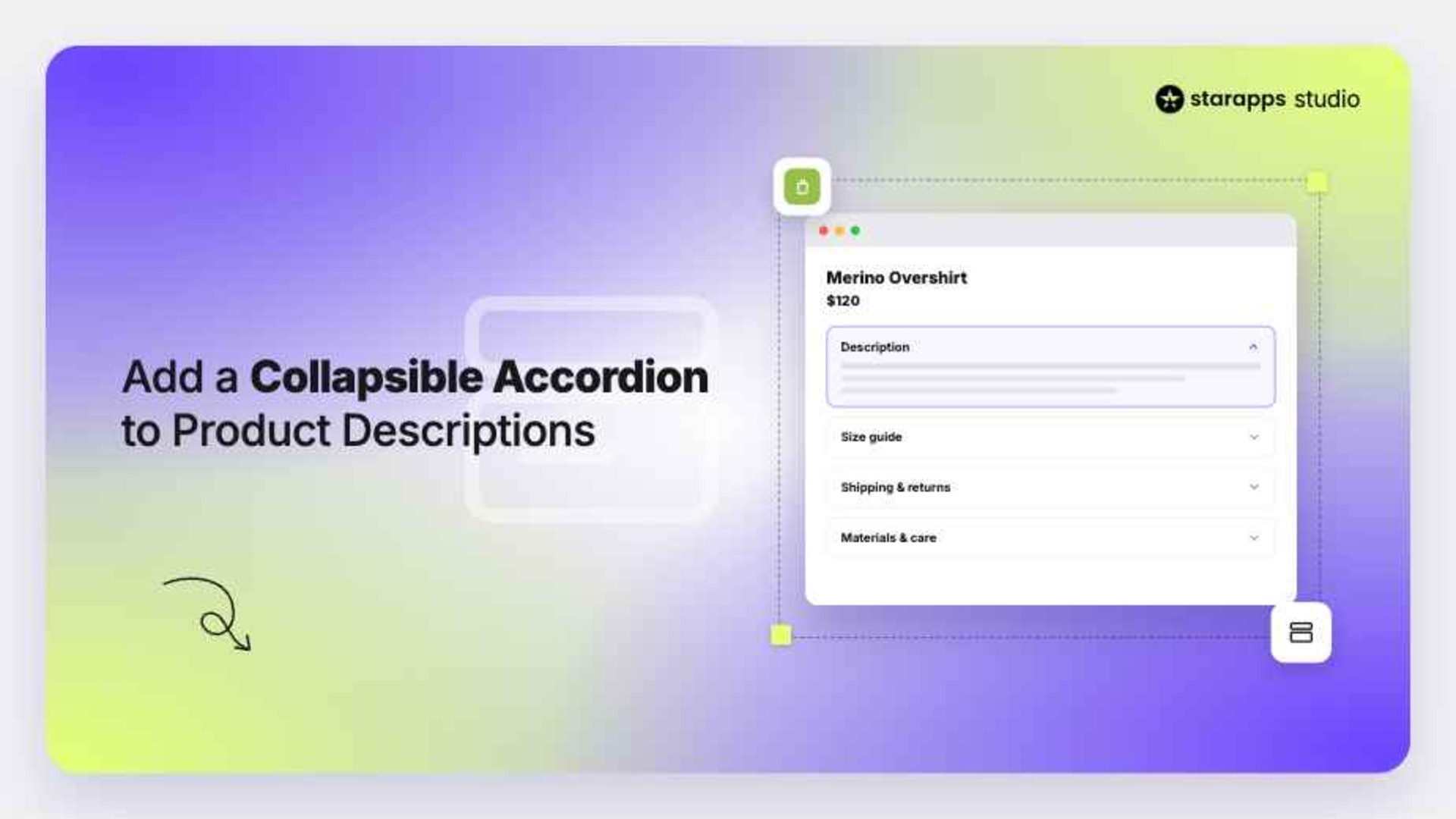

Discover how to create a product description variant accordion Shopify layout that improves readability, mobile experience, and product page engagement.
Shopify product pages often become overloaded with long descriptions, technical details, size charts, shipping policies, and FAQs. While all this information is important, presenting it in a single block makes pages harder to scan, especially on mobile devices where most shoppers browse today.
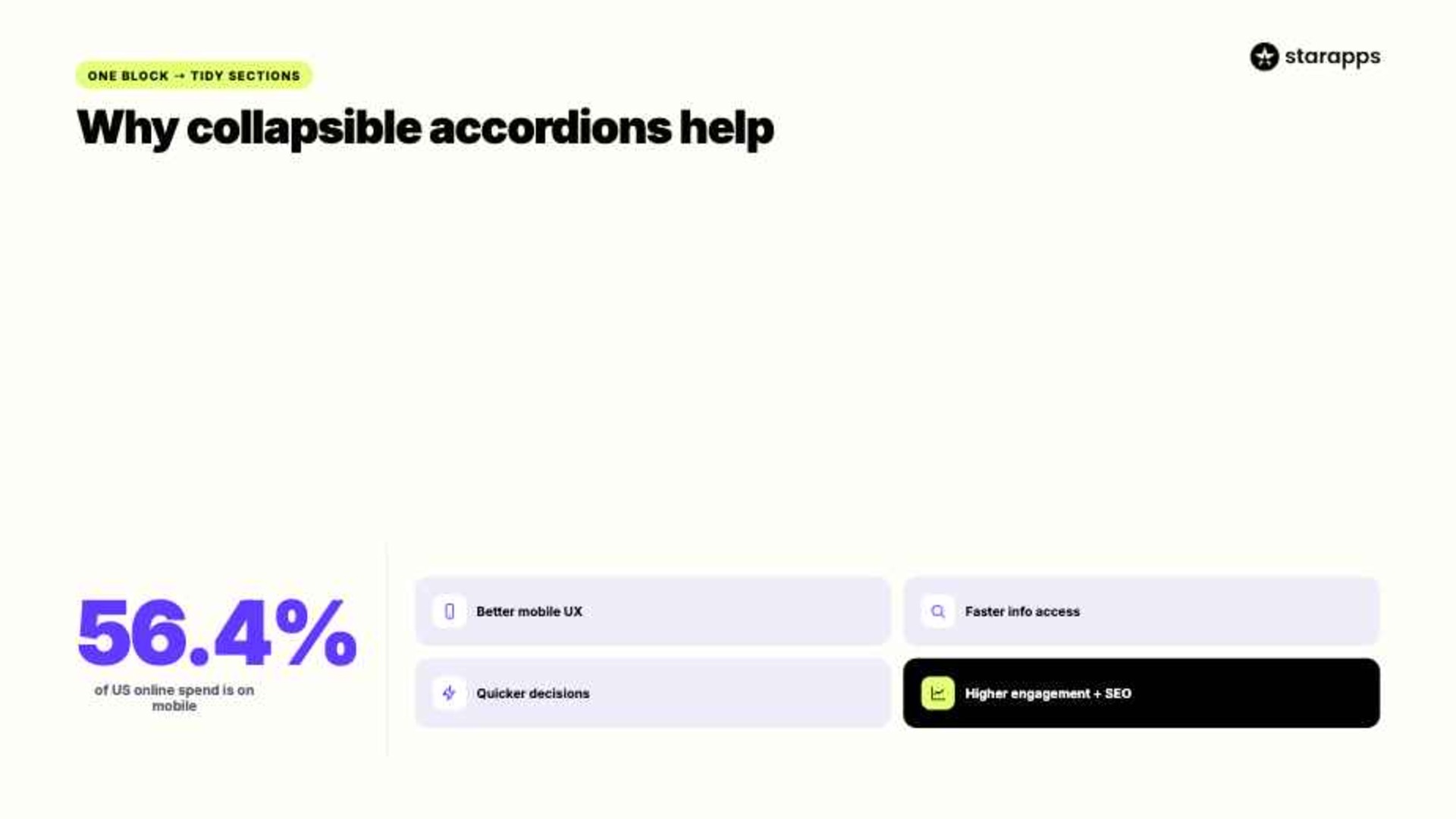
In Adobe’s 2025 holiday shopping data, 56.4% of U.S. online spend came through smartphones, which makes mobile-friendly product-page layouts even more important. Customers are forced to scroll endlessly, which often leads to drop-offs before they even reach the “Add to Cart” button.
Collapsible accordions solve this by breaking content into structured, expandable sections. Instead of forcing users to scroll through everything, shoppers can open only what they need, making product pages easier to scan and interact with. This directly improves readability, reduces bounce rates, and helps users reach purchase decisions faster.
This guide walks you through what Shopify accordions are, when to use them, and how to add them using built-in theme settings, custom code, or apps.
Key Highlights:
- Collapsible accordions break long product descriptions into organized sections, making important information easier for shoppers to find and read.
- Shopify stores can add accordions through built-in theme features, custom code, or dedicated apps depending on their customization and scalability requirements.
- A structured setup process allows merchants to create accordion sections for shipping details, size guides, FAQs, materials, and other key product information.
- Consistent accordion layouts, variant-specific content, visual variant selection, and relevant product imagery help create a clearer and more user-friendly shopping experience.
What is a Collapsible Accordion in Shopify Product Pages?
A collapsible accordion in Shopify is a UI component that organizes product information into expandable sections. Each section contains a heading, and when clicked, it reveals or hides the content inside.
On Shopify product pages, this means instead of showing everything at once, details like shipping, materials, or sizing can be grouped neatly. This keeps the page compact while still providing full transparency when needed.
Collapsible accordions improve product pages in several meaningful ways:
- Improved Mobile UX: Mobile shoppers can expand only the sections they need, reducing excessive scrolling and making navigation more intuitive.
- Faster Information Access: Customers can quickly locate details such as materials, return policies, or size guides without searching through an entire description.
- Quicker Purchase Decisions: Clear and structured information helps shoppers evaluate products more efficiently and move toward checkout with less hesitation.
- Higher Engagement: Interactive accordion sections encourage visitors to explore product details, helping them spend more time on the page.
- SEO-Friendly Structure: Important product information remains available on the page while being presented in a format that is easier for users to consume.
Also Read: Shopify Image SEO Guide to Improve Speed and Search Visibility
Methods to Add A Collapsible Accordion in Shopify
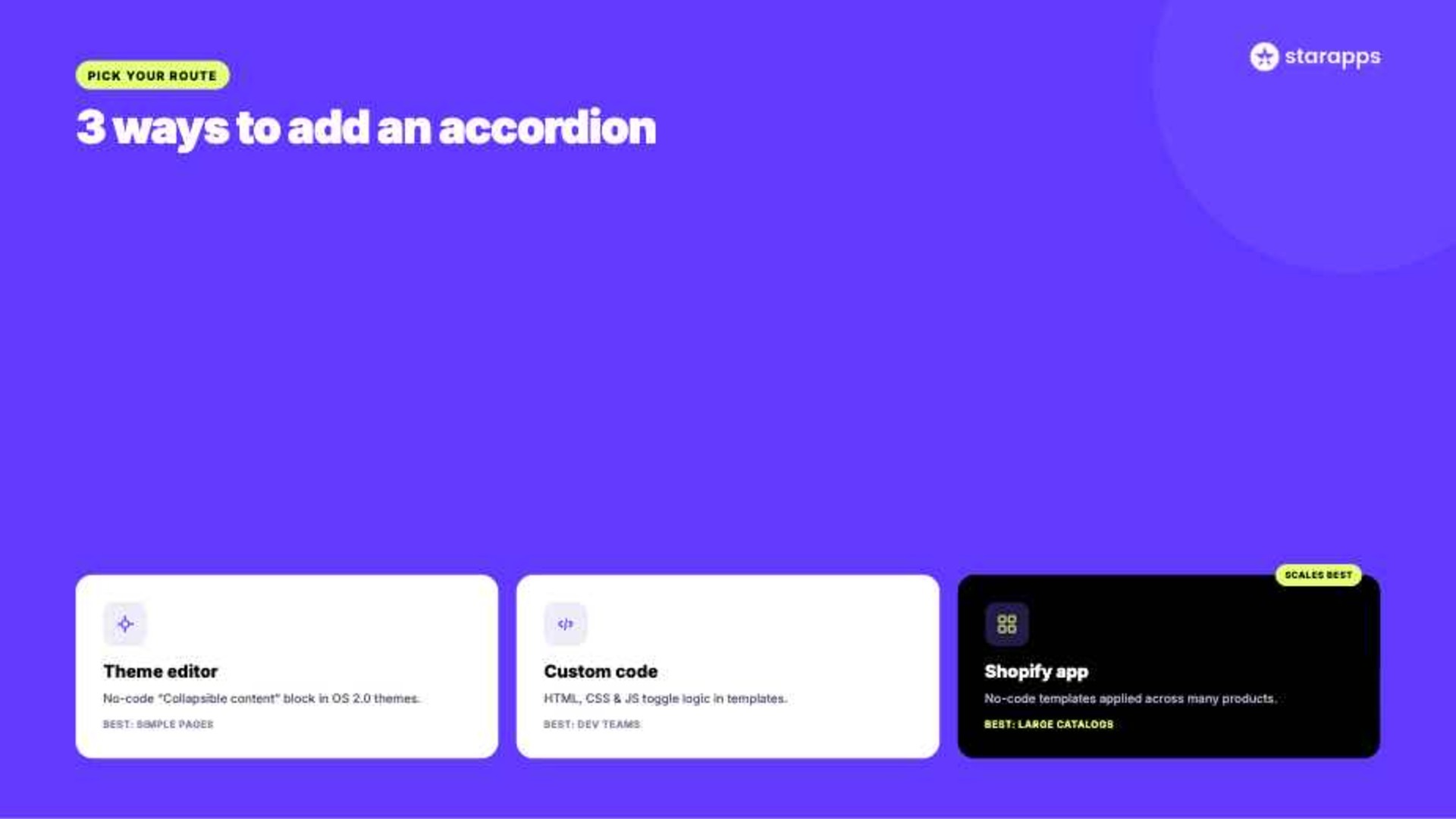
There are three primary methods to add collapsible accordions in Shopify product pages. Each method varies in complexity, flexibility, and scalability.
Method 1: Using Shopify Theme Editor (No-Code)
This is the simplest approach available in Online Store 2.0 themes.
You can:
- Open Shopify admin and go to Online Store > Themes
- Select “Customize” on your active theme
- Navigate to the product page template
- Add a “Collapsible content” or “Accordion” block
- Insert headings like “Size Guide” or “Shipping Information”
- Add corresponding content in each section
This method works best for basic product pages where structure is simple and uniform across all products.
Method 2: Custom Code Implementation
Developers can manually add accordion logic using HTML and JavaScript inside product templates.
Typical steps include:
- Adding collapsible HTML structure inside product description
- Writing toggle scripts for expand/collapse behavior
- Styling using CSS for consistent UI
While powerful, this method can increase theme complexity and is harder to maintain for non-technical teams.
Method 3: Use Shopify Apps for No-Code Accordion Management
Apps offer a practical alternative for merchants who want advanced accordion functionality without touching code. They are particularly useful for stores with large catalogs or teams that regularly update product information.
How to set it up:
- Visit the Shopify App Store and select an accordion or product content management app.
- Install the app and complete the onboarding process.
- Create accordion sections or templates within the app dashboard.
- Assign the accordions to specific products or collections.
- Customize styling to match your storefront.
- Publish the changes and test the user experience on product pages.
Apps simplify ongoing management because content updates can often be applied across multiple products simultaneously, reducing manual work.
Choosing the right method depends on store size, technical resources, and the level of customization needed.
Step-by-Step Process to Add Accordion in Shopify Product Page
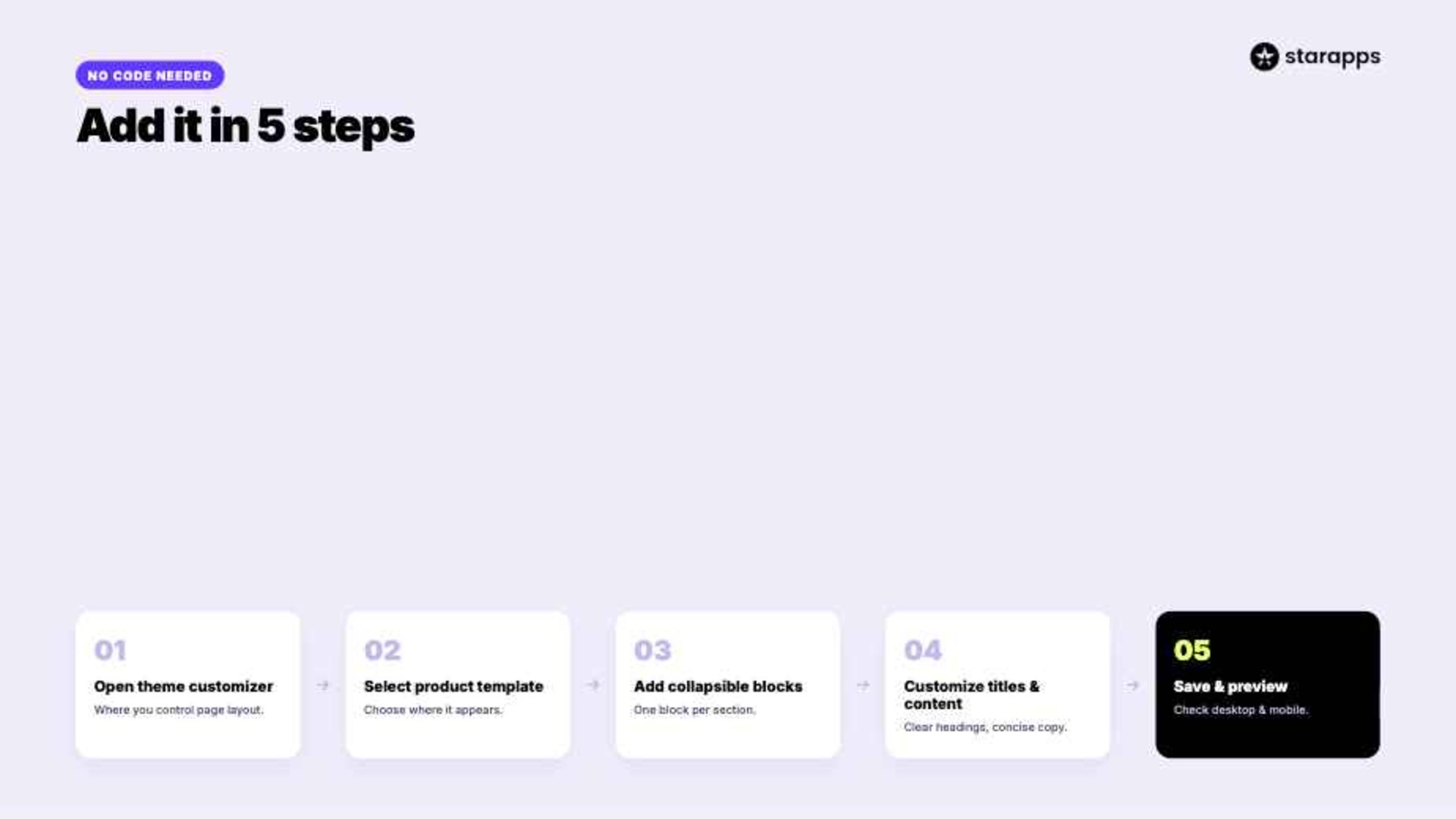
Implementing an accordion in Shopify depends on the method you choose, but the general process follows a structured flow.
Step 1: Open Your Shopify Theme Customizer
Start by navigating to your Shopify admin panel and opening the theme customization section. This is where you control product page layouts and sections in a more structured way.
Step 2: Select Product Page Template
Choose the product page template where you want to add the accordion. Most Online Store 2.0 themes allow flexible section editing per template.
Step 3: Add Collapsible Content Blocks
Insert collapsible rows or accordion blocks available in your theme. Each block represents one section such as “Shipping Info” or “Size Guide,” helping you organize product details more clearly for shoppers.
Step 4: Customize Titles and Content
Add clear headings for each section and insert relevant product information. Keep content structured so users can scan it quickly, especially when they are comparing multiple product details.
Step 5: Save and Preview
Once configured, save changes and preview the product page on both desktop and mobile devices to ensure smooth functionality.
This process allows you to create structured product pages without touching any code, making it ideal for growing Shopify stores.
Also Read: How To Create a Custom Shopify Product Page Template To Optimize Layouts
Best Practices for Shopify Product Page Accordions
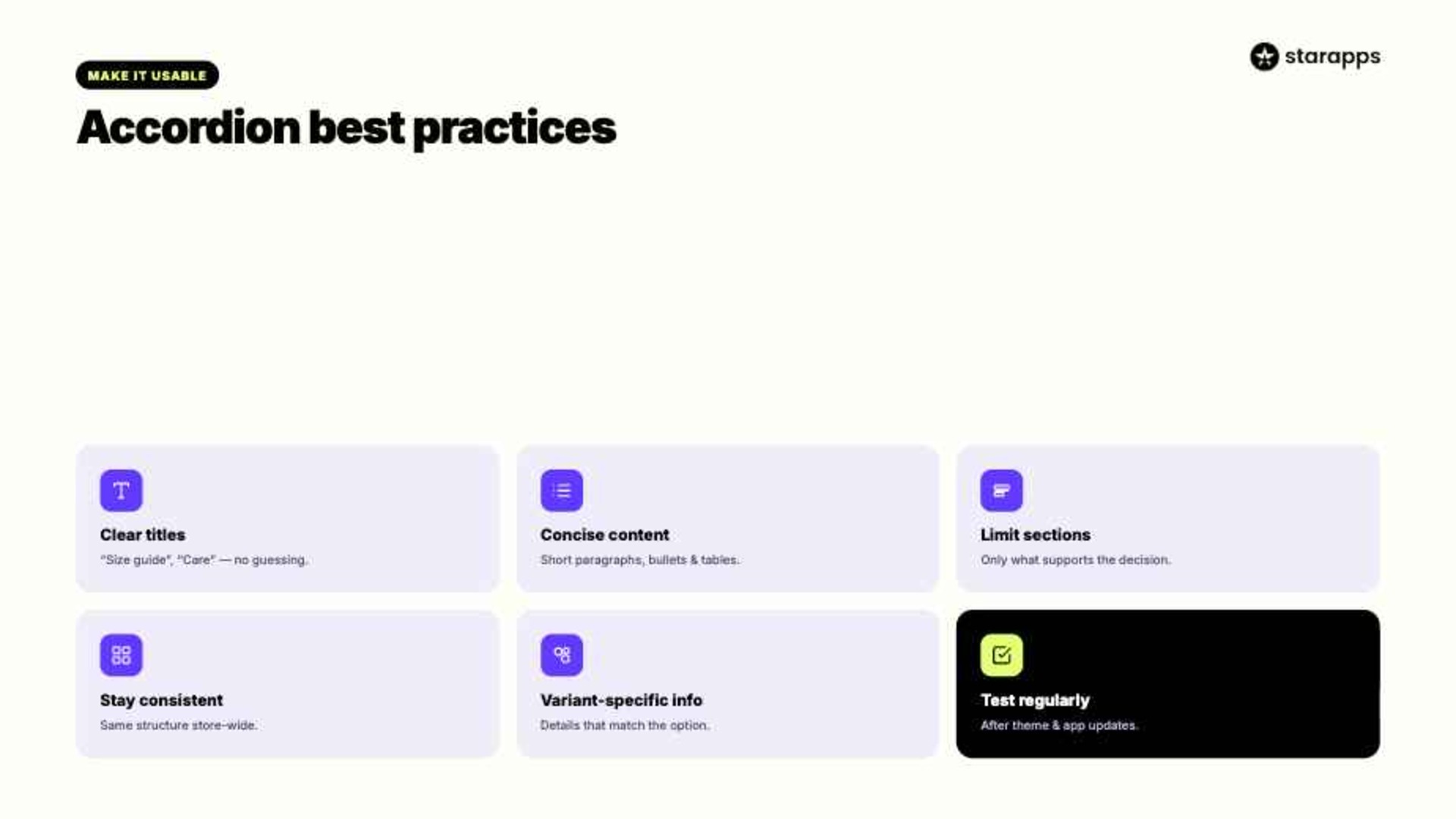
Accordions improve usability only when implemented correctly. Poor structure can confuse users or hide important information, which directly affects how easily shoppers find what they need.
Key best practices include:
- Use clear titles: Choose straightforward labels like "Size Guide" or "Care Instructions." Shoppers should immediately understand what information is inside each section, so they don’t waste time opening irrelevant panels.
- Keep content concise: Use short paragraphs, bullet points, and tables where appropriate. This improves readability and helps customers scan information quickly, especially on mobile devices where attention spans are shorter.
- Limit the number of sections: Too many accordion panels can overwhelm shoppers. Focus on the most relevant information needed to support purchase decisions, so the page stays easy to navigate.
- Maintain consistency: Use the same accordion structure across all product pages. Consistent layouts help customers navigate your store more efficiently, creating a more predictable browsing experience.
- Show variant-specific information: Display unique details for different variants when needed. This helps customers choose the right option and reduces confusion after purchase, especially for products with multiple configurations.
- Test functionality regularly: Check accordion performance after theme updates or app installations. Broken sections can negatively impact user experience and trust, so regular checks help keep everything running smoothly.
How StarApps Studio Helps Simplify Shopify Accordion Setup
Managing product descriptions at scale becomes difficult when every product requires structured, variant-specific content. This is where specialized Shopify apps simplify the process.
StarApps Studio provide suite of tools designed to improve product presentation, including structured variant and product content management.
Variant Descriptions King
- Variant Content: Display unique descriptions, size charts, care instructions, material details, and specifications for individual variants, helping customers find relevant information faster.
- Accordion Layouts: Organize lengthy product information into tabs and collapsible accordions that improve readability while keeping product pages clean.
- Purchase Confidence: Clear variant-specific information helps customers make informed decisions and can reduce support inquiries and returns.
Color Swatch King
- Visual Selection: Replace standard dropdown menus with color swatches, image swatches, buttons, and other visual selectors that simplify variant selection.
- Variant Discovery: Allow customers to explore available colors, sizes, and styles directly from collection and product pages without unnecessary navigation.
- Inventory Visibility: Hide sold-out variants automatically so shoppers focus only on available options and experience less friction.
Variant Image Automator
- Relevant Images: Automatically display images associated with the selected variant, ensuring customers always see the correct product visuals.
- Organized Galleries: Keep image galleries clean by showing only variant-specific images rather than displaying every image attached to the product.
- Improved Experience: Support multiple images per variant, helping shoppers better understand products before adding them to the cart.
SA Variants: Combined Listings
- Dedicated Listings: Create individual listings for variants with unique URLs, titles, descriptions, and images to improve discoverability.
- Better Navigation: Help shoppers find specific colors, styles, and product variations through collection pages, filters, and search results.
- SEO Growth: Enable search engines to index variant-specific pages, creating additional opportunities for organic traffic.
Variant Alt Text King: SEO
- Automated ALT Text: Generate and update image ALT text automatically using product titles, variants, tags, vendors, and other attributes.
- Accessibility Support: Improve accessibility by providing descriptive image information for customers using screen readers.
- Image SEO: Help search engines better understand and index product images, improving visibility in image search results.
Variant Title King: Color, SKU
- Dynamic Titles: Automatically update product titles based on selected variants, such as color, size, SKU, vendor, or product type.
- Clear Product Information: Show customers exactly which variant they are viewing, reducing confusion during the buying process.
- Operational Efficiency: Displaying variant-specific details like SKU can make inventory management and order handling easier for store teams.
Today, StarApps supports 25,000+ active merchants, powers 1,000+ Shopify Plus stores, and maintains a 4.9-star rating, making it a trusted choice for brands that need scalable Shopify merchandising solutions.
Conclusion
Collapsible accordions are one of the simplest yet most effective ways to improve Shopify product page structure. They turn long, overwhelming descriptions into organized sections that are easier to navigate and understand.
Different stores may choose different implementation methods depending on their setup. Small stores can rely on built-in theme features, while larger stores often benefit from app-based or structured content solutions.
Well-structured product content is not just a design improvement—it directly influences engagement, trust, and conversion rates. For growing Shopify stores, adopting an accordion-based structure is a practical step toward a cleaner and more effective product experience.
For merchants looking to simplify this process, solutions like StarApps Studio provide a practical way to implement structured, conversion-friendly product pages.
FAQs
1. Do I need coding skills to add a collapsible accordion to my shopify product descriptions?
No, coding skills are not always required. Many Shopify themes and apps offer built-in accordion features that can be enabled through the theme editor. However, custom designs or advanced functionality may require basic HTML, CSS, or Liquid knowledge.
2. How do I update or edit accordion content after it’s already live on my shopify store?
You can edit accordion content through the Shopify product editor, theme customizer, or the app used to create the accordion. Changes are typically reflected instantly once saved, making ongoing updates simple and manageable.
3. How can I add nested accordions (accordion inside an accordion) for shopify product descriptions?
Nested accordions can be created using custom HTML, CSS, and JavaScript or through advanced Shopify apps that support multi-level content structures. They work well for organizing large amounts of product information without overwhelming shoppers.
4. What are the common mistakes to avoid when adding collapsible accordions to shopify product descriptions?
Avoid overloading accordions with excessive content, hiding important sales information, creating too many sections, or using code that affects mobile responsiveness. Poor accordion structure can reduce usability and make product pages harder to navigate.
5. Where exactly in the shopify theme should I insert the accordion code for product descriptions?
Accordion code is usually added within the product template file, such as main-product.liquid or a related product section file. The exact location depends on your theme structure and where you want the accordion to appear.
Heading

End-to-end traceability
To ensure regulatory compliance, you must have a complete overview of your products from production to shipping. Book a demo to see how Katana can give you full visibility of your operations.
.png)

.svg)

.svg)

.svg)
.png)