

Learn how to plan and execute a WordPress to Shopify migration step by step. Move products, customers, and SEO safely without losing traffic or sales.
Many ecommerce brands start on WordPress because it offers flexibility and control. As stores grow, managing plugins, updates, and performance can become time-consuming. Shopify offers a simpler ecommerce setup designed for selling and scaling without heavy technical maintenance.
A WordPress to Shopify migration, however, needs careful planning. Product data, customer information, and URLs must move correctly to avoid traffic loss or broken pages. This guide explains the process step by step, helping you migrate WordPress to Shopify in a structured way while keeping your store stable during the transition.
Key Takeaways
- A WordPress to Shopify migration requires planning before data transfer, including auditing products, exporting SEO data, and preparing redirects to avoid traffic loss.
- Products, customers, and orders can be migrated, but collections, blog formatting, and URLs usually need manual review and adjustment.
- Redirect mapping and metadata transfer play a major role in maintaining search rankings after moving from WordPress to Shopify.
- Testing checkout, payments, shipping, and mobile experience before launch prevents revenue-impacting issues post-migration.
- After migration, improving variant presentation, product images, and storefront structure helps Shopify stores perform better as catalogs grow.
Why Businesses Are Moving from WordPress to Shopify
Many ecommerce businesses begin with WordPress because it offers flexibility and control over design and content. Over time, store owners often find that managing an ecommerce setup on WordPress requires ongoing technical attention.
As product catalogs grow and traffic increases, the effort needed to maintain performance and stability also increases. This is one of the main reasons brands consider moving from WordPress to Shopify, especially when ecommerce becomes the primary focus of the business.
Limitations of WordPress for Ecommerce Growth
WordPress, especially when combined with WooCommerce, relies heavily on plugins to handle ecommerce functionality. While this allows customization, it also introduces complexity as the store grows.
Common challenges include:
- Plugin dependency: Multiple plugins are often required for payments, shipping, SEO, security, and product management. Conflicts between plugins can affect store performance or functionality.
- Maintenance and security: Regular updates for themes, plugins, and core files are necessary. Missing updates can create security risks or break parts of the store.
- Hosting and performance issues: Store speed depends on hosting quality and server configuration. Traffic spikes or large product catalogs can slow down page load times.
- Scaling complexity: As order volume increases, managing performance, caching, and database optimization often requires developer involvement.
For growing ecommerce brands, these factors can shift attention away from merchandising and customer experience.
Advantages of Shopify for Ecommerce
Shopify is built specifically for ecommerce, which reduces the amount of technical setup required to run an online store. Many businesses move to Shopify to simplify store management while maintaining reliable performance.
Key advantages include:
- Hosted infrastructure: Hosting, security, and platform updates are handled by Shopify, reducing technical overhead for store owners.
- Built-in payments and checkout: Shopify provides an optimized checkout experience with integrated payment options, reducing setup time.
- App ecosystem: Merchants can extend store functionality through apps designed specifically for ecommerce use cases.
- Faster store management: Product updates, inventory management, and order handling are managed from a single interface, making daily tasks easier for teams.
This structure allows businesses to focus more on merchandising, marketing, and growth instead of technical maintenance.
When You Should Not Move to Shopify
A WordPress to Shopify migration is not the right choice for every business. Some websites benefit from staying on WordPress depending on their primary goals.
You may want to stay on WordPress if:
- The website is primarily content-driven, such as publications or blogs, where ecommerce is secondary.
- The store depends on highly custom functionality that cannot be replicated through Shopify apps or standard customization.
- Ecommerce is not the main business objective, and content management remains the priority.
Evaluating these factors before migrating helps ensure that the platform aligns with long-term business needs.
What Data Gets Migrated When Moving from WordPress to Shopify?
Before starting a WordPress to Shopify migration, it is important to understand what data moves directly and what needs manual adjustment. Most core ecommerce data can be transferred, but the structure and presentation may need changes after import. Planning this in advance helps avoid missing content or SEO issues after launch.
During migration, the following data is typically moved:
- Products and product variants
- Categories, which are recreated as collections in Shopify
- Customer accounts and contact details
- Order history
- Blog posts and basic content
- Media files such as product images
- URLs, which require special attention to maintain search rankings
Some elements transfer automatically through migration tools, while others require manual setup or review.
Also Check: How to Create Multiple Shopify Stores Under One Account.
WordPress to Shopify Migration Process in 7 Simple Steps
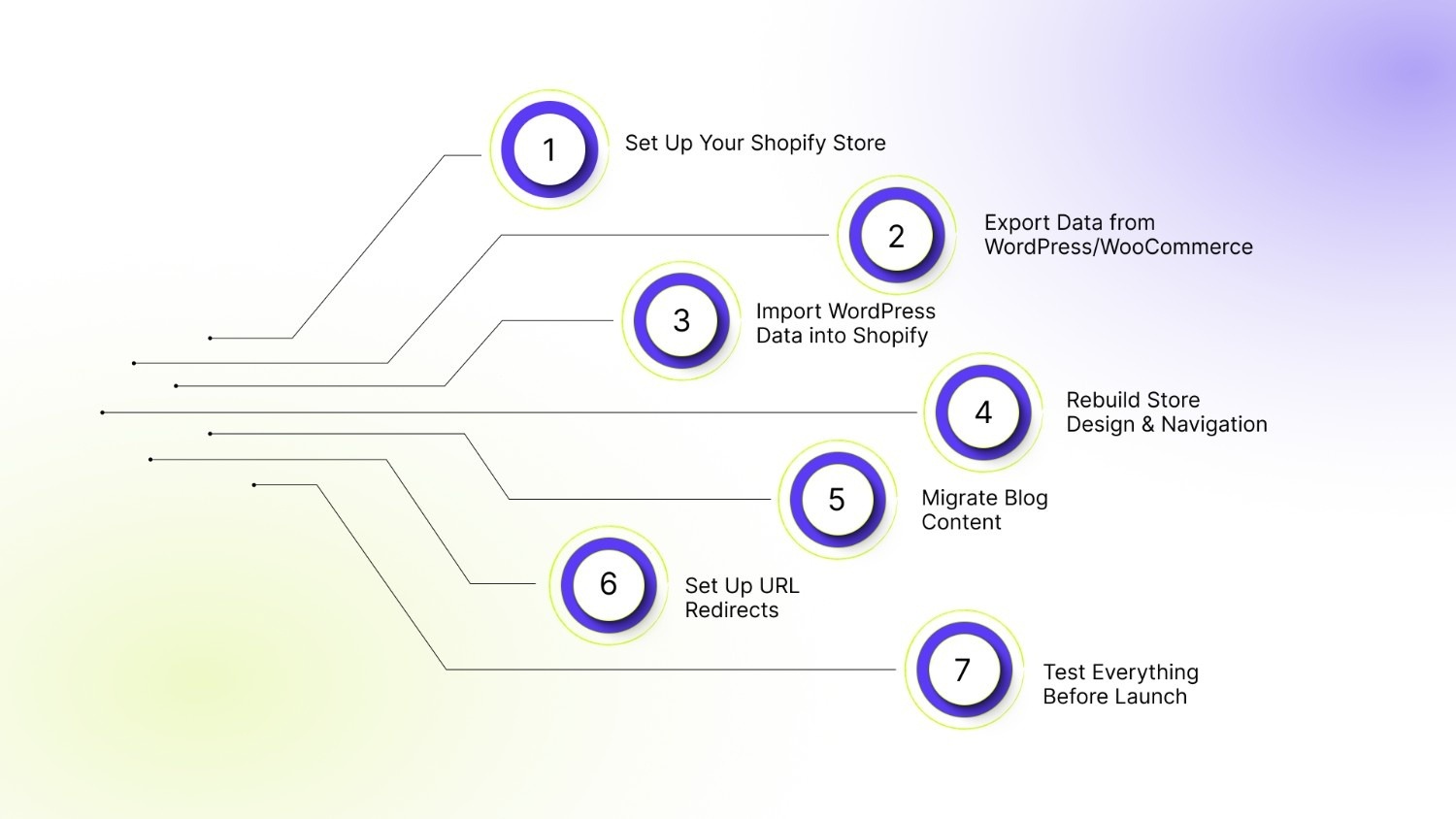
A structured approach reduces risk during a WordPress to Shopify migration. Moving data without a clear sequence can result in broken pages, missing products, or SEO loss. Follow these steps in order to keep the transition controlled and predictable.
Step 1: Set Up Your Shopify Store
Begin by preparing your Shopify environment before moving any data.
- Choose a plan: Select a plan based on order volume, reporting needs, and team size. Most growing brands start with the Basic or Shopify plan and upgrade later if needed.
- Configure basic settings: Set your store name, currency, time zone, tax settings, and shipping zones. Add your business details and notification emails. This ensures imported data aligns with your store configuration.
- Set up payments: Activate Shopify Payments or connect third-party gateways. Configure test mode so transactions can be verified before launch.
Do not skip these basics. Importing data into an incomplete setup often leads to rework later.
Step 2: Export Data from WordPress/WooCommerce
Next, export your existing store data from WordPress. Export the following:
- Products (including variants, SKUs, prices, inventory)
- Customers
- Orders
- Blog posts and pages
WooCommerce allows product and customer exports through built-in tools. Blog content may require an XML export. Review exported files to check for missing fields, inconsistent formatting, or unused data.
Clean data before importing. Removing outdated products or duplicate entries reduces complexity on Shopify.
Step 3: Import WordPress Data into Shopify
Once exports are ready, import them into Shopify using the method that fits your store size.
- Native import options: Shopify provides a WooCommerce importer for basic product and customer transfers. This works well for small to mid-sized catalogs.
- Migration apps: For larger stores or complex setups, migration apps can automate data mapping and reduce manual errors. These tools help move products, customers, and orders with better accuracy.
- CSV imports: Manual CSV imports provide more control. This method requires formatting data according to Shopify’s structure. It is suitable for stores that need precise data cleanup during migration.
After import, review product variants, inventory levels, and pricing. Variant structure may need adjustments depending on how WooCommerce handles attributes.
Step 4: Rebuild Store Design & Navigation
Design does not transfer automatically. Shopify themes use a different structure than WordPress themes.
- Theme selection: Choose a theme that fits your product type and catalog size. Test both free and premium options before finalizing.
- Menu structure: Recreate main navigation, footer links, and collection hierarchy. Use Shopify collections to replace WordPress categories.
- Homepage rebuild: Rebuild your homepage sections, banners, featured collections, and promotional blocks. Keep the layout clean and focused on conversion.
Avoid copying your old design exactly. Migration is a good opportunity to improve structure and usability.
Step 5: Migrate Blog Content
Blog content can support SEO, so it should not be ignored.
- Manual vs automated import: Automated tools can transfer posts, but formatting may break. Manual copying works better for smaller blogs where formatting accuracy matters.
- Formatting fixes: Check headings, internal links, images, and embedded media. Update links that still point to old WordPress URLs.
Confirm that each blog post has the correct meta titles and descriptions before launch.
Step 6: Set Up URL Redirects
Redirects protect your existing search rankings during a WordPress to Shopify migration.
- 301 redirects: Map old WordPress URLs to their new Shopify URLs. Shopify allows manual redirect creation through the admin panel or CSV upload.
- Handling slug changes: Shopify uses a different URL structure. Product and collection URLs may change automatically. Ensure every important page has a corresponding redirect.
Test redirects before going live. Missing redirects can result in traffic loss and crawl errors.
Step 7: Test Everything Before Launch
Testing prevents revenue loss after launch.
Check the following:
- Checkout flow from product page to order confirmation
- Payment processing using test transactions
- Shipping rates and tax calculations
- Email notifications
- Mobile responsiveness across devices
Click through every major page type. Review variant selection, pricing display, and image behavior. A thorough test phase ensures your new Shopify store is ready before pointing your domain to it. With preparation complete, the next stage is executing the migration in the right order.
Recommended: How to Complete Your Shopify Signup in 7 Quick Steps.
SEO Considerations During WordPress to Shopify Migration
Search visibility can fluctuate during a WordPress to Shopify migration if SEO elements are not handled carefully. Search engines rely on existing URLs, metadata, and site structure to understand your store. Preserving these signals helps maintain rankings and prevents traffic loss after the move.
- Preserve Existing URL Structure: Try to keep URLs as close to the original structure as possible. Shopify uses predefined URL formats, so exact matches may not always be possible. In such cases, map old URLs to the closest equivalent pages to avoid broken links and indexing issues.
- Set Up 301 Redirects Correctly: 301 redirects tell search engines that a page has permanently moved. Every important product, collection, and blog URL from WordPress should point to its new Shopify version. Missing redirects can lead to lost rankings and poor user experience.
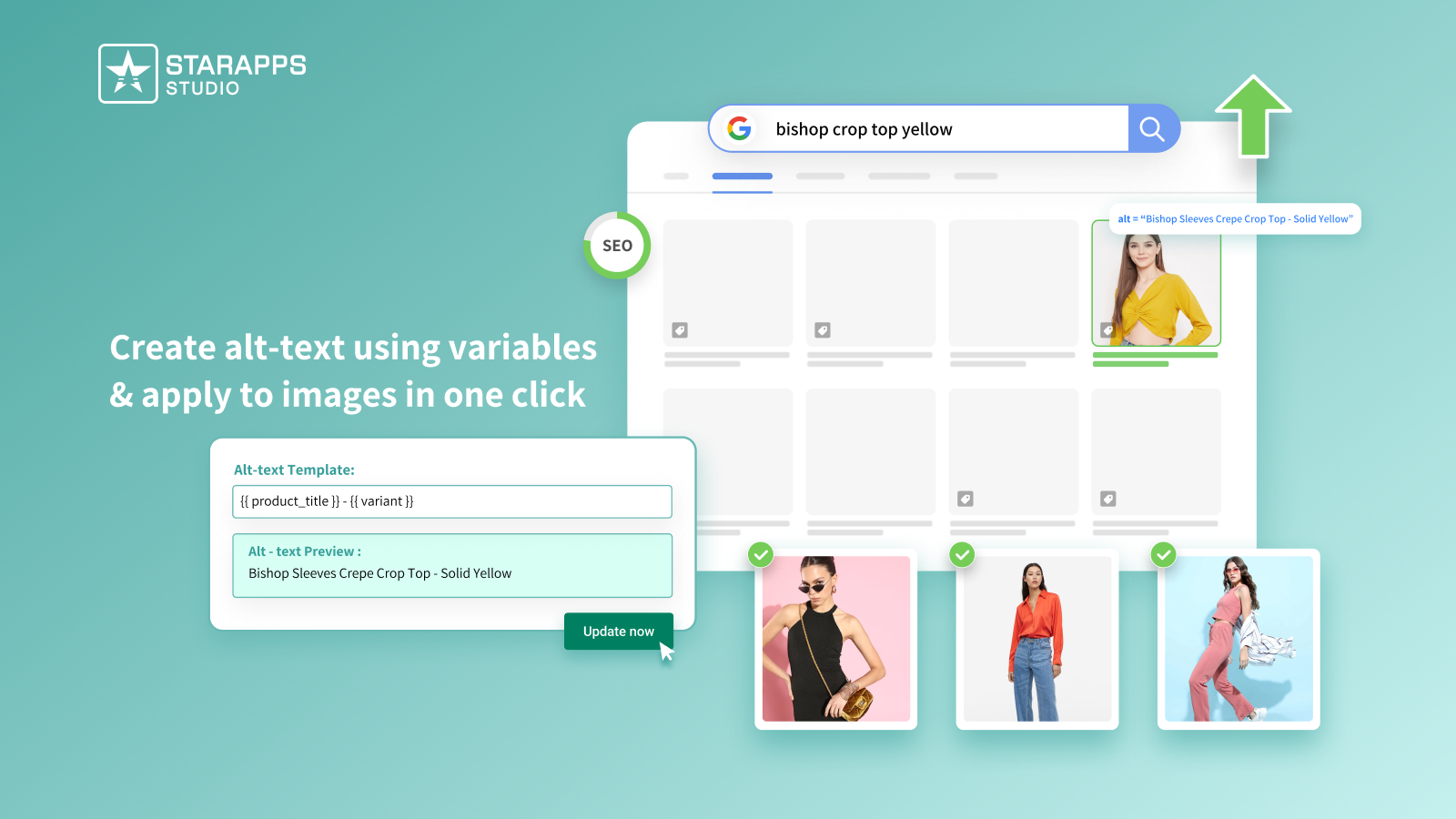
- Transfer Metadata: Meta titles, descriptions, and image alt text should be carried over during migration. This information helps search engines understand page relevance and maintains existing keyword visibility. Review metadata after import to ensure formatting remains correct.
- Resubmit Sitemap to Google: Once the Shopify store is live, submit the new sitemap through Google Search Console. This helps search engines crawl the new structure faster and update indexed pages.
- Monitor Rankings After Migration: Ranking changes can occur in the first few weeks after migration. Track keyword performance, crawl errors, and indexing status regularly. Early monitoring helps identify redirect issues or missing pages before they affect long-term traffic.
However, many migration problems do not come from technical limitations but from small oversights during execution.
Common WordPress to Shopify Migration Mistakes to Avoid
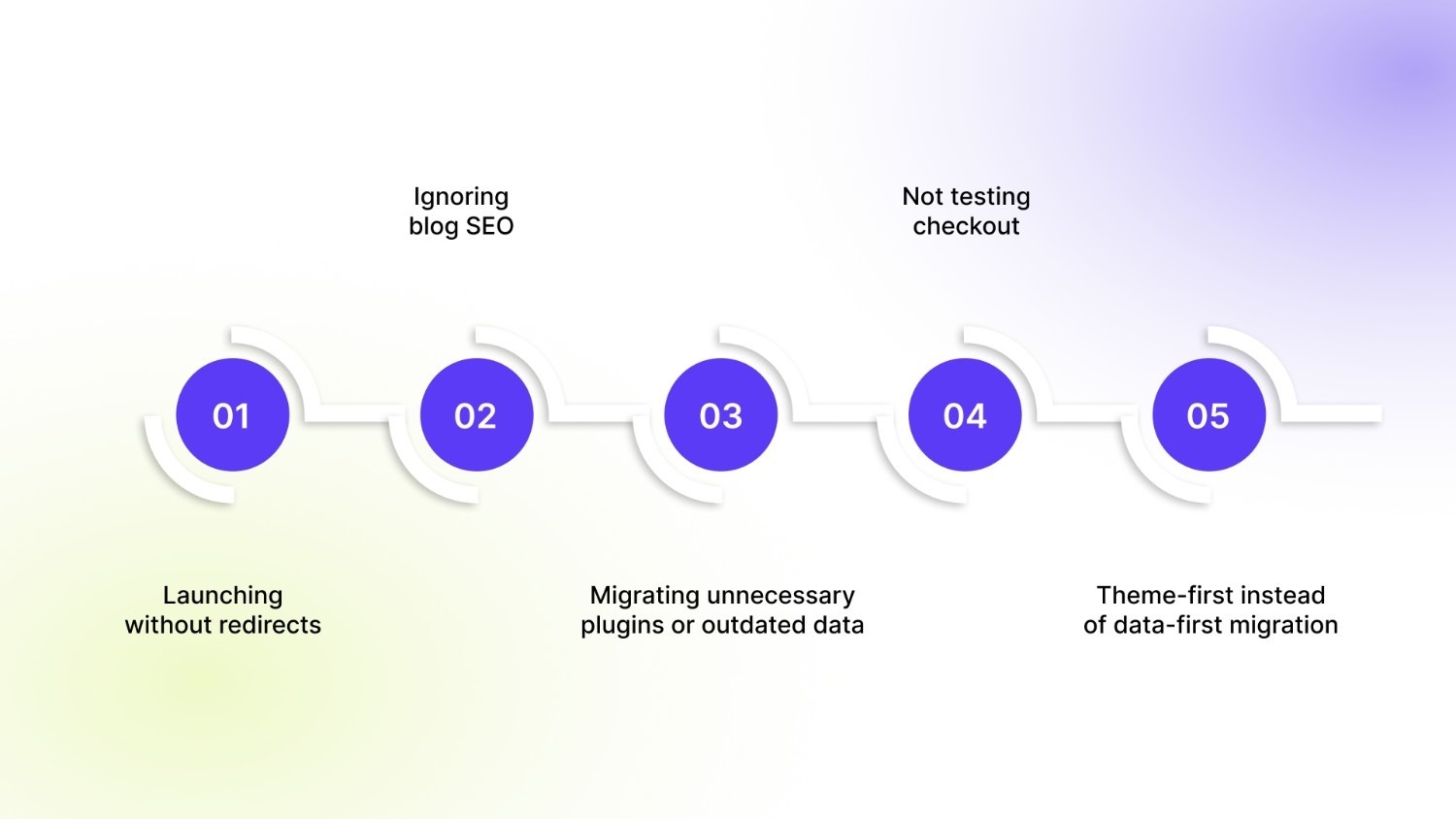
A migration can impact traffic and sales if handled carelessly. Here are a few common mistakes most store owners make that you need to be aware of:
- Launching without redirects: Failing to set up 301 redirects is one of the biggest errors. Old WordPress URLs must point to their new Shopify versions to prevent broken links and ranking loss.
- Ignoring blog SEO: Blog posts often drive organic traffic. Skipping metadata transfer, internal link updates, or proper formatting can reduce visibility after migration.
- Migrating unnecessary plugins or outdated data: WordPress stores often accumulate unused plugins, draft products, and duplicate entries. Importing everything adds clutter and makes store management harder.
- Not testing checkout: A migration is incomplete without full checkout testing. Payment gateways, taxes, shipping rates, and confirmation emails must be verified before going live.
- Theme-first instead of data-first migration: Focusing on design before completing product and URL setup can lead to rework. Data structure and redirects should be finalized before refining the storefront design.
Avoiding these mistakes sets you up for a smoother launch. After the store goes live, a few final checks help make sure everything is working as it should.
What to Check After Your Shopify Store Goes Live
The first few weeks after going live are important for identifying issues early and maintaining store performance and search visibility.
- Verify redirects: Check that all major product, collection, and blog URLs redirect correctly. Fix any broken links or pages returning errors.
- Check analytics tracking: Confirm that Google Analytics, Google Tag Manager, and conversion tracking are working correctly. Missing tracking can affect reporting and marketing decisions.
- Test checkout flow: Place test orders to confirm payments, shipping calculations, taxes, and email notifications function as expected.
- Optimize speed: Review page load times across devices. Compress images, remove unused apps, and ensure the theme performs well with your product catalog.
- Install essential Shopify apps: Add apps required for merchandising, SEO, and store management based on your store’s needs. Avoid installing unnecessary tools immediately after launch.
- Monitor crawl errors: Use Google Search Console to track indexing issues and crawl errors. Address missing pages or redirect problems quickly to prevent ranking drops.
Once the store is stable and everything is working correctly, the next step is improving how products are presented and managed as your catalog grows. This is where the right Shopify apps can help refine the shopping experience.
How StarApps Helps Improve Your Shopify Store After Migration
After completing the migration, many stores notice gaps in product presentation once the new site is live. Variant-heavy catalogs often need better image organization, clearer selection options, and structured product information to reduce confusion and improve conversions.
StarApps Studio builds Shopify apps that focus specifically on these storefront improvements. Key areas where our apps help include:
- Variant-specific image display: Show only relevant images when a customer selects a color or size using Variant Image Automator.
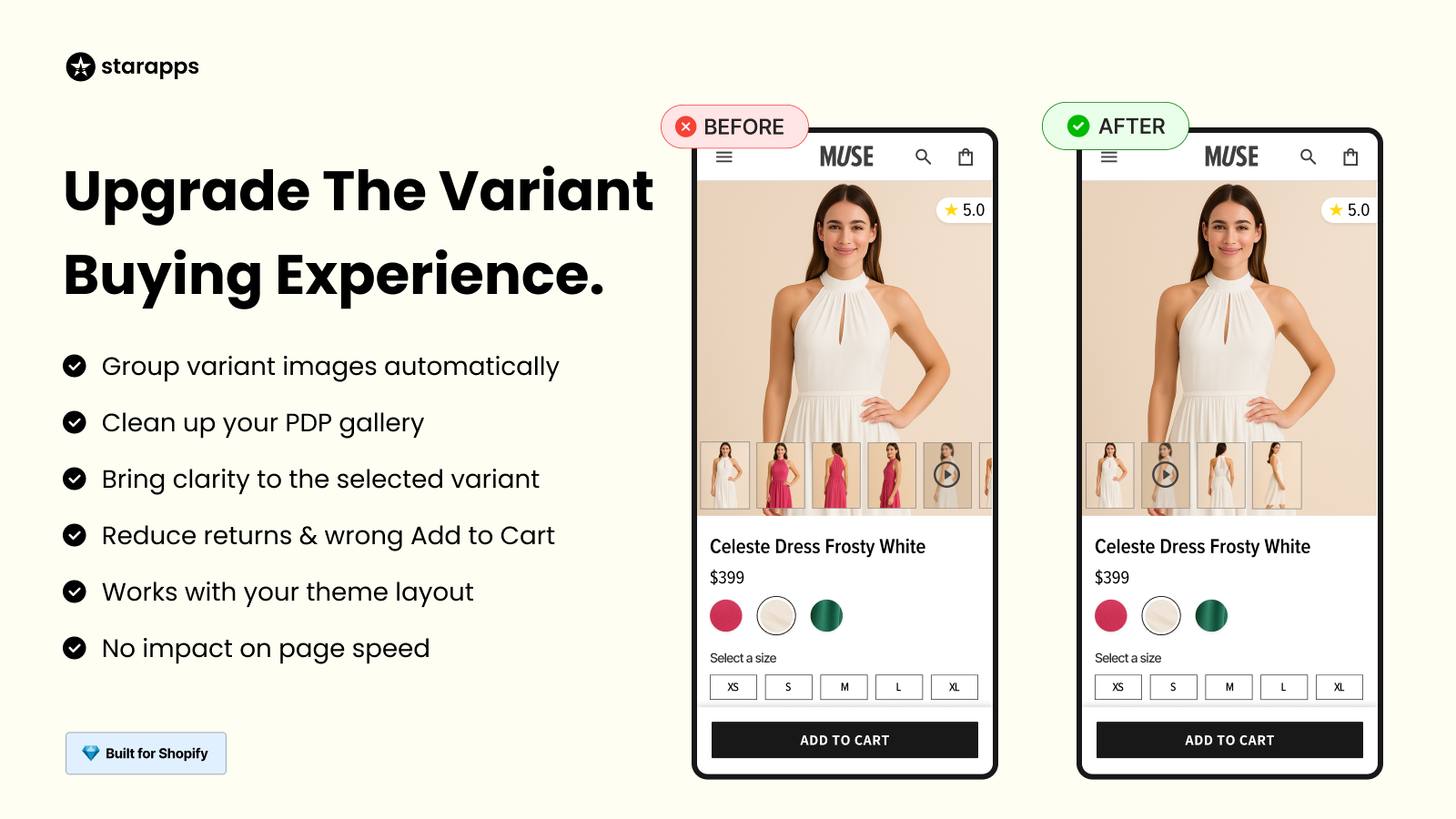
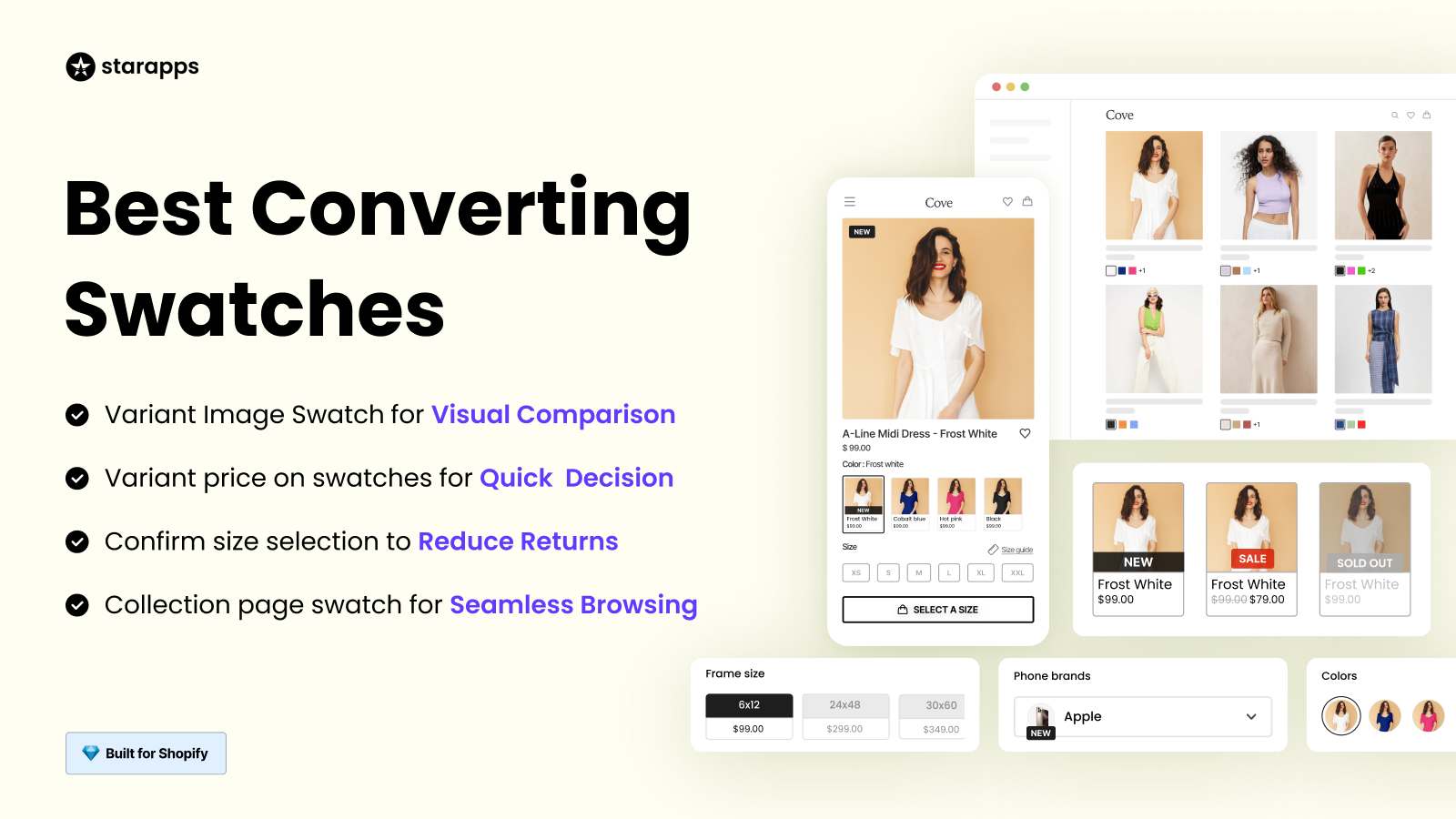
- Improved swatch presentation: Replace basic dropdowns with color, button, or image swatches using Color Swatch King.
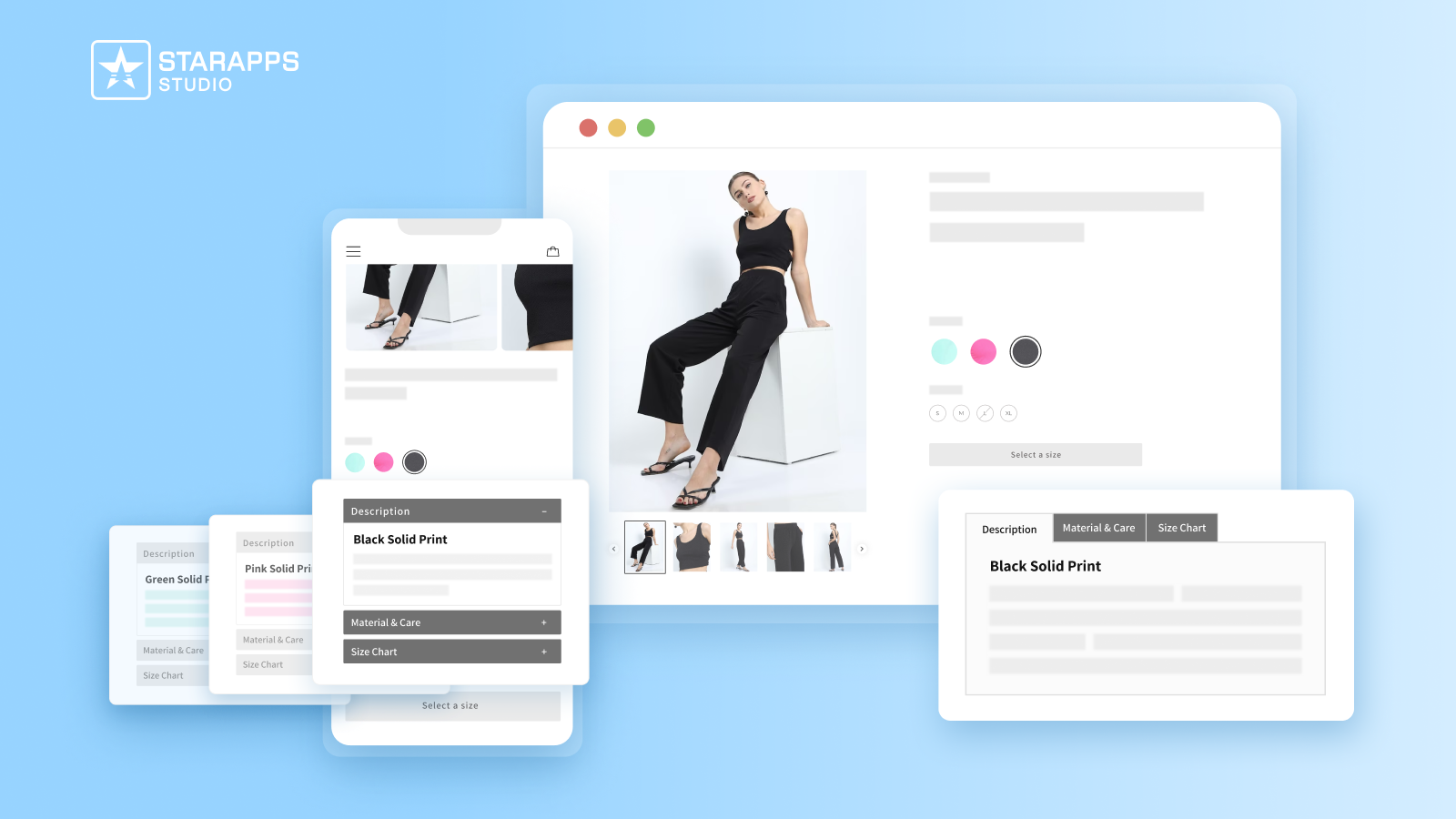
- Variant-level descriptions: Add size charts, fabric details, or care instructions per variant with Variant Descriptions King.
- SEO-focused image optimization: Maintain structured and keyword-relevant alt text using Variant Alt Text King.
For stores managing large product catalogs, these adjustments refine the shopping experience after migration and help ensure your Shopify store performs well both visually and structurally. Get a demo now to see how we can help.
Final Thoughts
A migration from WordPress to Shopify works best when the goal is clear, reducing technical overhead while creating a store that is easier to manage and better suited for growth. The real value comes after launch, when product presentation, variant clarity, and site structure begin influencing buying decisions.
As your catalog expands, refining how products are displayed becomes just as important as the platform itself. StarApps Studio helps Shopify merchants improve variant presentation, product organization, and storefront experience through apps built specifically for growing stores.
If you want your new Shopify store to perform better from day one, connect with our team and choose the tools that fit your store’s next stage.
FAQs
1. How long does a WordPress to Shopify migration take?
The timeline depends on catalog size and store complexity. Small stores with limited products can migrate in a few days. Larger stores with thousands of SKUs, custom functionality, or extensive blog content may take several weeks.
2. Will I lose my SEO rankings after migrating to Shopify?
Rankings can fluctuate temporarily after a WordPress to Shopify migration. Proper 301 redirects, accurate metadata transfer, and sitemap submission significantly reduce long-term impact. Most traffic stabilizes within a few weeks if redirects and URL mapping are handled correctly.
3. Can I migrate from WordPress to Shopify without downtime?
Yes. You can build and configure your Shopify store separately while your WordPress site remains live. The final switch happens when you point your domain to Shopify. Careful testing before this step minimizes downtime.
4. What happens to my WordPress hosting after migration?
Once your Shopify store is live and all data is verified, you can cancel WordPress hosting. Keep a backup copy of your WordPress site for reference before closing the account.
5. Do I need a developer for a WordPress to Shopify migration?
Not always. Small and mid-sized stores can migrate using built-in tools or migration apps. Developer support may be helpful for large catalogs, complex integrations, or advanced customizations.
Heading

End-to-end traceability
To ensure regulatory compliance, you must have a complete overview of your products from production to shipping. Book a demo to see how Katana can give you full visibility of your operations.



.png)

.svg)

.svg)

.svg)
.png)