


Learn 7 proven ways to hide out-of-stock variants in Shopify to reduce buyer frustration, keep product pages clean, and protect conversions.
According to a study by IHL Group, retailers lose nearly $1 trillion annually due to stockouts and overstock. But the real damage shows up on your storefront, not in a report. A shopper lands on a product page, clicks a variant, and hits an unavailable option. That small moment creates friction. Do it a few times, and they’re gone.
If you’re running a Shopify store, you’ve seen this happen. And you know how quickly it erodes trust. Hiding sold-out variants removes those dead ends. It keeps your product pages focused, reduces decision fatigue, and helps shoppers interact only with options they can actually buy.
In this article, you’ll learn seven practical ways to Shopify hide out-of-stock variants, when each approach makes sense, and how to keep your buying experience clean without losing control over inventory, data, or SEO.
Key Takeaways
- Out-of-stock variants create friction and hurt conversions if they remain visible on product pages.
Shopify does not hide sold-out variants by default, so merchants must manage visibility intentionally. - Small stores can use native settings, but growing catalogs need automation to scale reliably.
- App-based variant hiding is the most consistent way to remove unavailable options without breaking UX or SEO.
- The best solution balances clarity, performance, and scalability as inventory changes.
What Is Out-of-Stock Management in Shopify?
By default, Shopify keeps products and variants visible even when they’re out of stock. Unless you actively manage visibility, shoppers will still see options they can’t buy.
That’s where problems start. A customer lands on a product page, clicks a variant, and realizes it’s unavailable. Frustration sets in fast. Many leave the store altogether and don’t come back. When this happens repeatedly, it quietly hurts trust, conversions, and repeat purchases.
If you sell across multiple sales channels, the challenge grows. You’re constantly balancing SEO, storefront clarity, and inventory accuracy. Without a clear strategy, sold-out items slip through and create unnecessary friction.
With the right approach and automation in place, out-of-stock management becomes easier to control and far more scalable. Before choosing how to hide sold-out items, it’s important to understand why this step matters in the first place.
Why Hide Out-of-Stock Products and Variants?
How you handle out-of-stock items has a direct impact on how customers experience your store and whether they complete a purchase.
When shoppers encounter variants they can’t buy, the shopping flow breaks. Instead of moving toward checkout, they’re forced to pause, reassess, or start over. That friction adds up quickly, especially in stores with many variants or fast-moving inventory.
Hiding unavailable products and variants helps you:
- Eliminate dead ends that interrupt the buying journey
- Focus attention on purchasable options, making decisions easier
- Reduce bounce rates caused by repeated unavailable selections
- Guide shoppers forward, instead of forcing them to backtrack
When customers see a mix of in-stock and sold-out options, decision-making slows and confidence drops. Showing only available inventory keeps the experience clean, intentional, and easier to complete, which directly supports higher conversions and better retention.
Now, let’s look at the methods to hide out-of-stock products and variants in Shopify, based on your store's size, setup, and inventory behavior.
Also Read: Step-by-Step Guide to Hiding Product Variants in Shopify
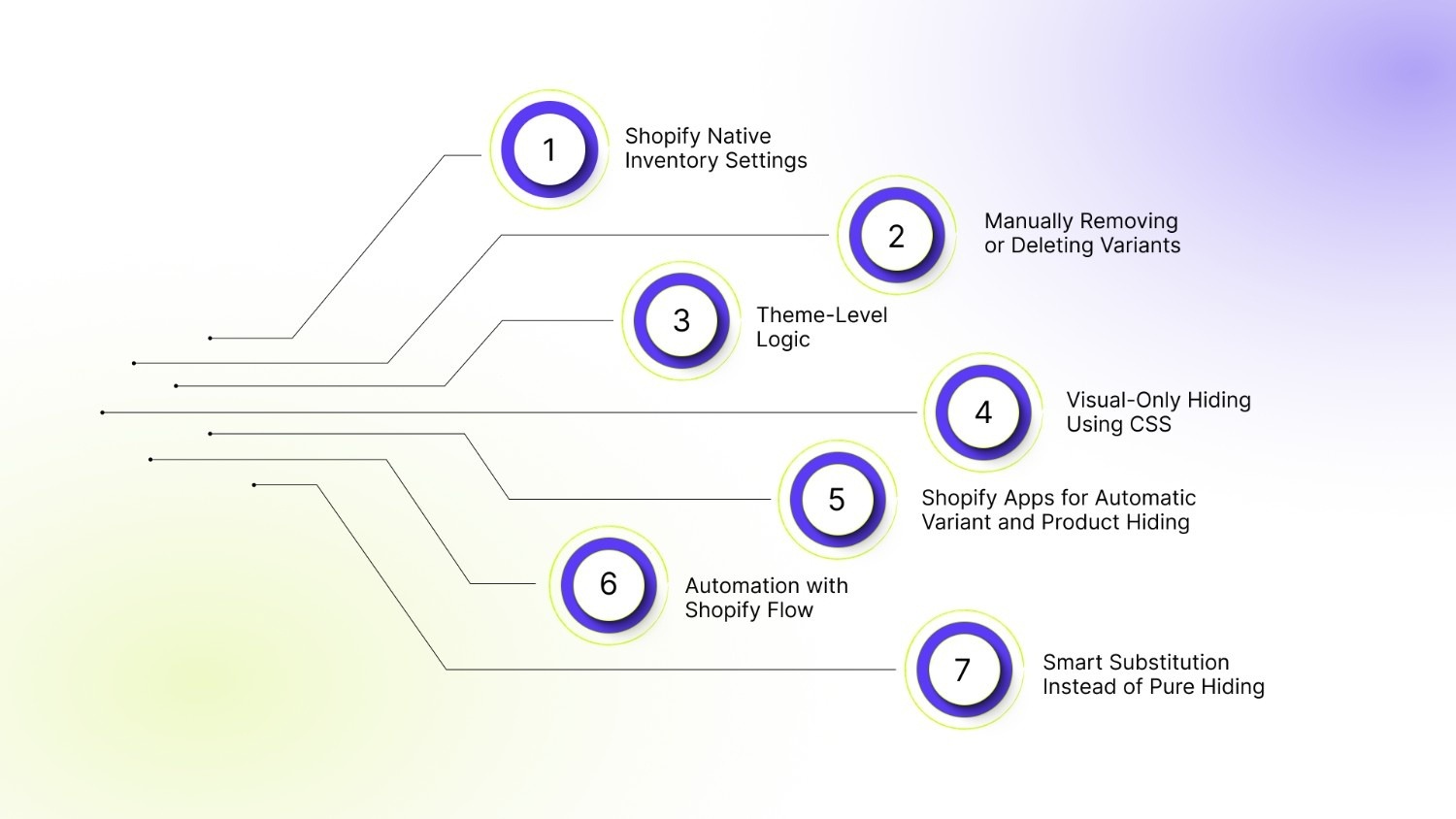
7 Methods to Hide Out-of-Stock Products and Variants in Shopify
Shopify doesn’t offer a single switch to hide out-of-stock products or variants. Instead, merchants rely on a mix of native settings, automation, theme logic, and apps depending on store size, catalog complexity, and UX expectations.
Below are the most practical methods, what each one actually does, and where it starts to break down.
Method 1: Shopify Native Inventory Settings (Limited Control)
Shopify can prevent checkout when inventory hits zero, but it does not hide sold-out variants from shoppers.
How to do it:
- Go to Products in your Shopify admin.
- Select the product you want to update.
- Scroll to the Variants section and open a variant.
- Enable Track quantity.
- Uncheck Continue selling when out of stock.
- Set the inventory quantity to 0 and save.
Pros
- Prevents overselling
- No apps or code
- Works on any theme
Cons
- Sold-out variants still show in dropdowns/swatches
- Shoppers can still click dead options (friction stays)
- No automatic “hide/unhide” behaviour (visibility never changes—only purchase availability)
This method blocks checkout only after the shopper has already hit a dead end. It works best for very small stores with few variants.
Method 2: Manually Removing or Deleting Variants (Doesn’t Scale)
Some merchants delete or unpublish variants when they sell out and recreate them later. It looks clean at first, but it creates problems as the store grows.
How to do it:
- Go to Products in your Shopify admin.
- Open the product containing the out-of-stock variant.
- In the Variants section, select the variant.
- Either delete the variant or unpublish the product from sales channels.
- Save changes.
When the item is restocked, the variant must be manually recreated.
Pros
- Product pages show only available options
- No visible sold-out variants
- Immediate visual cleanup
Cons
- Variant IDs change when variants are recreated
- Analytics data becomes inconsistent
- Apps tied to variant IDs (subscriptions, bundles, reviews) lose context
- Historical sales data gets fragmented
- Google Merchant Center feeds can fall out of sync
Example: Delete “Blue / Medium.” Recreate it later. Shopify treats it as a brand-new variant.
This creates operational debt and only makes sense for one-off or non-restock items.
Method 3: Theme-Level Logic (Liquid Code Customization)
Shopify themes can be customized using Liquid and JavaScript to hide variants based on inventory availability. This gives you precise control over variant display, but it requires technical ownership.
How to do it:
- Go to Online Store → Themes → Edit code.
- Locate the product or variant picker file (e.g., main-product.liquid).
- Add conditional logic to hide variants where variant.available == false.
- Save and test across desktop and mobile.
- Re-test after every theme update.
Pros
- Truly hides out-of-stock variants
- Full control over variant display and UX
- No recurring app costs
Cons
- Theme updates can overwrite custom code
- Small bugs can break variant selection or add-to-cart behavior
- Requires ongoing developer support and testing
This works for custom themes with in-house developers. For most merchants, it’s powerful but fragile.
Method 4: Visual-Only Hiding Using CSS
Some merchants hide sold-out variants visually using CSS. This improves appearance but does not change how Shopify handles inventory.
How to do it:
- Go to Online Store → Themes in your Shopify admin.
- Click … → Edit code on your active theme.
- Open your main stylesheet, usually base.css or theme.css.
- Add CSS rules that target sold-out or disabled variant classes
- Save changes and refresh the product page to verify.
Pros
- Hides or grays out sold-out buttons or swatches
- Reduces visible clutter
- Quick to implement on Dawn and OS 2.0 themes
Cons
- Variants still exist logically
- Not inventory-aware or dynamic
- No SEO or data impact control
This method is purely cosmetic. It can slightly improve appearance, but should never be relied on as a true inventory or UX solution.
Also Read: How to Display Product Variants With Images in Your Ecommerce Store
Method 5: Shopify Apps for Automatic Variant and Product Hiding
For most growing stores, automation is the only approach that works consistently at scale.
How to do it:
- Install a variant or inventory management app from the Shopify App Store.
- Set rules like:
- Hide variants when inventory = 0
- Restore variants when inventory > 0
- Enable compatibility with swatches and selectors.
- Test before applying storewide.
How app-based hiding works
- Inventory hits zero
- The variant or product is removed from the selectors automatically
- Swatches, dropdowns, and images stay in sync
- Variant reappears instantly when restocked
Pros
- True variant hiding, not just disabling
- No manual updates required
- No theme maintenance
- Scales cleanly across hundreds or thousands of SKUs
Cons
- Ongoing app cost
- Requires choosing a well-built app
This is the most reliable way to hide out-of-stock variants in Shopify without breaking UX, data, or workflows.
Method 6: Automation with Shopify Flow (Product-Level Control)
Shopify Flow allows you to automate product visibility using IF–THEN logic based on inventory conditions.
How to do it:
- Install Shopify Flow from the Shopify App Store.
- Open Flow and create a new workflow.
- Use the trigger Inventory quantity changed.
- Set conditions such as:
- If inventory equals 0 → Hide product
- If inventory is greater than 0 → Republish product
- Save and enable the workflow.
Pros
- Fully automated product hiding and republishing
- Custom workflows without writing code
- Native Shopify tool
Cons
- Works at the product level, not the variant level
- Hidden products may return 404 errors without redirects
- Requires careful SEO handling
Flow is effective for product-level automation but lacks precision for variant-level UX.
Shopify Flow is available on paid plans and is best for product visibility automation (draft/active), not variant-by-variant UX control.
Method 7: Smart Substitution Instead of Pure Hiding (Advanced UX)
In some cases, hiding alone isn’t enough. If a shopper lands with intent for a specific variant, removing it without guidance can still end the journey.
How to do it:
- Use apps or custom logic that detect unavailable variants.
- Automatically:
- Select the nearest available variant, or
- Switch to the next available size or color
- Highlight similar or in-stock alternatives on the product page.
- Ensure messaging clearly explains the change.
Pros
- Preserves shopper intent
- Reduces decision fatigue
- Helps recover otherwise lost sales
- Keeps customers engaged on high-intent pages
Cons
- Requires advanced logic or apps
- Can confuse users without clear messaging
- Not suitable when variants differ significantly
Now that you’ve seen the available options, the next step is choosing the one that fits how your store actually operates.
How to Choose the Right Method for Your Store
There's no single “best” way to hide out-of-stock variants. The right approach depends on how your store operates today and how you expect it to grow.
Before choosing a method, ask yourself:
- How often do variants go out of stock?
Frequent stock changes need automation. Occasional stockouts can be handled manually.
- How large is your catalog?
A small catalog can survive with native settings. Larger catalogs need systems, not manual fixes.
- Do you have developer support?
Theme-level logic only works if someone can maintain it through updates and edge cases.
- Do you use color swatches or custom variant selectors?
These require solutions that understand variant logic, not just visual hiding.
As a rule of thumb:
- Small or early-stage store: Native Shopify settings may be enough
- Growing store with frequent restocks: App-based automation is safer
- Custom theme with dev support: Code-based solutions can work, but require care
The goal isn’t just to hide out-of-stock variants. It’s to do it in a way that protects site speed, preserves UX, and scales as inventory grows. Once the right foundation is in place, the next step is managing variants cleanly across visuals, content, and automation.
Also Read: How to Add Shopify Variants to Collection Pages Easily?
How StarApps Helps Shopify Merchants Manage Variants at Scale
As stores grow, variant management becomes less about fixing individual issues and more about maintaining consistency across the entire storefront.
StarApps offers a suite of Shopify apps designed to reduce variant complexity and automate how variants appear across product pages. Instead of relying on fragile theme hacks or constant manual updates, merchants can manage variants as a system.
i) Color Swatch King
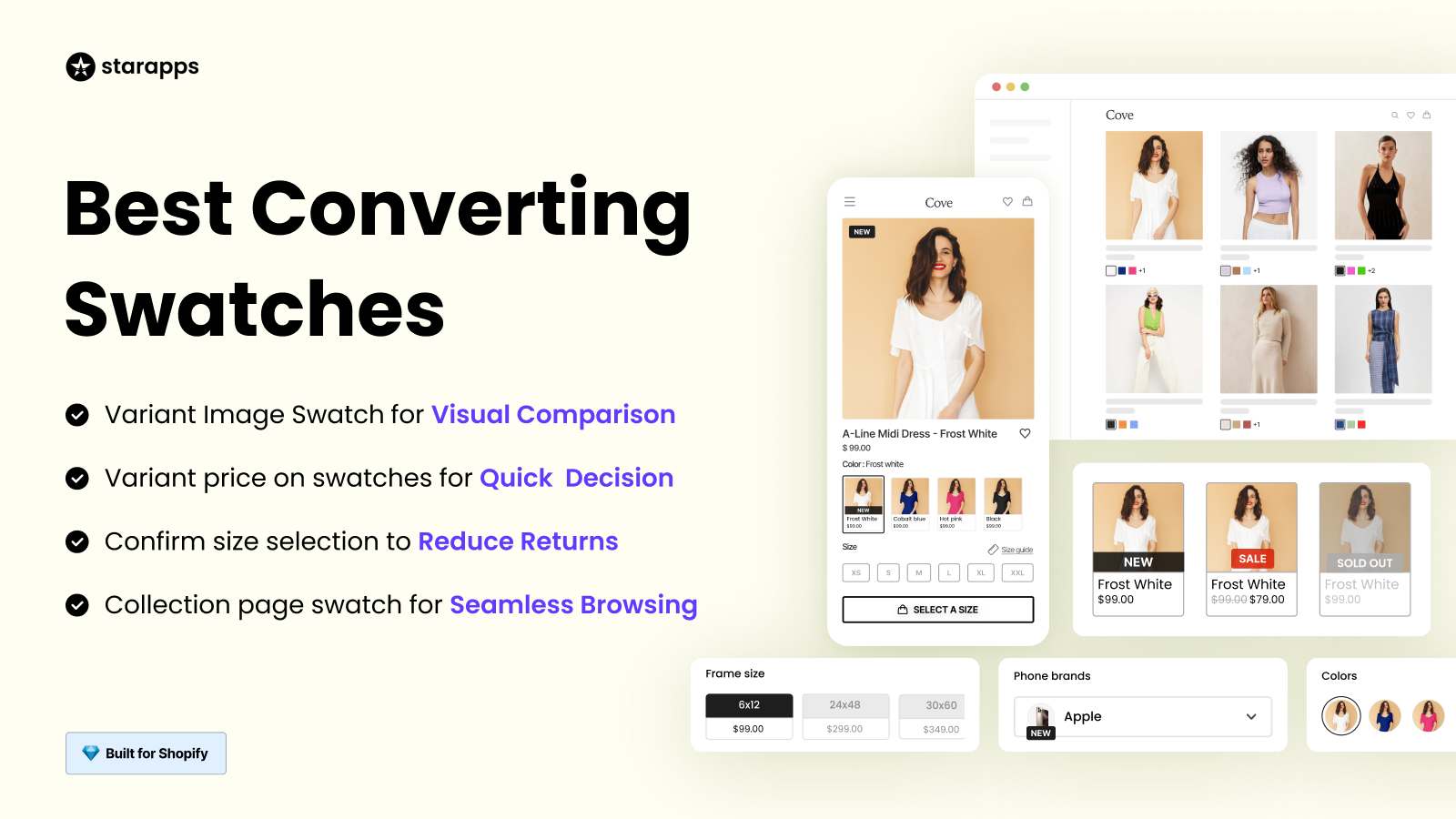
Shopify’s default dropdowns make variant selection slow and unintuitive. Color Swatch King replaces them with visual swatches that customers can instantly understand.
What it helps with
- Displays color, image, or text swatches on product and collection pages
- Lets shoppers preview variant styles without extra clicks
- Automatically hides out-of-stock options to prevent frustration
Best for: Apparel, accessories, and beauty stores where visual choice drives conversions.
ii) Variant Image Automator
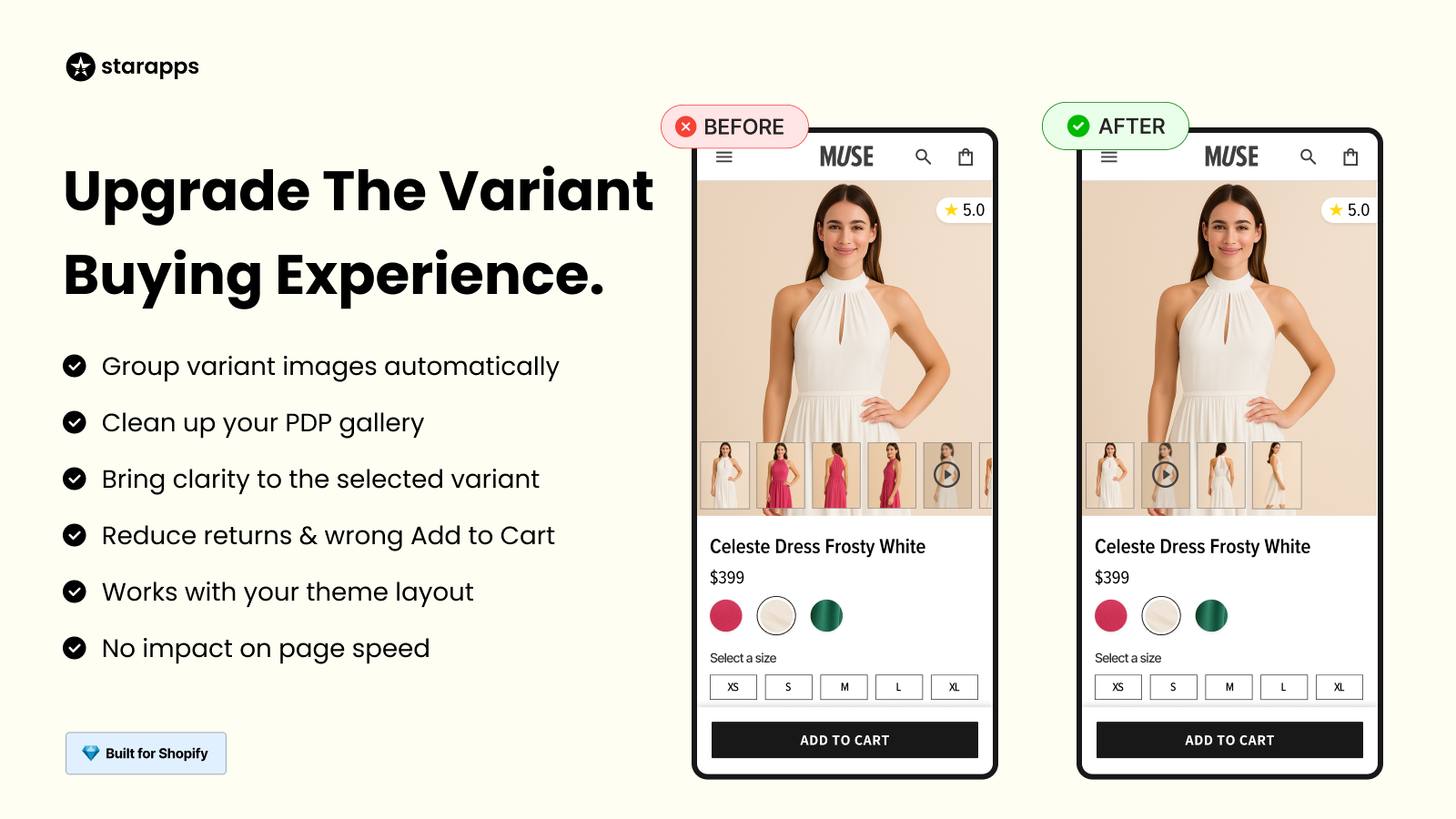
Manually matching images to variants is time-consuming and error-prone. Variant Image Automator ensures shoppers only see images that match the selected variant.
What it helps with
- Shows only relevant images for the selected variant
- Removes visual clutter and mismatched photos
- Supports rich media like zoom and video without slowing pages
Best for: Brands with large image libraries or frequent product updates.
iii) Variant Descriptions King
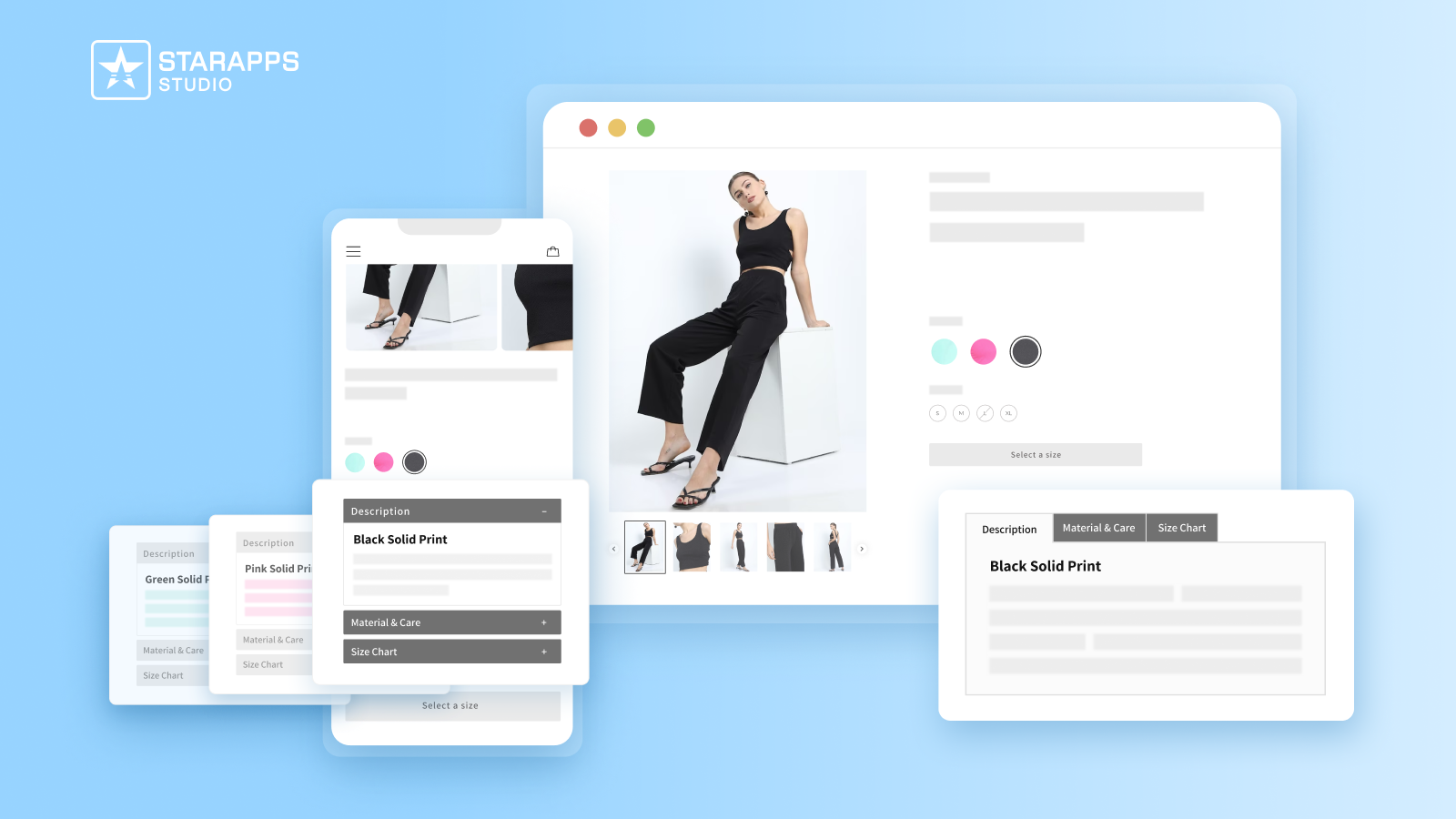
Not every variant shares the same details. This tool lets you show variant-specific information without cluttering the page.
What it helps with
- Displays unique specs, materials, or sizing per variant
- Keeps pages tidy using tabs or accordions
- Reduces confusion that leads to returns
Best for: DTC brands selling configurable or spec-heavy products.
iv) Variant Alt Text King
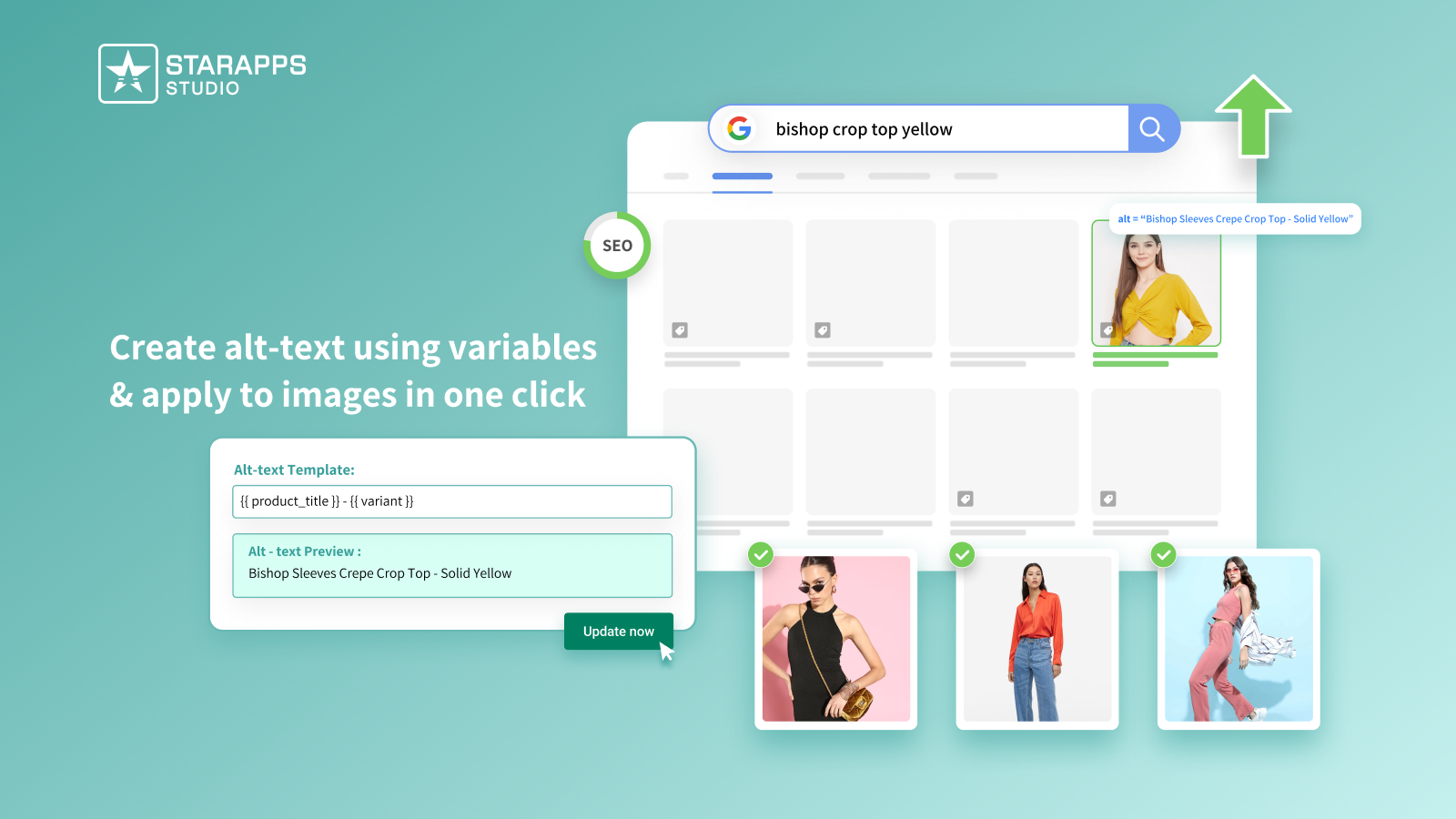
Managing alt text at scale is difficult, but it matters for both SEO and accessibility.
What it helps with
- Automatically generates accurate alt text for variant images
- Keeps new uploads optimized without manual effort
- Supports ADA and WCAG accessibility best practices
Best for: Stores focused on organic growth and inclusive design.
v) SA Variants – Combined Listings

Shopify groups all variants under one URL by default. SA Variants helps surface key variants more effectively where needed.
What it helps with
- Creates unique URLs and metadata for important variants
- Improves visibility for long-tail searches
- Makes browsing and filtering faster for shoppers
Best for: Home, lifestyle, and catalog-heavy brands.
vi) Variant Title King
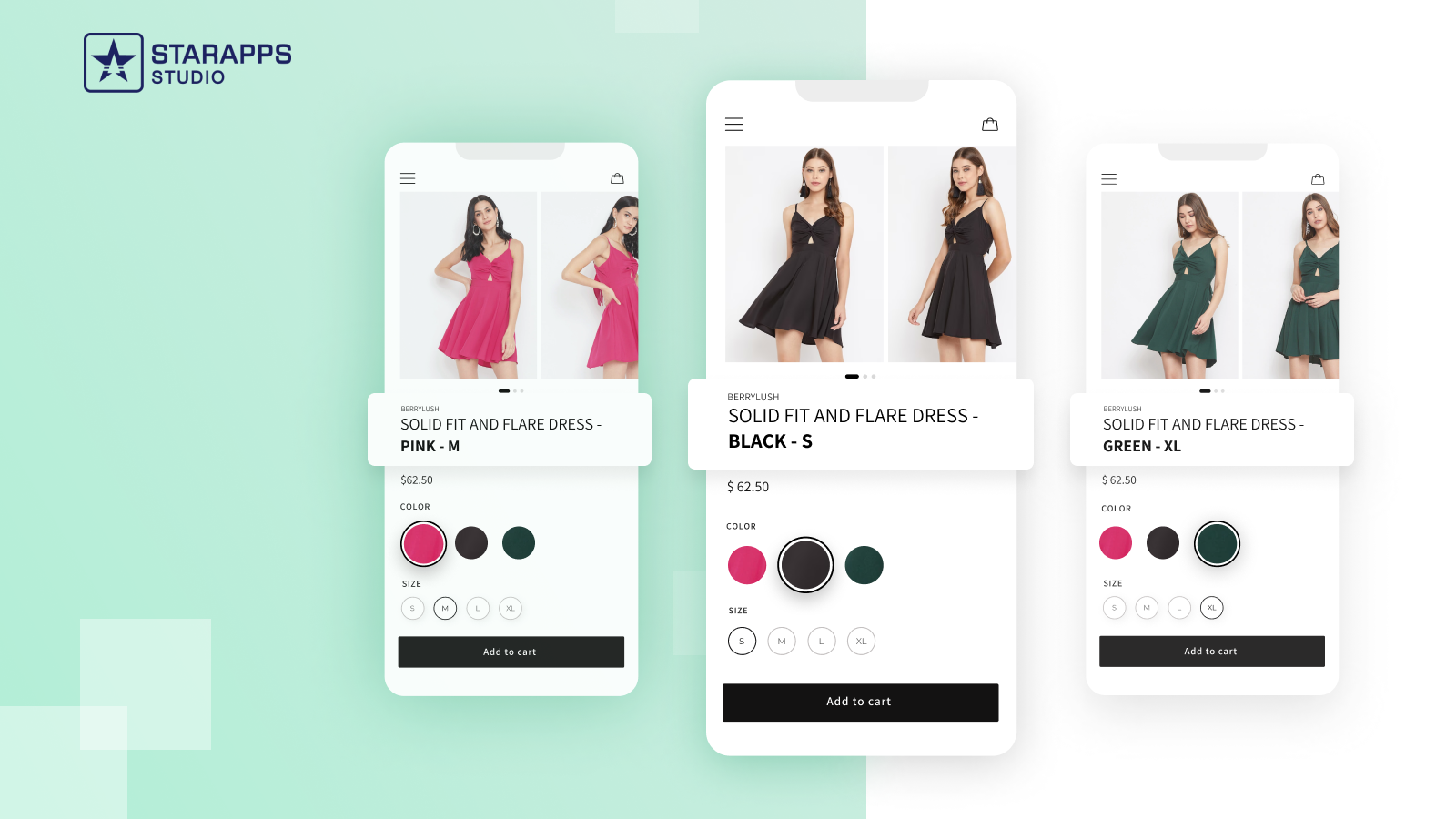
Customers should always know exactly what they’re viewing. Variant Title King updates product titles based on the selected variant.
What it helps with
- Dynamically adds color, size, or configuration to titles
- Reduces selection errors before checkout
- Improves clarity for both customers and internal teams
Best for: Stores with multiple configurations or similar-looking products.
StarApps brings variant visuals, automation, SEO, and clarity together in one system, making it easier to scale without adding complexity. Trusted by over 25,000 Shopify stores across fashion, beauty, home, and lifestyle, it’s built for growing businesses that want to convert more visitors into buyers.
Quick Tips for Hiding Sold-Out Variants in Shopify
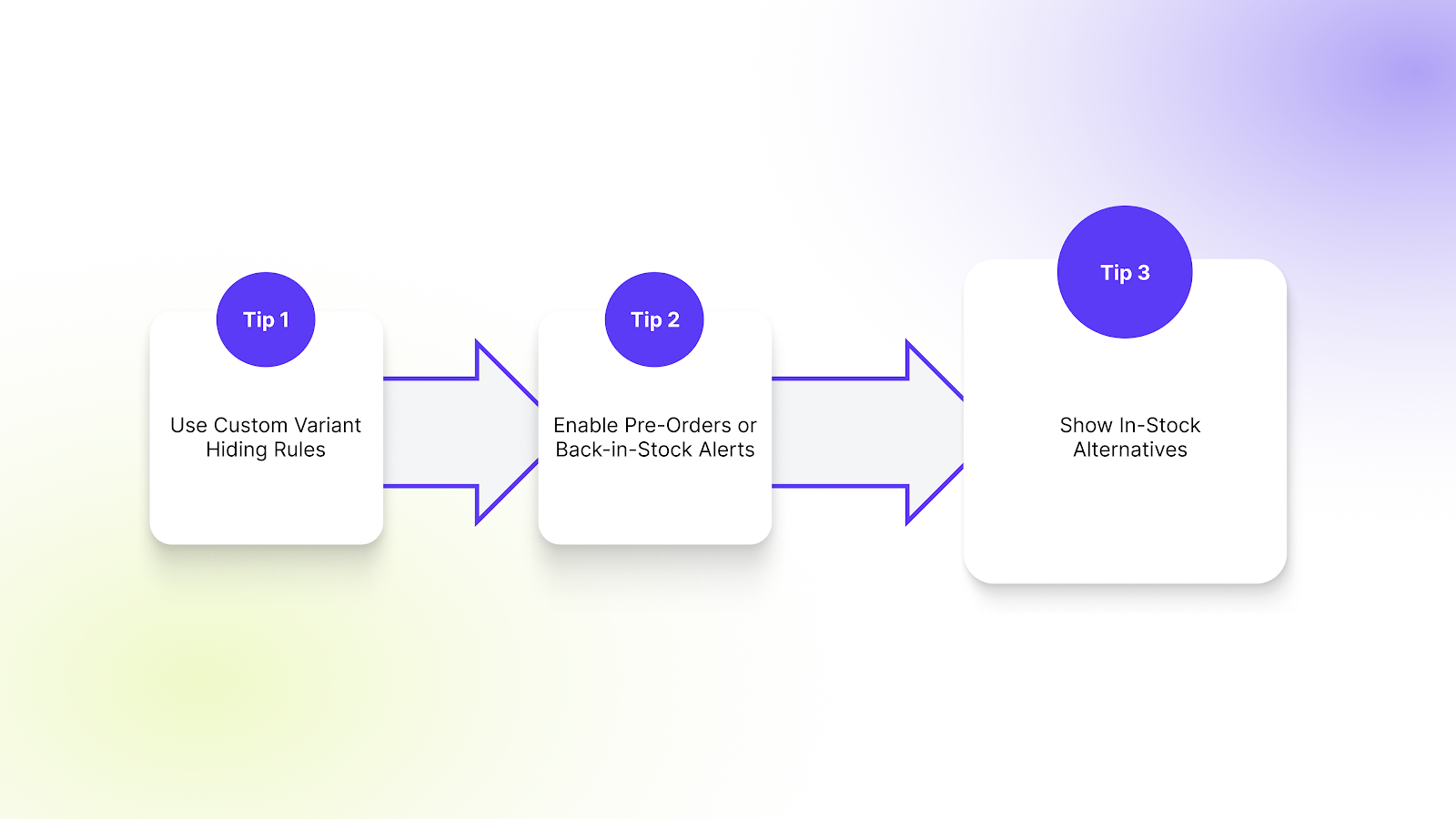
A smooth shopping experience depends on clarity. When customers see variants they can’t purchase, frustration builds quickly. Hiding sold-out variants keeps product pages focused and ensures shoppers interact only with available options.
Below are a few practical tips to minimize friction and maintain a clean storefront.
Tip 1: Use Custom Variant Hiding Rules
If inventory changes often, use apps that automatically hide variants based on stock levels, collections, option combinations, customer type, or time periods. This keeps variant visibility accurate without manual work.
Tip 2: Enable Pre-Orders or Back-in-Stock Alerts
Don’t let sold-out variants kill demand. Allow pre-orders by enabling inventory tracking and continuing sales at zero stock, or collect emails to notify customers when items are restocked.
Tip 3: Show In-Stock Alternatives
When a variant is unavailable, guide shoppers to similar in-stock options. Highlight related products or auto-select the closest available variant to keep purchase intent intact.
These tips ensure sold-out variants don’t interrupt the buying journey, helping your store stay clear, responsive, and conversion-focused even as inventory changes.
Final Thoughts
There are several ways to hide out-of-stock products and variants in Shopify, but not all methods are equally effective. When you Shopify hide out-of-stock variants the right way, you reduce friction, protect conversions, and create a smoother buying experience. The key is choosing a method that scales with your catalog and inventory velocity.
StarApps Studio helps Shopify merchants move beyond manual fixes by automating variant visibility and improving how products are presented to shoppers. As stores grow, automation becomes the difference between constant cleanup and a system that runs quietly in the background.
Want to simplify variant management and keep your storefront conversion-ready? Get in touch with us to see how StarApps can help.
FAQs
1.What is the SEO impact of hiding out-of-stock products?
Hiding out-of-stock products can affect SEO only if indexed pages are removed. To avoid this, keep product pages live with an “Out of Stock” label or use 301 redirects to relevant in-stock alternatives. Restock dates and waitlists also help preserve engagement and traffic.
2.How does Shopify handle out-of-stock variants by default?
Shopify does not fully hide out-of-stock variants by default. It only blocks checkout if inventory tracking is enabled. Variants still appear on the product page unless additional logic or apps are used.
3.Should I hide or disable out-of-stock variants?
Hiding is usually better for UX when many variants are unavailable. Disabling can work when transparency matters, but too many disabled options often lead to frustration and missed conversions.
4.Can variants automatically reappear when stock returns?
Yes. Automation apps monitor inventory changes and restore variant visibility instantly when stock is updated, ensuring no missed sales opportunities.
5.Does hiding out-of-stock variants affect SEO?
No. When done correctly, hiding variants does not hurt SEO. The main product page remains indexed, and improving UX often leads to better engagement signals instead of frustrated clicks.
Heading

End-to-end traceability
To ensure regulatory compliance, you must have a complete overview of your products from production to shipping. Book a demo to see how Katana can give you full visibility of your operations.



.png)

.svg)

.svg)

.svg)
.png)