
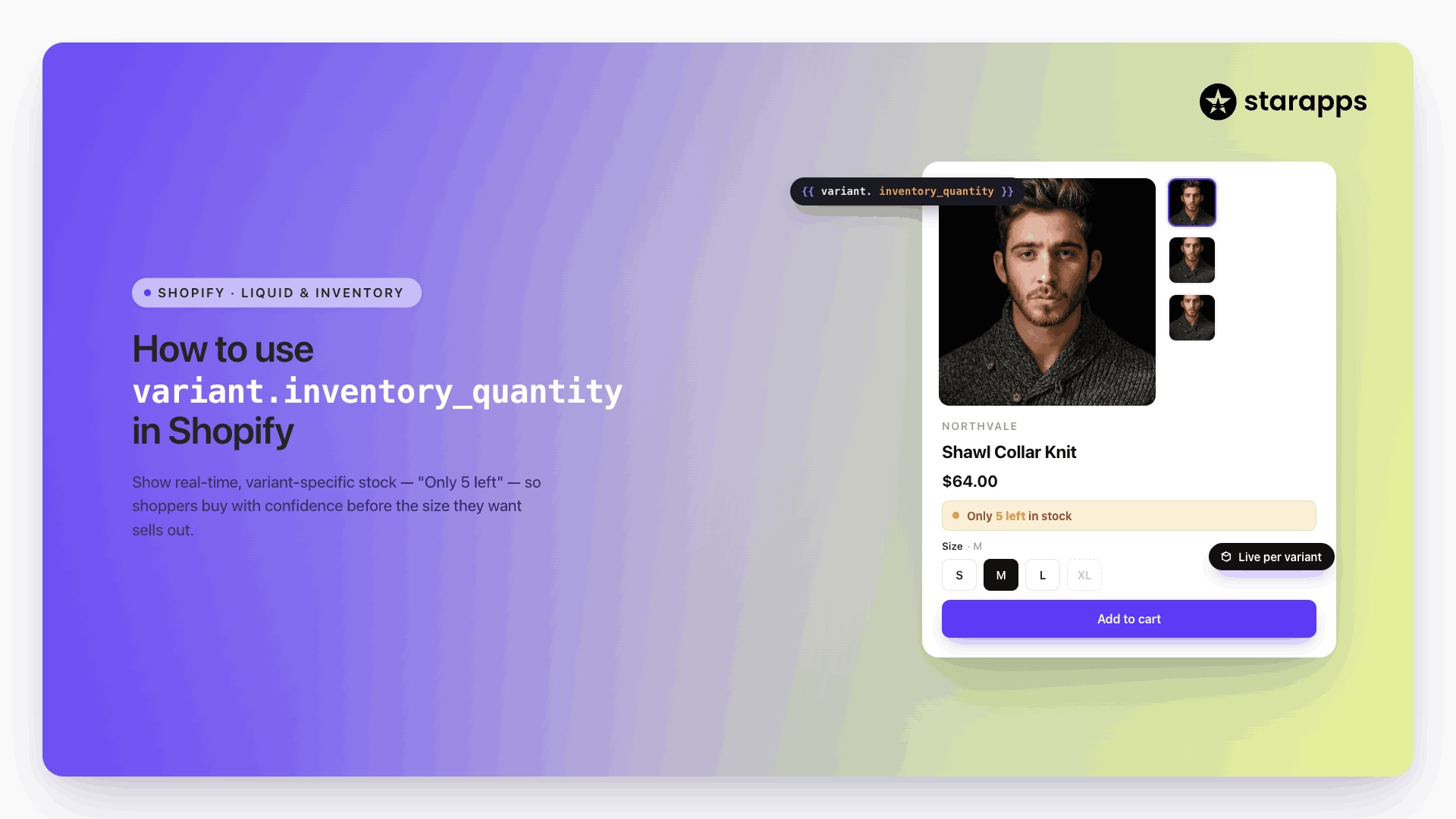

Learn how to use variant.inventory_quantity in Shopify to display stock levels, manage inventory visibility, and improve the shopping experience.
Customers want to know whether a product is available before adding it to their cart. If a shopper selects a size or color only to discover it is out of stock, the experience can quickly become frustrating and lead to abandoned purchases.
Displaying inventory information on product pages helps set clear expectations and improve purchasing confidence. Shopify developers often use the variant.inventory_quantity Liquid property to display stock levels, create low-stock alerts, and show variant-specific availability in real time.
Inventory visibility also plays a role in product merchandising by helping customers identify available options more quickly and make informed decisions. In this article, we'll explain how to use variant.inventory_quantity in Shopify, explore common implementation examples, and share best practices for improving inventory visibility across your storefront.
TL;DR
- variant.inventory_quantity allows Shopify stores to display real-time inventory levels for individual product variants.
- Merchants commonly use it for low-stock alerts, availability badges, inventory counters, and variant-specific stock messaging.
- Accurate inventory visibility helps customers make faster purchasing decisions and reduces confusion around product availability.
- Common issues include disabled inventory tracking, incorrect variant references, and multi-location inventory complexities.
- StarApps solutions can complement inventory visibility by improving variant selection, hiding sold-out options, and enhancing product discovery.
What Is variant.inventory_quantity in Shopify?
variant.inventory_quantity is a Shopify Liquid property that returns the available inventory quantity for a specific product variant. Developers use it to access real-time stock levels and display inventory information directly on storefront pages.
Where Is It Used?
The variant.inventory_quantity property is commonly used for:
- Product pages that display available stock.
- Custom Shopify themes and Liquid templates.
- Low-stock alerts such as "Only 3 left in stock."
- Availability indicators for product variants.
These use cases help customers understand whether their preferred option is available before they add it to their cart.
Example of the Liquid Variable
A common implementation looks like this:
{{ product.selected_or_first_available_variant.inventory_quantity }}
This outputs the inventory quantity for the currently selected variant.
Why Merchants and Developers Use It
For developers, variant.inventory_quantity provides a simple way to build inventory-based functionality into Shopify themes. For merchants, it helps improve inventory visibility, reduce customer frustration, and create a more transparent shopping experience by showing stock availability in real time.
Also Read: Shopify Product Variants: How to Manage and Optimize Them
How to Use variant.inventory_quantity in Shopify
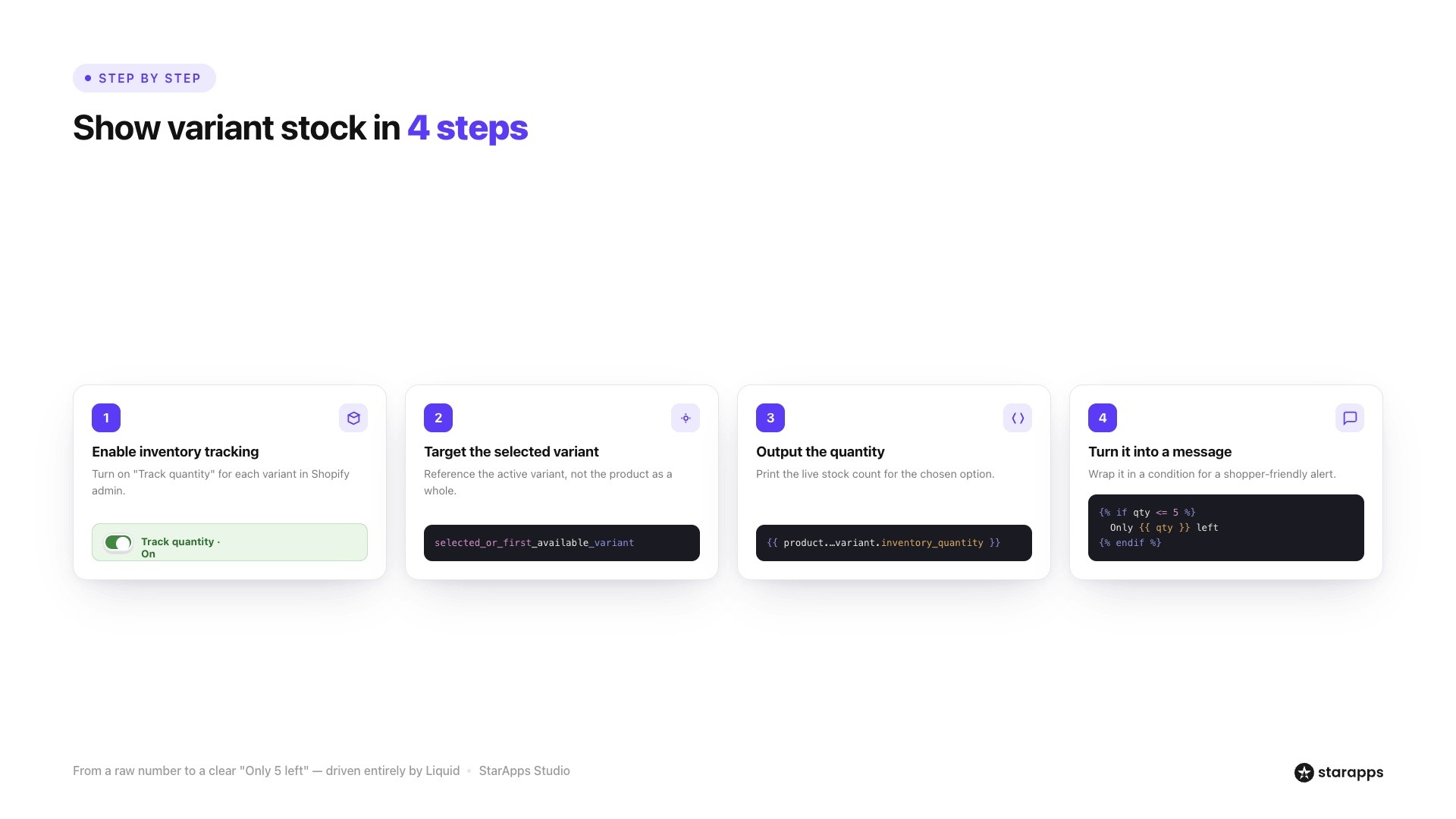
Using variant.inventory_quantity allows Shopify stores to display real-time inventory information for individual product variants. This can improve inventory visibility, help customers understand availability before checkout, and support low-stock merchandising strategies.
Step 1: Enable Inventory Tracking
Before using variant.inventory_quantity, Shopify must be tracking inventory for the product variant. You can verify this by opening the product in your Shopify admin and ensuring that inventory tracking is enabled for each variant.
If inventory tracking is disabled, Shopify will not maintain stock counts, and the variable may not return meaningful inventory data.
Step 2: Access the Variant Object
The inventory quantity is stored within the variant object. Since many products have multiple sizes, colors, or styles, inventory should usually be displayed for the currently selected variant rather than the product as a whole.
This ensures customers see the correct stock information for the option they intend to purchase.
Step 3: Display Inventory Quantity in Liquid
Once inventory tracking is active, you can output the inventory quantity using Shopify Liquid:
{{ product.selected_or_first_available_variant.inventory_quantity }}
This displays the available inventory count for the selected product variant and updates as customers switch between available options.
Step 4: Add Customer-Facing Stock Messages
Rather than displaying a raw inventory number, many merchants use inventory quantities to create more meaningful stock messages.
For example:
{% if product.selected_or_first_available_variant.inventory_quantity <= 5 %}
Only {{ product.selected_or_first_available_variant.inventory_quantity }} left in stock
{% endif %}
This approach helps customers quickly understand availability without requiring them to interpret inventory data themselves.
Common uses include:
- Low-stock alerts.
- Limited-availability messages.
- Variant-specific availability indicators.
- Inventory-based urgency messaging.
Example: Apparel Store Displaying "Only 5 Left in Stock"
Imagine an apparel retailer selling a hoodie in six colors and multiple sizes. While some variants may have hundreds of units available, others may be nearly sold out.
When a customer selects a black medium hoodie with only five units remaining, the product page can dynamically display a message such as "Only 5 left in stock." If the customer switches to a different size with higher inventory, the message updates automatically.
This creates a more transparent shopping experience while helping customers identify available options before adding products to their cart.
Also Read: How to Create Multiple Shopify Stores Under One Account
Common Ways Shopify Stores Use Variant Inventory Quantity
While variant.inventory_quantity is a technical Shopify property, its real value comes from how merchants use it to improve the shopping experience. Displaying inventory information strategically can help customers make faster decisions and better understand product availability.
1. Low-Stock Notifications: One of the most common uses is displaying low-stock alerts when inventory falls below a specific threshold.
Messages such as "Only 3 left in stock" or "Limited availability" can help customers understand that inventory is running low without creating unnecessary friction in the buying process.
2. Inventory Counters: Some stores choose to display exact inventory quantities directly on product pages. This approach works particularly well for limited-edition products, seasonal items, and product launches where inventory availability influences purchasing decisions.
3. Variant-Specific Stock Messaging: Inventory levels often vary between product variants. A medium-sized shirt may be nearly sold out while other sizes remain fully stocked.
Using variant.inventory_quantity allows stores to display inventory information for the specific variant a customer has selected, creating a more accurate and relevant experience.
4. Pre-Order and Backorder Workflows: Merchants can also use inventory quantities as part of pre-order and backorder logic. When inventory reaches zero, product pages can display alternative messages such as "Available for pre-order" or provide estimated restock information.
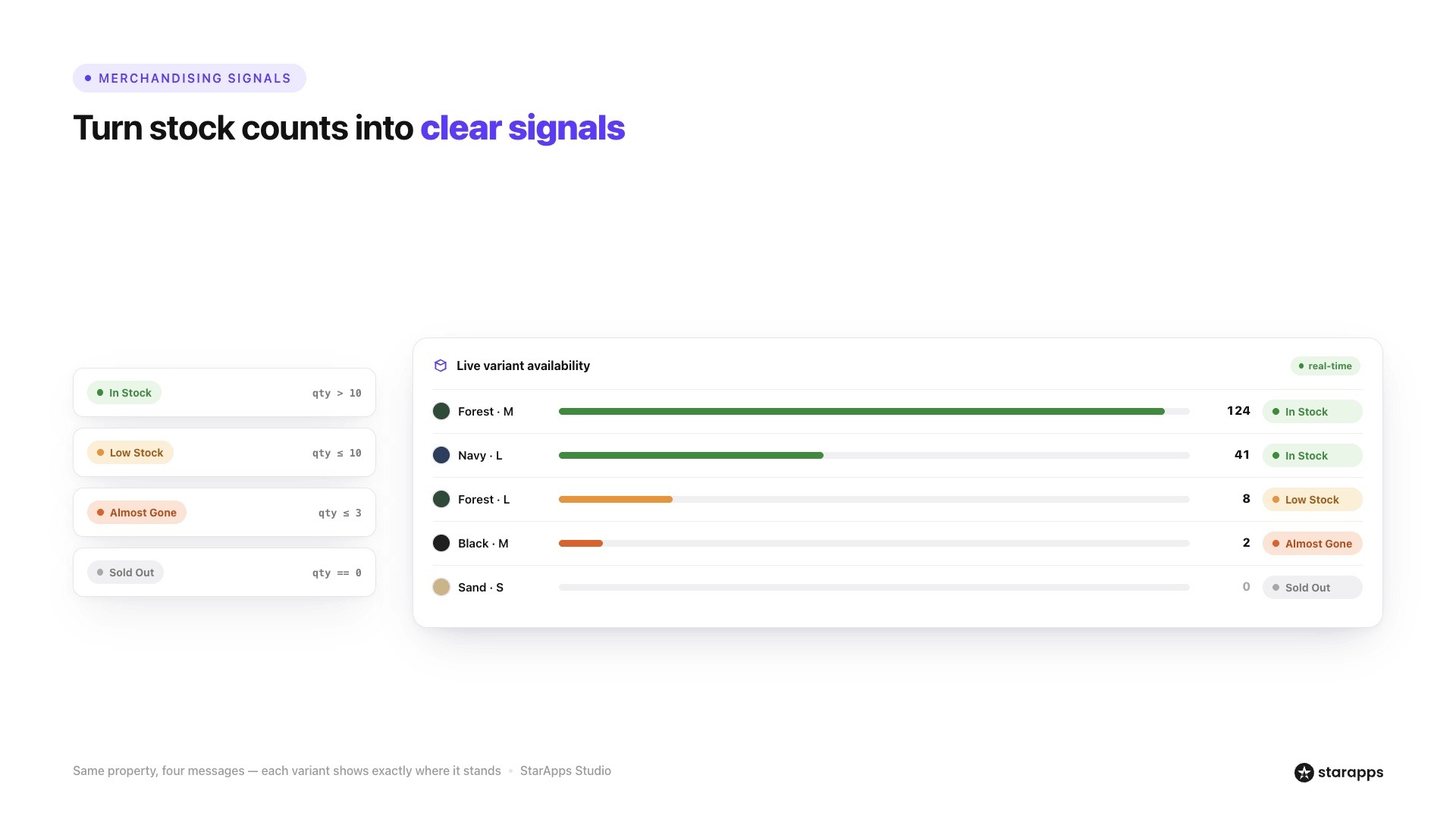
5. Availability Badges: Many stores use visual badges to communicate stock status quickly.
Examples include:
- In Stock
- Low Stock
- Almost Gone
- Sold Out
These indicators help customers understand product availability at a glance without needing to search for inventory details.
Example: Beauty Brand Product Launch
Consider a beauty brand launching a limited-edition skincare product available in multiple variants. As inventory begins to sell through, customers selecting a nearly sold-out variant might see a message such as "Only 8 left in stock."
Combined with clear availability indicators, this inventory visibility helps shoppers understand demand and make purchasing decisions before inventory is depleted. For product launches and limited releases, variant-specific inventory messaging can be a useful part of the overall merchandising strategy.
Also Read: Key Strategies to Enhance Product Line Item Visibility
Common Problems with variant.inventory_quantity
While variant.inventory_quantity is relatively straightforward to use, developers and merchants occasionally encounter issues that prevent inventory information from displaying correctly.
Understanding the most common problems can help you troubleshoot inventory-related errors more quickly.
Inventory Quantity Displaying as Zero
One of the most frequent issues occurs when variant.inventory_quantity returns zero even though inventory appears to be available.
In many cases, this happens because inventory is managed through a separate workflow, inventory policy, or fulfillment setup. Start by confirming that stock quantities are correctly assigned to the variant and that Shopify is actively tracking inventory.
Inventory Tracking Disabled
If inventory tracking is turned off, Shopify will not maintain stock counts for that variant. As a result, variant.inventory_quantity may return unexpected values or fail to provide meaningful inventory information.
To fix this, open the product variant in Shopify Admin and verify that the "Track quantity" option is enabled.
Multiple-Location Inventory Confusion
Stores using multiple inventory locations may notice differences between available inventory and the value displayed by variant.inventory_quantity.
This occurs because inventory can be distributed across warehouses, retail locations, or fulfillment centers. Review your location settings and inventory allocation rules to ensure the displayed quantity aligns with your intended customer-facing inventory strategy.
Showing Inventory for the Wrong Variant
Another common issue is displaying inventory for the first available variant rather than the variant currently selected by the customer.
This often happens when the inventory message is not connected to variant selection logic. Make sure your implementation references the active variant and updates dynamically when customers switch between sizes, colors, or styles.
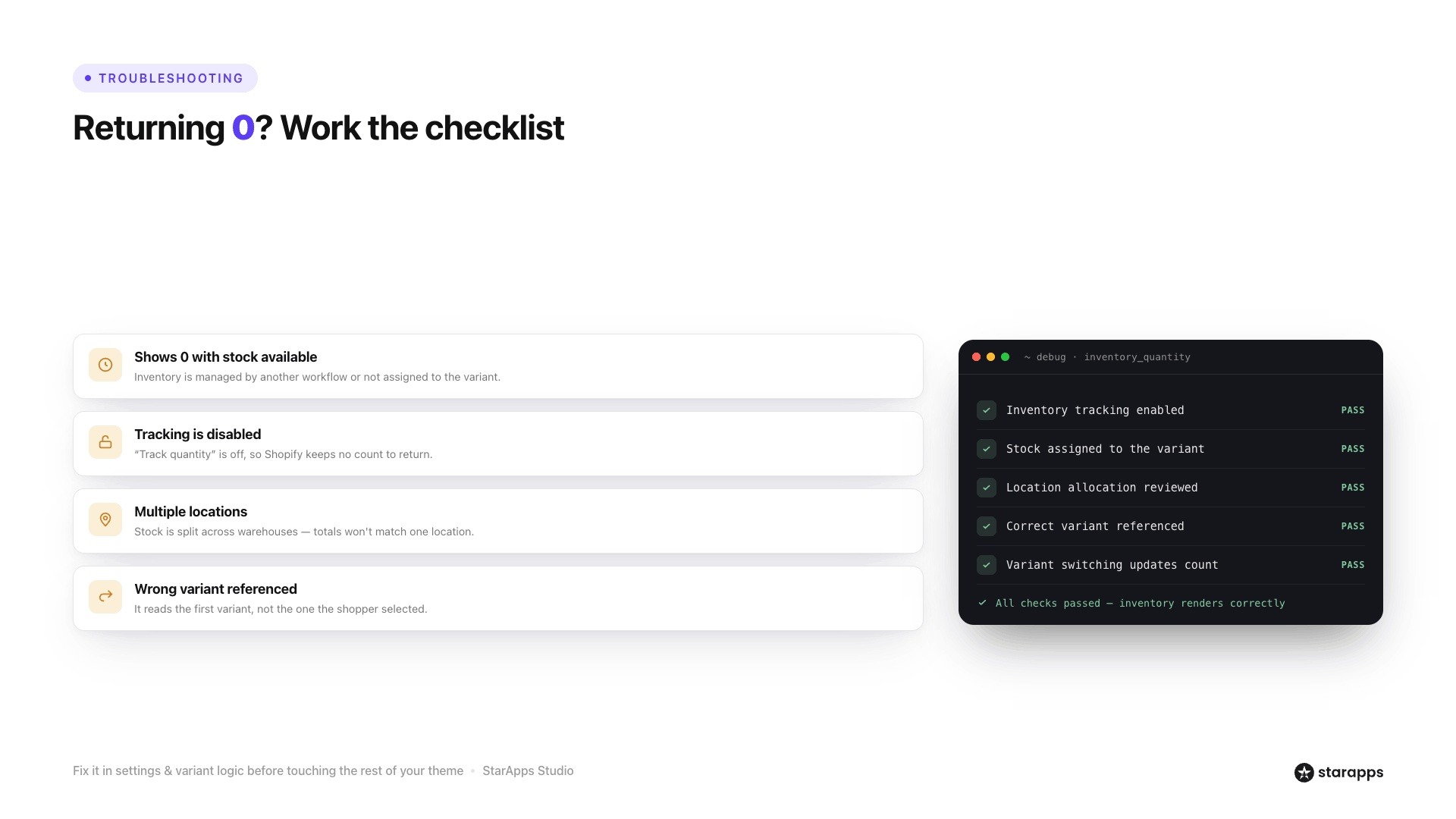
Troubleshooting Checklist
If variant.inventory_quantity is not behaving as expected:
- Verify inventory tracking is enabled.
- Confirm inventory exists for the variant.
- Check whether multiple inventory locations are affecting stock calculations.
- Ensure the correct variant object is being referenced.
- Test variant switching to confirm inventory updates correctly.
Most inventory display issues can be resolved by reviewing inventory settings, variant logic, and storefront implementation details before making more extensive theme changes.
Also Read: Key Strategies to Enhance Product Line Item Visibility
Inventory Visibility Best Practices for Shopify Stores
Displaying inventory information can improve the shopping experience, but only when it is presented thoughtfully. The goal is to help customers understand product availability without creating confusion or unnecessary pressure.
Show Stock Levels Without Overwhelming Customers
Not every store needs to display exact inventory counts. In many cases, simple messages such as "In Stock," "Low Stock," or "Limited Availability" provide enough information to guide purchasing decisions.
Choose an approach that matches your product type and merchandising strategy.
Use Urgency Messaging Carefully
Low-stock alerts can encourage customers to act, but they should reflect actual inventory levels. Overusing urgency messaging may reduce trust if customers repeatedly see warnings that do not align with product availability.
Keep inventory-based messaging accurate and relevant.
Keep Inventory Information Accurate
Inventory visibility is only useful when the underlying data is reliable. Regularly review inventory tracking settings, fulfillment workflows, and stock synchronization processes to ensure customers see current availability information.
Outdated inventory messages can create frustration and lead to abandoned purchases.
Combine Inventory Visibility With Variant Selection
Inventory information becomes more useful when paired with variant-specific selection. Customers should be able to see stock availability for the exact size, color, or style they have chosen rather than viewing generic product-level inventory.
This creates a more accurate and transparent shopping experience.
Example: Fashion Retailer Managing Multiple Sizes and Colors
Consider a fashion retailer selling a shirt in six colors and eight sizes. Some variants may have abundant inventory, while others are nearly sold out.
By displaying inventory information for the selected variant and pairing it with clear size and color selection, the retailer helps customers quickly identify available options and make purchasing decisions with greater confidence.
How StarApps Helps Merchants Improve Variant Availability and Product Discovery
Displaying inventory information is only part of the customer experience. Shoppers also need an easy way to identify available variants, browse product options, and understand what they are purchasing.
StarApps Studio offers Shopify apps designed to improve variant visibility and create a smoother buying journey.
Color Swatch King
Color Swatch King makes variant selection more intuitive by replacing traditional dropdown menus with visual selectors.
Key benefits include:
- Hide sold-out variants from customers.
- Disable unavailable options while keeping available variants visible.
- Improve product browsing with color and image swatches.
- Create a more intuitive variant selection experience.
This helps customers focus on options they can actually purchase rather than navigating unavailable variants.
Variant Image Automator
Variant Image Automator ensures customers see the correct images when they select a product option.
Key benefits include:
- Display variant-specific images automatically.
- Support multiple images per variant.
- Reduce gallery clutter.
- Improve product visualization and clarity.
For products available in multiple colors or styles, this creates a cleaner and more relevant product-page experience.
SA Variants: Combined Listings
SA Variants: Combined Listings helps merchants organize large catalogs and make product variants easier to discover.
Key benefits include:
- Improved product discovery across collections.
- Better navigation between related variants.
- Variant-specific listings that support browsing and filtering.
- Easier exploration of large product catalogs.
If your store manages large numbers of variants, consider using Shopify apps that help customers identify available options faster and navigate products more efficiently. Small improvements in variant presentation can make a significant difference to the overall shopping experience.
Book a demo to create a smoother shopping experience and make complex product catalogs easier to navigate.
Final Thoughts
The variant.inventory_quantity property helps Shopify stores display accurate stock information and improve inventory visibility across product variants. Clear stock messaging can reduce customer uncertainty and create a better shopping experience.
To take variant management further, explore StarApps solutions that help customers discover available options, navigate variants more easily, and browse products with confidence.
FAQs
1. What does variant.inventory_quantity do in Shopify?
variant.inventory_quantity is a Shopify Liquid property that returns the available inventory quantity for a specific product variant. Developers use it to display stock levels, availability messages, and inventory-based notifications on storefront pages.
2. Why is variant.inventory_quantity returning 0?
This usually happens when inventory tracking is disabled, the selected variant has no available stock, or the theme is referencing the wrong variant object. Checking inventory settings and variant logic will often resolve the issue.
3. Can I show low-stock messages using variant.inventory_quantity?
Yes. Many Shopify stores use variant.inventory_quantity to display messages such as "Only 5 left in stock" when inventory falls below a specific threshold. This helps customers understand product availability before purchasing.
4. Does variant.inventory_quantity work with multiple inventory locations?
Yes, but stores using multiple fulfillment locations should verify how inventory is allocated and displayed. Inventory quantities can vary depending on location settings and inventory management workflows.
5. Should Shopify stores display exact inventory quantities to customers?
It depends on the merchandising strategy. Some merchants display exact stock counts, while others prefer messages such as "Low Stock" or "Limited Availability" to communicate inventory status without revealing precise quantities.
6. How can I hide sold-out variants in Shopify?
Sold-out variants can be hidden through custom theme logic or Shopify apps designed for variant management. Many merchants use variant-selection tools that automatically hide or disable unavailable options to create a cleaner shopping experience.
Heading

End-to-end traceability
To ensure regulatory compliance, you must have a complete overview of your products from production to shipping. Book a demo to see how Katana can give you full visibility of your operations.



.png)

.svg)

.svg)

.svg)
.png)