
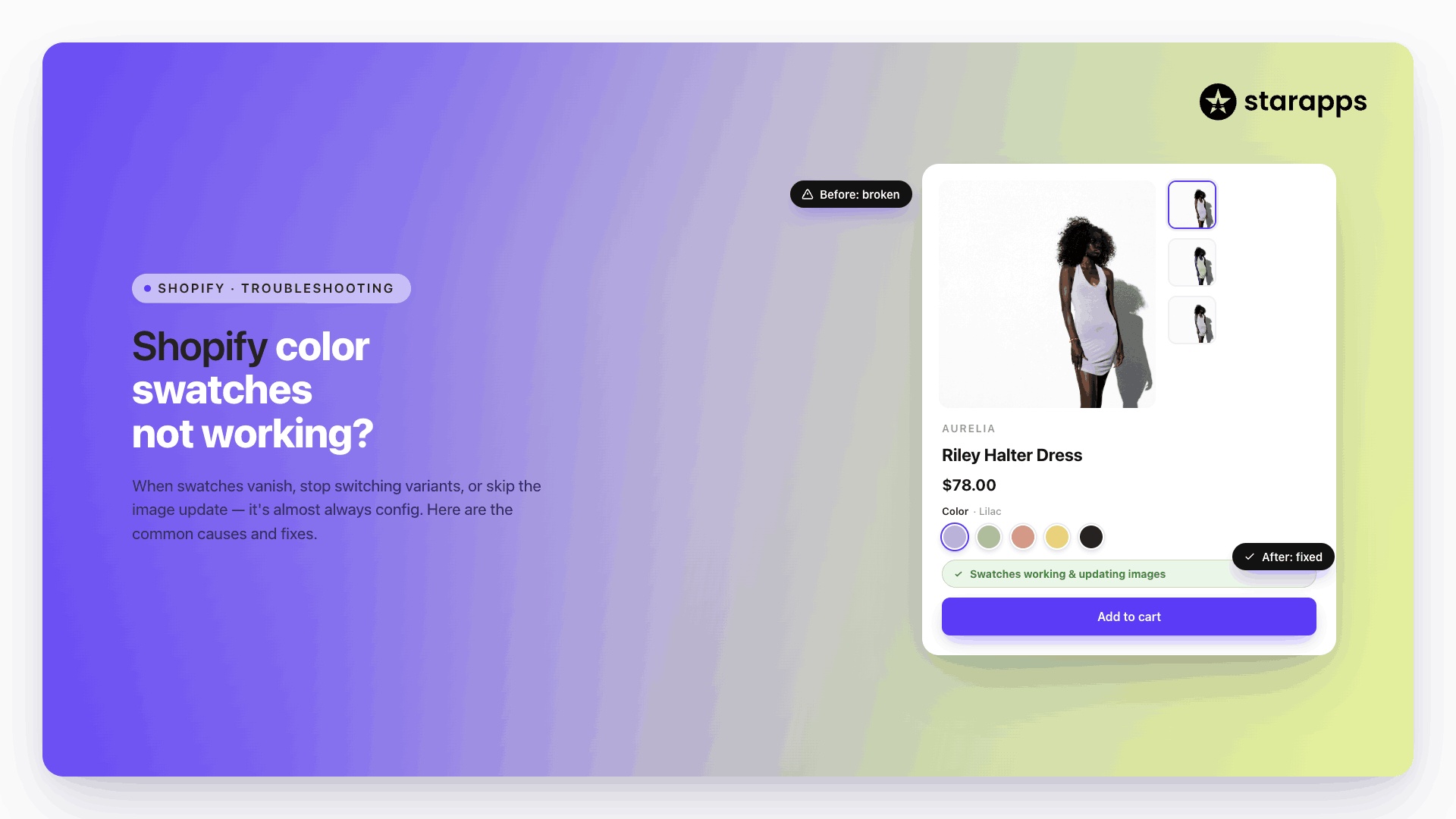

Learn why Shopify color swatches are not working and discover common fixes for display, variant selection, and theme compatibility issues.
Color swatches make it easier for customers to compare product variants and select options such as colors, patterns, or styles without navigating through dropdown menus. When swatches stop working, however, shoppers may struggle to find the right variant, leading to frustration and a less intuitive buying experience.
Broken swatches can affect more than product pages. They can reduce product discoverability, create confusion during variant selection, and negatively impact conversions. In many cases, the problem stems from theme settings, variant configuration issues, app conflicts, or recent storefront updates.
In this article, we'll explore the most common reasons Shopify color swatches stop working, how to troubleshoot them, and the best ways to create a reliable variant selection experience for your customers.
TL;DR
- Shopify color swatches can stop working due to theme conflicts, variant setup issues, or incorrect product option naming.
- Most swatch problems can be resolved by reviewing theme settings, variant configuration, and app integrations.
- Collection-page swatches and variant image updates often require separate setup and testing.
- Mobile responsiveness and regular post-update testing are essential for maintaining a smooth swatch experience.
- StarApps tools such as Color Swatch King and Variant Image Automator help simplify swatch management, improve variant selection, and enhance product discovery.
Why Shopify Color Swatches Stop Working in 2026

When Shopify color swatches stop working, the issue is often related to configuration rather than the swatches themselves.
Understanding the root cause can help you identify the problem more quickly and restore a smooth variant-selection experience.
- Theme Compatibility Issues: Not all Shopify themes handle color swatches the same way. Some themes include built-in swatch functionality, while others rely on apps or custom code. If a theme does not fully support your swatch setup, swatches may fail to display or behave unexpectedly.
- Incorrect Variant Setup: Swatches depend on properly configured product variants. Missing variant values, inconsistent product options, or incomplete variant data can prevent swatches from appearing correctly or updating when customers make selections.
- Product Option Naming Errors: Many swatch systems rely on specific option names such as "Color" or "Colour." If naming conventions vary across products, the theme or app may fail to recognize the option and generate the corresponding swatches.
- Theme Updates and Custom Code Conflicts: Theme updates can occasionally overwrite customizations or interfere with third-party app integrations. Similarly, custom code added to product templates may conflict with swatch functionality and prevent variants from displaying correctly.
Example: Swatches Disappear After a Theme Update
Imagine an apparel store using color swatches to showcase products available in multiple colors. After updating its Shopify theme, the store notices that swatches no longer appear on product pages.
In this situation, the issue is often caused by compatibility changes between the updated theme and the existing swatch implementation.
Identifying whether the problem stems from the theme, product setup, or app configuration is the first step toward resolving Shopify color swatch issues effectively.
Also Read: Shopify Product Variants: How to Manage and Optimize Them
How to Fix Shopify Color Swatches Not Working
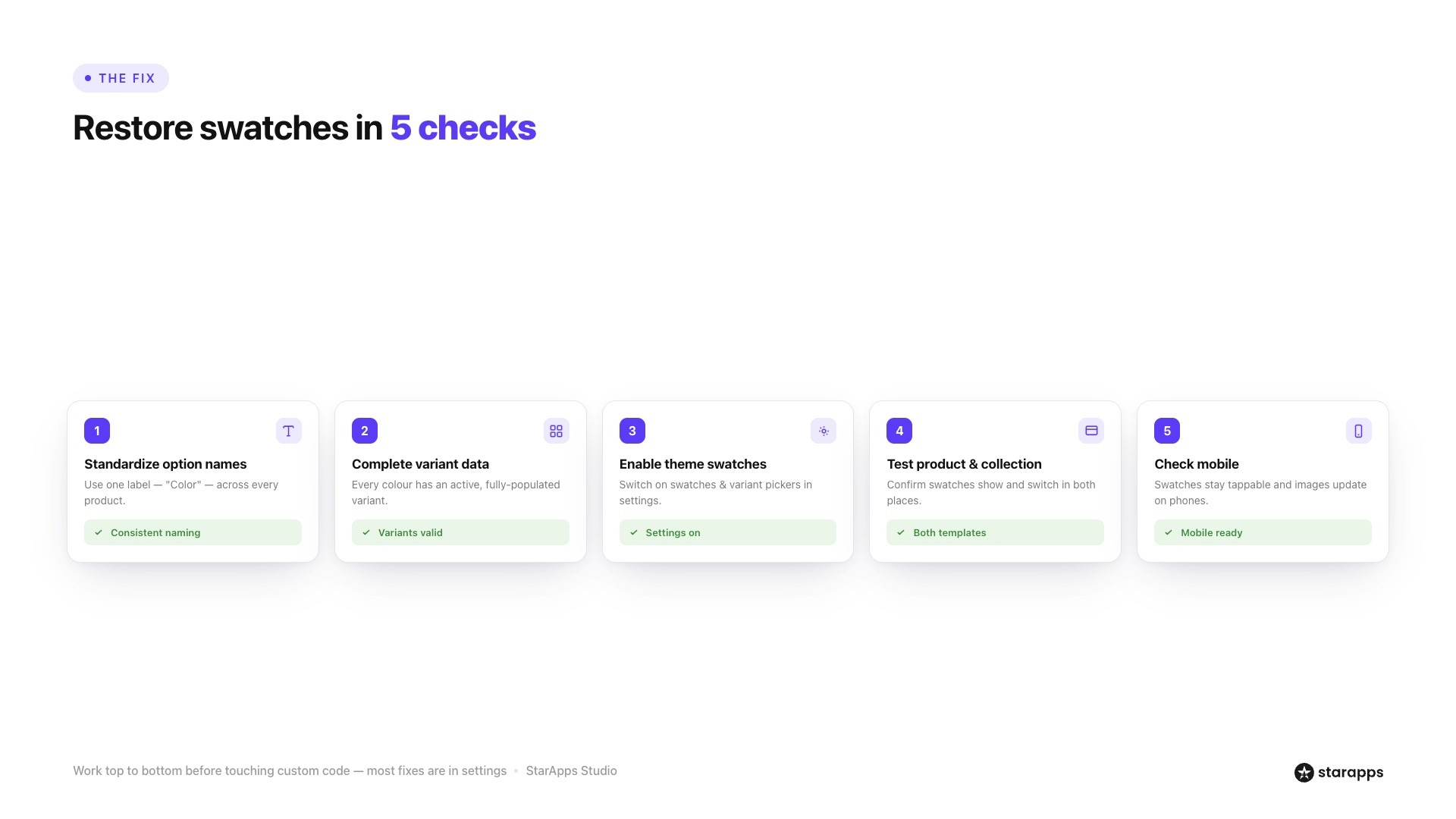
If your Shopify color swatches are not displaying correctly, not updating variants, or have disappeared entirely, the issue is usually related to product configuration, theme settings, or app integration.
Working through the following checks can help you identify the root cause and restore swatch functionality.
Step 1: Verify Product Option Names
Most Shopify themes and swatch apps identify swatches based on product option names. If the option is labeled inconsistently across products, the system may fail to recognize it as a swatch-enabled attribute.
For example, one product may use "Color" while another uses "Colours," "Colour," or "Shade." This inconsistency can prevent swatches from generating correctly.
Review your catalog and ensure option names are standardized across all products where swatches should appear.
Step 2: Review Variant Configuration
Swatches rely on correctly configured product variants. If variants are missing, incomplete, or improperly assigned, swatches may display incorrectly or fail to update product selections.
Check that:
- Every color option has an associated variant.
- Variant values are populated correctly.
- Product options follow a consistent structure.
- Variants are available and active.
This is particularly important for stores managing large apparel, footwear, or home décor catalogs where products may have dozens of variant combinations.
Step 3: Check Theme Settings
Many Shopify themes include built-in swatch functionality, but it often needs to be enabled manually.
Review your theme customization settings and verify:
- Swatches are enabled for product pages.
- Variant pickers are configured correctly.
- Collection-page swatches are activated if supported.
- Theme updates have not reset swatch settings.
If you're using a third-party swatch app, ensure the app is properly integrated with your current theme version.
Step 4: Test Swatches on Product and Collection Pages
Some merchants focus only on product-page functionality and overlook collection pages.
Test whether swatches:
- Appear correctly on product pages.
- Update variants when selected.
- Display correctly on collection pages.
- Link to the appropriate variant or product.
If swatches work in one location but not another, the issue may be related to theme templates rather than product configuration.
Step 5: Check Mobile Responsiveness
A swatch setup that works on desktop may still create issues for mobile shoppers. Since a large percentage of ecommerce traffic comes from mobile devices, testing across different screen sizes is essential.
Verify that:
- Swatches remain visible on smaller screens.
- Customers can easily tap and select variants.
- Product images update correctly after selection.
- Swatches do not overlap with other page elements.
Mobile usability issues can often go unnoticed until customers begin reporting problems.
Quick Troubleshooting Checklist
Before considering custom development or theme changes, verify the following:
- Product option names are consistent.
- Variant data is complete and accurate.
- Theme swatch settings are enabled.
- App integrations are functioning properly.
- Swatches work on both product and collection pages.
- Mobile interactions behave as expected.
- Recent theme updates have not introduced compatibility issues.
In many cases, Shopify color swatch issues are caused by small configuration errors rather than major technical problems.
A systematic review of product data, theme settings, and storefront behavior can often resolve the issue quickly while improving the overall variant-selection experience.
Also Read: How to Create Multiple Shopify Stores Under One Account
Common Shopify Color Swatch Problems and Solutions
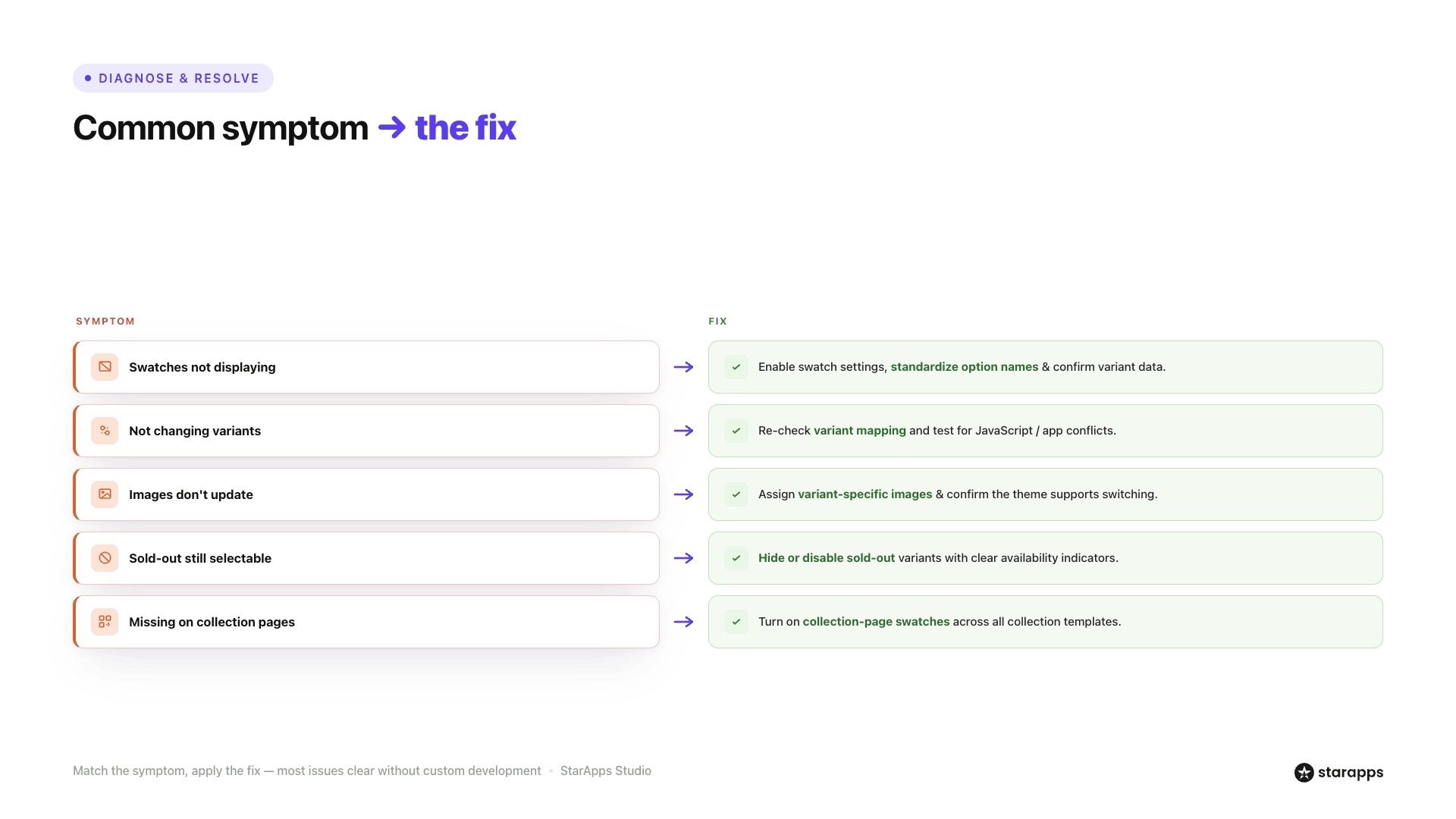
Even well-configured Shopify stores can experience swatch-related issues. Identifying the specific problem is the first step toward restoring a smooth variant-selection experience.
Swatches Not Displaying
One of the most common issues is swatches failing to appear on product pages altogether. This is often caused by disabled theme settings, inconsistent option names, missing variant data, or theme compatibility problems.
Solution: To fix this, verify that swatches are enabled within your theme or app settings, ensure option names are standardized across products, and confirm that all variants are configured correctly. Testing the product in a default Shopify theme can also help identify theme-related conflicts.
Swatches Not Changing Variants
Sometimes swatches appear correctly but do not update the selected variant when clicked. Customers may select a color, yet the product information remains unchanged.
Solution: In this situation, review variant mapping and app integrations to ensure each swatch is connected to the correct variant. If custom code or third-party apps are involved, test for JavaScript conflicts that may be preventing variant updates.
Swatches Not Updating Product Images
A customer may select a new color and see the variant change, but the product gallery continues displaying the original images. This creates confusion and makes it difficult to evaluate product options.
Solution: The solution is to verify that variant-specific images have been assigned correctly and that the theme supports image switching. Reviewing gallery settings and testing image behavior across devices can often resolve the issue.
Sold-Out Variants Behaving Incorrectly
Some stores continue displaying sold-out variants as fully selectable options, which can frustrate customers when they discover the product is unavailable later in the buying process.
Solution: To improve the experience, consider hiding sold-out variants, disabling unavailable options, or adding clear "Sold Out" indicators. These approaches help customers focus on products they can actually purchase.
Collection-Page Swatches Not Appearing
Merchants often discover that swatches work perfectly on product pages but are missing from collection pages. This limits product discovery and forces customers to open multiple products before finding the right option.
Solution: Start by checking whether collection-page swatches are enabled and supported by your theme. If you're using a swatch app, confirm that collection-page integration has been configured correctly and is active across all collection templates.
Example: Fashion Store With Multiple Color Options
Consider a fashion brand selling shirts in 15 colors. If swatches do not update images, sold-out colors remain selectable, and collection-page swatches are missing, customers may struggle to browse products efficiently.
Resolving these issues creates a smoother shopping journey and makes it easier for shoppers to find available variants quickly.
Also Read: Key Strategies to Enhance Product Line Item Visibility
Best Practices for Shopify Color Swatches
Fixing swatch issues is important, but preventing them is even better. Following a few best practices can help ensure your color swatches remain reliable as your product catalog and storefront evolve.
Use Consistent Option Naming
Many swatch systems rely on product option names to identify which variants should be displayed as swatches. Using different labels such as "Color," "Colour," and "Shade" across products can create inconsistencies.
Choose a standard naming convention and apply it throughout your catalog to make swatch management more predictable.
Display Swatches Instead of Dropdowns When Possible
Dropdown menus work for simple products, but they can create friction when customers need to compare multiple colors or styles. Visual swatches make variant selection faster and help shoppers understand available options at a glance.
This is particularly valuable for fashion, beauty, and home décor stores where appearance heavily influences purchasing decisions.
Hide or Disable Unavailable Variants
Customers should not have to discover that a product is out of stock after selecting it. Displaying unavailable variants without any visual distinction can create frustration and interrupt the buying journey.
Consider hiding sold-out variants or disabling them while clearly indicating their availability status.
Keep Swatches Mobile-Friendly
A large share of ecommerce traffic comes from mobile devices, so swatches should be easy to tap and navigate on smaller screens. Crowded layouts, tiny swatches, and overlapping elements can make variant selection difficult.
Regularly test your swatch experience across different devices to ensure a smooth mobile shopping experience.
Regularly Test After Theme Updates
Theme updates can sometimes affect swatch functionality, collection-page integrations, or custom configurations. Even small changes to templates or scripts may introduce unexpected issues.
After every theme update, review product pages, collection pages, variant selection behavior, and image updates to ensure everything continues working as expected.
Also Read: Key Strategies to Enhance Product Line Item Visibility
How StarApps Helps Merchants Manage Shopify Color Swatches
As product catalogs grow, managing color swatches, variant images, and product options becomes more complex. StarApps Studio offers Shopify apps designed to simplify variant presentation and create a more intuitive shopping experience.
Color Swatch King
Color Swatch King helps merchants replace traditional dropdown menus with visual variant selectors that are easier for customers to browse and compare.
Key capabilities include:
- Color swatches for faster variant selection.
- Image swatches for visually distinct product options.
- Collection-page swatches that improve product discovery.
- Sold-out variant handling to reduce customer frustration.
- Bulk swatch management for large catalogs.
These features help customers find the right product option more quickly while creating a cleaner and more engaging storefront experience.
Variant Image Automator
Variant Image Automator improves the connection between variant selection and product imagery.
Key capabilities include:
- Variant-specific image galleries.
- Multiple images per variant.
- Automatic image assignment.
- Better synchronization between swatches and product images.
When customers select a color or style, they immediately see the relevant images instead of sorting through unrelated product photos. This creates a more accurate and intuitive browsing experience.
If your store relies on multiple colors, styles, or product options, consider using Shopify apps designed to simplify swatch management and improve variant selection. Small improvements in how variants are displayed can make it easier for customers to browse products and make purchasing decisions with confidence.
Book a demo to create a smoother shopping experience and make complex product catalogs easier to navigate.
Final Thoughts
When Shopify color swatches stop working, the impact goes beyond a visual issue. Broken swatches can make variant selection harder, reduce product discoverability, and create friction in the buying journey.
To build a better variant experience, explore StarApps solutions that help customers browse product options more easily, view the right images, and navigate large catalogs with confidence.
FAQs
1. Why are my Shopify color swatches not showing?
Color swatches may not appear because of theme compatibility issues, incorrect product option names, incomplete variant data, or disabled swatch settings. Reviewing your theme configuration and ensuring product options are set up consistently can resolve most display issues.
2. Why do my color swatches not change product variants?
This usually occurs when swatches are not properly linked to product variants or when theme scripts are interfering with variant selection. Checking variant mapping and testing for app or theme conflicts can help identify the cause.
3. Can theme updates break Shopify color swatches?
Yes. Theme updates can sometimes overwrite custom code, alter product templates, or affect third-party app integrations. After updating a theme, it's a good practice to test swatches on both product and collection pages to ensure they continue functioning correctly.
4. How do I add color swatches to Shopify collection pages?
Collection-page swatches can be added through themes that support the feature or by using a dedicated Shopify swatch app. The exact setup varies by theme, but it typically involves enabling collection-page swatches and connecting them to your variant options.
5. Should I hide sold-out variants from swatches?
It depends on your merchandising strategy, but many merchants choose to hide or disable unavailable variants to reduce customer frustration. Clear sold-out indicators can also help customers understand which options are currently unavailable.
6. What is the easiest way to manage Shopify color swatches?
Using a dedicated swatch-management app is often the simplest approach. These tools can automate swatch creation, support collection-page browsing, manage sold-out variants, and provide a more consistent variant-selection experience across your storefront.
Heading

End-to-end traceability
To ensure regulatory compliance, you must have a complete overview of your products from production to shipping. Book a demo to see how Katana can give you full visibility of your operations.



.png)

.svg)

.svg)

.svg)
.png)