
Shopify Low Stock Alert for Customers: Show Accurate Stock by Variant

Learn how to add a Shopify low stock alert for customers, set variant-level thresholds, write honest urgency copy, and improve product page UX without code.
A shopper finds a dress they like, selects “Black / Medium,” and leaves the tab open while comparing options. When they come back the next morning, that exact variant is gone.
The product page showed the variant as available but gave no clue that Black / Medium was close to selling out. If shoppers cannot see that their selected size, color, or style is almost gone, they have no reason to act before leaving the page.
Baymard’s cart abandonment research reports a 70.22% average cart abandonment rate across 50 studies. It also found that 43% of US online shoppers who abandoned carts said they were “just browsing” or “not ready to buy.” A low-stock notice will not fix every cart. But it can give shoppers useful timing information before they leave the product page.
In this article, you will learn how to add a Shopify low stock alert for customers, where to place it, and how to make sure it reflects the variant your shopper selected.
Key Takeaways
- A Shopify low stock alert for customers is a storefront notice shown when inventory is limited for a product or selected variant.
- Customer-facing stock notices and internal reorder alerts serve different jobs. This guide focuses on the message your shopper sees.
- Variant-heavy stores need stock notices that reflect the selected size, color, material, or style.
- Stock thresholds should come from SKU sales velocity and restock timing, not one fixed number across your catalog.
- Urgency King handles customer-facing low stock counters. Color Swatch King helps keep variant selection and sold-out states clear.
What a Shopify Low Stock Alert Shows Customers on the Product Page
A Shopify low stock alert for customers is a product-page notice that tells a shopper inventory is running low while they are still choosing an item. It usually appears near the price, size selector, color swatches, quantity selector, or add-to-cart button.
You have probably seen messages like these on ecommerce product pages:
- “Only 3 left”
- “Low stock in this size”
- “Almost sold out”
- “Only 2 left in Black / Medium”
- “Limited quantity available”
The best version of this notice gives the shopper information they cannot get from the product image, title, or price. It tells them whether the exact option they want is close to selling out.
For a single-SKU product, that can be simple. For a product with sizes, colors, materials, or styles, the alert needs more care. “Only 3 left” can mean very different things if the product has 40 variants under one listing.
Storefront Stock Notices and Internal Reorder Alerts Solve Different Jobs
The phrase “low stock alert” can point to two separate Shopify workflows.
A storefront stock notice appears on your product page. Shoppers see it while browsing. Its job is to give them availability context before they decide whether to add the item to cart.
An internal reorder alert goes to your team. It helps you restock before inventory reaches zero. Shopify’s inventory documentation explains that you can use inventory alert apps or Shopify Flow to receive direct notifications when stock is low.
The setup in this blog focuses on the storefront message your customer sees while choosing a product.
Stores With Many Sizes, Colors, or Seasonal SKUs Need This Most
Simple catalogs may only need basic stock status. The need becomes stronger when one product listing contains many sizes, colors, materials, or styles.
Fashion, footwear, beauty, electronics, and home goods stores see this often. One shade, size, finish, or configuration can sell faster than the rest of the product.
A selected-variant stock notice shows the shopper which exact option is running low. That detail matters when the parent product still looks well stocked.
How Low Stock Notices Help Shoppers Act Before a Variant Sells Out
Most Shopify product pages show images, price, descriptions, reviews, and product options. Those elements help shoppers compare products. Stock context answers a different question: “Can I still get the exact option I want later?”
For variant-heavy stores, that question often sits close to the purchase decision. A shopper may like the product, select the right size, and still wait because nothing on the page shows limited availability.
Shoppers Delay When the Selected Option Looks Safely Available
When a shopper has no way to tell whether their preferred size or color will still be there tomorrow, waiting feels safe. From their point of view, there is no visible cost to leaving the page.
That delay can matter for fast-moving variants. A popular sneaker size, limited-edition lipstick shade, or seasonal sofa color may sell out while the product page still looks normal.
A clear stock notice gives shoppers timing information at the moment they are comparing options.
Stock Context Works Best Before the Shopper Reaches Checkout
A low-stock notice belongs on the product page because that is where the shopper compares sizes, colors, images, price, and delivery details.
If the first stock signal appears after the shopper reaches cart or checkout, it is too late to shape the product choice. The shopper may already have paused, left, or opened another store.
For variant-heavy products, the strongest moment to show stock context is right after the shopper selects an option. That is when the message can answer the question they are already asking: “Can I still get this exact size or color later?”
A Size 9 Stock Notice Gives the Shopper a Reason to Act
Take a DTC footwear store selling a trail runner in four colorways across 12 sizes. “Forest Green / Size 9” sells faster than the other combinations.
A shopper selects that option and sees no stock context. They leave, compare another pair, and return two days later. That size is gone.
A notice that says “Only 2 left in Size 9” changes the buying moment. The shopper now knows that waiting could mean losing that exact size.
Why Product-Level Stock Counts Mislead Shoppers Choosing Size or Color
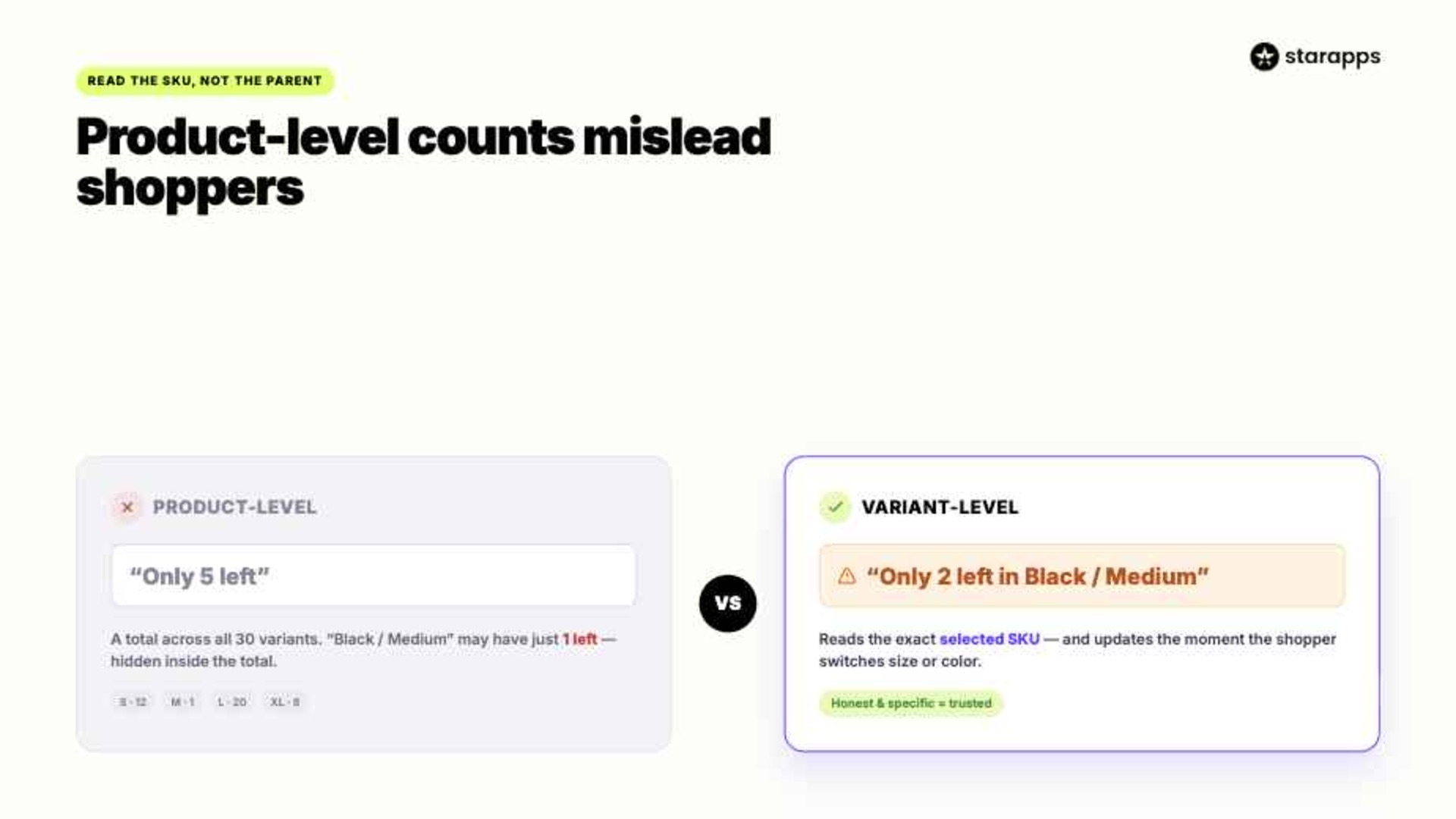
Variant-heavy stores need a stricter stock-alert setup because each size, color, or style can have its own inventory level.
A single product page may look simple to the shopper. In Shopify, that same listing may contain dozens of SKUs behind the scenes. If your stock notice reads the wrong number, the shopper gets the wrong signal.
Total Inventory Hides Which Variant Is Close to Selling Out
A product with five colors and six sizes has 30 variant combinations. The parent product might show 80 total units across all combinations. The shopper’s selected “Black / Medium” variant might have one unit left.
If your stock message shows a total product count, it can make the selected option look safer than it is.
For a simple product with no variants, a product-level count can work. For a product with many options, the count needs to reflect the selected SKU.
Shoppers Care About the SKU in Their Cart, Not the Parent Product
Once a shopper selects “Ivory / Size M,” they are thinking about that exact combination. A count across every size and color distracts from the SKU the shopper actually chose.
Here is how the difference looks:
A running shoe sold in 12 sizes and 4 colorways has 48 possible combinations. Size 10 in Midnight Blue may have two units left while Size 7 in Bone White has thirty. One product-level count cannot guide both shoppers accurately.
A Variant-Level Counter Should Read the Selected SKU
The stock counter should pull from the SKU the shopper selected, not the parent product total.
That means the count changes when the shopper moves from “Black / Medium” to “Black / Small,” or from “Size 8” to “Size 9.” Each option can have a different inventory level, even when it sits under the same product page.
This is the cleanest way to prevent misleading stock signals. The message does not need to explain your inventory structure. It only needs to reflect the option currently selected.
Also Read: What Is The Shopify Variant Inventory Policy?
Four Ways to Add Customer-Facing Low Stock Alerts on Shopify
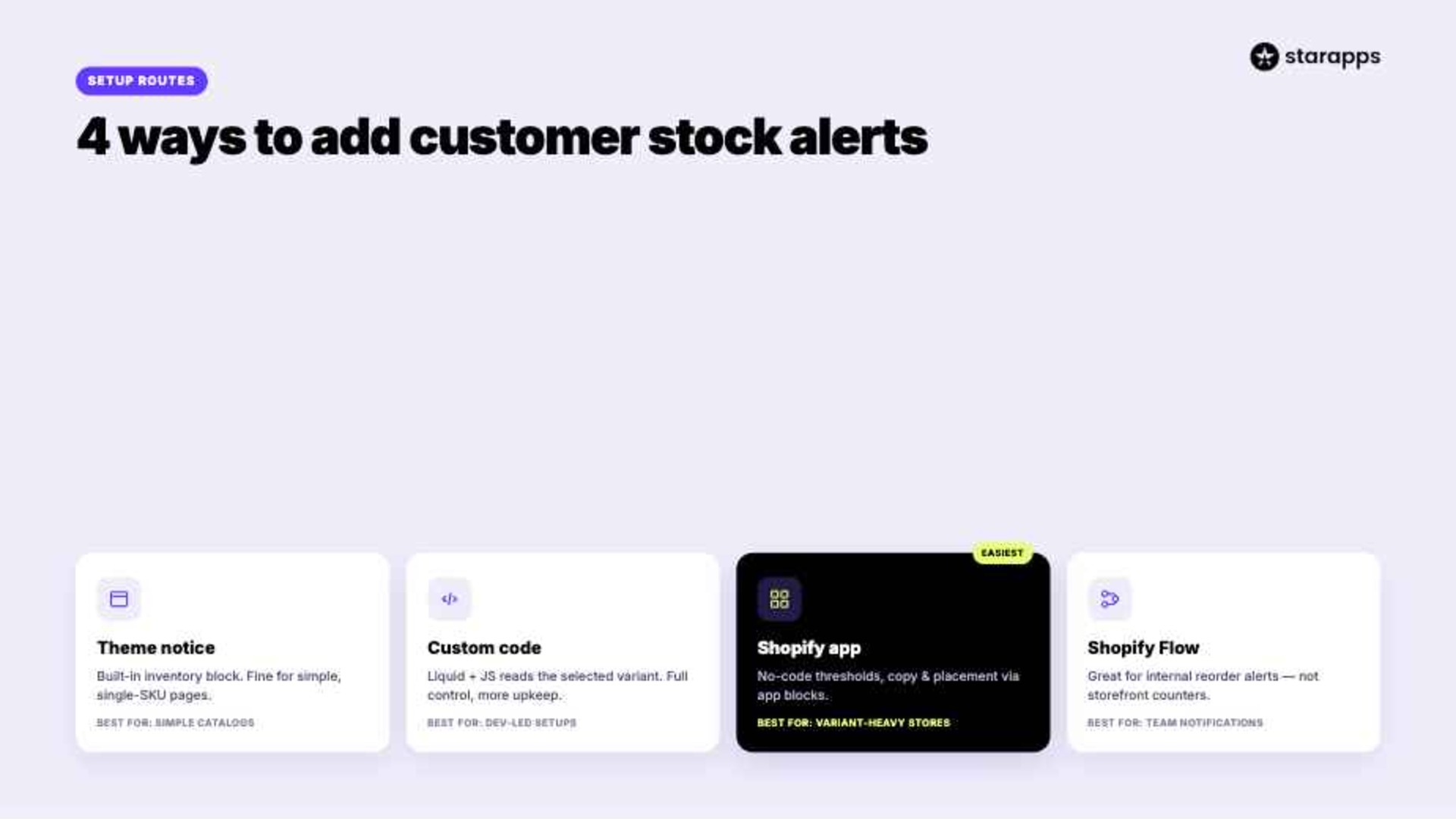
You can add a customer-facing low-stock notice through theme settings, custom code, a Shopify app, or an internal workflow tool. Your best option depends on catalog size, developer support, theme behavior, and how much control you need over thresholds and placement.
Start with one question: does the alert need to change when the shopper changes size, color, or style? If the answer is yes, selected-variant behavior should guide the setup.
Option 1: Use Your Theme’s Inventory Notice for Simple Product Pages
Some Shopify themes include an inventory notice, inventory status, or low-stock block in the product page template.
To check your theme, follow this path:
- Open the product in Shopify Admin.
- Confirm inventory tracking is enabled.
- Go to Online Store > Themes > Customize.
- Open the product page template.
- Look for a block labeled “Inventory status,” “Inventory notice,” or similar.
- Set the message and threshold if your theme allows it.
- Test different variants before publishing.
The practical limitation is that theme behavior varies. Shopify lets you manage inventory for products and variants, but the storefront message depends on your theme and product-page setup.
Before publishing, test whether the notice changes when you switch between sizes, colors, or styles. If the same number stays visible across every option, do not treat it as a selected-variant alert.
Option 2: Use Custom Code When You Need Full Control Over Variant Logic
A developer can write Liquid and JavaScript logic that reads inventory for the selected variant and updates the visible message when the shopper changes options.
This route gives your developer control over logic and placement. It also adds maintenance work after theme updates and requires testing across product templates, mobile layouts, and quick-shop drawers.
Custom code can make sense when you have a developer on hand and a very specific display requirement. For example, you may want different message behavior for preorder products, limited drops, bundles, or custom product templates.
Option 3: Use a Shopify App for No-Code Thresholds and Product-Page Placement
A Shopify app is a strong fit when you need no-code control over where the stock notice appears, what it says, and when it appears.
Shopify’s app block documentation explains that app blocks can be added, removed, previewed, moved, and customized through the theme editor on compatible themes.
For a low-stock counter, that matters because placement affects whether shoppers see the message before they add the product to cart. A product-page app block can place the notice closer to the size selector, swatches, or add-to-cart button without editing theme code.
Option 4: Use Shopify Flow for Team Alerts, Not Storefront Stock Counters
Shopify Flow can help automate internal workflows. Shopify also notes in its inventory documentation that Flow can be used for low-stock notifications.
Use Shopify Flow for team alerts, reorder workflows, product tagging, or inventory operations. Use a storefront counter when the goal is to show stock status to shoppers.
That distinction matters because the primary keyword is “shopify low stock alert for customers.” A staff notification helps your team. A product-page notice helps the customer decide.
Also Read: How to Add and Manage Product Variants on Shopify
How to Choose the Stock Threshold, Message, and Placement That Buyers Trust

Getting the configuration right matters as much as adding the counter. A weak threshold, vague message, or buried placement can make the alert easy to miss or hard to believe.
Before publishing the notice, check three things: when it appears, what it says, and where shoppers see it.
Set Thresholds From SKU Sales Velocity and Restock Timing
“Low stock” should not mean the same number for every SKU. A threshold of five units means something different for a product that sells 50 units a week than it does for a product that sells five units a month.
Use recent SKU-level sales data as the starting point. The right threshold depends on how quickly that specific option sells and how long it takes to restock it.
Ask these questions before setting the number:
- How many units of this SKU sold in the last 30 days?
- How many days does it usually take to restock?
- Is this variant part of a limited drop or seasonal collection?
- Does this size or color sell faster than the rest of the product?
- Would an exact count stay accurate across your sales channels?
For most stores, the first threshold should be treated as a test. Review which alerts appear too often, which ones appear too late, and whether the message still feels true when shoppers revisit the product.
Place the Alert Beside the Selector or Add-To-Cart Button
A low-stock notice should appear close to the action area. The shopper needs to see it while choosing the option, not after scrolling through the description.
Good placements include:
- Under the size selector
- Under the color swatch row
- Between the price and add-to-cart button
- Near the quantity selector
- Inside a sticky add-to-cart area, if your theme uses one
Mobile placement needs extra care. Product pages have less vertical space on phones. If the alert sits below reviews, shipping details, or long descriptions, most shoppers will miss it during the buying moment.
Use Specific Stock Copy That Matches Real Inventory
Good stock copy is short, specific, and tied to current inventory.
Use copy like:
- “Only 3 left in this size”
- “Low stock for selected color”
- “Limited quantity available in this style”
- “Only 2 left in this finish”
Avoid copy that implies scarcity when the SKU is fully available. If shoppers see “Almost sold out” across too many products, the message starts to feel decorative.
A Shopify low stock alert for customers works best when the shopper can trust that the notice appears only when inventory is genuinely limited.
How Low Stock Alerts Should Change When Shoppers Switch Variants
Many Shopify stores set up the stock counter but forget to test how it behaves when shoppers switch variants.
This is the part that separates a helpful stock notice from a confusing one. The counter, variant selector, and sold-out states need to tell the same story.
The Counter Should Update After Every Size or Color Change
When a shopper changes size, color, material, or style, the visible stock notice should reflect the new selection.
If the counter stays fixed on the first variant loaded, the page can show the wrong information as soon as the shopper explores another option.
This directly affects the shopper’s decision. A shopper who switches from a fully stocked variant to a nearly sold-out variant should see that change. A shopper who switches from low stock to fully stocked should not keep seeing urgency from the previous choice.
Test this with at least three variants:
- One fully stocked variant
- One low-stock variant
- One sold-out variant
If the visible message does not change when the shopper changes options, your setup needs review.
Sold-Out Swatches Can Make a Low Stock Counter Look Unreliable
The variant selector shapes whether the stock counter feels accurate. If a shopper can click a sold-out option, the page gives them a dead end.
There are three common ways to handle sold-out options:
For many variant-heavy Shopify stores, graying out or hiding sold-out options gives the stock counter more context. Shoppers can see which options are gone, which are active, and which active options are close to selling out.
Collection-Page Swatches Set Stock Expectations Before the Product Page
Shoppers often form availability expectations before they reach the product page.
If a specific colorway appears as an active, clickable swatch on your collection page, shoppers expect that option to be available after they click through. If they land on the product page and find that the option is unavailable, the browsing path feels broken.
This is where variant display and low-stock messaging connect. A product-page counter helps at the decision point. Collection-page swatches shape what the shopper expects before that point.
Color Swatch King: Variants supports swatches on product pages and collection pages, and its Shopify App Store listing includes hide out-of-stock variants, stock availability, in-stock display, and low-stock alerts.
Real Brand Example: Bellerose Shows Stock Cues Beside Size Options
Bellerose shows stock cues directly beside size options. On one product page, some sizes show “Only 1 left,” “Last pieces,” or “Only 3 left,” while unavailable sizes show “Notify me.”
That layout works because the availability cue appears beside the choice the shopper is making. The shopper can compare size and stock status in the same view, instead of selecting each size one by one to check what is available.
For Shopify stores selling apparel, footwear, or accessories, this is the cleaner pattern to follow. The stock cue should stay close to the variant choice, so shoppers can see which option is available, low in stock, or unavailable before they reach the cart.
Also Read: How to Hide Unavailable Variants in Shopify
Stock Alert Mistakes That Make Shoppers Question Your Inventory
A low-stock alert can help the shopper decide faster. It can also weaken trust if it appears in the wrong place, with the wrong count, or on the wrong product.
Keep this section focused on trust. The setup can be technically correct and still feel wrong if the shopper sees conflicting signals.
Showing “Almost Sold Out” Across the Whole Catalog
A stock message that appears everywhere stops feeling useful. If every product says “Almost sold out,” shoppers will treat the message as promotional copy instead of inventory information.
Use urgency copy only when the SKU meets your threshold. If the message appears too often, raise the standard for when it fires.
Claiming Low Stock When the SKU Is Fully Available
A message that says “Only 3 left” on a fully stocked SKU creates a trust problem. Shoppers may not check your inventory, but they notice patterns.
If they return later and see the same “Only 3 left” message again, the counter starts to look artificial.
Keep the counter connected to tracked inventory. If exact counts are unreliable across your sales channels, use a broader message like “Low stock” or “Limited quantity available.”
Leaving the Wrong Message After Inventory Reaches Zero
Your stock logic needs a clear zero-inventory state. A “Only 0 left” message looks broken and gives the shopper no next step.
Choose the message based on your fulfillment setup:
- Use “Sold out” when the product cannot be purchased.
- Use “Available for preorder” when you accept orders before restock.
- Use “Ships in X weeks” when you have a known delivery timeline.
- Use “Join the waitlist” when the item is coming back later.
This also protects the low-stock notice. Once the item reaches zero, the shopper needs availability guidance, not urgency copy.
Forgetting Mobile Product Pages and Quick-Shop Drawers
Low-stock counters can behave differently outside your main desktop product page. Test every place where the shopper can choose a variant.
Check:
- Mobile product pages
- Quick-shop drawers
- Product cards with variant selectors
- Custom launch templates
- Bundle templates
- Sticky add-to-cart sections
If the counter appears in one template and disappears in another, the shopper may receive inconsistent stock information.
How StarApps Studio Connects Low Stock Counters With Variant Selection
StarApps Studio fits this topic because its Shopify apps focus on product-page clarity, variant display, and storefront merchandising. A Shopify low stock alert for customers works better when the counter and the variant selector support the same buying decision.
For a variant-heavy store, the product-page question is simple: can the shopper see whether the exact option they want is still available?
Urgency King Shows Low Stock Counters on Shopify Product Pages
Urgency King Low Stock Counter helps Shopify merchants show low-stock counters on product pages.
Its Shopify App Store listing confirms customizable low-stock alerts, threshold settings, mobile-responsive alerts, product-page stock counters, and setup through Shopify app blocks without coding or theme editing. The listing also shows that the app works with Swatch King.
For a store with fast-moving variants, that matters because the stock notice needs to sit close to the buying action. A message near the size selector or add-to-cart button is easier to act on than a stock note placed lower on the page.
Color Swatch King Keeps Size and Color Options Clear Around the Counter
Color Swatch King: Variants supports swatches, buttons, dropdowns, variant options on collection pages, bulk color swatch uploads, hide out-of-stock variants, stock availability, in-stock display, and low-stock alerts.
That makes it a strong support tool for this topic. A low-stock counter tells the shopper what is running low. The selector tells them which options are still worth choosing.
For example, if “Black / Medium” has only two units left and “Black / Small” is sold out, the page should not make both options feel equally available. Swatches, grayed-out states, or hidden sold-out variants help the stock notice feel more trustworthy.
SA Variant Image Automator Keeps Selected-Variant Images Aligned With the Stock Notice
SA Variant Image Automator is relevant when selected-variant visuals are part of the buying decision. Its Shopify App Store listing says it shows multiple images for the selected variant, groups variant image sets, and keeps the gallery focused on relevant product images.
That supports the same buying moment. If a shopper sees “Only 2 left in Black / Medium,” the gallery should show the black version, not a mixed set of every colorway.
Together, these tools cover three parts of the customer-facing stock experience:
If you want to show low-stock messages on product pages without editing theme code, start with Urgency King. If sold-out variants are also making selection harder, pair it with Color Swatch King for a cleaner variant experience.
Also Read: How to Add Multiple Images for Variants on Shopify
Show the Stock Message Before the Shopper Leaves the Product Page
A Shopify low stock alert for customers works when it is accurate, visible, and tied to the specific option the shopper selected.
Theme settings can work for simple catalogs. Custom code can work for developer-led setups. For Shopify store owners managing variant-heavy catalogs who want no-code threshold control, custom copy, and product-page stock counters, an app-based setup is usually easier to maintain.
A good stock message gives shoppers information they cannot see from the product image, title, or price. It tells them when the exact option they selected is close to selling out. When that message is honest and placed near the buying action, it gives shoppers a clearer reason to decide before leaving the product page.
Explore Urgency King Low Stock Counter for product-page stock counters and Color Swatch King: Variants for clearer variant selection and sold-out handling on your Shopify store.
FAQs
Q. Does Shopify Show Low Stock Alerts to Customers Automatically?
Shopify lets you track inventory in your admin, but the storefront message depends on your theme, code, or app setup. You need to enable inventory tracking and then configure how the message appears on the product page.
Check your theme editor first. If your theme has an inventory notice block, test it across several variants before publishing.
Q. What Is a Good Low Stock Threshold for a Shopify Product?
A good threshold depends on how fast that specific SKU sells and how long it takes to restock.
A fast-moving size with a two-week supplier lead time may need an earlier alert than a slow-moving color with steady inventory. Use recent SKU sales data as your starting point, then adjust based on how often the alert appears and whether it still feels accurate.
Q. Should I Show the Exact Unit Count or a General Low-Stock Message?
Exact counts work best when your inventory data stays current and your store does not have frequent sync delays across channels.
Use exact copy like “Only 3 left in this size” when you trust the count. Use broader copy like “Low stock” or “Limited quantity available” when exact numbers may change too quickly.
Q. Can a Low Stock Alert Update When a Buyer Selects a Different Size or Color?
Yes, if your theme, custom code, or app reads inventory for the selected variant.
Test this before publishing. Select one fully stocked variant, one low-stock variant, and one sold-out variant. If the visible notice does not change, the counter is not behaving like a selected-variant alert.
Q. Why Does My Stock Alert Show the Wrong Count for Some Variants?
This usually happens when the visible stock notice is not tied to the selected variant. A product with 10 colors and 8 sizes can have 80 separate SKUs, each with different inventory.
Check whether your theme or app is reading the selected variant’s inventory quantity. If it is not, use custom code or a variant-aware stock counter setup.
Q. Should I Hide Sold-Out Variants or Gray Them Out?
Both can work. The right choice depends on how much of the product range you want shoppers to see.
Gray out or strike through sold-out variants when showing the full range helps shoppers understand demand. Hide sold-out variants when unavailable choices clutter the page or create too many dead clicks.
Q. Can Shopify Flow Show Low-Stock Messages to Customers?
Shopify Flow is better suited for internal workflows, such as team notifications, product tagging, or reorder tasks. Shopify’s inventory documentation mentions Flow for low-stock notifications, but those workflows serve store operations.
For a customer-facing stock message on the product page, use a theme block, custom code, or a Shopify app that displays the counter on the storefront.
Heading

End-to-end traceability
To ensure regulatory compliance, you must have a complete overview of your products from production to shipping. Book a demo to see how Katana can give you full visibility of your operations.
.png)

.svg)

.svg)

.svg)
.png)