
.jpg)

Learn how to associate variant color images on Shopify to create cleaner product galleries, improve shopping experiences, and increase conversions.
Customers don't want to guess what they're buying. If they select a Blue T-shirt, they expect the product gallery to show the blue version, not a mix of every available color.
That seemingly small detail has a big impact on the shopping experience. According to Baymard Institute, 56% of users start exploring product images as soon as they land on an ecommerce product page, making visuals one of the first factors that influence purchase decisions.
If your gallery displays unrelated images after a customer selects a variant, it adds friction, creates confusion, and makes it harder for them to find the right product. That's why simply uploading images isn't enough. You need to associate variant color images so every selection displays the correct product and creates a smoother shopping experience.
In this article, you'll learn what variant color images are, why they matter, how to associate them on Shopify, and the best practices for managing them as your catalog grows.
Key Takeaways
- Associate variant color images to display the correct product images for every color or style selection.
- Reduce customer confusion and improve conversions with cleaner, variant-specific product galleries.
- Use Shopify's built-in variant images for simple catalogs or automate the process as your store grows.
- Follow image management best practices, including consistent photography, descriptive alt text, and color swatches, for a better shopping experience.
- Simplify variant image management with StarApps to organize galleries, save time, and create a seamless browsing experience.
What Are Variant Color Images in Shopify?
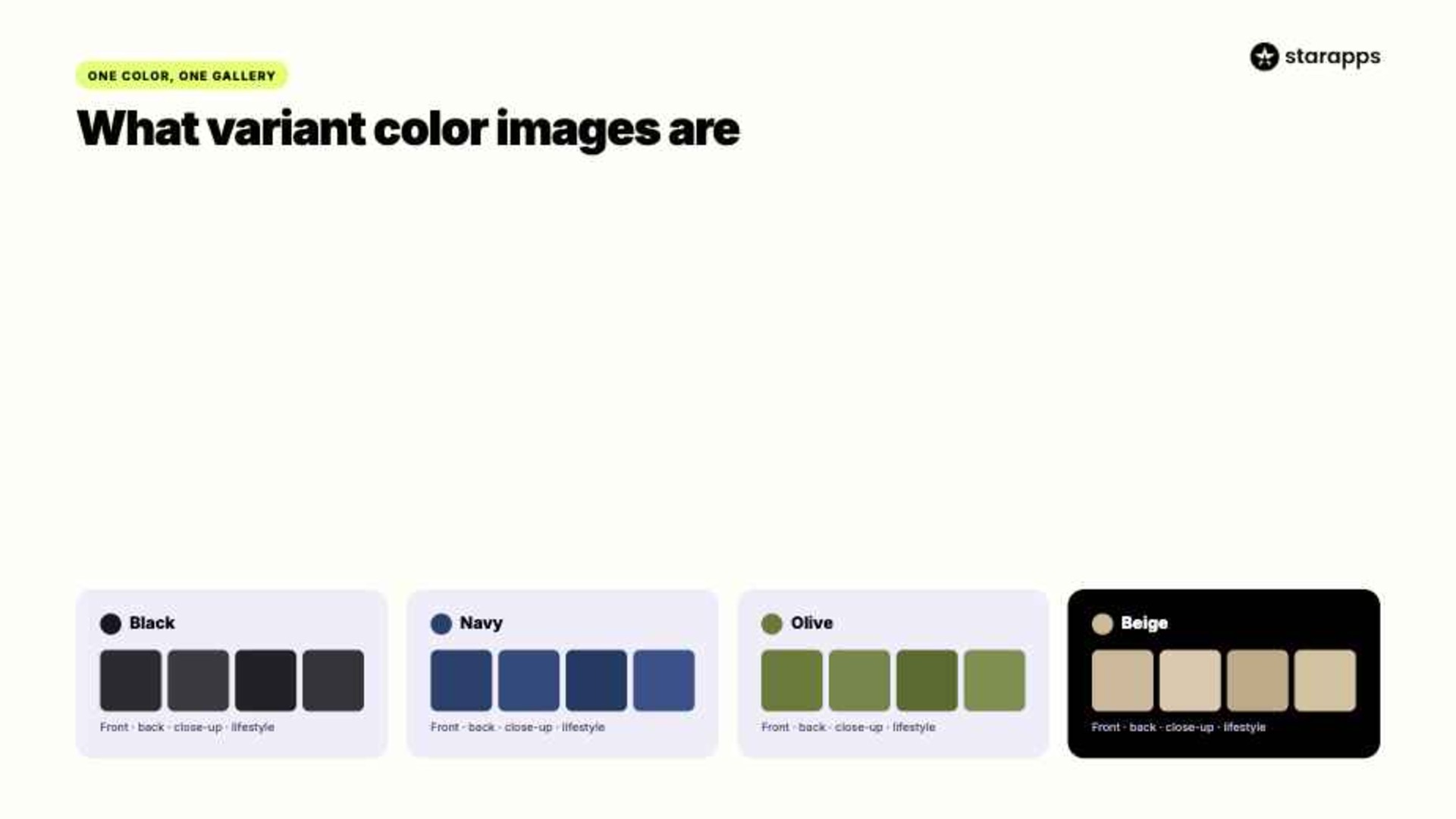
Variant color images link a specific set of product images to each color or style option, so your customers only see images that match their selection.
For example, if you're selling a hoodie in Black, Navy, Olive, and Beige, selecting Navy should instantly update the gallery to display only the Navy front view, back view, close-up, and lifestyle images instead of showing every available color.
This simple setup makes it easier for customers to explore your products and quickly confirm they're viewing the right variant.
Also Read: How To Add Variant Images on Shopify
Why Is It Important to Associate Variant Color Images?
When someone selects a product color, they expect the gallery to reflect that choice immediately. If they still see images of other colors, it creates unnecessary confusion and makes the buying process less intuitive.
Displaying variant-specific images keeps your product pages organized and helps customers evaluate the exact product they're interested in. According to Baymard Institute's ecommerce UX research, product images are one of the first elements shoppers use to evaluate products online, making visual clarity essential for a better shopping experience.
Associating variant color images can help you:
- Create cleaner and more organized product galleries
- Help customers make faster purchase decisions
- Build confidence in the selected product variant
- Reduce support questions about colors and styles
- Minimize incorrect orders and avoidable returns
Any Shopify store with multiple colors, materials, or styles can benefit from this approach, especially if product visuals play a key role in the buying decision.
Also Read: Best Variant Image Apps for Shopify
Which Shopify Stores Benefit the Most from Variant Color Images?

If your products come in multiple colors, materials, or styles, variant-specific image galleries can make a noticeable difference to the shopping experience. Instead of browsing through unrelated images, your customers can instantly view the exact product they're interested in.
This is especially valuable for:
- Fashion & Apparel: Display dedicated front, back, close-up, and lifestyle images for every color.
- Footwear: Let customers compare different colorways without scrolling through mixed galleries.
- Furniture & Home Décor: Showcase each fabric, finish, or material with its own set of images.
- Jewelry & Accessories: Display gold, silver, and rose gold variants separately for better product clarity.
- Beauty & Cosmetics: Show accurate shade-specific images to help customers choose with confidence.
As your catalog grows, manually organizing these galleries becomes increasingly difficult. The good news is that Shopify offers multiple ways to associate variant color images, from its built-in functionality to automated solutions designed for larger product catalogs.
How to Associate Variant Color Images on Shopify

If your products come in multiple colors or styles, associating variant color images ensures customers always see the right images when they make a selection. You can do this using Shopify's built-in variant image functionality or an automated solution, depending on the size of your catalog.
Method 1: Use Shopify's Built-In Variant Images
If you're working with a simple product catalog, you can associate variant color images directly from your Shopify admin.
Step 1: Open the Product
Go to Shopify Admin → Products and select the product you want to edit.
Step 2: Upload Product Images
Upload all images for every variant. For example, each color can include:
- Front view
- Back view
- Close-up
- Lifestyle image
Step 3: Assign a Featured Image
Open the variant settings and assign the corresponding featured image. When a customer selects a different color, Shopify automatically updates the main product image to match their selection.
Step 4: Preview the Product
Test every variant on desktop and mobile to ensure the correct image appears, and the switching experience is smooth.
Where Shopify's Native Variant Images Fall Short
While Shopify's built-in functionality works well for simple catalogs, it has limitations for stores with multiple images per variant.
For example, if each color includes a front view, back view, close-up, and lifestyle image, Shopify only updates the featured image while the remaining images stay in the main gallery. Customers may still see photos of other colors, making the product page feel cluttered and harder to navigate.
Managing these galleries also becomes more time-consuming as your catalog grows because every new product requires manual image assignment.
Method 2: Automate Variant Image Association
If your store has multiple images for every color or style, automating variant image association provides a more scalable solution. Instead of displaying every product image together, a variant image app groups related images and updates the entire gallery based on the customer's selection. When someone clicks Olive Green, they only see Olive Green images instead of scrolling through White, Sky Blue, and Black variants.
Example: Suppose you're selling a linen shirt available in White, Sky Blue, Olive Green, and Black. Each color includes five images: a front view, back view, folded view, lifestyle image, and fabric close-up. Without variant image association, customers have to browse through 20 mixed images to find the color they selected.
With variant-specific galleries, selecting Olive Green instantly displays only the five Olive Green images. This makes products easier to compare, reduces confusion, and helps customers find exactly what they're looking for without unnecessary scrolling.
Benefits of Associating Variant Color Images
Associating variant color images isn't just about organizing your product gallery. It helps your customers find the right product faster while making your store easier to manage as it grows.
- Create a Better Shopping Experience: When customers select a different color or style, they expect the product gallery to update instantly. Showing only relevant images makes it easier to explore products and creates a smoother path to purchase.
- Reduce Purchase Confusion: Mixed image galleries force customers to guess which photos belong to their selected variant. Displaying variant-specific images removes that uncertainty and keeps your product pages clean and intuitive.
- Improved Product Discovery: Many customers rely on visuals before reading product descriptions. Dedicated variant galleries let them compare colors, examine details, and evaluate products without unnecessary distractions.
- Fewer Wrong Orders and Returns: When customers clearly see the exact product they're buying, they're more likely to choose the right variant. This reduces support requests, incorrect orders, and avoidable returns.
- Easier Catalog Management: Managing variant images manually can become repetitive as your product catalog expands. Organizing images by variant or using automation keeps galleries consistent and saves valuable time, especially for stores with multiple colors and styles.
Setting up variant galleries is only part of the process. Following a few best practices will help you keep them organized, consistent, and easy for customers to navigate.
Best Practices and Tips for Managing Variant Images

Setting up variant images is only the first step. A well-organized gallery makes it easier for customers to compare products, explore different colors, and make confident purchase decisions. Following these best practices will help you create a more polished shopping experience while keeping your catalog easier to manage.
1. Use Consistent Product Photography
Keep the same image structure for every variant. If one color includes a front view, back view, close-up, side view, and lifestyle image, every other color should follow the same format. This makes comparing variants much more intuitive.
2. Upload High-Quality Images
Use clear, high-resolution images that load quickly across desktop and mobile devices. Sharp product photos help customers examine details while maintaining a smooth browsing experience.
3. Organize Image File Names
Descriptive file names make your product catalog easier to manage and provide additional context for search engines.
Instead of:
- IMG001.jpg
- IMG002.jpg
Use:
- black-cotton-shirt-front.jpg
- blue-cotton-shirt-back.jpg
4. Write Descriptive Alt Text
Every variant image should include alt text that accurately describes the product and color.
Instead of: Blue shirt
Use: Blue cotton crew neck T-shirt front view
This improves accessibility while helping search engines better understand your product images.
5. Keep Image Order Consistent
Display images in the same sequence across every variant, such as front view, back view, close-up, side view, and lifestyle shot. A predictable gallery makes it easier for customers to compare different options.
6. Pair Variant Images with Color Swatches
Color swatches provide a faster and more visual way to browse product variants than traditional dropdown menus. When customers select a swatch and the gallery updates instantly, the shopping experience feels more natural.
Even with these best practices in place, a few common mistakes can still make product galleries confusing and difficult to navigate.
Also Read: Hide Variant Images on Shopify Product Pages
Common Variant Image Mistakes to Avoid
Small mistakes in your variant galleries can create unnecessary friction and make it harder for customers to find the product they want. Avoid these common issues to keep your product pages clear and easy to browse.
- Mixing Images Across Variants: Displaying images from multiple colors in the same gallery forces customers to figure out which photos belong to their selected option. Instead, group images by variant so every selection displays the correct gallery.
- Uploading Too Many Similar Images: A gallery filled with nearly identical photos adds clutter without adding value. Focus on images that showcase different angles, product details, or real-world usage.
- Inconsistent Variant Photography: If one variant includes five images while another has only one, the product page feels incomplete. Use the same image style, lighting, angles, and number of photos across every variant.
- Ignoring Mobile Experience: Many shoppers browse Shopify stores on their phones. Test variant switching on mobile devices to ensure images update quickly and galleries remain easy to navigate.
- Using Generic Alt Text: Avoid labels like "Product image." Instead, use descriptive alt text such as "Women's beige linen shirt back view" to improve accessibility and provide better context for search engines.
As your product catalog grows, maintaining variant galleries manually becomes increasingly difficult. That's where an automated variant image solution can save time while keeping your storefront organized.
When Should You Use a Shopify Variant Image App?
Shopify's built-in variant images work well for simple product catalogs. But as you add more colors, styles, and product images, keeping every gallery organized can quickly become a manual task.
A Shopify variant image app is worth considering if you:
- Sell products in multiple colors, materials, or styles
- Use multiple images for each variant
- Regularly launch new collections or update existing products
- Spend time manually assigning or reorganizing variant images
- Want a more intuitive product browsing experience for your customers
Instead of maintaining variant galleries one product at a time, you can automate the process and keep your storefront consistent as your catalog grows. That means less time managing images and more time focusing on merchandising, marketing, and growing your business.
Simplify Variant Image Management with StarApps
If you're managing a growing Shopify catalog, manually assigning and organizing variant images can quickly become repetitive. Every new product, color, or style adds more images to maintain, making it harder to keep your galleries clean and consistent.
StarApps Variant Image Automator simplifies this process by automatically grouping and displaying the images that belong to the selected variant. Instead of showing every product image together, your customers only see the images relevant to the option they've chosen, creating a more intuitive browsing experience.
StarApps helps you:
- Show multiple images for each variant instead of a single featured image
- Automatically group variant images without manual image tagging or assignment
- Keep your existing theme gallery and layout intact, so there's no need to redesign your product pages
- Support color swatches, image zoom, videos, and 3D media for a richer product experience
- Work seamlessly with custom themes and popular page builders while maintaining fast page performance
Whether you're selling apparel, furniture, beauty products, jewelry, or any catalog with multiple variants, StarApps helps you present products the way customers expect. The result is a cleaner product gallery, easier variant selection, and less time spent managing images manually, allowing you to focus on growing your store instead.
Conclusion
Knowing how to associate variant color images can make a significant difference to your Shopify store. By displaying the right images for every color or style selection, you create a more intuitive shopping experience, improve product discovery, and help customers make purchase decisions with confidence.
While Shopify's built-in variant images work well for basic catalogs, managing multiple images across growing product collections can quickly become time-consuming. That's where a dedicated solution can help. With StarApps Variant Image Automator, you can automatically organize variant galleries, display multiple images for each variant, and create a seamless browsing experience without adding extra manual work.
Explore StarApps today and give your customers a faster, more intuitive way to browse your products while keeping your catalog easier to manage as it grows.
FAQs
1. How do I associate variant color images in Shopify?
You can assign a featured image to each product variant using Shopify's built-in functionality by navigating to Products → Variants and selecting the appropriate image. If your products have multiple images per color, a variant image automation app can automatically group and display all relevant images for the selected variant.
2. Can I display multiple images for a single color variant on Shopify?
Yes. While Shopify's native functionality focuses on a single featured image per variant, specialized variant image solutions allow you to display multiple images, such as front, back, close-up, and lifestyle shots, that update automatically when a customer selects a color.
3. Why should I associate variant color images instead of showing all product images?
Displaying only the images that match the selected variant creates a cleaner product page and eliminates unnecessary scrolling. It helps customers quickly evaluate the product, reduces confusion between colors or styles, and makes the overall shopping experience more intuitive.
4. Does associating variant color images improve SEO?
Variant-specific images can support SEO when paired with descriptive file names and meaningful alt text. They also improve accessibility and provide search engines with better context about your product images while creating a more organized user experience.
5. Which Shopify stores benefit the most from variant image automation?
Variant image automation is especially valuable for fashion, footwear, furniture, jewelry, beauty, home décor, and lifestyle brands that offer products in multiple colors or styles. It saves time, keeps product galleries organized, and ensures customers always see the images that match their selected variant.
6. Can I show different images for each Shopify product variant without coding?
Yes. Shopify lets you assign a featured image to each variant, while dedicated variant image apps allow you to display multiple images for each option without custom development or theme modifications.
Heading

End-to-end traceability
To ensure regulatory compliance, you must have a complete overview of your products from production to shipping. Book a demo to see how Katana can give you full visibility of your operations.
.png)

.svg)

.svg)

.svg)
.png)