

Learn how to add another admin to Shopify step by step, assign the right permissions, and manage staff access safely as your store grows.
As your Shopify store grows, more people need access to manage products, orders, themes, or marketing tasks. Adding another admin allows team members or partners to work inside your store without sharing login details.
Shopify makes this process simple, but assigning the right level of access matters just as much as adding the user itself. Giving unnecessary permissions can lead to security risks or accidental changes.
This guide explains how to add another admin to Shopify step by step. It also covers practical guidance on managing permissions so store owners, developers, and team members can work efficiently while keeping control of the store.
Key Takeaways
- Only the store owner or users with permission management access can add another admin in Shopify through Settings → Users and permissions.
- Admin access should be limited to trusted internal team members; most roles work better with staff or collaborator access.
- Assign permissions based on responsibilities to reduce risk and prevent accidental changes to billing, apps, or store settings.
- Agencies and app partners should usually be added as collaborators instead of admins to keep store control with the owner.
- Regularly reviewing and updating user access helps maintain security as your Shopify team and tools grow.
Who Can Add Another Admin in Shopify?
Only the store owner or staff members with permission to manage users and permissions can add another admin in Shopify. If this access is not enabled, the option to add or edit users will not appear in the admin settings.
It’s important to know the difference between the types of access Shopify allows before adding someone to your store.
- Store Owner: The store owner has full control over the Shopify account, including billing, subscription changes, and ownership transfer. Each store has only one owner, and this role cannot be shared unless ownership is transferred.
- Admin-Level Staff: Admin-level staff members can be given broad permissions depending on what the store owner allows. They can manage products, orders, apps, themes, and settings based on assigned access. This role works well for internal team members who handle daily store management.
- Collaborators: Collaborator accounts are typically used for developers, agencies, or app partners who need access to specific areas of the store without full administrative control. Access is granted through Shopify Partner accounts and can be limited to the tasks required.
Choosing the correct access type helps prevent accidental changes, protects sensitive store settings, and keeps responsibilities clearly defined as your team grows.
Recommended: What Is a Shopify Partner and How to Become One?
How to Add Another Admin to Shopify in 5 Simple Steps

Adding another admin in Shopify takes only a few minutes when you know where to find the settings. The steps below follow the desktop admin flow and apply to most Shopify plans.
Step 1: Go to Users and Permissions
Log in to your Shopify admin from a desktop browser. From the left-hand menu, go to Settings, then click Users and permissions. This section shows all existing staff accounts and their current access levels.
Step 2: Add Staff Account
Click Add staff. Shopify will open a new screen where you can create a staff account and define the level of access for the new user.
Step 3: Enter Details
Enter the staff member’s first name, last name, and email address. The email entered here will receive the invitation to access the store, so it should belong to the person being added.
Step 4: Assign Permissions
Select the permissions you want the user to have. You can grant full access or limit access to specific areas such as products, orders, themes, or apps. Assign permissions based on the person’s role to avoid unnecessary access to sensitive settings like billing or store ownership.
Step 5: Send Invite & Acceptance
Click Send invite to complete the process. The invited user receives an email with a link to accept access. After accepting, they can log in to Shopify using their own credentials and will only see the sections allowed by their assigned permissions.
Once the setup is complete, the next decision is choosing the right type of access.
Admin vs Staff vs Collaborator: Which One Should You Add?
Shopify offers different access types for a reason. Assigning the right role helps maintain control over store settings while allowing team members and partners to complete their work without restrictions. Many access issues happen when users are given more permissions than required.
Here’s how the three roles differ:
When Not to Make Someone an Admin
Admin access should be limited to people responsible for managing the store at a high level. Giving full permissions to every team member increases the chances of accidental changes or security issues.
Avoid assigning admin-level access when:
- The person only needs access to products, orders, or marketing tools
- The role is temporary or project-based
- The user does not need billing or app management permissions
- External partners are working on specific tasks
In most cases, staff-level permissions provide enough access without exposing sensitive settings.
Why Agencies Usually Need Collaborator Access
Agencies and developers typically work on themes, apps, or technical updates. Collaborator access allows them to complete these tasks without gaining full control of the store.
This approach helps store owners:
- Keep ownership and billing access restricted
- Limit access to only required areas
- Remove access easily after project completion
For example, when working with Shopify app partners like StarApps Studio for merchandising or variant-related improvements, collaborator access allows implementation and support while keeping admin control with the store owner.
How to Set the Right Shopify Permissions for Each Team Member

Assign permissions based on responsibilities instead of giving full admin access. This keeps store settings protected while allowing each team member to do their work efficiently.
- Marketing Team: Marketing teams usually need access to products to update listings for campaigns, limited access to orders for coordination, and permissions to create or manage discounts. Access to themes, apps, or store settings is generally not required for this role.
- Developer: Developers typically need access to themes and apps to make design or functionality changes. Limited settings access may be necessary depending on the scope of work, while billing, reports, and user management should remain restricted.
- Customer Support: Customer support teams mainly require access to orders and customer information so they can handle inquiries, returns, and order updates. Additional permissions are rarely needed unless they are involved in operational tasks.
- Finance: Finance teams usually only need access to reports to review sales data, payouts, and performance metrics. Access to products, themes, or store configuration is not required for financial oversight.
Setting permissions correctly helps avoid most access issues, but you still need to be careful when adding new admins.
Also Read: 19 Tips to Retain BFCM Shoppers and Boost Loyalty.
Common Mistakes When Adding Another Admin to Shopify
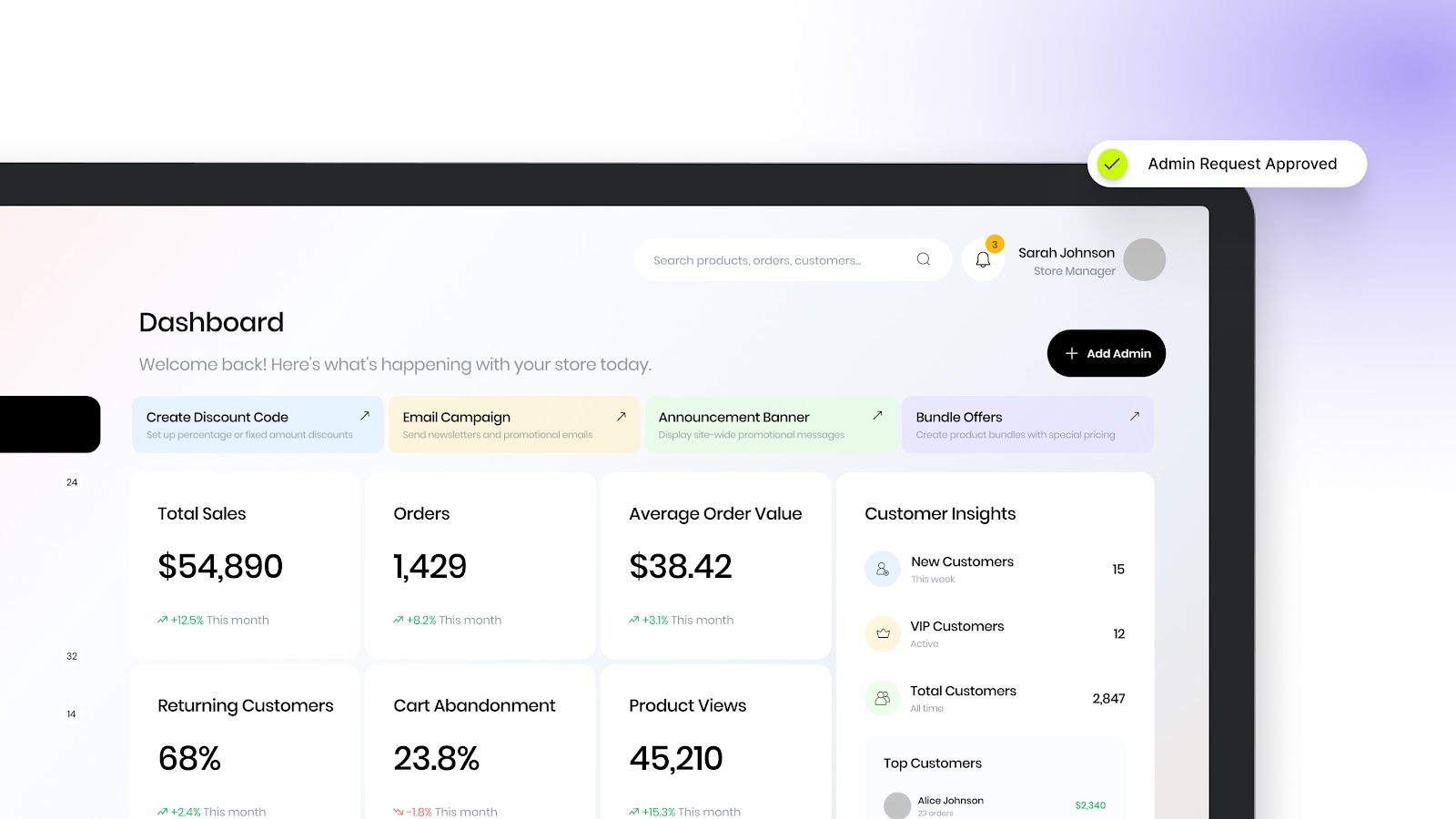
Adding users is simple, but incorrect access decisions can create long-term issues for store management and security. These are some common mistakes store owners should avoid:
- Giving Full Admin Access Unnecessarily: Full admin permissions are often assigned even when the user only needs limited access. This increases the risk of accidental changes to settings, apps, or billing.
- Making an Agency Account for the Store Owner: Agencies or external partners should never be assigned store ownership. Ownership includes billing control and account-level authority that should remain with the business owner.
- Forgetting to Remove Old Staff Access: Former employees or temporary collaborators sometimes retain access after their work ends. Regularly reviewing staff accounts helps prevent unwanted access.
- Sharing Login Credentials Instead of Creating Staff Accounts: Sharing a single login makes it difficult to track activity and increases security risks. Individual staff accounts ensure accountability and controlled permissions.
Access needs can change over time as team roles evolve. Shopify also allows you to update or remove admin access whenever required.
Recommended: How to Create and Manage Multiple Shopify Stores.
How to Change or Remove Admin Access Later
Access levels can be updated at any time from the Users and permissions section in the Shopify admin.
- Editing Permissions: Store owners or authorized admins can open a staff profile and adjust permissions based on changing responsibilities. This helps maintain proper access without creating new accounts.
- Removing Staff Access: If a team member or collaborator no longer needs access, their account can be removed from the same section. Removing unused accounts helps keep the store secure.
- Transferring Store Ownership: Store ownership can be transferred if the business changes hands or management shifts. This action should be done carefully since the new owner receives full control over billing and account settings.
In some situations, adding another admin may not be the right choice, especially when external partners need limited access.
When to Add an App Partner Instead of an Admin
In many cases, external partners do not need full admin access to complete their work. Stores installing apps or working with Shopify app teams can grant collaborator access instead, which limits permissions to specific areas of the store.
Collaborator access is usually the better option when:
- An agency or developer is working on themes, apps, or technical setup
- App partners need temporary access for installation or configuration
- Store owners want to keep billing and user management restricted
- Access needs to be removed easily after the work is completed
This approach reduces risk while allowing partners to complete required tasks. For example, when working with specialized Shopify app partners like StarApps Studio, collaborator access allows implementation and support without giving full store control.
Managing Shopify Store Access as Your Team Expands
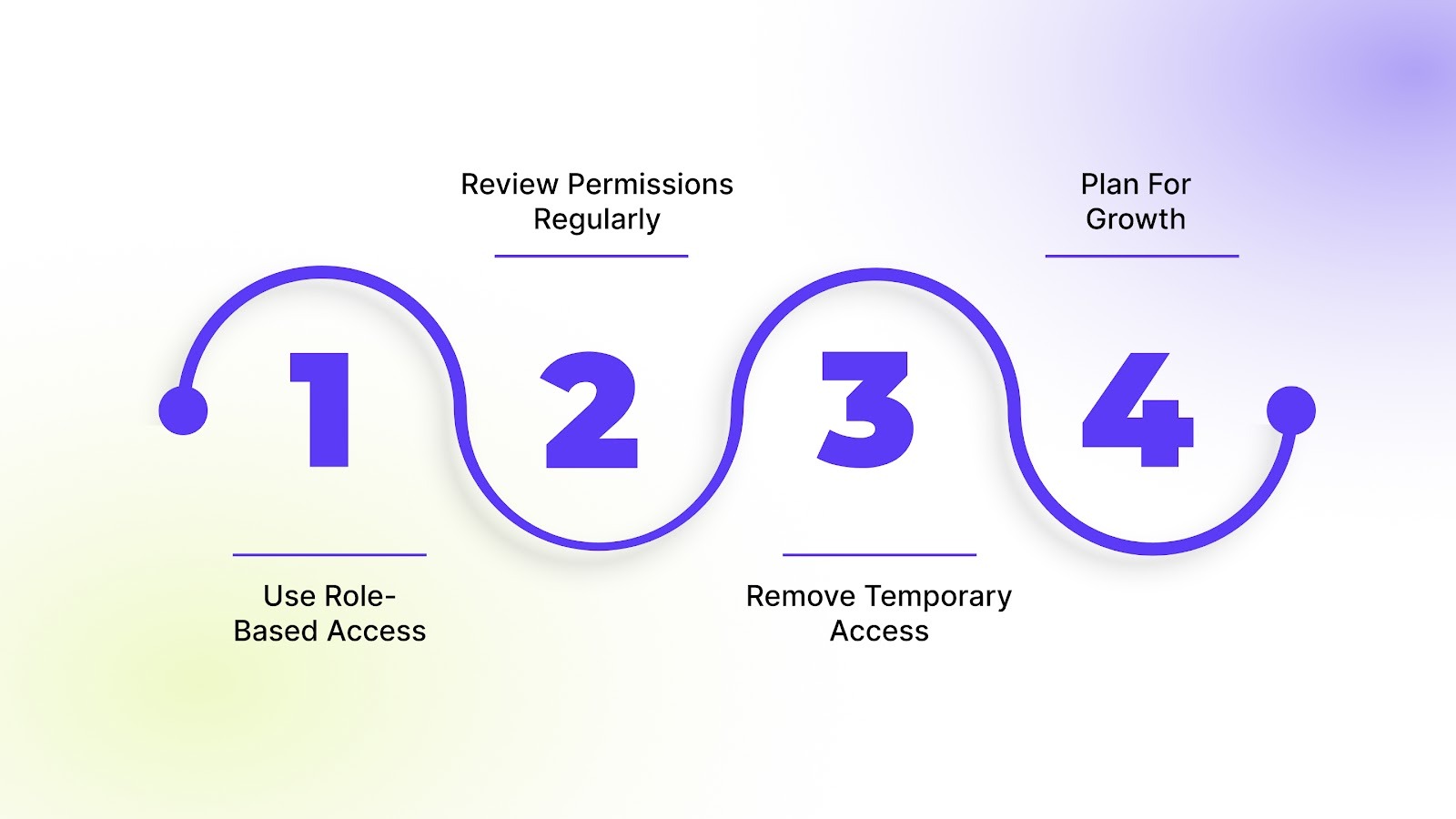
As your team grows, store access should be reviewed regularly to avoid unnecessary permissions and reduce risk.
A structured approach helps keep control as responsibilities increase:
- Use role-based access by assigning permissions based on each team member’s responsibilities instead of granting broad access.
- Review permissions regularly to confirm that access still matches current roles and tasks.
- Remove temporary access once agencies, developers, or project-based contributors finish their work.
- Plan for growth by setting clear access rules early, making it easier to add new team members without exposing sensitive settings.
This approach supports team growth while keeping store management organized and secure.
Final Thoughts
Adding another admin to Shopify is easy, but assigning the right permissions matters just as much as adding the user. Clear access roles help prevent accidental changes, protect store settings, and keep responsibilities well defined as your team grows. Most stores benefit from limiting full admin access and relying on staff or collaborator access for daily tasks.
As new tools and partners become part of your workflow, controlled access keeps store management secure and organized. If you’re improving product presentation or variant management, StarApps Studio can support setup and optimization through safe collaborator access. Explore StarApps tools to improve your storefront experience while keeping full control of your Shopify store.
FAQs
1. How many admins can a Shopify store have?
Shopify allows multiple staff accounts with admin-level permissions, but there is only one store owner at a time. The number of staff accounts available depends on your Shopify plan.
2. What are staff accounts on Shopify?
Staff accounts allow store owners to give team members access to the Shopify admin without sharing login credentials. Each staff account has its own login and can be assigned specific permissions based on the user’s role, such as managing products, handling orders, or viewing reports.
3. Does adding another admin cost extra on Shopify?
Adding staff or admin users does not have a separate cost. However, Shopify plans have limits on the number of staff accounts allowed.
4. Can an admin install or remove Shopify apps?
Yes, if app permissions are enabled. Store owners can restrict app management access if they want to control which apps are installed or removed.
5. What happens if an admin does not accept the invitation?
The invitation remains pending until accepted. Store owners can resend or cancel the invite from the Users and permissions section at any time.
Heading

End-to-end traceability
To ensure regulatory compliance, you must have a complete overview of your products from production to shipping. Book a demo to see how Katana can give you full visibility of your operations.



.png)

.svg)

.svg)

.svg)
.png)