

Learn how a variant image automator fixes Shopify's one-image-per-variant limit — and how SA Variant Image Automator sets up in minutes, no coding needed.
Imagine a customer lands on your product page, selects "Midnight Blue," and immediately sees a gallery full of white, khaki, and olive photos mixed in. They scroll, squint, and quietly leave.
You didn't lose that sale because your product was wrong for them. You lost it because your store couldn't show them the right images at the right moment.
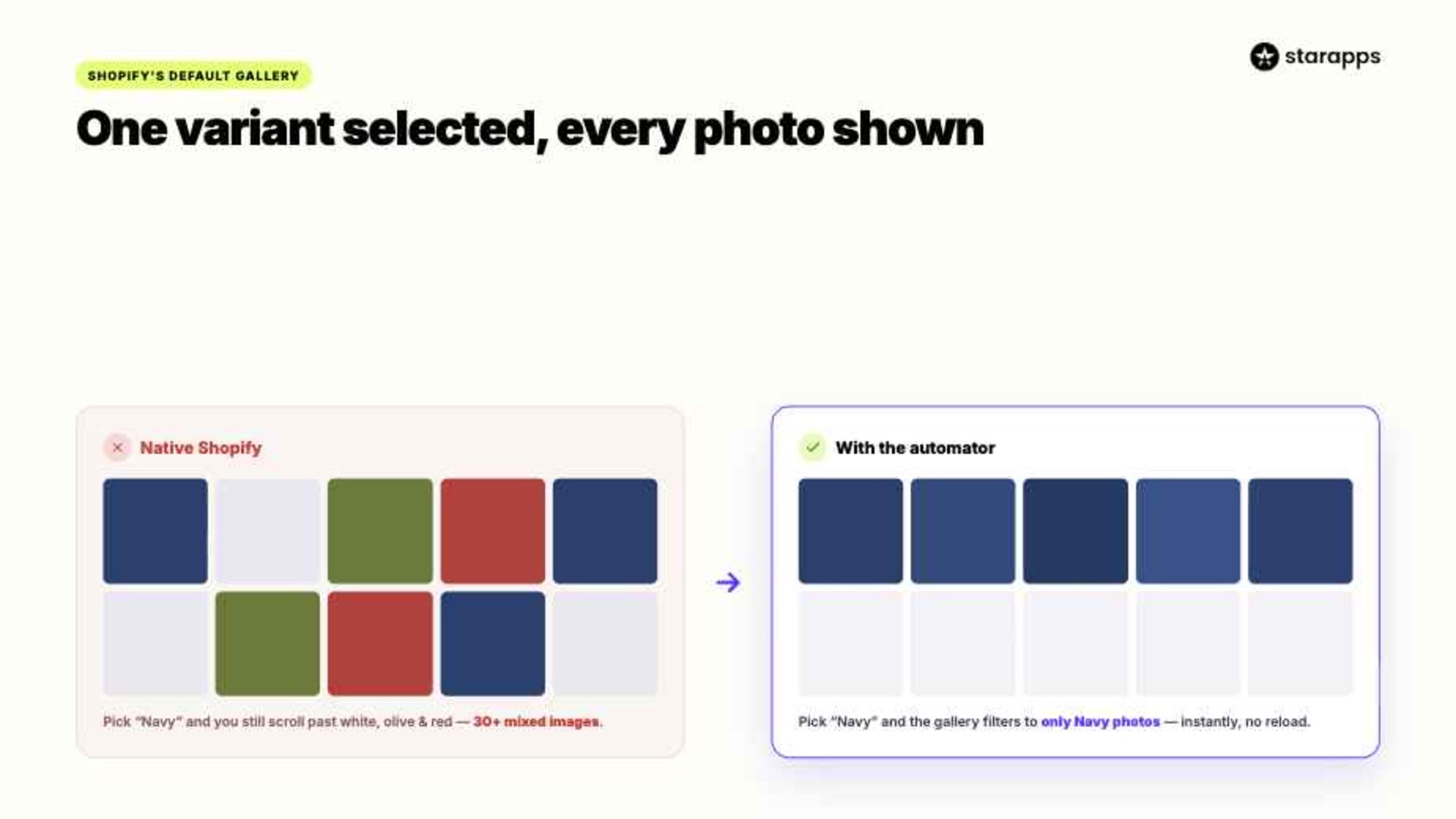
This is Shopify's default behavior, and it affects every merchant selling products in multiple colors, styles, or materials. According to Shopify's own documentation, each variant natively supports only one assigned image, with the full product gallery remaining visible regardless of what a customer selects. For stores with five colors and six photos per color, that's 30 images on screen when a customer only needs six.
The fix is a variant image automator: an app that watches which variant a customer selects and instantly filters the gallery to show only the relevant images, no manual toggling, no scrolling through noise, no confusion.
In this article, we'll cover exactly what a variant image automator does, why Shopify's native experience falls short for most merchants, how SA Variant Image Automator works under the hood, and how to set it up properly so your product pages do the visual work your customers expect.
TL;DR
- Shopify natively supports only one image per variant; the full gallery remains visible regardless of what a customer selects.
- A variant image automator fixes this by filtering the gallery in real time based on the selected variant.
- SA Variant Image Automator uses image order (not manual tagging) to automatically group and assign images, making setup fast even for large catalogs.
- The app supports multiple images, videos, and 3D views per variant without slowing down your store.
- It works with all Shopify themes, landing page builders, and custom themes, requiring no code edits.
- Migrating from other apps (Rubik, VSlide, Variant Image Wizard, SC Product Options) is supported directly.
The Problem Shopify Doesn't Solve Natively
Shopify raised its variant limit from 100 to 2,048 in October 2025 — a significant upgrade for merchants managing complex catalogs. But the image experience hasn't kept pace.
As Shopify's help documentation confirms, each variant still supports only one assigned image. When a customer selects "Navy," Shopify scrolls to the image you've tagged for that variant, but the entire gallery (all 30 or 50 images across all colors) remains visible. There is no native way to filter what appears.
For a small store selling two color options, this is manageable. For a fashion brand with 12 colorways and five photos per colorway, this results in a 60-image gallery that confuses shoppers rather than helping them.
The downstream effects are predictable:
Slower decisions. A customer selecting "Forest Green" has to scroll past red, white, and black product shots to confirm they're viewing the correct color. That extra friction costs time and confidence.
Higher return rates. Shoppers who can't clearly see their chosen variant may buy based on a wrong assumption. Salsify's 2025 Consumer Research found that 71% of consumers have returned products because the actual item didn't match the online listing — and unclear variant images are a direct driver of that problem.
Lost conversions. When the visual experience feels disorganized, shoppers lose confidence before they reach the cart. A clean, variant-filtered gallery removes one of the most common reasons people hesitate.
The manual workaround, assigning ALT text to images and editing theme code to filter by ALT tag, exists but requires coding knowledge, breaks across theme updates, and becomes completely unworkable at scale.
For a catalog with 200 products and 8 color variants each, that's 1,600 manual assignments to maintain.
What a Variant Image Automator Actually Does
A variant image automator is an app that intercepts the variant selection event on your product page and updates the image gallery in real time to show only the images assigned to that variant.
When a customer clicks "Red," the app detects the selection and immediately filters the gallery, hiding all images not associated with the red variant and displaying only the red product's front shot, back shot, lifestyle image, and any other photos you've assigned. When they switch to "Blue," the gallery updates again. Instantly. No page reload. No scrolling required.
The word "automator" is doing real work in that name. The key distinction from a basic image manager is that the filtering happens automatically on every variant switch; neither the merchant nor the customer has to do anything once the app is configured.
How SA Variant Image Automator Works
SA Variant Image Automator by StarApps Studio takes a specific approach to this problem, making it particularly practical for merchants with large or frequently updated catalogs.
It uses image order rather than manual tagging.
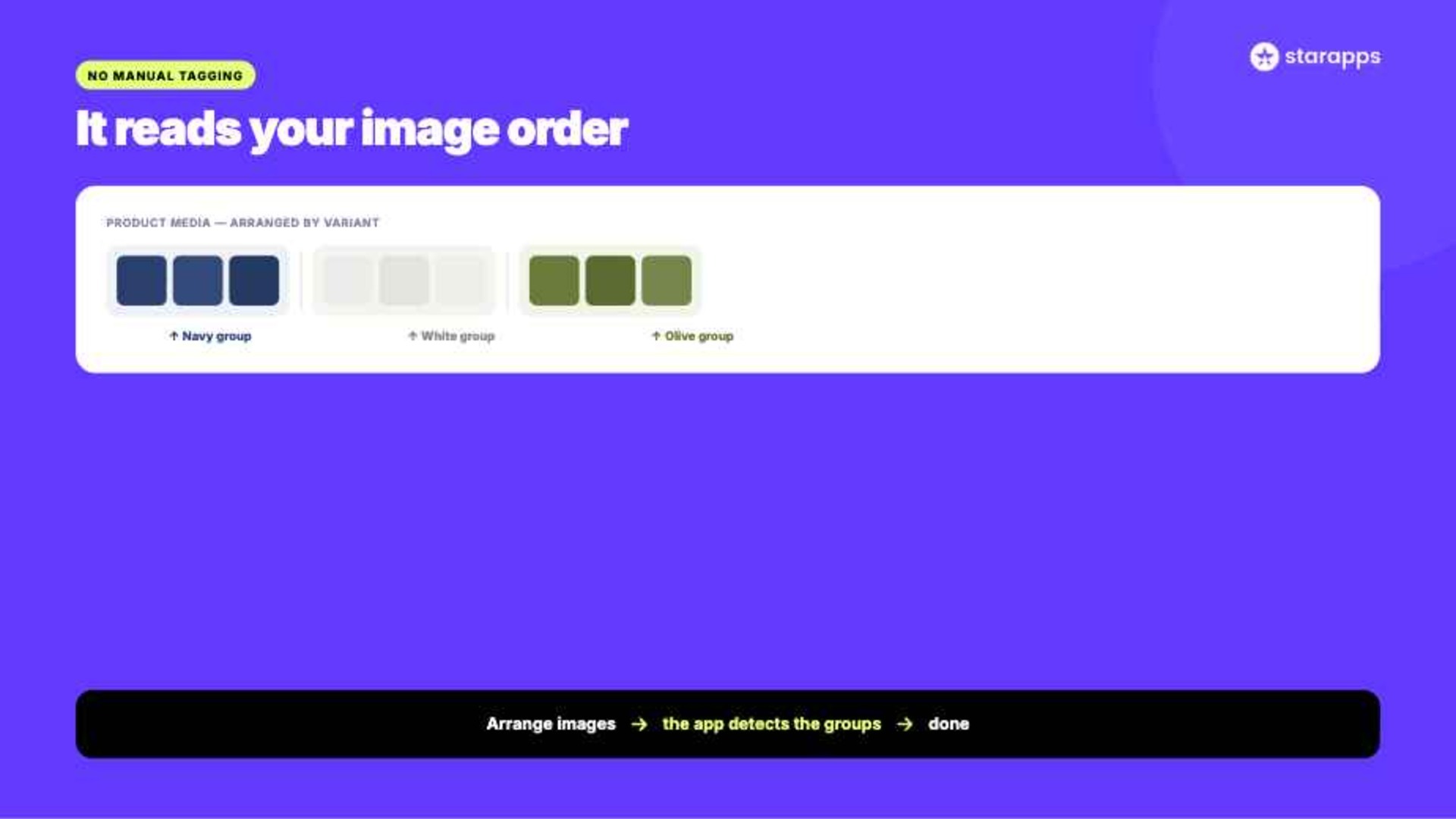
Instead of requiring you to tag each image inside the app or build a variant-image mapping manually, SA Variant Image Automator reads the order in which your images appear in the Shopify product media section and groups them automatically.
Here is exactly how the logic works: you upload and arrange all product images in your Shopify admin, grouping them by variant. All the Navy images together first, then all the White images, then all the Olive images. The app detects where one color group ends and the next begins, and uses that structure to automatically build the variant-image assignments.
That is the entire setup for most stores.
Arrange images → the app handles the rest.
This approach has a practical advantage that's easy to underestimate: when you add a new colorway, you don't need to re-enter the app to update assignments. Upload the new variant's images in sequence with the others, and the app picks them up automatically. For stores that add new colors seasonally or frequently, this removes a recurring admin task entirely.
What You Can Assign to Each Variant
Beyond the core image-switching behavior, SA Variant Image Automator handles several media types and use cases that matter for specific store types.
Multiple images per variant. There's no cap on how many images you assign to a variant. A single variant can carry a front shot, back shot, detail close-up, flat lay, and lifestyle photo — all visible when that variant is selected, all hidden when it isn't.
Videos per variant. If your product listing includes video — an unboxing clip, a 360 rotation, a wear or use demo — the app supports displaying variant-specific videos in the gallery alongside still images. This is particularly relevant for apparel, footwear, and electronics.
3D model support. For merchants using 3D models in their Shopify listings, the app handles these alongside standard images.
Image zoom and gallery layouts. The app integrates directly with your theme's existing variant image gallery. Zoom functionality, lightbox behavior, and slider layouts are preserved — the app filters what appears; it doesn't rebuild how the gallery works.
No theme slowdown. All app resources load asynchronously, adding no additional load time to product pages. The app also doesn't modify your theme code, making it safe to install and uninstall without leaving changes behind.
Works across themes and builders. SA Variant Image Automator works with all standard Shopify themes as well as custom themes, landing page builders, and headless setups.
How to Configure SA Variant Image Automator in One Session
The configuration process is straightforward. Here's how to get from install to live in one session.
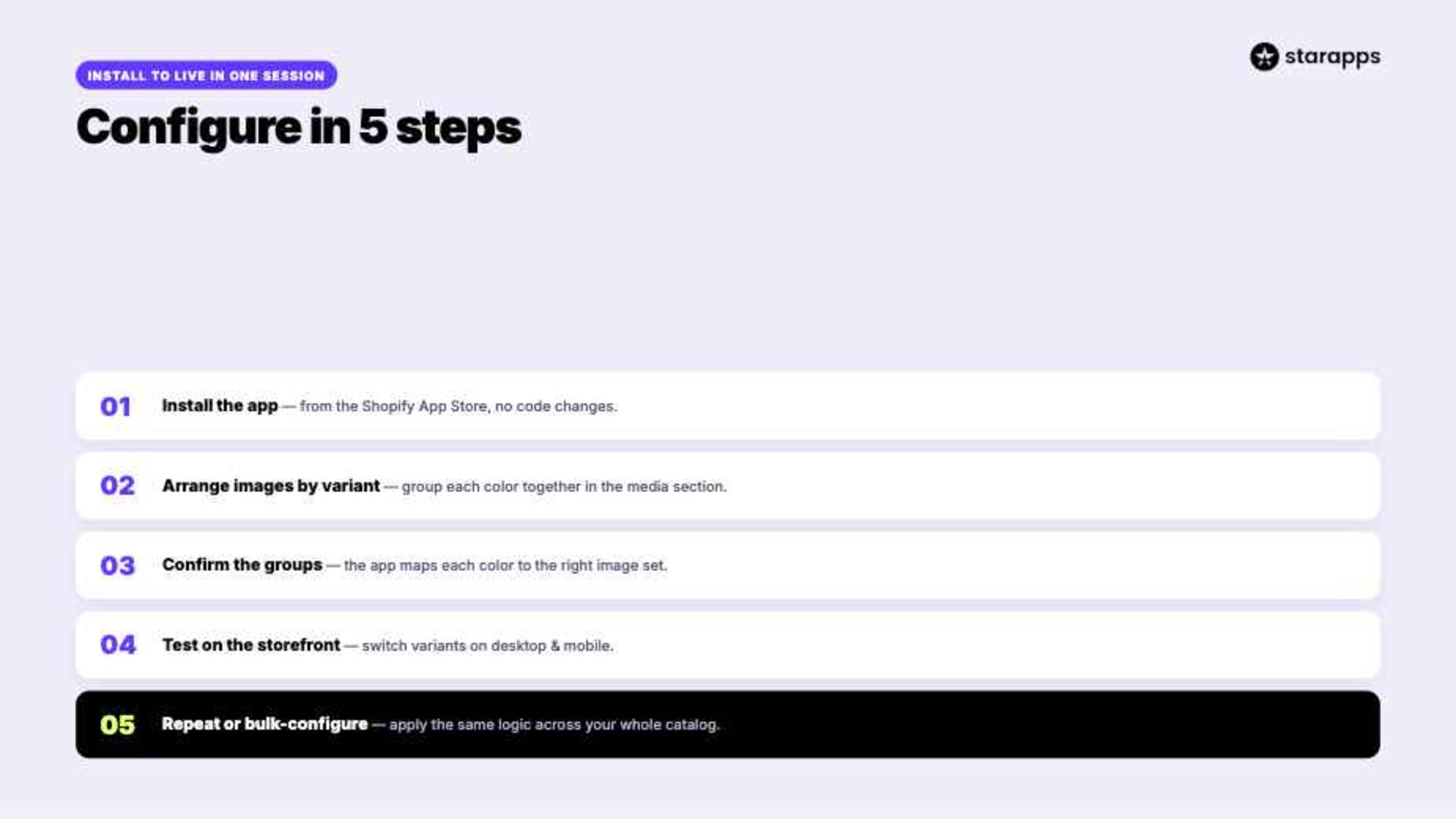
Step 1: Install the app: Go to the Shopify App Store, find SA Variant Image Automator, and install it. The app connects to your store directly through the admin — no code changes required.
Step 2: Arrange your product images by variant: Go to the product you want to configure in your Shopify admin. In the media section, arrange all your images so that each variant's photos are grouped together in sequence.
For example, images 1–5 all belong to Navy, images 6–10 belong to White, and images 11–15 belong to Olive. The order is all the app needs to detect the groups.
If your images are already loosely organized by color, this may require only minor reordering. If they're mixed, this is the main time investment — and it's a one-time task per product.
Step 3: Let the app detect and confirm the groups: SA Variant Image Automator reads the image order you've set and maps the groups to your variant options. Verify the grouping in the app's interface to make sure each color maps to the right image set.
Step 4: Test on the storefront: Open the product page on your live store (or a preview). Select each variant in turn and confirm the gallery filters correctly. Check on both desktop and mobile.
Step 5: Repeat for other products or use bulk configuration: For stores with large catalogs, the app supports bulk configuration — applying the same image order logic across multiple products at once rather than configuring each individually.
Which Shopify Stores Need This Most
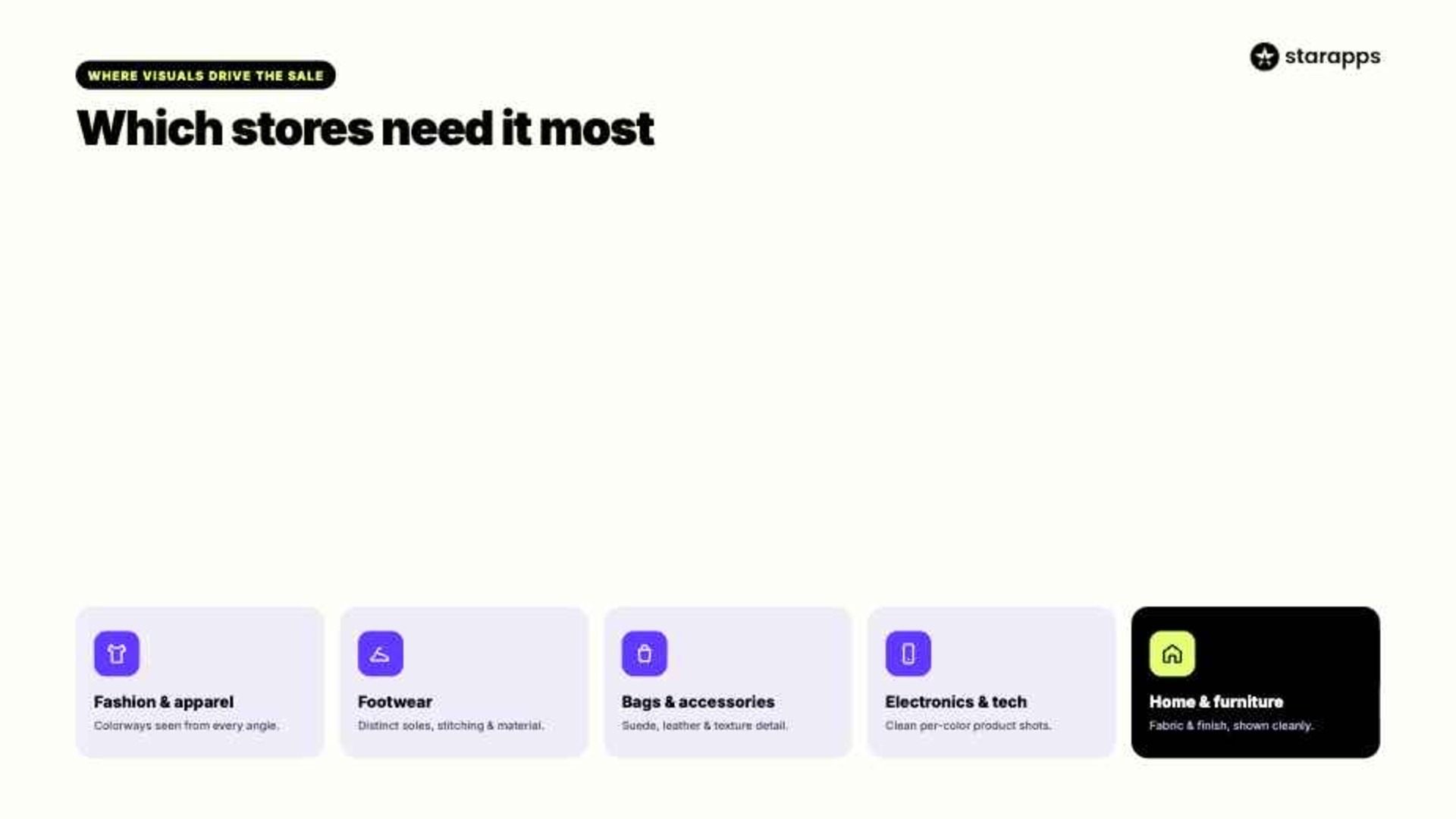
SA Variant Image Automator is well-suited to specific store types where the visual difference between variants is central to the buying decision.
Fashion and apparel. Color variants in clothing are the clearest use case. Customers selecting a colorway need to see that exact color from multiple angles — not a full gallery of every other color you stock.
Footwear. Shoe colorways often have distinct sole colors, stitching, and materials that need clean individual photo sets. A mixed gallery makes it hard to evaluate the product properly.
Accessories and bags. Leather goods, jewelry, and bags frequently come in materials (suede, leather, nubuck) that need separate photo treatment — lighting, texture close-ups, and material detail shots vary significantly.
Electronics and tech. Color variants in phone cases, headphones, and tech accessories benefit from clean variant galleries, particularly when each color has distinct product shots.
Home goods and furniture. Fabric and finish variants for furniture, cushions, or rugs require separate image sets. A customer selecting "Stone Grey" needs to see the grey version — not a gallery mixed with terracotta and forest green.
For stores where all variants look identical (e.g., variations are size-only and the product appearance doesn't change), a variant image automator adds less value. But for any store where the visual difference between variants drives the purchase decision, this is foundational infrastructure.
Ready to Fix Your Product Gallery?
If your product pages are showing the wrong images to the wrong customers, the problem isn't your photography — it's Shopify's default gallery behavior. SA Variant Image Automator corrects that in one setup session, without touching your theme code.
It's trusted by 25,000+ active merchants and carries a 4.9-star rating on the Shopify App Store. Pricing starts at $9.90/month for Shopify Basic stores, with plans scaling to Shopify Plus. All plans include a 30-day free trial, no product limits, and full access to features from day one. Install SA Variant Image Automator on the Shopify App Store.
Three Apps, One Complete Product Page
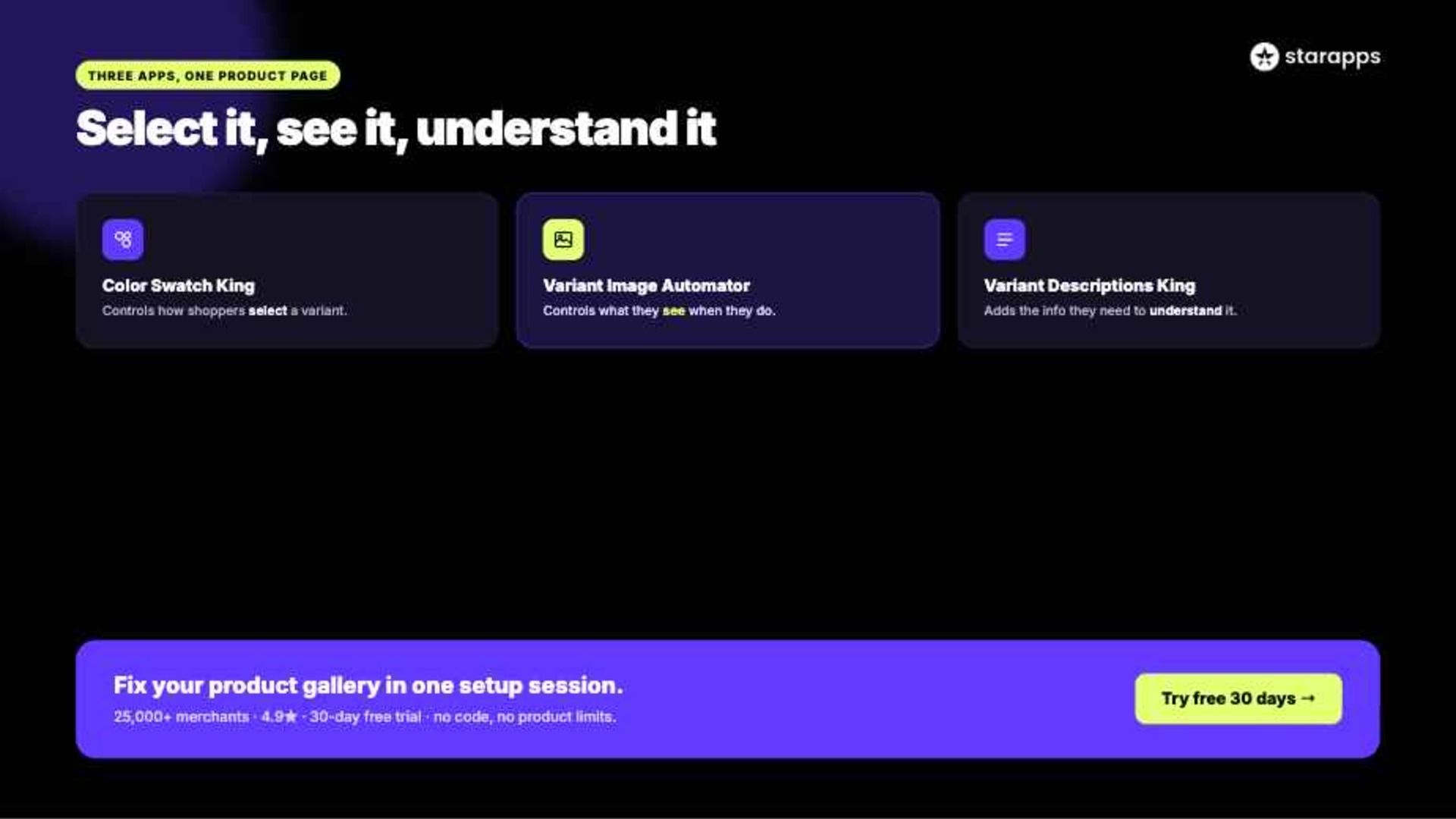
SA Variant Image Automator works as a standalone fix for the gallery problem, but it integrates tightly with the rest of the StarApps suite if you're optimizing more of the product page experience.
Variant Alt Text King: SEO works alongside Variant Image Automator to automatically apply SEO-optimized ALT text to every variant image. When images switch per variant, ALT text updates accordingly — keeping your image SEO accurate across all variants without any manual work. For stores with large catalogs, this combination saves hours of ALT text management and improves image indexing in Google Search and Google Shopping.
Color Swatch King handles how variant options are displayed — replacing default dropdowns with color swatches, image swatches, or buttons directly on product and collection pages. Used together, Swatch King controls how customers select a variant while Variant Image Automator controls what they see when they do.
Variant Descriptions King completes the product page by displaying variant-specific descriptions, size charts, care instructions, and technical details in clean tabs or accordions. A customer selecting "Merino Wool" sees different material care instructions than one selecting "Cotton Blend" — reducing returns driven by mismatched expectations.
These tools work independently but are designed to be used together for a complete variant experience: visual selection via swatches, gallery filtering via image automator, and contextual information via description tabs.
Conclusion
Shopify's one-image-per-variant default is a well-documented limitation that hasn't changed despite the platform's broader variant upgrades. For any store where visual differences between variants actually matter to the customer's purchase decision, leaving that limitation unaddressed is a direct cost to conversion and a driver of returns.
SA Variant Image Automator solves this with a setup process that takes minutes, a configuration model that scales without manual overhead, and a runtime that adds no load to your store's performance.
If your product pages are mixing variant images in the gallery today, this is the first fix worth making.
[Try SA Variant Image Automator free for 30 days — no product limits, no code changes required →]
Frequently Asked Questions
1. What does a variant image automator do on Shopify?
It automatically filters your product gallery based on which variant a customer selects. When a shopper picks "Blue," they see only the images assigned to the blue variant — and all other variant images are hidden. This happens in real time on every variant switch, without any action required from the customer or merchant. It directly addresses Shopify's native limitation of showing all product images at once, regardless of variant selection.
2. Does SA Variant Image Automator require me to manually tag or assign every image in the app?
No — and this is what makes it different from many alternatives. The app reads the order of images in your Shopify product media section and groups them automatically by sequence. You arrange the images in your admin (all Navy images together, then all White, then all Olive), and the app detects the groupings from that order. No image tagging inside the app, no variant-image mapping to maintain manually.
3. Will the app slow down my store?
No. All app resources load asynchronously, meaning they don't block page rendering or add to initial load time. The app also doesn't modify your theme code — it operates on top of the existing gallery structure — so there are no leftover changes if you ever uninstall it.
4. Does it work with my Shopify theme?
SA Variant Image Automator is designed to work with all Shopify themes, including Dawn, Horizon, Prestige, Impulse, and custom themes, as well as landing page builders. It preserves your existing gallery layout, zoom behavior, and slider functionality — it only changes which images are shown, not how the gallery looks or works.
5. Can I use this with other StarApps apps?
Yes, and the tools are designed to complement each other. SA Variant Image Automator handles image filtering. Color Swatch King handles variant selection display. Variant Alt Text King automatically updates SEO ALT text per variant image. Variant Descriptions King displays variant-specific product descriptions. Each works independently but integrates cleanly with the others if you use multiple tools on the same store.
6. What happens if a variant has no images assigned?
If a variant group hasn't been configured (for example, a new variant added after initial setup), the app defaults to showing all product images — Shopify's standard behavior. This means unassigned variants don't show broken galleries; they simply revert to the default display until you update the image order or assignment.
Heading

End-to-end traceability
To ensure regulatory compliance, you must have a complete overview of your products from production to shipping. Book a demo to see how Katana can give you full visibility of your operations.
.png)

.svg)

.svg)

.svg)
.png)