
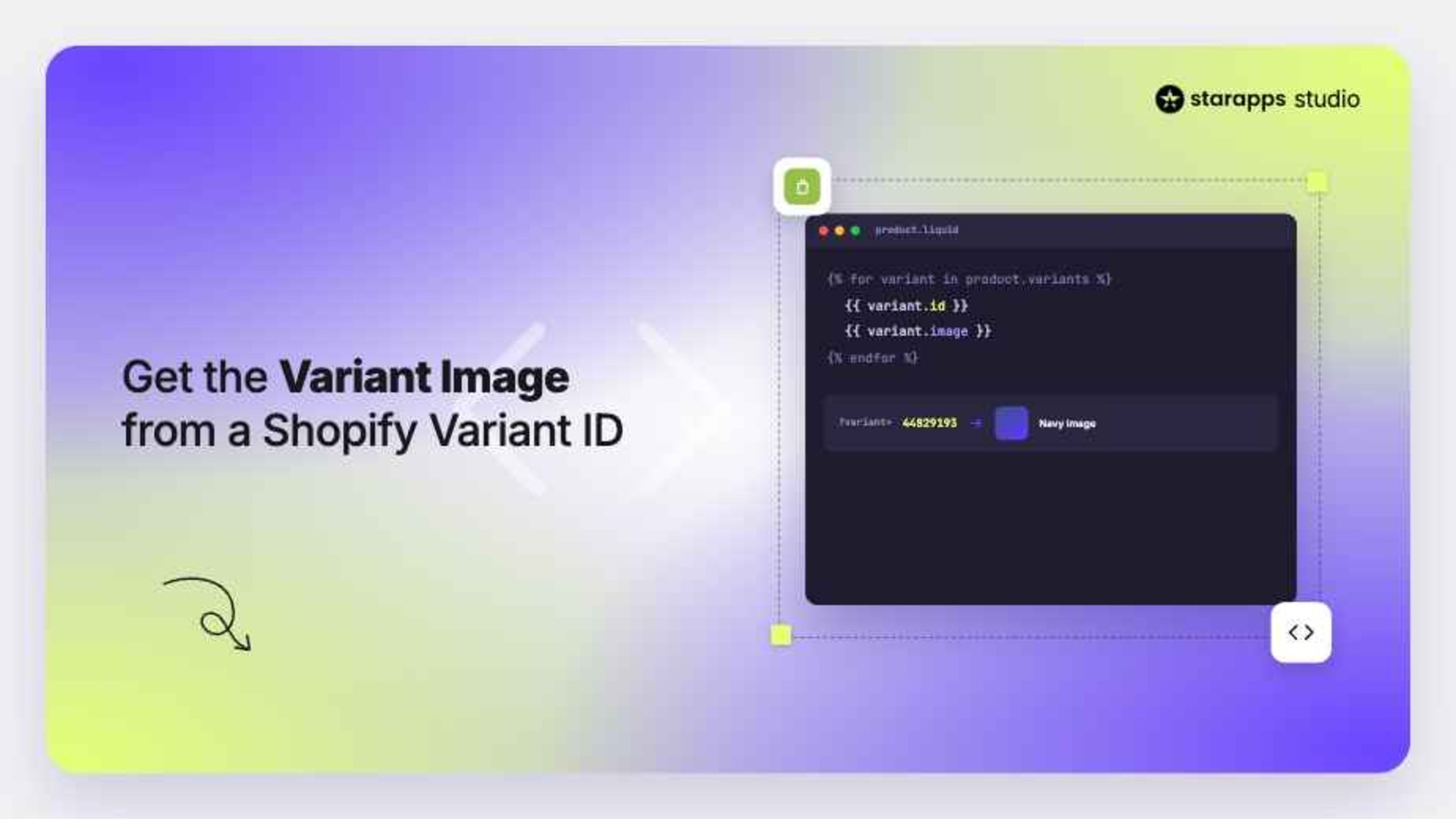

Learn how to get variant image from variant ID in Shopify with practical techniques, code examples and tools. Map variant images accurately for a better UX.
If you run a Shopify store with multiple colors, sizes, or style variations, showing the correct image for each variant is critical. Baymard research shows only 25% of ecommerce sites provide enough product images for proper evaluation, highlighting a major gap in product clarity.
A customer selecting a blue jacket expects to see blue jacket images, not photos from another color option. Yet many merchants and developers run into issues when trying to connect a Shopify variant ID to its corresponding image. When mapping fails, it leads to confusion, slower decisions, and lost sales opportunities.
Shopify already stores the data required to connect variants and images, but accessing and displaying the correct image depends on understanding how product data is structured across themes, Liquid, and APIs.When implemented correctly, variant-specific images can appear instantly based on customer selections. This keeps product pages aligned with customer choices and reduces friction during the buying process.
This guide explores practical methods to retrieve variant images using variant IDs and how to implement them across Shopify themes and API-based setups.
Key Highlights:
- Variant IDs act as the link between Shopify product variations and the images displayed when customers select a specific option.
- Variant IDs can be retrieved through Shopify admin, Liquid code, APIs, and variant-specific URLs depending on your store setup.
- Liquid, JavaScript, Storefront API, and metafield-based methods offer different ways to map variant IDs to the correct product images.
- Consistent image mapping and automated variant management tools help keep galleries accurate as product catalogs become more complex.
What Does a Variant ID Represent in Shopify?
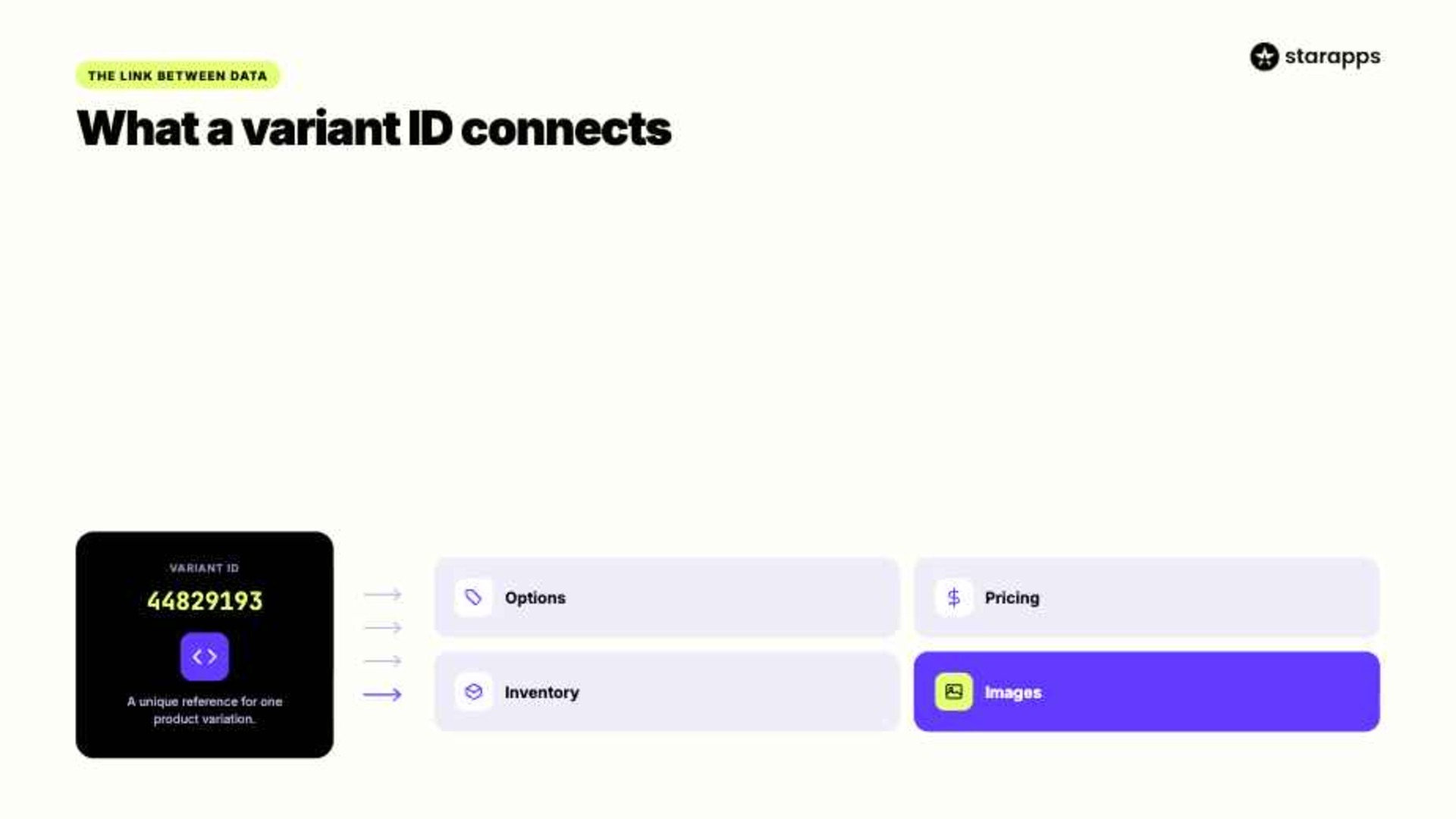
A Shopify variant ID is a unique identifier assigned to each product variant created in a store. It acts as a reference point that connects product options like size, color, or material to Shopify’s backend system. Understanding this ID is essential because it is the foundation for linking product data such as pricing, inventory, and images.
From a storefront perspective, this ID becomes especially important when you want dynamic behavior, such as updating product images when a user selects a different variant.
Methods to Find Shopify Variant ID
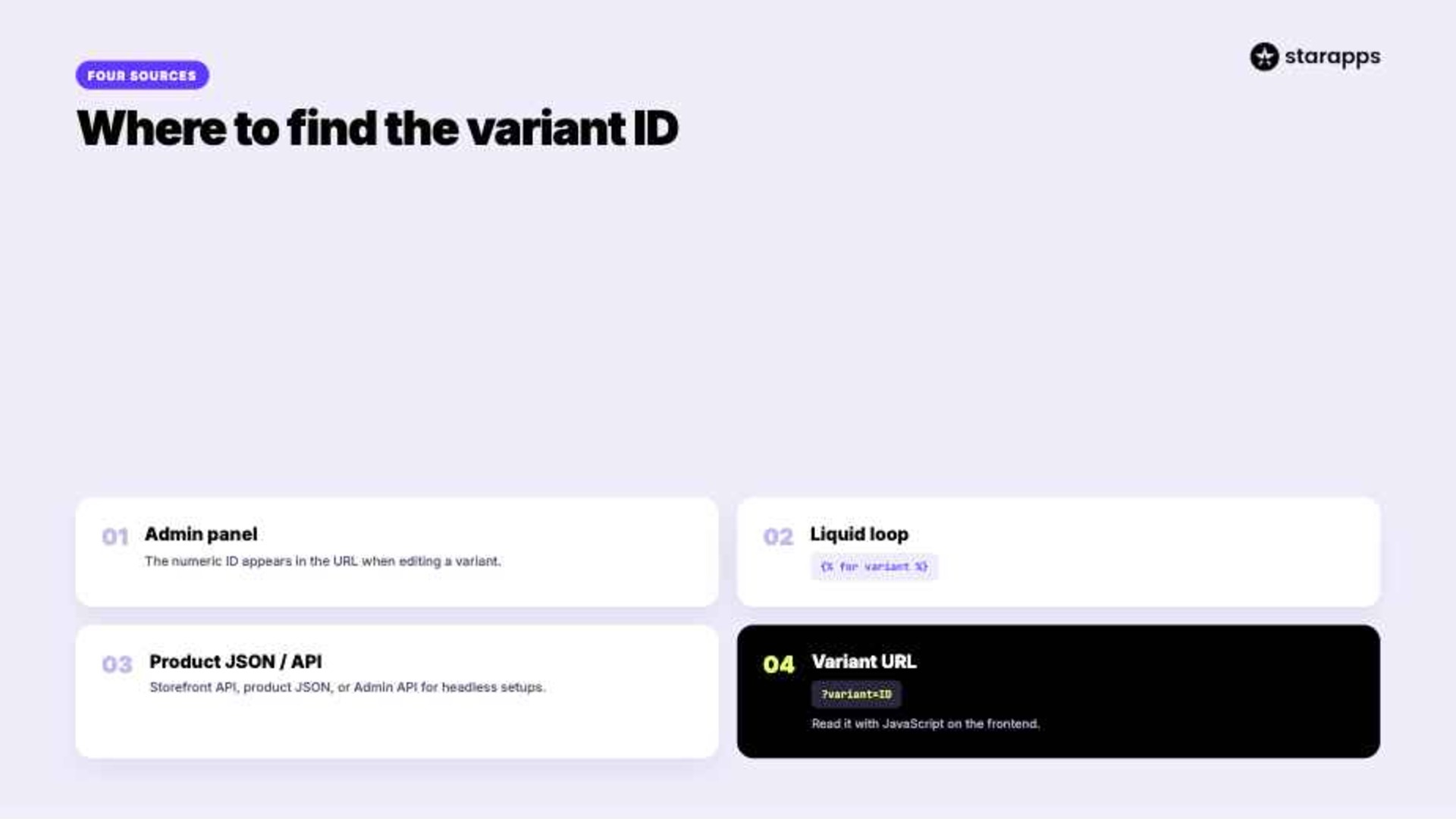
Before retrieving a variant image, you need to locate the correct variant ID. Shopify provides multiple ways to access this ID depending on whether you are working in the admin panel, theme files, or via APIs.
1. Shopify Admin Panel
You can find the variant ID directly in the product section of Shopify admin. Each variant has a unique numeric ID visible in the URL when editing a variant.
2. Using Liquid in Themes
Shopify Liquid provides direct access to variant IDs through loops:
{% for variant in product.variants %}
{{ variant.id }}
{% endfor %}
This is commonly used in theme customization to dynamically fetch variant-related data inside your theme setup.
3. Using Product JSON or API
You can also retrieve variant IDs using:
- Shopify Storefront API
- Product JSON endpoint
- Admin API for backend applications
This method works better for headless or custom storefront setups.
4. URL-Based Variant ID
When a customer selects a variant, the URL often includes ?variant=ID, which can be extracted using JavaScript for frontend interactions on the frontend.
Also Read: Best Variant Image Apps for Shopify in 2025
Ways to Get Variant Image from Variant ID in Shopify
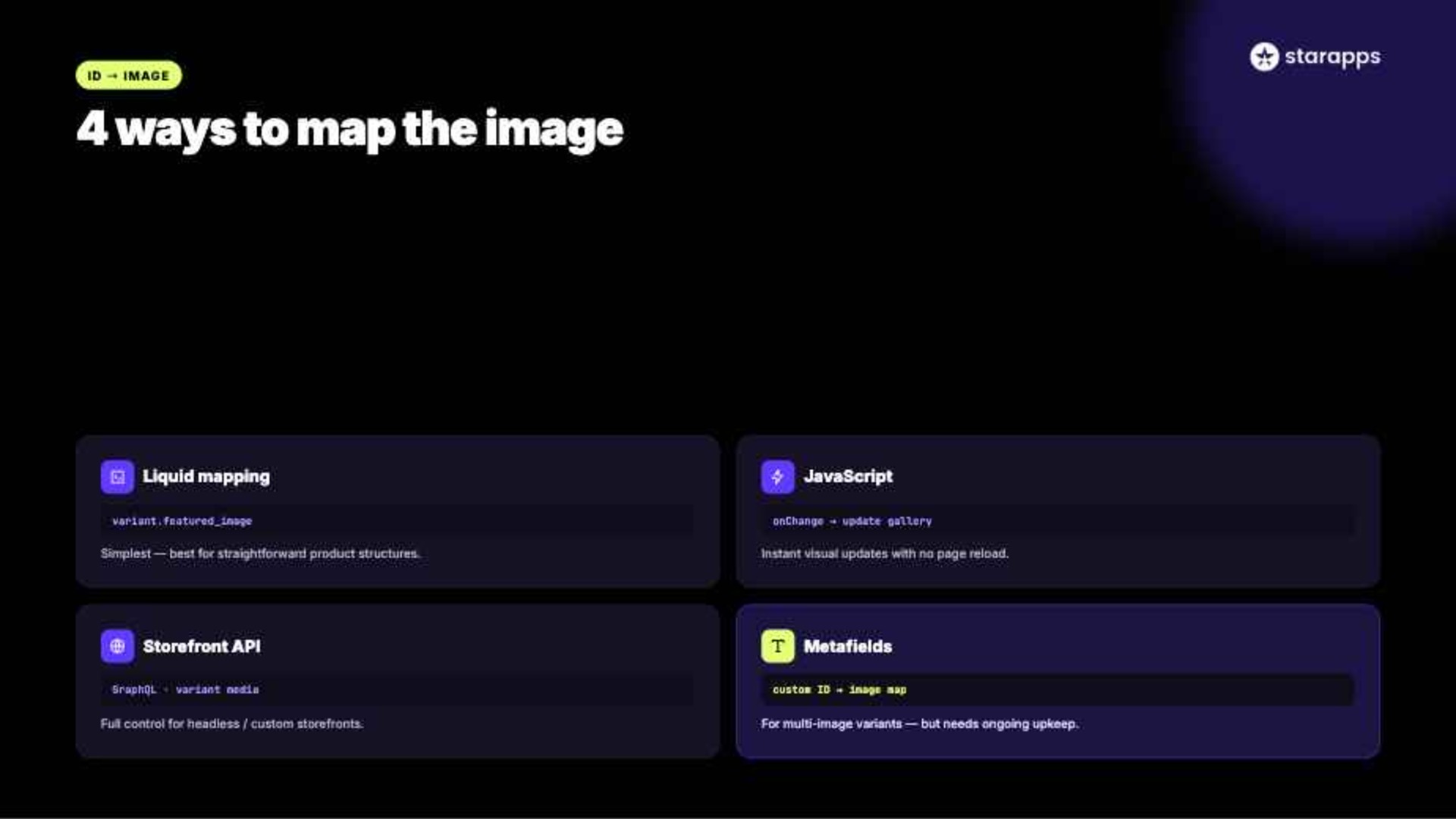
Shopify offers multiple technical approaches for mapping variant ID with the correct image, depending on theme architecture, customization level, and data structure.
Each method solves the same problem in a slightly different way, depending on how your storefront is built and how dynamic it needs to be.
1. Liquid-Based Mapping
The simplest approach is using Shopify’s built-in variant object. This is usually the starting point for most Shopify themes.
{{ product.selected_or_first_available_variant.featured_image }}
Or directly within a loop:
{% for variant in product.variants %}
{{ variant.image }}
{% endfor %}
It works best when product structure is simple, and image handling does not require advanced logic.
2. JavaScript-Based Mapping
For dynamic storefronts, JavaScript is often used to match variant IDs with images stored in the DOM or JSON object. This approach is commonly used when product pages need instant visual updates without page reloads.
Typical flow:
- Capture selected variant ID
- Match it with stored variant-image mapping
- Update product gallery dynamically
This is common in modern Shopify themes with interactive UX.
3. Storefront API Approach
Headless Shopify setups use the GraphQL Storefront API to fetch variant media. This is typically used when Shopify is decoupled from the frontend.
You can query:
- Variant ID
- Associated media
- Product images linked to variant
This approach provides more control but requires backend logic. It is best suited for custom storefronts where full control over data handling is needed.
4. Metafield or Custom Mapping Approach
When Shopify’s default linking is not enough, developers store image references inside metafields and map them manually to variant IDs.
This is useful when:
- Multiple images belong to one variant
- Default Shopify image association is insufficient
However, it requires ongoing maintenance. Any update to products or images must be reflected in the metafield mapping to keep everything aligned.
Also Read: Ecommerce Store: Display Variant Images with Dropdown Options
Best Practices for Accurate Variant Image Mapping
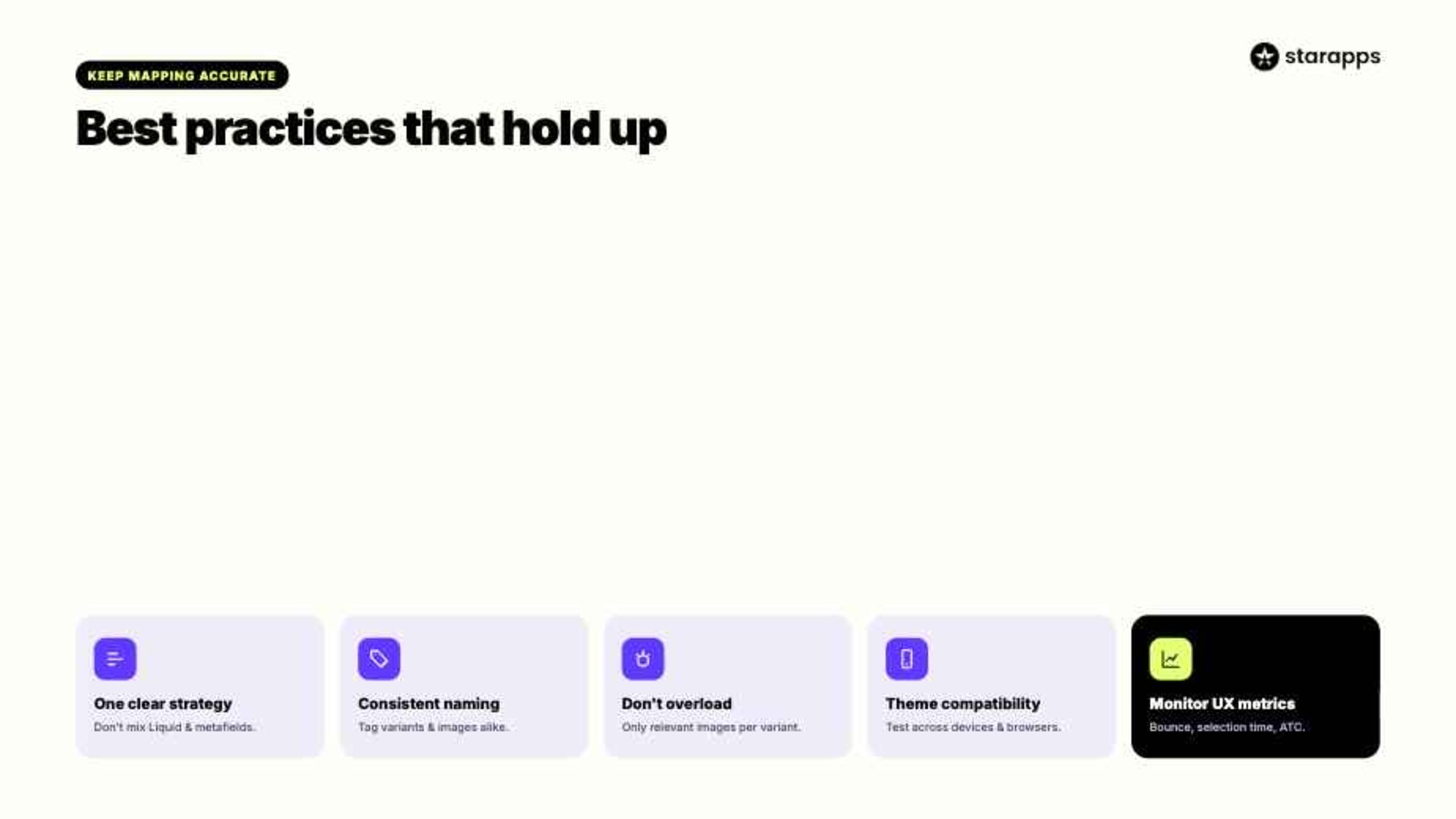
Accurate variant-image mapping ensures customers always see the correct product visuals. This improves decision-making, reduces returns, and improves how the store works for customers.
- Maintain One Clear Mapping Strategy: Avoid mixing multiple methods like Liquid and manual metafields unless necessary. A single consistent approach helps reduce errors and makes debugging faster.
- Maintain Consistent Naming or Tagging: Use consistent naming conventions for variants and images to simplify mapping in Liquid or API layers so everything stays easier to manage.
- Avoid Overloading Variants with Images: Too many images per variant can slow down performance and confuse customers. Keep only relevant images linked to maintain smooth performance and clarity.
- Ensure Theme Compatibility: Not all Shopify themes handle variant switching the same way. Always test image behavior across devices and browsers to ensure everything works as expected.
- Monitor UX Performance Metrics: Track metrics like product page bounce rate, variant selection time, add-to-cart rate, etc. These indicators show whether your image mapping strategy is effective in real usage.
How StarApps Studio Can Help With Variant Image Management
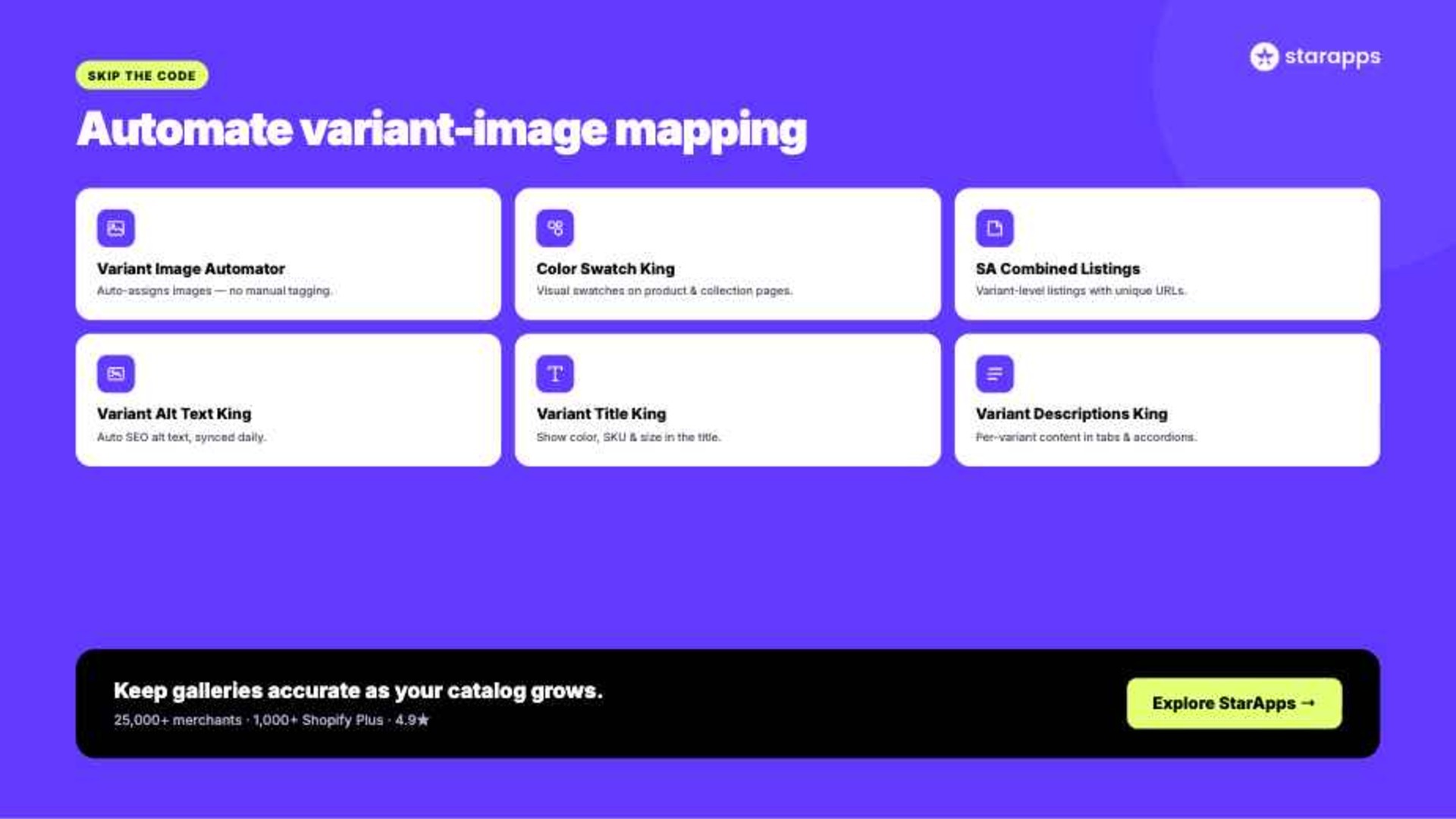
Managing variant-image relationships manually becomes difficult as product catalogs grow. StarApps Studio provides Shopify apps designed to simplify this process by automating image assignment, improving visual consistency, and enhancing storefront performance.
Variant Image Automator
- Automatic Variant Image Assignment: Links multiple images to the appropriate variant without manual tagging, reducing setup time for stores with large catalogs.
- Cleaner Product Galleries: Displays only the images relevant to the selected variant, helping customers focus on the product option they're considering.
- Theme-Friendly Integration: Works with Shopify themes, page builders, and many custom storefront setups without affecting site performance.
Color Swatch King
- Visual Variant Selection: Replaces traditional selectors with color swatches, image swatches, buttons, or dropdowns for faster product comparison.
- Collection Page Swatches: Lets shoppers view and select variants directly from collection pages, reducing clicks and improving product discovery.
- Hide Unavailable Variants: Automatically hides out-of-stock options, helping customers avoid frustration during the buying process.
SA Variants: Combined Listings
- Variant-Level Product Listings: Displays individual variants as separate listings while keeping them connected as part of the same product family.
- Improved Discoverability: Helps customers find specific colors or styles more quickly through collection pages, search, and filters.
- SEO-Friendly Structure: Creates unique URLs, titles, descriptions, and images for variants, improving visibility in search results.
Variant Alt Text King: SEO
- Automated ALT Text Creation: Generates descriptive ALT text using product and variant information, reducing manual SEO work.
- Daily Synchronization: Keeps ALT text updated as products and images change across the catalog.
- Accessibility Support: Helps improve compliance with accessibility best practices by providing more meaningful image descriptions.
Variant Title King: Color, SKU
- Dynamic Product Titles: Automatically displays selected colors, sizes, SKUs, or other variant attributes within the product title.
- Better Shopping Experience: Helps customers confirm exactly which product variation they are viewing before purchasing.
- Simplified Catalog Management: Makes product identification easier for both customers and internal teams.
Variant Descriptions King
- Variant-Specific Content: Displays unique descriptions for individual variants instead of relying on a single generic product description.
- Organized Information Layout: Uses tabs and accordions to keep product pages clean and easy to navigate.
- Reduced Purchase Uncertainty: Gives customers access to detailed variant information, helping them make more informed buying decisions.
With 25,000+ active merchants, 1,000+ Shopify Plus stores, and a 4.9-star rating, StarApps has become a trusted choice for Shopify brands looking to optimize variant management and improve storefront performance.
Conclusion
Retrieving variant images using variant IDs depends on how Shopify structures product data across admin, theme, and API layers. Each approach, whether Liquid-based, JavaScript-driven, or API-focused, serves a different level of customization depending on store complexity.
While Liquid offers quick access to variant images, advanced setups may rely on JavaScript or API-based workflows for better control. Using dedicated tools that automate variant-image mapping helps improve consistency, reduce setup time, and create a smoother shopping experience.
If you want to simplify how variant images are managed across your store, exploring StarApps Studio solutions can help streamline the process and improve storefront clarity.
FAQs
1. What is the difference between product.images and variant.image when getting images by variant ID in Shopify?
product.images returns all images associated with a product, regardless of variants. variant.image returns only the image linked to a specific variant. Use variant.image when you need the exact image corresponding to a selected variant ID.
2. How do I use variant.image_id to retrieve the actual image URL from a Shopify variant ID?
variant.image_id provides the image's unique ID, not its URL. Match this ID against the product’s image collection, then access the corresponding image object and use its URL property to display or retrieve the image.
3. Can I get a variant image from a Shopify variant ID without knowing the product ID?
Yes, if you query the variant directly through Shopify’s Admin API or GraphQL API. The variant object can return its associated image information, eliminating the need to manually provide the product ID.
4. How do I debug issues when trying to get a variant image from a Shopify variant ID in Liquid?
Start by confirming the variant has an assigned image. Output the variant ID, image ID, and image object in Liquid to verify values. Also check theme logic, variant selection scripts, and fallback image handling.
5. What is the correct GraphQL query to fetch a variant image using a variant ID in Shopify?
Use the productVariant query with the variant’s global ID and request the image field. Include properties such as url, altText, and dimensions to retrieve complete image data for the specified variant.
Heading

End-to-end traceability
To ensure regulatory compliance, you must have a complete overview of your products from production to shipping. Book a demo to see how Katana can give you full visibility of your operations.
.png)

.svg)

.svg)

.svg)
.png)