

Learn how to change Shopify store name without harming links or brand visibility. Log in, update your store name, and buy/connect a new domain. Click for details!
Your Shopify store name and domain aren’t just labels; they are trust signals that influence search visibility and purchase decisions. Research shows that 75% of consumers judge a company’s credibility by its website design, including domain quality, and that branded domains can boost click-through rates and recall.
As more stores compete for attention, knowing how to change your Shopify store name and domain without losing brand value, SEO rankings, or customer trust becomes essential for long-term growth.
This guide explains exactly when, why, and how to execute these changes safely, with practical steps, SEO best practices, and post-change optimisation strategies.
Key Takeaways
- Changing your store name is operational and low risk, but it directly affects customer trust in emails, invoices, and checkout.
- A domain change resets how search engines interpret your store, making redirects and timing more critical than the name itself.
- Short, branded domains consistently outperform complex URLs in memorability and click-through rates.
- Most traffic loss during domain changes comes from missed redirects and outdated external links, not the change itself.
- Maintaining clean variant displays and consistent product visuals helps protect conversions during rebrands or structural changes.
Understanding Shopify Store Name vs Domain Name
Although they are often mentioned together, your Shopify store name and domain name play very different roles in how your business operates and is discovered online.
The store name defines how your brand appears inside Shopify and in customer communications, while the domain name determines how customers and search engines access your store on the web.
Confusing the two can result in misplaced branding efforts or unintended SEO risks, especially during a rebrand or domain change. Understanding this distinction helps you make precise updates without affecting traffic, visibility, or customer trust.
Shopify Store Name
Your store name is the internal and brand-facing identity of your business inside Shopify.
- Appears in the Shopify admin, order notifications, invoices, and system emails
- Can be updated at any time from Settings → Store details
- Does not directly affect your website URLs or SEO rankings
- Helps customers recognise your brand in emails and post-purchase communication
Shopify Domain Name
Your domain name is the public web address customers and search engines use to access your store.
- Appears in browser URLs, search results, ads, and backlinks
- Directly impacts SEO, trust, and brand recall
- Requires redirects and verification when changed
- Includes your primary domain (custom domain) and the permanent .myshopify.com URL
Once you understand the difference between a store name and a domain, the next step is deciding whether a change is actually necessary for your business.
Why You Might Want to Change These
A Shopify store name or domain change is usually triggered by a specific business constraint or growth milestone, not aesthetics. Your store name defines how your brand appears in Shopify emails, invoices, and customer touchpoints.
Some reasons to change your Shopify store name and domain name are:
- Brand no longer reflects your catalog: A name tied to a single product or niche can become limiting as you expand categories.
- Customer confusion: If buyers regularly misunderstand what you sell, the name may lack clarity.
- Trademark or compliance risks: Similar or conflicting brand names can create legal exposure.
- Business restructuring: Mergers, acquisitions, or brand consolidation often require renaming.
- Unbranded or lengthy URLs: Long, generic domains are harder to remember and often appear less credible, which can reduce user confidence before a visit even begins.
- Mismatch between brand and URL: When the domain does not match the brand name, customers struggle to connect ads, search results, and the storefront to the same business.
- Scaling to new markets: Domains tied to a single region or product category can limit expansion and make global positioning more difficult.
- Search performance optimisation: Short, relevant domains are easier to scan in search results and often attract higher click-through rates due to clarity and trust.
But timing's everything, rush in without prep, and you'll face 404 errors or broken swatches. Here's your fail-safe checklist tailored for variant-heavy DTC stores.
Preparatory Steps Before You Change Anything
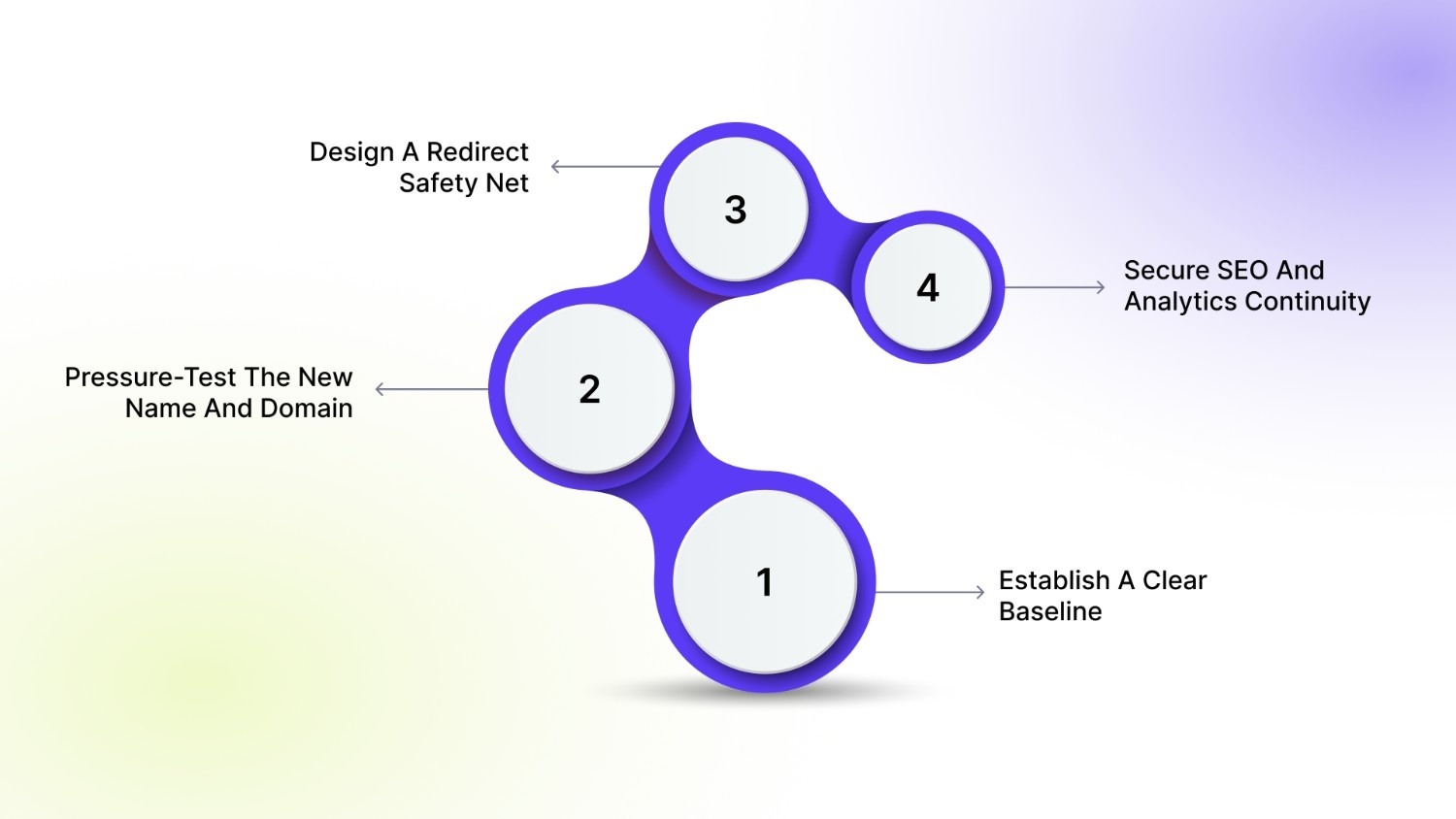
Changing your store name or domain without preparation can disrupt traffic, trust, and conversions. These steps ensure the transition is controlled and reversible.
1. Establish A Clear Baseline
Before any updates, you need a clear picture of what already works and what must remain unchanged.
- Note your current primary domain and any secondary domains pointing to it
- Identify product, collection, and blog pages that generate the highest traffic
- Check how your store name appears in checkout, invoices, and order emails
- Review existing URL redirects or custom link structures
2. Pressure-Test The New Name And Domain
Your new store name or domain should work across branding, legal, and marketing contexts, not just inside Shopify.
- Check availability across key domain extensions you may need later
- Run basic trademark checks in your primary selling regions
- Say the name out loud and assess readability in ads, URLs, and emails
- Verify consistency with social handles and paid channels
3. Design A Redirect Safety Net
Redirects protect your existing traffic and search visibility during a domain change.
- List high-value URLs, especially top products and collections
- Understand which redirects Shopify handles automatically
- Identify edge cases that may require manual URL redirects
- Avoid deleting or renaming URLs before redirects are confirmed
4. Secure SEO And Analytics Continuity
Search performance should remain measurable before, during, and after the change.
- Add the new domain to Google Search Console in advance
- Record current rankings, impressions, and organic traffic levels
- Prepare to resubmit XML sitemaps once the domain is updated
- Monitor crawl errors and indexing changes closely post-launch
4. Secure SEO and Analytics Continuity
Search performance should remain measurable before, during, and after the change.
- Add the new domain to Google Search Console in advance
- Record current rankings, impressions, and organic traffic levels
- Prepare to resubmit XML sitemaps once the domain is updated
- Monitor crawl errors and indexing changes closely post-launch
With the groundwork in place, you can now move to the simplest part of the process, updating the store name inside Shopify.
How to Change the Shopify Store Name
Changing your Shopify store name is a brand-level update, not a technical one. It affects how your business appears in Shopify and customer communications, but it does not change your URLs or domain.
Your store name appears in several high-visibility areas, including the Shopify admin, order confirmations, invoices, transactional emails, and parts of the checkout or theme layout. Since customers repeatedly see it during and after purchase, even small inconsistencies can affect clarity and trust, making accuracy especially important.
You can update your Shopify store name directly from your admin. Here’s how:
- Go to Settings → Store details in your Shopify admin.
- Under Basic information, locate the Store name field. Max 255 chars; avoid special symbols (Shopify strips them).
- Enter your new store name, making sure it aligns with your branding and customer communications.
- Click Save to apply the change.
Once updated, Shopify immediately applies the new store name across internal and customer-facing areas such as dashboards, invoices, and order confirmation emails.
Note: This does not change your website URL or domain.
Once your store name is updated, the next critical step is managing your domain because unlike the store name, your domain directly affects SEO, traffic, and customer trust.
How to Change (or Add) a Custom Domain?
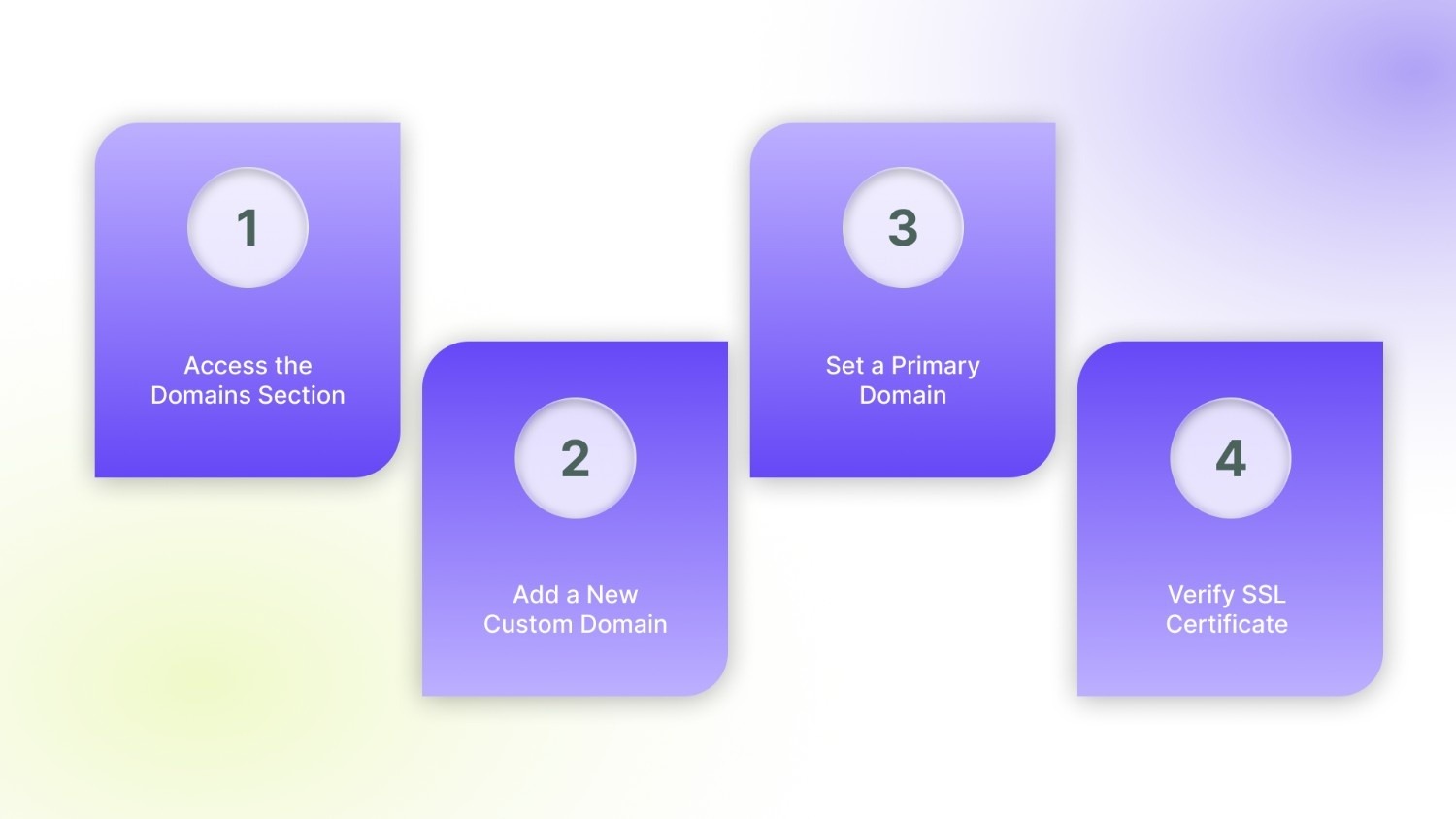
A Shopify domain is your store’s public web address and requires careful handling when updating to avoid broken links, lost traffic, or SEO drops. Shopify allows you to either add a new custom domain or replace an existing one.
Steps to add or change domain name are:
1. Access the Domains Section
- Go to Settings → Domains in your Shopify admin.
- Here you’ll see your primary domain and any secondary domains connected.
2. Add a New Custom Domain
- Click Connect existing domain if you already own it, or Buy new domain through Shopify.
- Follow Shopify’s guided steps to verify ownership and configure DNS records (A record and CNAME).
3. Set a Primary Domain
- After the new domain is added, select Set as primary.
- Shopify will automatically redirect traffic from your old .myshopify.com URL and any secondary domains to this primary domain.
4. Verify SSL Certificate
- Shopify automatically provisions an SSL certificate, ensuring your store remains secure (HTTPS) after the domain change.
Now that you know how to change your domain or store name, it helps to understand the real effects these decisions can have on your store’s visibility, SEO rankings, traffic, and brand equity.
How Does Store or Domain Name Change Impact Your Store?
Changing your store name or domain isn’t just cosmetic, it can reshape how search engines and customers perceive and interact with your business.
When you change a store name, the impact tends to be brand-centric. It alters how your business appears in emails, invoices, and inside Shopify’s interface, but it does not directly change your site’s URLs or SEO rankings.
However, altering your domain name has far deeper consequences. Search engines treat a new domain as a new website identity, which can disrupt your existing SEO authority. Even with correct 301 redirects, temporary drops in organic traffic and rankings are common as Google re-indexes your content under a new URL structure.
Here’s what happen when domain changes:
- SEO and organic traffic disruptions: After a domain change, Google must crawl and index the new URLs, a process that often leads to temporary drops in rankings and clicks even with proper redirects.
- Loss of backlink value: Backlinks pointing to your old domain may lose strength and relevance unless redirects are perfectly implemented. This can weaken SEO authority built over time.
- Brand confusion and trust signals: Customers searching for your old domain or brand may not immediately recognise the new address, contributing to reduced traffic or lower click-through rates.
Example: Twitter originally launched under the domain Twttr.com, following an early tech trend of shortened names. As the platform scaled, the unconventional spelling created confusion in search, media mentions, and word-of-mouth sharing. To support mass adoption, the company later moved to Twitter.com, aligning the brand name and domain.
Summing Up,
Changing your Shopify store name or domain is not just a settings update. It is a strategic decision that affects how customers recognise your brand, how search engines evaluate your store, and how smoothly your existing traffic carries over.
During a store or domain change, maintaining a clean, consistent product experience becomes even more important. StarApps Studio helps Shopify merchants protect conversion performance by ensuring product variants, images, and availability remain accurate and visually aligned across the storefront.
Tools like Variant Image Automator and Variant Options Swatch King help prevent mismatched images, broken variant displays, or confusing product states, issues that often surface during structural updates.
If you are planning a rebrand or domain update, exploring StarApps Studio’s apps can help you preserve clarity, consistency, and shopper confidence while your store evolves.
FAQs
1. Will changing my Shopify domain affect my existing apps or integrations?
Most Shopify apps continue to work normally after a domain change. However, apps that rely on absolute URLs, tracking scripts, or webhooks may require revalidation or settings updates.
2. Can I change my store name without notifying customers?
Technically yes, but it is not recommended. Customers may question unfamiliar names on invoices or emails, which can reduce trust and increase support queries.
3. How long does Google take to recognise a new Shopify domain?
Google typically begins recognising redirects within days, but full reindexing and ranking stabilisation can take several weeks, depending on site size and crawl frequency.
4. Do I need to update social media and ad links after a domain change?
Yes. Paid ads, social profiles, and influencer links should be updated to the new domain to avoid redirect chains and tracking inaccuracies.
5. Can I revert to my old domain if something goes wrong?
Yes, Shopify allows you to switch primary domains back, provided you still own the original domain and have not removed its DNS configuration.
Heading

End-to-end traceability
To ensure regulatory compliance, you must have a complete overview of your products from production to shipping. Book a demo to see how Katana can give you full visibility of your operations.



.png)

.svg)

.svg)

.svg)
.png)