

Learn how to add color swatches in Shopify Dawn theme to make variant selection easier, improve navigation, and enhance your store’s product display.
If you’ve ever viewed your Shopify store from a customer’s perspective, you know how frustrating those color dropdowns can be. They work functionally, but they make shoppers stop and think. When visitors have to guess what “Stone Gray” or “Ocean Blue” looks like, many lose interest before even adding to the cart.
That’s where color swatches make a real difference. They replace text-based guessing with visual clarity, letting customers explore options quickly and confidently. It’s a small change that removes friction, builds trust, and helps products sell themselves through better presentation.
In this guide, you’ll learn how to add color swatches in the Shopify Dawn theme using built-in features. We’ll walk you through the full setup process, highlight common mistakes that can affect performance, and demonstrate where Dawn’s default tools reach their limits, so you can plan for what comes next.
Key Takeaways
- Color swatches replace dropdowns with visual selectors, helping shoppers choose faster and improving product clarity.
- Setting up color swatches in Shopify’s Dawn theme involves organizing variants, linking images, and enabling swatches in the theme settings.
- Testing on both desktop and mobile ensures swatches display correctly and enhance the overall shopping experience.
- The Dawn theme offers a good base but may need third-party tools for advanced features like collection page swatches or automation.
- Proper setup creates a smoother, more professional storefront that boosts engagement and reduces return rates.
Why Your Shopify Store Needs Color Swatches in the Dawn Theme?
The Dawn theme ships with dropdown menus for color selection, which function visually but adequately fail. Customers clicking through "Select Color" must imagine what Navy Blue or Forest Green actually looks like, adding unnecessary friction to a decision that should be instant.
Color swatches transform that experience by replacing text-based guessing with visual clarity. Instead of dropdown menus that hide options, swatches display every available color upfront. This shift eliminates hesitation, speeds up the selection process, and reduces the mental effort required to complete a purchase.
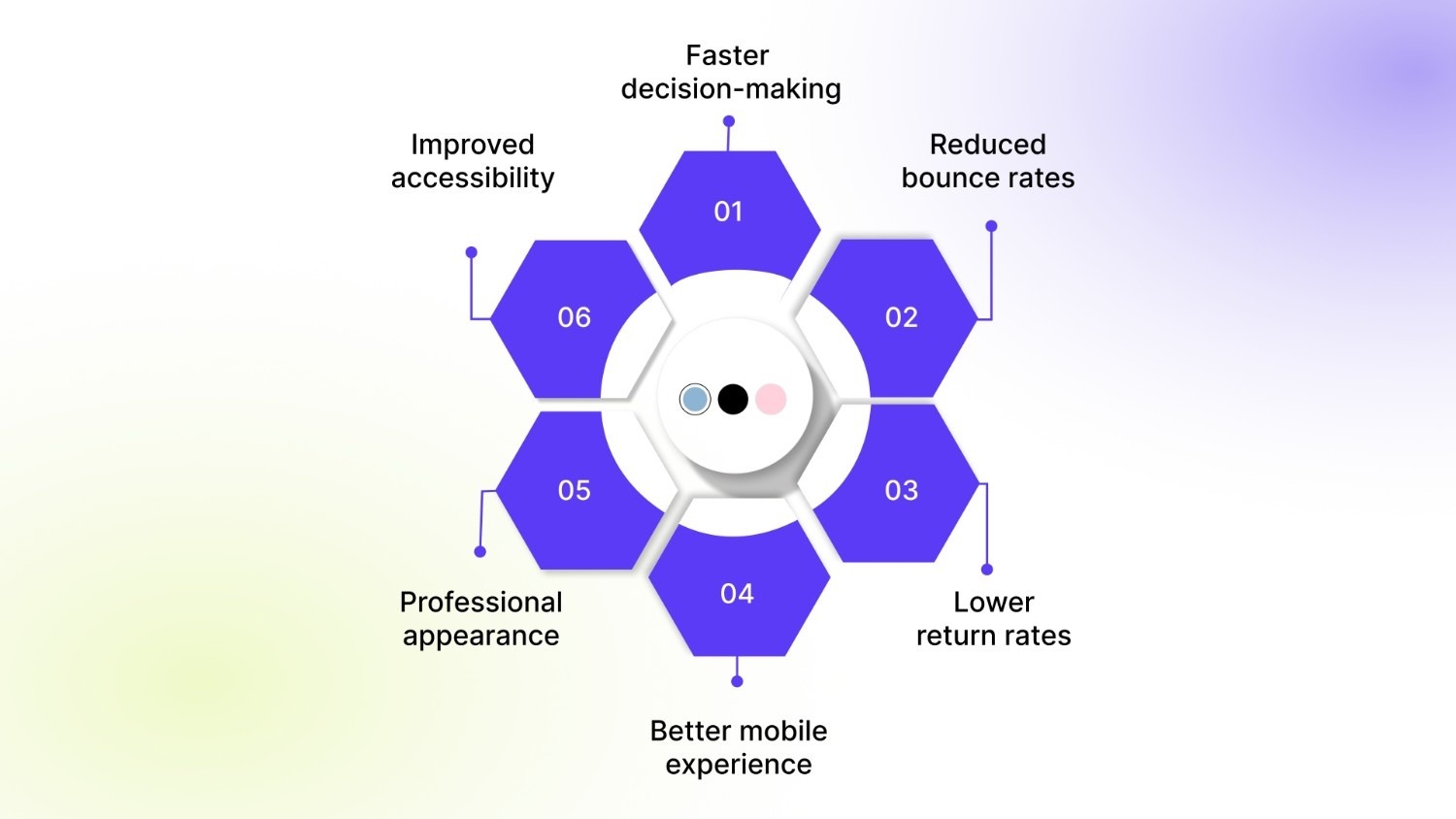
Here's what color swatches bring to your Shopify store:
- Faster decision-making: Customers can instantly view all available colors without needing to click through dropdowns.
- Reduced bounce rates: Visual variety keeps shoppers engaged and encourages them to explore product options for a more extended period.
- Lower return rates: Clear color representation means fewer "this isn't what I expected" returns.
- Better mobile experience: Swatches are easier to tap on small screens than tiny dropdown menus.
- Professional appearance: Your store looks more polished and established, building trust with visitors.
- Improved accessibility: Visual swatches paired with proper labels help users with different browsing needs.
If you're running a fashion, accessories, home goods, or beauty store, color swatches are a necessity. They're what your customers expect from a modern shopping experience.
How to Add Color Swatches in Shopify Dawn Theme Using Native Features?
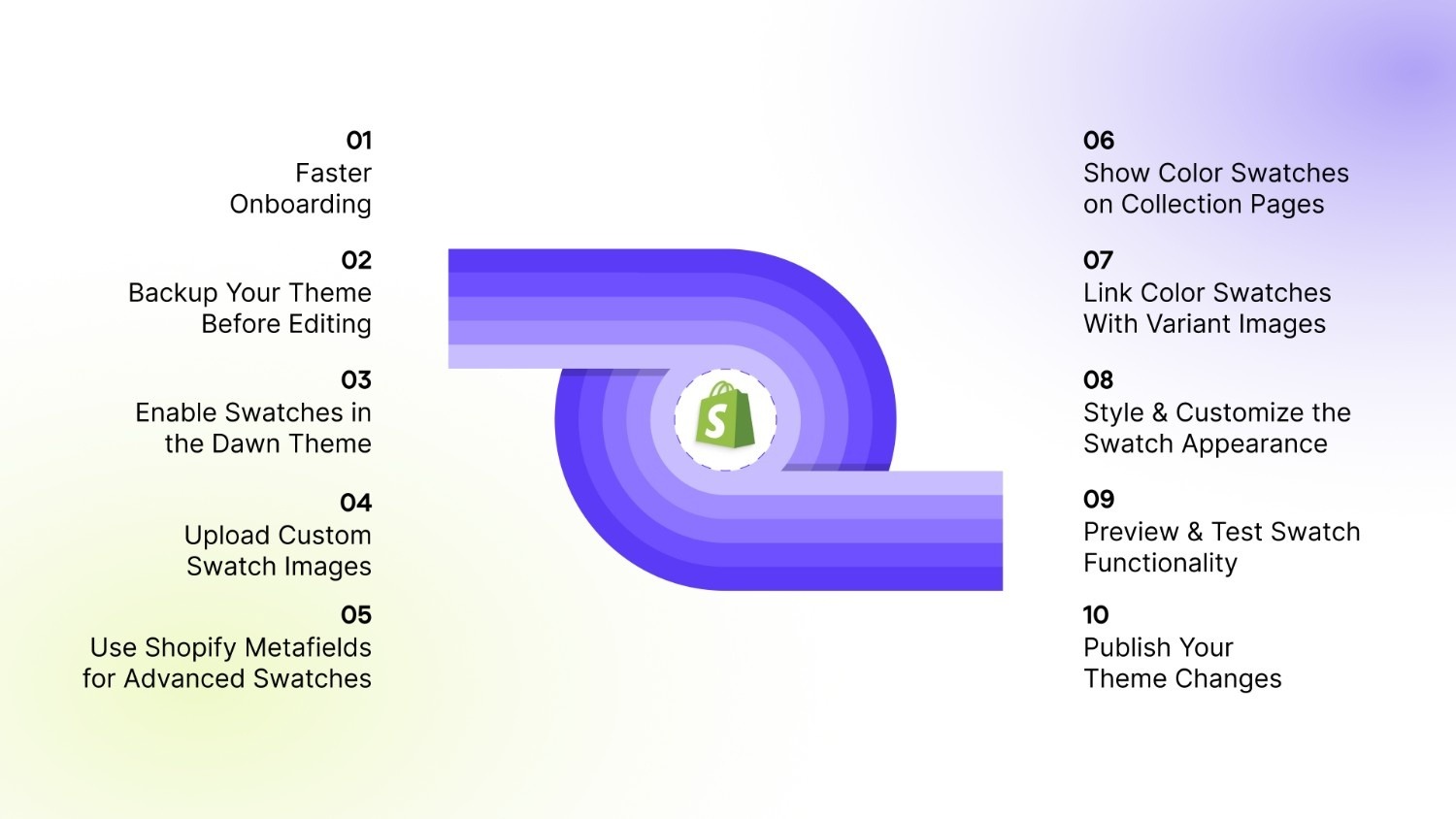
Adding color swatches in Shopify’s Dawn theme combines a few built-in settings with some light customization. In this section, you’ll go through each step, from setting up product variants and preparing your theme to enabling swatches and refining their appearance.
Let’s go through each step in detail:
Step 1: Set Up Product Color Variants
Before color swatches can appear on your store, your products need properly structured variants.
- Navigate to Products in your Shopify admin.
- Select the product you want to add color variants to.
- Scroll to the Variants section and click Add variant.
- Create an option called Color (capitalization matters for some swatch methods).
- Add each color name as a separate value, such as Red, Blue, Navy, etc.
- Keep color names simple and consistent across all products.
- Assign the correct inventory and pricing to each color variant.
- Upload variant-specific images by clicking on each variant and selecting Add media.
- Ensure that each color variant is accompanied by at least one image.
Step 2: Backup Your Theme Before Editing
Making changes to your theme code without a backup is like walking a tightrope without a safety net. One wrong edit can break your entire store layout.
- Go to Online Store > Themes in your Shopify admin.
- Find your active Dawn theme in the Current theme section.
- Click the three-dot menu (•••) next to your theme name.
- Select Duplicate to create an instant backup copy.
- Shopify will create a new theme called "Copy of Dawn" in your theme library.
- Optional: Click the three-dot menu on your duplicate and select "Rename" to give it a descriptive name, such as "Dawn Backup - Nov 2025".
- You can also click 'Download theme file' to save a ZIP file to your computer for added security.
This duplicate theme stays in your library unchanged. If something goes wrong during customization, you can publish the backup theme with a single click to instantly restore your store.
Step 3: Enable Swatches in the Dawn Theme
Recent versions of Dawn (v13.0 and later) include built-in swatch support through Shopify's native variant picker. Enabling this feature requires setting up category metafields first.
- Go to Products in your Shopify admin and select a product.
- Scroll to the Product category section and click Select category.
- Choose a category from Shopify's Standard Product Taxonomy (e.g., Apparel & Accessories > Clothing).
- Once you select a category, scroll down to find Color in the category metafields.
- Click + Add values under the Color metafield.
- Select the standard color entry that matches your variant (e.g., Black, Navy, Red).
- Repeat this process for each color variant in your product.
- Save your product changes.
- Navigate to Online Store > Themes and click Customize on your Dawn theme.
- Open any product page in the theme editor.
- Click the Variant picker block in the left sidebar.
- Change the swatch shape to Circle or Square (not None).
- Click Save to publish your changes.
Your color swatches should now display on product pages. If swatches don't appear, verify that your product category supports the color attribute and that you've connected variant options to the category metafields correctly.
Step 4: Upload Custom Swatch Images (Optional)
Shopify's default color swatches work well for solid colors, but what if you sell patterned fabrics or materials that a single hex code can't represent?
- Go to Settings > Custom data in your Shopify admin.
- Click Products under "Metafields".
- Click Add definition to create a new metafield.
- Set Name to "Color Swatch"
- Set the Namespace and key to custom.color_swatch
- Set Type to File and check one file.
- Save the metafield definition.
- Navigate to your product in Products.
- Scroll to the Metafields section (it appears after you create the definition).
- Upload a small square image (50x50px recommended) showing the actual color or pattern.
- Repeat this process for each variant that requires a custom image.
- Update your theme code to reference product.metafields.custom.color_swatch instead of the default color value.
This method gives you complete control over how swatches appear, ensuring customers see accurate representations of your products.
Step 5: Use Shopify Metafields for Advanced Swatches (Optional)
For stores with complex color variants or custom naming conventions, metafields provide more flexibility than standard category attributes.
- Go to Settings > Custom data > Products.
- Create a new metafield with the Namespace and key set to product.color
- Set Type to Color and check One value.
- Save the definition.
- Open any product and scroll to Metafields.
- Use the color picker to select the exact shade for each variant.
- In your theme code (Sections > main-product.liquid), reference the metafield value: {% if variant.metafields.product.color %}
- Apply the metafield color to your swatch element using inline CSS.
This approach works well when your color names don't match standard HTML color names or when you need pixel-perfect color accuracy.
Step 6: Show Color Swatches on Collection Pages
Dawn theme doesn't natively support swatches on collection pages. This limitation forces customers to click into each product just to see available colors.
Manual Method (Requires Coding):
- Go to Online Store > Themes > Edit code.
- Navigate to the Snippets folder and create a new snippet called color-swatch-collection
- Add Liquid code that loops through product variants and displays swatches.
- Open Sections > card-product.liquid
- Add {% render 'color-swatch-collection' %} where you want swatches to appear.
- Create custom CSS to style the swatches appropriately.
This method demands Liquid templating knowledge and can break with theme updates. Most merchants find this approach time-consuming and error-prone.
App-Based Solution: Tools like StarApps Color Swatch King automatically handle collection page swatches without requiring changes to your theme code. These apps inject swatches through app blocks that survive theme updates and don't require technical expertise.
Step 7: Link Color Swatches With Variant Images Automatically
One of Dawn's best built-in features is automatic image switching when customers select different color swatches.
- Make sure each color variant has images assigned in your product settings.
- Upload all images for a specific color variant by clicking on that variant in Products.
- Click "Add media" and select images that show the color option.
- Dawn automatically filters images when a customer selects a swatch.
- Test this functionality by previewing your product page and clicking different swatches.
If images don't switch when you click swatches, check that variant images are assigned correctly in your product settings. The image file name doesn't matter; what matters is the connection between the variant and the image in Shopify's product editor.
Step 8: Style & Customize the Swatch Appearance
Dawn's default swatch styling may not align with your brand aesthetic. You can customize appearance through the theme editor or with custom CSS.
Theme Editor Customization:
- Go to Online Store > Themes > Customize.
- Click the Variant picker block on any product page.
- Adjust Swatch shape (Circle or Square).
- The theme editor doesn't offer additional styling options.
Advanced Customization (CSS):
- Navigate to Online Store > Themes > Edit code.
- Open Assets > base.css or create a new CSS file.
- Add custom styles for swatch borders, spacing, and hover effects.
- Example: .product-form__input input[type="radio"]:checked + .color-swatch { border: 3px solid #000; }
- Save your changes and preview the product page.
Keep swatch sizes consistent (40x40px is the standard) and ensure sufficient contrast between active and inactive states so that customers can easily identify which color they've selected.
Step 9: Preview & Test Swatch Functionality
Before publishing changes, thorough testing prevents customer-facing issues.
- Click Preview in the theme editor to view your store as customers see it.
- Test every color swatch on multiple products to ensure consistency.
- Verify that images update correctly when swatches are clicked.
- Check swatch appearance on desktop, tablet, and mobile devices.
- Confirm that out-of-stock variants are properly indicated or hidden.
- Test swatch behavior in different browsers (Chrome, Safari, Firefox).
- Ask team members or friends to review your products and report any issues they encounter.
Pay special attention to mobile behavior. Swatches should be large enough to tap easily without accidentally selecting the wrong color.
Step 10: Publish Your Theme Changes
Once testing confirms everything works correctly, it's time to make your changes live.
- In the theme customizer, click Save in the top-right corner.
- If you've been working on a duplicate theme, navigate to Online Store > Themes.
- Find your customized theme and click Actions > Publish.
- Shopify will request confirmation before publishing the theme live.
- Your previous theme becomes a backup automatically.
After publishing, perform a final check of your live store to ensure that everything has transferred correctly. Monitor customer behavior over the next few days to see if color swatches improve your conversion metrics.
Common Mistakes to Avoid When Adding Color Swatches
You've followed the steps, but minor oversights can still sabotage your color swatches. These mistakes are more common than you'd think.
- Incorrect Variant Naming: Inconsistent capitalization or spelling breaks swatch functionality. If one product lists "red" and another lists "Red," Shopify treats them as separate colors. Decide on a naming convention (Title Case or lowercase) and apply it everywhere.
- Not Assigning Variant Images Properly: Uploading images to a product isn't enough. Each variant needs direct image assignments. When customers click a swatch, Shopify searches for pictures associated with that specific variant; missing this connection means swatches won't trigger image changes.
- Forgetting to Optimize Swatch Contrast: Light-colored swatches (such as cream, pale pink, or light gray) can disappear against a white background. Add a subtle border to all swatches or use a slight drop shadow to ensure every color remains visible.
- Skipping Mobile Testing: Desktop swatches look perfect, but mobile users see tiny, unclickable dots. Test on actual mobile devices, not just browser resize tools. Your swatches should be large enough to tap without needing to zoom in.
- Using Large Swatch Image Files: High-resolution swatch images can slow down page loading, particularly on collection pages that display numerous products. Compress swatch images to under 5KB each and use WebP format when possible.
- No ALT Text or Labels: Screen readers announce "button" instead of "Navy Blue" when swatches lack proper labels. Add aria-labels or ensure color names appear on hover for accessibility compliance.
Avoiding these mistakes ensures that your swatch implementation remains clean, functional, and user-friendly. Even with careful setup, Dawn's native swatch system has limitations that become apparent as your catalog grows.
Where Shopify's Default Swatches Fall Short?
Dawn's built-in color swatches cover basic needs, but they hit a wall quickly when you try to do anything beyond simple product pages.
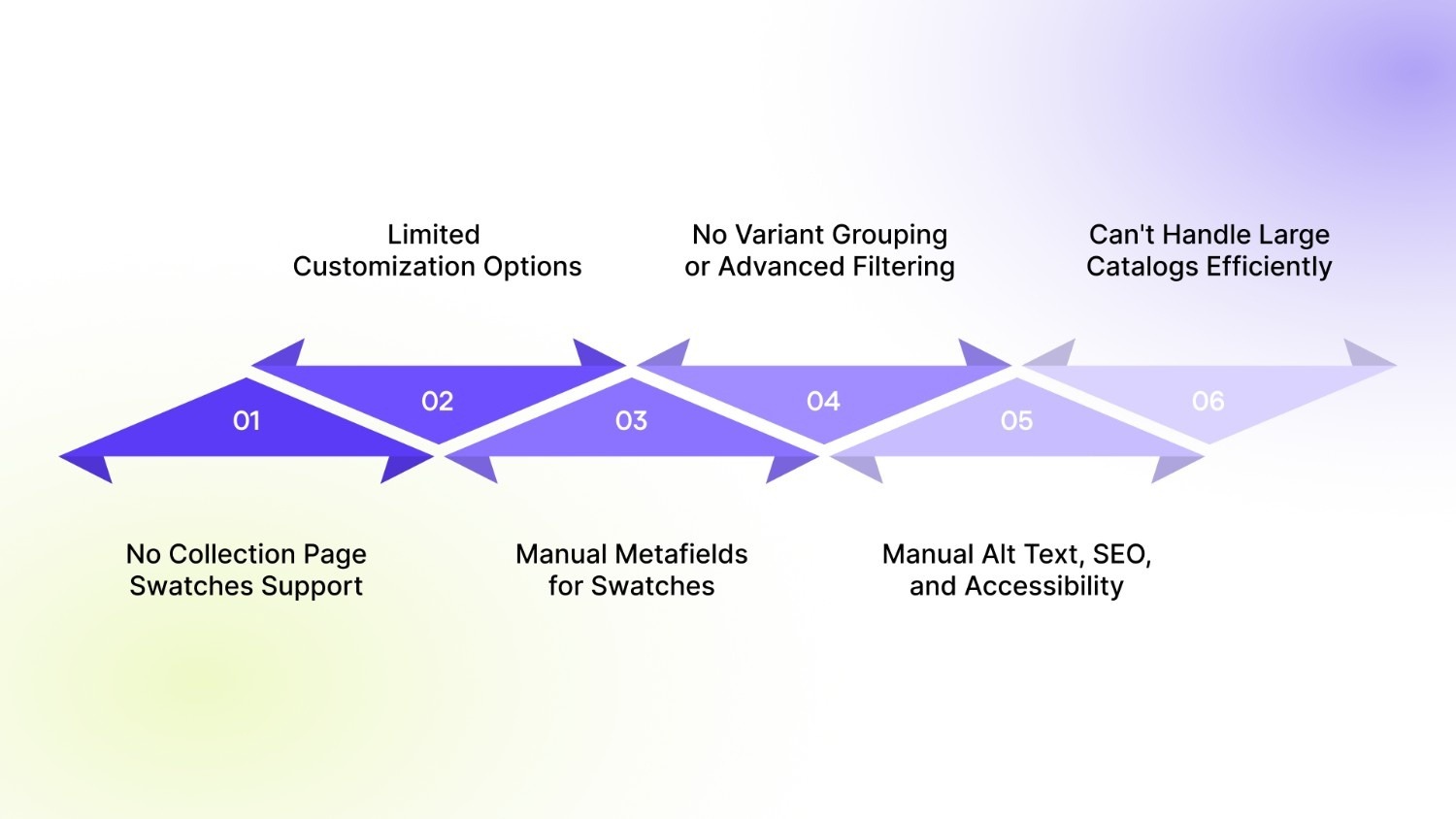
No Support for Collection Page Swatches
Customers browsing your collection pages see standard product cards with no color options. They must click into each product to view available colors, adding unnecessary steps to their shopping journey.
This limitation particularly affects stores with extensive color ranges. A dress available in 12 colors forces customers to open the product page just to see their options, increasing friction in the browsing experience.
Limited Customization Options
Dawn offers two swatch shapes: circle and square. That's it. You can't add gradients, patterns, dual-color swatches, or texture overlays without diving into complex theme code modifications.
Stores selling materials like marble, wood grain, or fabric patterns can't accurately represent their products with simple color blocks. Custom swatch images require metafield setup and code editing, both of which break during theme updates.
Manual Metafields Setup for Image-Based Swatches
Suppose you want to display actual fabric swatches instead of solid colors. In that case, you will need to create custom metafields, upload images for each variant, and modify the Liquid code to reference those metafields.
This manual process becomes unmanageable as your catalog grows. Adding 50 new products means hundreds of individual metafield entries and a constant risk of human error.
No Variant Grouping or Advanced Filtering
Dawn doesn't support combined listings where variants appear as separate products on collection pages. If you sell the same shirt in 8 colors, customers see one listing, not eight individual options.
This structure limits filtering capabilities. Customers can't filter collection pages by specific colors without clicking through products individually.
Alt Text, SEO, and Accessibility Setup Are All Manual
Every swatch image needs descriptive ALT text for screen readers. Every color name should be included in your product metadata for improved search visibility. Dawn makes you add these manually for every single variant.
Without automated ALT text, your images remain invisible to search engines and inaccessible to users who rely on assistive technology.
Can't Handle Large Catalogs Efficiently
Manually managing swatches for 10 products is tolerable. Managing swatches for 500 products becomes a full-time job. Theme updates can wipe custom code, forcing you to reimplement everything from scratch.
That's where specialized Shopify apps bridge the gap. Tools built specifically for variant management handle these limitations automatically.
Eliminate Shopify Dawn's Swatch Limitations with StarApps Studio Tools
Once Dawn's native swatch capabilities fall short, third-party apps become practical solutions for filling those gaps. StarApps offers solutions specifically designed for variant management, which integrate smoothly with Shopify without disrupting your theme structure.
Below are three StarApps applications that address the swatch and variant display challenges Dawn struggles with.
Color Swatch King
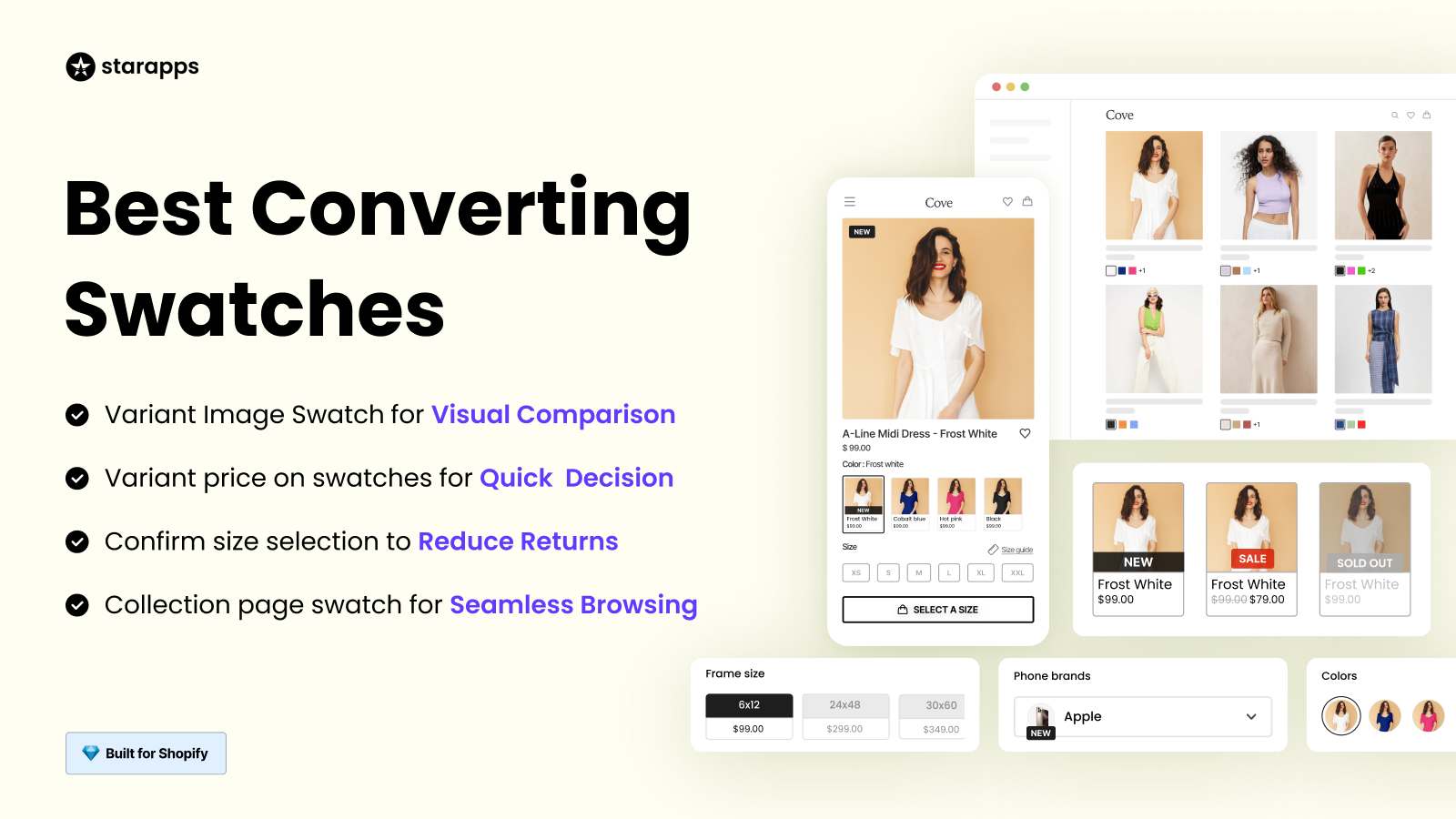
Dawn's native swatches only appear on product pages and offer minimal styling options. Color Swatch King extends this functionality to collection pages, providing granular control over swatch appearance and behavior.
How it solves color swatch limitations:
- Displays color swatches directly on collection pages, enabling customers to view available options before navigating to product details.
- Supports multiple swatch types (color blocks, custom images, variant-specific thumbnails) to accurately represent patterns, textures, or multi-tone variants that solid colors can't capture.
- Automatically hides or grays out sold-out variants across your catalog, preventing customer frustration from selecting unavailable colors.
- Allows bulk upload of swatch images via CSV, eliminating the need to manually configure swatches for hundreds of variants individually.
- Integrates with Shopify Markets, filters, and search, allowing color swatches to work smoothly with your store's existing infrastructure.
Variant Image Automator
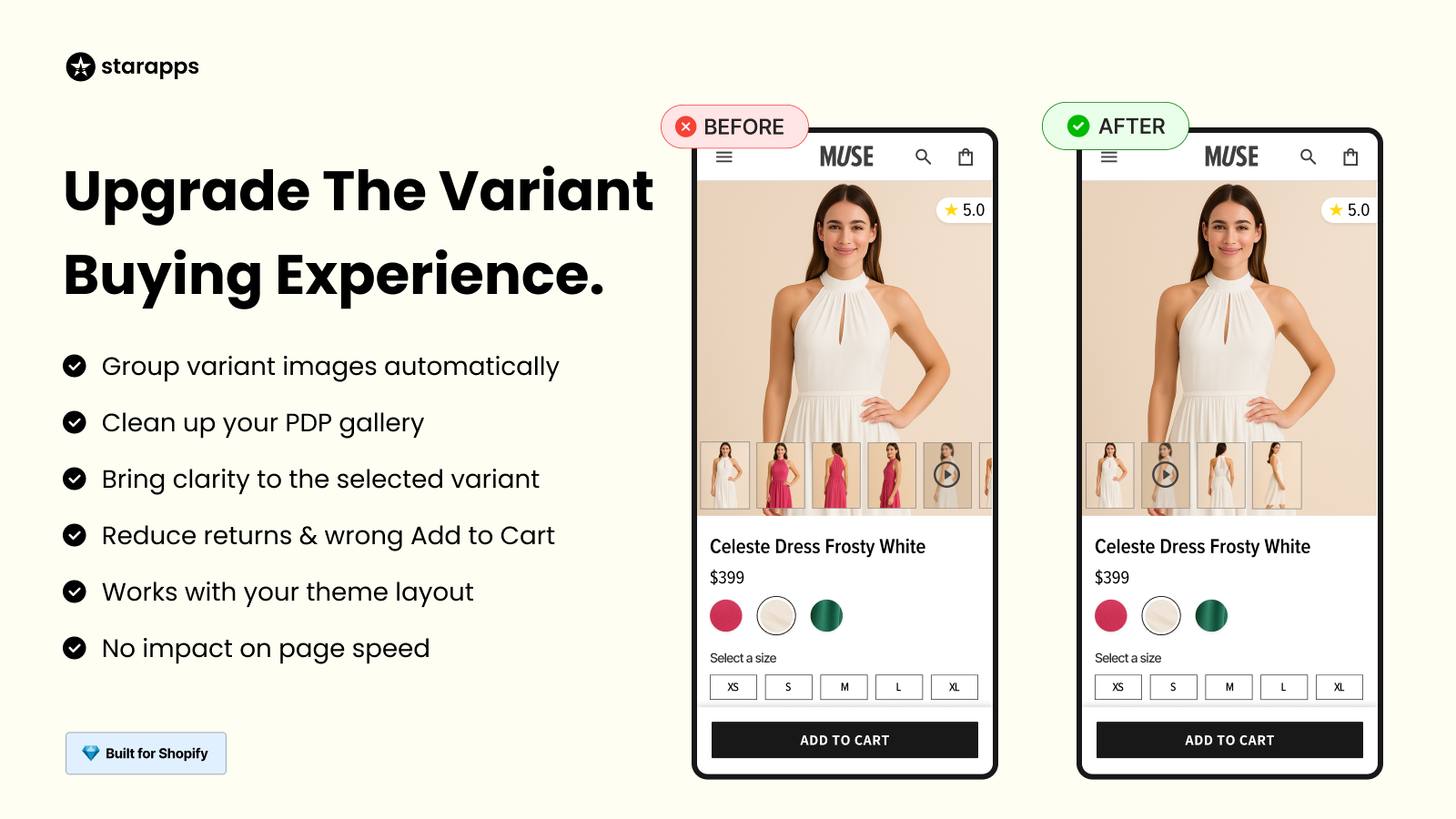
Dawn switches product images when customers select swatches, but only if you've manually assigned images to each variant. As your catalog scales, that manual process becomes unsustainable. Variant Image Automator automatically handles image-to-variant associations.
How it enhances color swatch functionality:
- Auto-assigns multiple images to selected variants based on upload order or naming conventions, eliminating the need to tag images for each color option manually.
- Keeps variant image galleries clean by displaying only the images relevant to the currently selected swatch, reducing visual clutter.
- Supports advanced media types (3D models, videos, zoom features) across all color variants without requiring a separate setup for each option.
- Maintains your theme's existing gallery structure (zoom, layout, image order) to prevent automated image assignments from disrupting your store design.
- Facilitates migration from other variant image tools, allowing you to import existing swatch-image configurations in bulk rather than rebuilding everything manually.
SA Variants: Combined Listings

Dawn groups all color options under one product listing, which limits customers' ability to discover and filter products by color. SA Variants: Combined Listings splits variants into individual collection page entries with unique URLs for each color.
How it solves color discoverability issues:
- Displays each color variant as a separate listing on collection pages, making every color option immediately visible.
- Creates unique SEO-friendly URLs for each color variant, improving search engine visibility for specific colors (e.g., "navy blue cotton shirt" vs. just "cotton shirt").
- Enhances filter functionality by treating color variants as distinct products, allowing customers to refine searches by exact color without needing to navigate away from collection pages.
- Pairs with Color Swatch King to display swatches on these split listings, providing customers with visual confirmation of colors alongside the separate product entries.
- Maintains accurate inventory tracking per color variant, ensuring each split listing reflects real-time stock availability for that specific option.
By using StarApps tools, you can extend Dawn's basic swatch system into a comprehensive color display solution that works across product and collection pages.
Conclusion
A smooth shopping experience often comes down to how effortlessly customers can explore your products. Adding color swatches to your Shopify Dawn theme instantly enhances clarity, streamlines decision-making, and gives your store a more polished look.
While Dawn’s built-in tools handle the basics well, they can only go so far before you start running into limitations, especially as your catalog expands. That’s where a purpose-built solution like StarApps Studio helps you move from functional to exceptional. Their suite of apps simplifies variant management, ensures visual consistency across pages, and scales effortlessly with your store’s growth.
If you’re ready to give your customers a faster, more engaging way to shop, explore what StarApps Studio can do for your store. Get in touch with StarApps Studio to discover the easiest way to enhance your color swatches, streamline your product display, and create a smoother path for your buyers.
FAQ’s
1. How to add a color library to swatches?
You can add a color library to swatches in Shopify by creating metafields for color values or uploading custom color files that connect directly to your product variants.
2. How do I add color variants on Shopify?
Go to Products in your Shopify admin, open a product, and under Variants, create an option named “Color.” Add each color name as a value and save.
3. How to show a variant image in the Shopify Dawn theme?
Assign images to each variant in the product editor. When a customer selects a color swatch, the Dawn theme automatically displays the image linked to that variant.
4. How to improve the Dawn theme on Shopify?
Enhance the Dawn theme by optimizing images, enabling color swatches, refining typography, and utilizing compatible apps for advanced filters, faster navigation, and improved product display.
5. How to change the variant pill color in Shopify?
Edit your theme’s CSS or customize through the Theme Editor. Adjust the background or border color of variant pills to match your store’s design palette.
Heading

End-to-end traceability
To ensure regulatory compliance, you must have a complete overview of your products from production to shipping. Book a demo to see how Katana can give you full visibility of your operations.



.png)

.svg)

.svg)

.svg)
.png)