
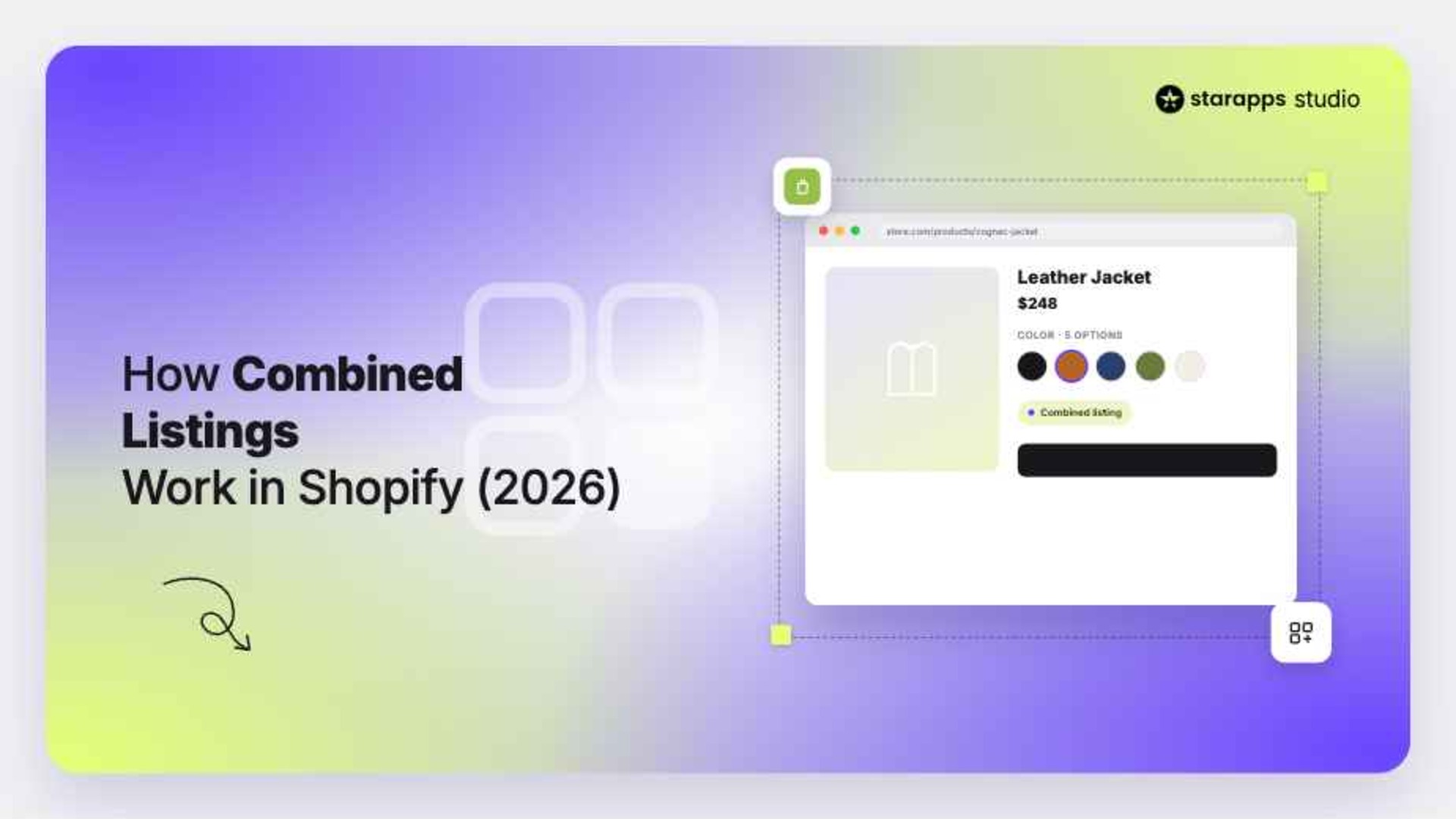

Learn how Shopify combined listings work, what limits apply in 2026, and how non-Plus merchants can achieve the same result without the Plus price tag.
Your fashion store sells a leather jacket in five colors. Each color lives on its own product page, each with its own URL. When a customer lands on the black jacket and wants to see the cognac brown, they have no obvious way to get there — no swatch, no toggle, no visual cue. They click away. You lose the sale.
That friction is exactly what Shopify combined listings are designed to eliminate. According to Salsify's 2025 Consumer Research Report, 77% of shoppers say high-quality images and visual options are important to their purchase decisions. If your storefront makes them hunt for color variants, most of them won't bother.
In this article, we'll walk through what Shopify combined listings are, how to set them up, where the native feature falls short, and what Shopify merchants on any plan can do to get the same result.
TL;DR
- Shopify combined listings let you group separate products under one product detail page so customers can switch between variants using swatches.
- The native Shopify Combined Listings app is available only to Shopify Plus merchants — Basic, Grow, and Advanced plan users are locked out.
- Each child product in a combined listing keeps its own URL, image gallery, title, and description, a significant SEO advantage.
- Non-Plus merchants can replicate this experience using SA Variants: Combined Listings, which works across all Shopify plans.
- Setting this up is not a one-time fix. It requires separate products, clean product data, and the right app configuration to work properly.
What Are Shopify Combined Listings?
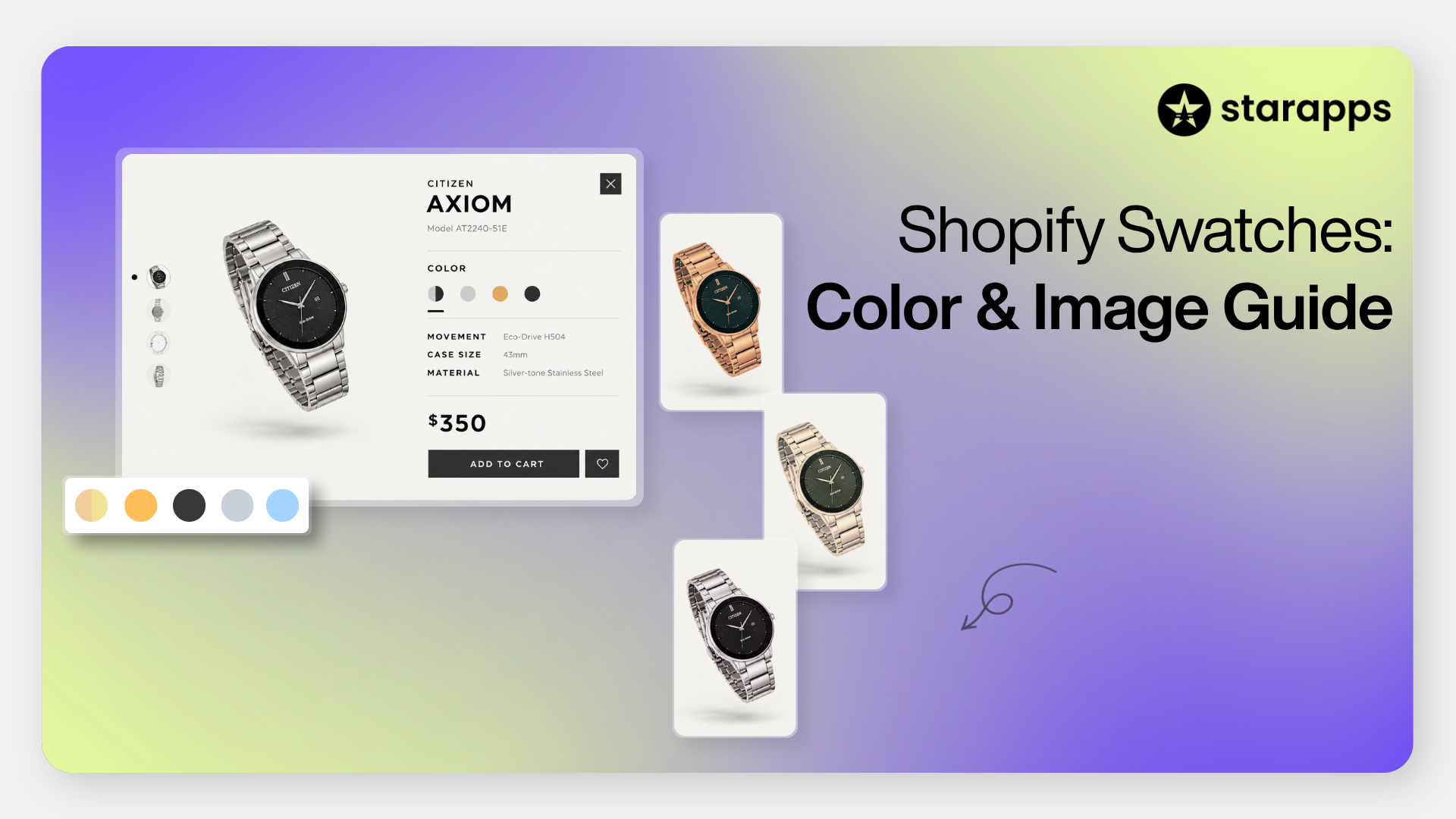
Shopify combined listings let you link multiple standalone products — each representing a different color, material, or style — and display them together on a single product detail page. The customer sees all the options at once via swatches or buttons, clicks a color, and the page updates to show that product's images, title, URL, and description.
The key distinction from standard Shopify variants is structural. With regular variants, all options (blue, red, green) reside in a single product record. With combined listings, each option is its own product with its own inventory, URL, and image gallery. A parent product ties them together visually on the storefront, but the child products remain separate in the Shopify admin.
This structure matters for two reasons. First, each child product can carry variant-specific images, descriptions, and SKUs, details that a standard variant dropdown cannot support. Second, because each child has a unique URL, search engines can index them individually, which broadens your organic footprint.
How Shopify Combined Listings Work: The Parent-Child Model
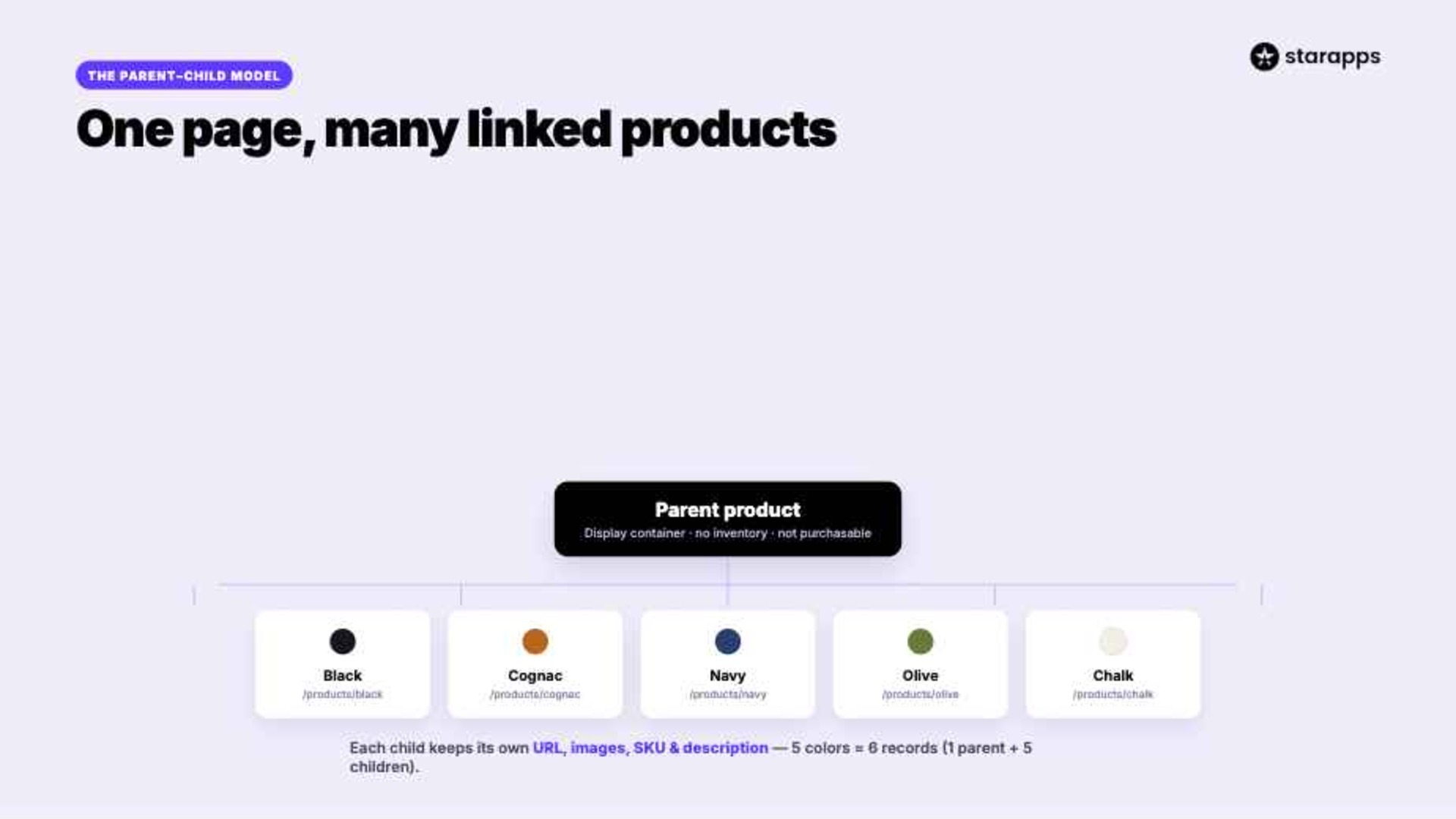
Before you set anything up, it helps to understand the architecture clearly.
Child products are the individual items you already have in your store — the red jacket, the blue jacket, the green jacket. Each one has its own images, inventory, SKU, and product page. These are the products your customers actually buy.
The parent product is created when you set up a combined listing. It acts as the display container. Customers land on the parent page and see swatches for every child. Clicking a swatch takes them to that child product's URL. The parent itself cannot be purchased and carries no inventory.
This means a combined listing with five color variants has six product records in your admin: one parent and five children.
A combined listing can hold up to 2,000 variants across its child products, which is sufficient for most catalogs. The parent supports up to six total option types when you combine the parent's own options with those on the child products.
A few operational rules worth knowing before you start:
- A product can only belong to one combined listing at a time.
- You cannot nest one combined listing inside another.
- Combined listings only display on the Online Store channel — they do not work with Shopify POS, subscription apps, or product bundles.
- If you duplicate a parent product, the copy is created as a regular product without the combined listing structure.
The Big Limitation: Shopify Plus Only

Shopify combined listings are available only to stores on a Shopify Plus plan. That starts at around $2,300 per month — well outside the budget of most small and mid-sized Shopify stores.
This is the core problem with the native feature: the merchants who arguably need it most, growing DTC brands with large variant catalogs, are often on Basic or Advanced plans and cannot access it at all.
The practical impact is significant. Without combined listings, a store selling a jacket in eight colors has eight separate product pages with no easy way to connect them visually. Customers who land on the wrong color have to go back to the collection page and hunt for the right one, adding friction that directly costs conversions.
There is a workaround that works for merchants on any plan, and we'll cover it in detail below.
How to Set Up Shopify Combined Listings (Plus Merchants)

If you are on Shopify Plus, here is how to get started.
Step 1: Create your child products: Each variant needs to exist as its own product in your Shopify admin. If you sell a t-shirt in five colors, you need five separate product listings — each with its own images, title, inventory, and SKU. Do this before touching the combined listings app.
Step 2: Install the Combined Listings app: Go to the Shopify App Store and install the native Combined Listings app. It is available at no additional charge for Plus merchants and integrates directly into your Shopify admin.
Step 3: Create a new combined listing: Inside the app, click to create a new combined listing. You'll give the group an option name, typically "Color," "Material," or "Style", and then select the child products you want to link.
Step 4: Assign option values: Each child product needs an option value — the label that appears on the swatch. "Navy Blue" for the navy product, "Forest Green" for the green one. You can assign these manually or connect category metafields to populate them automatically.
Step 5: Publish: Once your group is saved, the parent product page goes live with swatches linking to each child. The parent product should be set to "Unlisted" so it doesn't appear independently in collections — customers should land on child product pages and see the swatches, not on the parent.
What to Watch For
Certain features and apps are either incompatible with the Combined Listings app or prevent certain options within the app from working as expected. Apps that modify product pages, such as custom recommendation widgets, subscription apps, and certain review apps, may not render correctly on combined listing pages. Always preview the combined listing before publishing to catch compatibility issues.
Additionally, when filtering product options with the Shopify Search & Discovery app, the child products of a combined listing won't appear in the filter results — a known limitation that affects stores that rely heavily on faceted search.
Not on Shopify Plus? Here's What You Can Do Instead
The good news is that the outcome — separate products linked by swatches, each with its own URL and image gallery — is achievable on any Shopify plan. You just need the right app.
SA Variants: Combined Listings from StarApps Studio replicate the core combined listings experience without the Plus requirement. You create product groups in the app, assign option values, and the app displays swatches on both product pages and collection pages, linking each child product by its URL.
Here is what that looks like in practice for a store selling footwear:
A shoe brand has five colorways for its best-selling trainer — White, Black, Chalk, Navy, and Olive. Each colorway is a separate Shopify product with its own photo shoot, inventory, and SKU.
Using SA Variants: Combined Listings links the five products into one group. Now, when a customer lands on the White trainer page, they see all five color swatches. Clicking "Navy" takes them to the Navy product page, where Navy-specific images load instantly. The URL changes. The description changes. The images change. It is the full combined listings experience without the Plus plan.
Key features that make this work:
Variant-specific image galleries. Each child product keeps its own photo gallery. When a customer selects a swatch, the images update to match — no mismatched visuals, no confusion.
SEO-friendly URLs. Because each child is a real Shopify product, it has its own /products/slug URL. Google indexes each one separately, so your Navy trainer can rank for "navy leather trainer" independently of your White one.
Collection page swatches. Swatches appear directly on product cards in collections, not just on product pages. A customer browsing your footwear collection sees all five colors on the card — reducing the need to click into individual pages to discover options.
Out-of-stock management. Sold-out variants can be hidden, pushed to the end of the swatch row, or shown crossed out — keeping the browsing experience clean.
If you're already using Variant Image Automator alongside this, variant images are automatically assigned to the correct swatch without manual tagging, saving significant time across large catalogs.
If you're on Basic, Grow, or Advanced and want the combined listings experience today, SA Variants: Combined Listings is the fastest way to get there. Install the app on the Shopify App Store.
The SEO Case for Combined Listings
One underappreciated benefit of the combined listings approach — whether native or via an app — is what it does for organic search.
When you have five colors of the same jacket, and each lives on its own URL with its own title and description, Google treats each one as a distinct indexable page. A customer searching "cognac brown leather jacket women's" can land directly on your cognac brown product page — not your homepage, not a collection page, and not the wrong color.
This kind of variant-level SEO is hard to achieve with a single product record that uses standard Shopify variants. The product has one URL regardless of which variant is selected. Color-specific search terms go unaddressed.
For DTC brands managing catalogs of 50, 100, or 500 SKUs, the compounding effect quickly compounds. Each independently ranked variant is another entry point into your store, without additional ad spend.
Display All Variants on Collection Pages: A Feature Worth Highlighting
Standard Shopify shows one product image per listing on collection pages. If your navy jacket is the "default" color, that is the only one customers see when browsing.
SA Variants: Combined Listings changes this by displaying color swatches directly on collection cards. Customers can see at a glance that a product comes in five colors, which increases the chances they'll engage with the listing rather than scrolling past it.
A mid-sized fashion retailer with 200 products and 4–6 variants each implemented this configuration and saw a measurable reduction in collection-page bounce rate because customers could identify their preferred variant before even clicking into the product page. Less hunting. Faster decisions. More add-to-cart actions.
Use SA Variants: Combined Listings on Any Shopify Plan
Whether you are on Basic, Grow, Advanced, or Plus, SA Variants: Combined Listings gives you the combined listings experience without the platform restrictions or the Plus price tag.
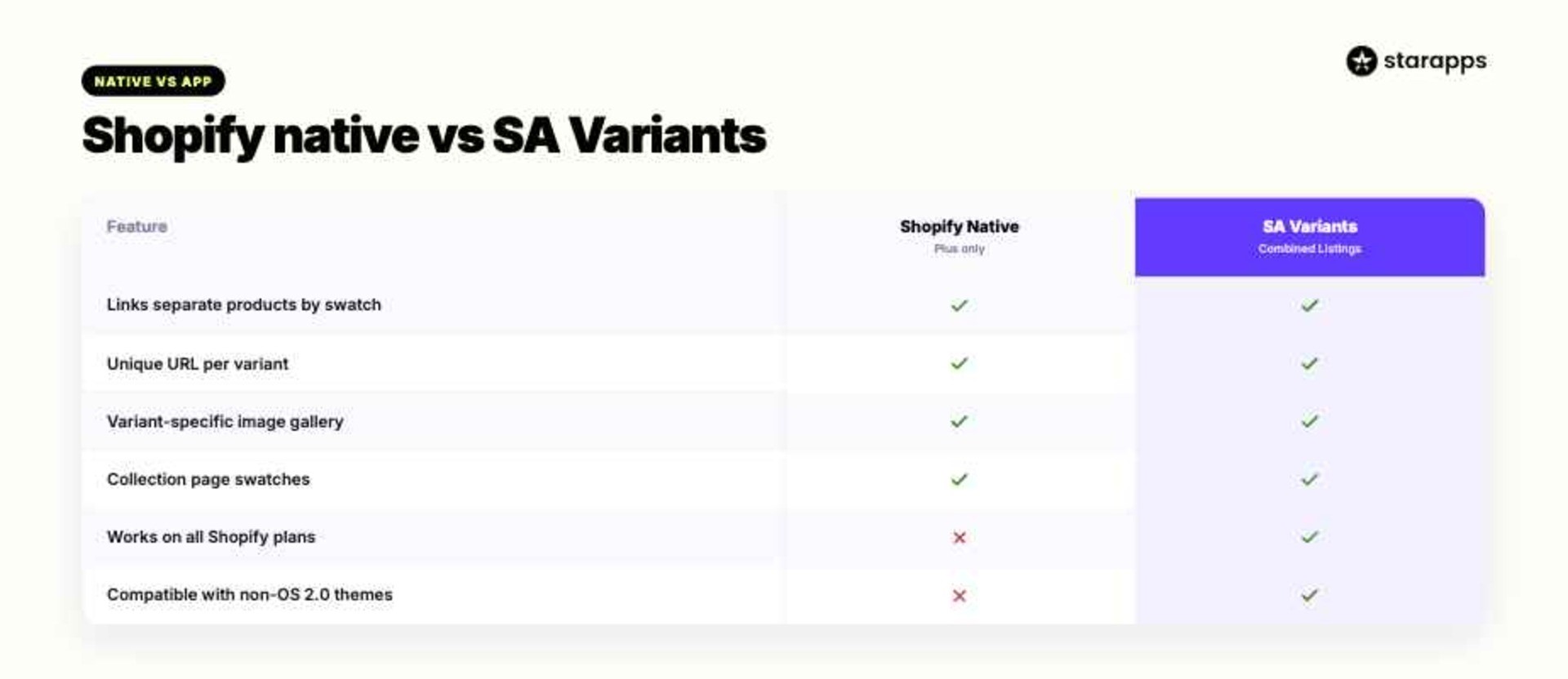
Here is a summary of what it covers:
If you are running a store with multiple product variants and want your customers to navigate between them without friction — while also building your SEO footprint one variant at a time — this is the configuration to get right.
Conclusion
Shopify combined listings solve a real problem: separate products that belong together visually, but exist independently in your store. The native feature does this well — but only if you're on Plus. For the majority of Shopify merchants, the cost barrier makes it inaccessible.
The architecture itself — child products with their own URLs, images, and descriptions, linked by swatches on a single page — is sound and worth replicating regardless of your plan tier. SA Variants: Combined Listings give you exactly that, without the plan requirement.
If your store sells products with multiple colors, materials, or styles and you're currently sending customers to dead ends between disconnected product pages, this is worth addressing sooner rather than later. The setup is straightforward, and the impact on navigation, discoverability, and conversion is direct.
Ready to connect your product variants and stop losing customers between pages? Try SA Variants: Combined Listings — it works on any Shopify plan.
Frequently Asked Questions
1. What is the difference between Shopify combined listings and regular variants?
Standard Shopify variants group options (color, size) into a single product record, with a single URL and image gallery. Combined listings use separate products for each option, each with its own URL, image set, and description, and connect them visually with swatches. This separation enables variant-specific SEO, dedicated image galleries, and cleaner inventory management by color or style.
2. Do I need Shopify Plus to use combined listings?
Shopify's native Combined Listings app requires a Shopify Plus plan. However, apps like SA Variants: Combined Listings from StarApps Studio replicate the same experience, with linked swatches, variant-specific URLs, and separate image galleries, on any Shopify plan, including Basic, Grow, and Advanced.
3. Will setting up combined listings affect my store's collection filters?
With Shopify's native implementation, child products may not appear correctly in filter results when using the Search & Discovery app. Apps like SA Variants: Combined Listings store grouping data separately from product data, so collection filters continue to work as expected — an important consideration for stores with filtered collection pages.
4. Can I show combined listing swatches on my collection pages, not just product pages?
Yes. SA Variants: Combined Listings display color swatches directly on product cards in your collections. Customers can see all available color options at a glance while browsing, without having to click into individual product pages first.
5. How does the combined listings structure benefit SEO?
Because each product variant has its own URL and product page, search engines index each one individually. A customer searching for a specific colorway, "olive green canvas sneaker," for example, can land directly on that variant's page rather than a generic product page. Over time, this creates multiple ranking entry points across long-tail search terms without requiring additional paid traffic.
Heading

End-to-end traceability
To ensure regulatory compliance, you must have a complete overview of your products from production to shipping. Book a demo to see how Katana can give you full visibility of your operations.

.png)

.svg)

.svg)

.svg)
.png)